

Introduction:
This code-sample includes two ListView controls that the user can sort and move items and drag items from one control to another. This sample can be used for many puroses. For example, you can create an application of online shopping and the customer will have better feelings about your application.
Here is the code
- Create a C# "ASP.NET Empty Web Application" in Visual Studio 2010 or Visual Web Developer 2010
- Add a web form named "Default.aspx" to the root directory.
- Create a "XmlFile" folder and add two XML files in it, "ListView1.xml" and "ListView2.xml".
- Filling in some elements in the XML file, like code sample and the data will bind to the ListView controls.
- <root>
- <data open="0">element 1</data>
- <data open="1">element 2</data>
- <data open="1">element 3</data>
- <data open="1">element 4</data>
- <data open="1">element 5</data>
- <data open="1">element 6</data>
- <data open="1">element 7</data>
- </root>
- <link href="JQuery/jquery-ui.css" rel="stylesheet" type="text/css" />
- <script src="JQuery/jquery-1.4.4.min.js" type="text/javascript"></script>
- <script src="JQuery/jquery-ui.min.js" type="text/javascript"></script>
- <script type="text/javascript">
- $(function ()
- {
- $("#sortable1, #sortable2").sortable
- ({
- connectWith: ".connectedSortable"
- }).disableSelection();
- });
- $(document).ready(function ()
- {
- $("li").dblclick(function ()
- {
- $(this).closest('li').remove();
- });
- });
- </script>
- // Bind two xml data file to ListView control, actually you can change the "open" property to "0",
- // In that way, it will not display in ListView control.
- XmlDocument xmlDocument = new XmlDocument();
- using (DataTable tabListView1 = new DataTable())
- {
- tabListView1.Columns.Add("value", Type.GetType("System.String"));
- xmlDocument.Load(AppDomain.CurrentDomain.BaseDirectory + "/XmlFile/ListView1.xml");
- XmlNodeList xmlNodeList = xmlDocument.SelectNodes("root/data[@open='1']");
- foreach (XmlNode xmlNode in xmlNodeList)
- {
- DataRow dr = tabListView1.NewRow();
- dr["value"] = xmlNode.InnerText;
- tabListView1.Rows.Add(dr);
- }
- ListView1.DataSource = tabListView1;
- ListView1.DataBind();
- }
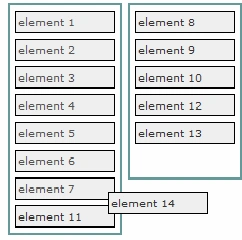
Please drag items from a ListView control to another, you can also sort items by dragging items to the right position.
Double-click one item to drop it from the ListView control.
Vicky VyasPosted Mar 23, 2015, 12:46 AM
very Useful Concept Thanx........
RakeshPosted Mar 20, 2015, 5:20 PM
Good start
Tom MohanPosted Mar 20, 2015, 9:27 AM
useful
Keertti Raj Thangavelu BabuPosted Mar 20, 2015, 8:13 AM
nice ...