

Introduction
This article shows how to get a dynamic server name that is installed in the system and using that name show a list of the existing databases. Then you will use a connecting string dynamically in the project.
- First create a Windows Form application
- In your system if another version of Microsoft SQL is already installed then download the project and use DLL file in your project. Then, go to the References and right-click on References and click on Add Reference then go to the Browse button.

Figure 1:Refrence Manager
Go to the directory where both of the DLL files are and add them to the project. 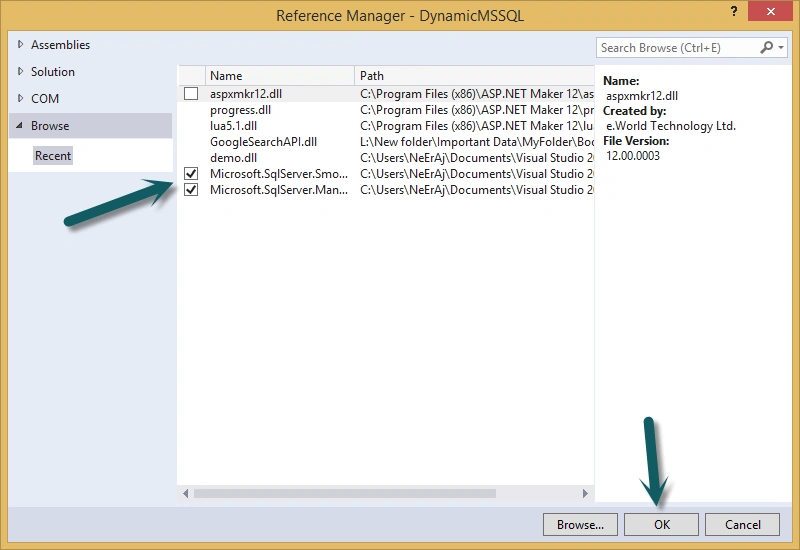
Figure 2: DLL Files
If you have installed Microsoft SQL then go to Assemblies and find the following:
Microsoft.SqlServer.ConnectionInfo
Microsoft.SqlServer.Management.Sdk.Sfc
Microsoft.SqlServer.Smo
Microsoft.SqlServer.SqlEnum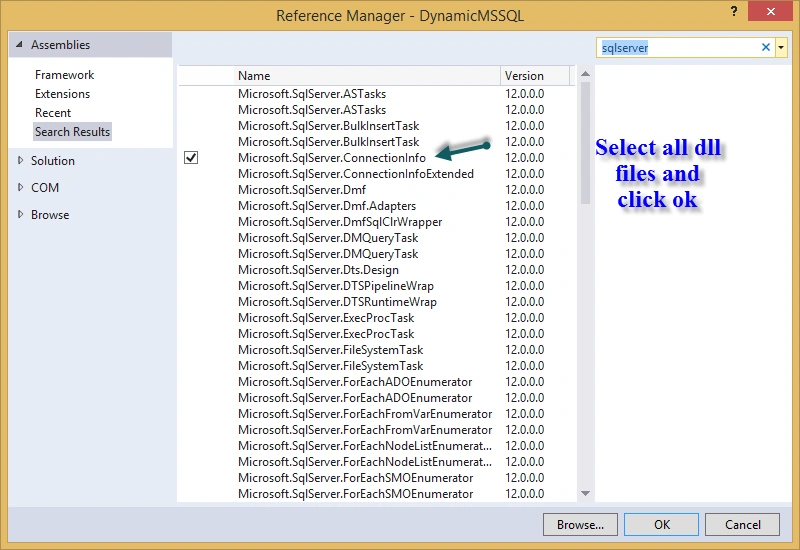
Then create the following GUI application:
Figure 3: GUI Application
Add the following namespaces:
- using Microsoft.SqlServer.Management.Smo;
- using System.Data.SqlClient;
- public partial class Form1: Form
- {
- string serverName;
- public SqlConnectionStringBuilder connectionString = new SqlConnectionStringBuilder();
- public Form1()
- {
- InitializeComponent();
- }
- private void Form_Load(object sender, EventArgs e)
- {
- DataTable dataTable = SmoApplication.EnumAvailableSqlServers(true);
- listBox1.ValueMember = "Name";
- listBox1.DataSource = dataTable;
- }
- private void listBox1_SelectedIndexChanged(object sender, EventArgs e)
- {
- listBox2.Items.Clear();
- if (listBox1.SelectedIndex != -1)
- {
- serverName = listBox1.SelectedValue.ToString();
- Server server = new Server(serverName);
- try
- {
- foreach(Database database in server.Databases)
- {
- listBox2.Items.Add(database.Name);
- }
- } catch (Exception ex)
- {
- string exception = ex.Message;
- }
- }
- }
- private void submit_Click(object sender, EventArgs e)
- {
- connectionString.DataSource = serverName;
- if (listBox2.SelectedIndex != -1)
- {
- connectionString.InitialCatalog = listBox2.SelectedItem.ToString();
- connectionString.IntegratedSecurity = true;
- this.Hide();
- Splash frm = new Splash(connectionString);
- frm.Show();
- } else
- {
- MessageBox.Show("Please Select Database Name");
- listBox2.Focus();
- }
- }
- private void Cancel_Click(object sender, EventArgs e)
- {
- Application.Exit();
- }
Add Namespace
- using System.Data.SqlClient;
- public SqlConnectionStringBuilder cs;
- public Splash(SqlConnectionStringBuilder con)
- {
- InitializeComponent();
- cs = con;
- }
Figure 4 is the GIF image displaying the output.
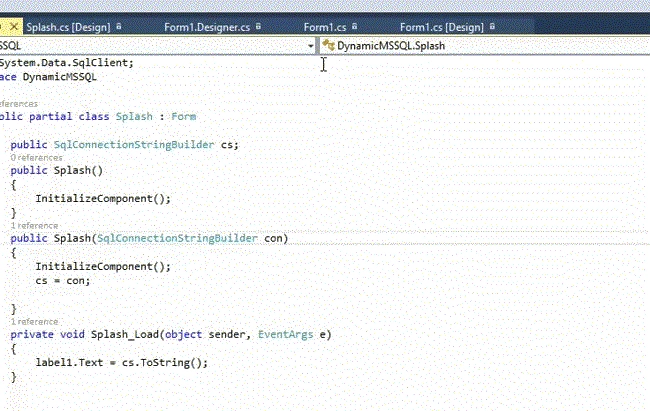
Figure 4: Splash Window
Thank you.
Sibeesh VenuPosted Jul 11, 2015, 8:24 AM
Nice share.
RakeshPosted Jul 10, 2015, 4:10 PM
Good one
Former memberPosted Jul 10, 2015, 9:48 AM
Nice article
Pankaj Kumar ChoudharyPosted Jul 10, 2015, 8:38 AM
Nice Explain neeraj..........
Nilesh JadavPosted Jul 10, 2015, 7:27 AM
Nice one !
Debasis SahaPosted Jul 10, 2015, 6:26 AM
Good One..