

In my current project, I needed a localization feature where users can switch languages at run time. After googling for several hours, I found an article that was close to my requirements except that it didn't support the design time. Another solution had design time support but it was far more complex. So I decided to develop my own solution by extending one of them that was closer to my requirements.
Please note, this is not purely my idea. I just extended it to fit my requirements and I wanted to share this.
My requirements are.
- Application UI uses the language of the operating system by default.
- User can change the language at run time.
- The application supports design time, so the developer can see the default words while developing.
- Localized words be separated across multiple files. Each window (page) uses one file for easy development and maintenance.
Let’s begin.
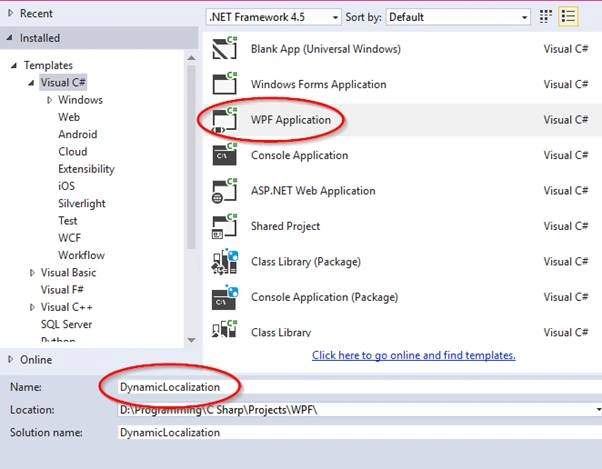
- Create a WPF application and name it “DynamicLocalization”. You can change the name to anything you want.
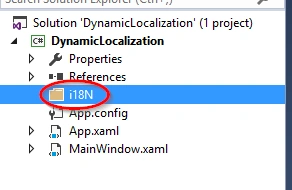
- Create a new folder in application root directory and name it “i18N”.
- Create a new "Resource Dictionary" file in the folder i18N, and name it “MainWindow.en-US.xaml”.
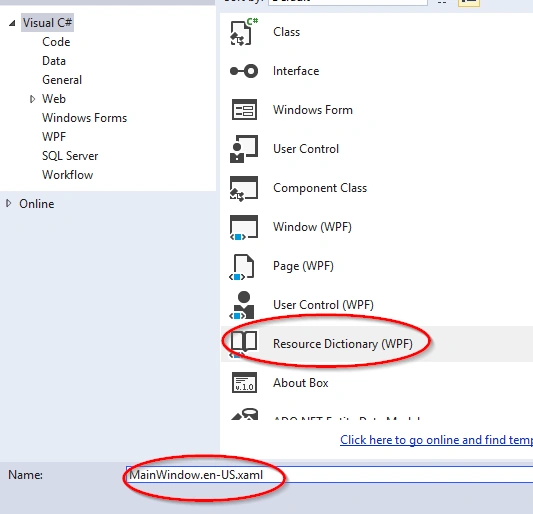
The name is important as we will search for this file using a certain pattern, as following.
- MainWindow is the name of the class that we will implement for localization. We will create separate files for each language and window or page.
- en-US is culture info string code for English US.
- Change the properties of the file as follows.
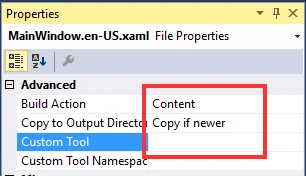
Please note that we use blank for property “Custom Tool”.
- In the file MainWindow.en-US.xaml, replace the following line,

with the the following line.

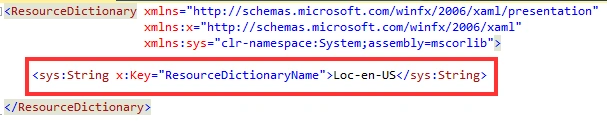
- Add the following string resource as identifier, so we can easily manage resources.
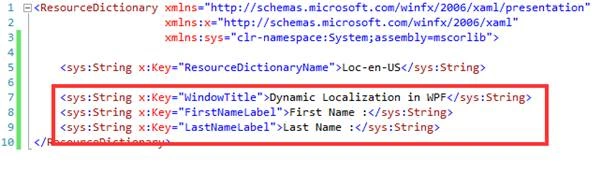
- Add required string resources as much as you need. In my example, I created three resource strings.
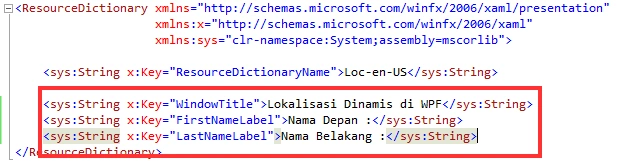
- Copy “MainWindow.en-US.xaml” to another file as much as you need, rename it according to culture string code, and change the value. Here, I copied and renamed it to “MainWindow.id-ID.xaml” for Indonesian translation. Do not forget to set its property as above.
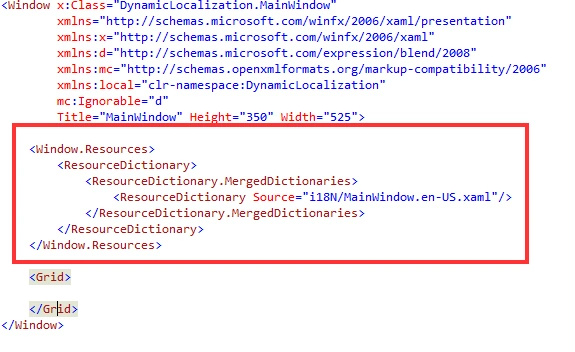
- Next, we embed a Windows resource in MainWindow.xaml, so that we see the word at design time. Add the following code to “ManWindow.xaml”.
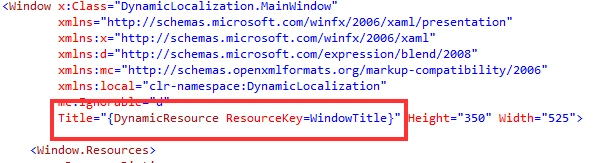
- Design a form example to demonstrate the dynamic localization. First, we update the WindowTitle to use the string from resource dictionary we assigned above.
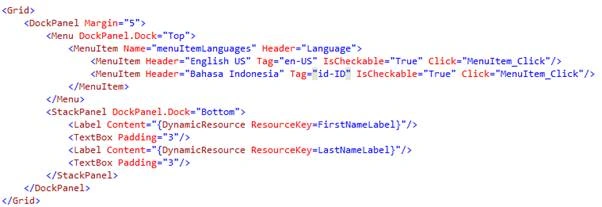
Then, add the following code to MainWindow.xaml between Grid declaration.
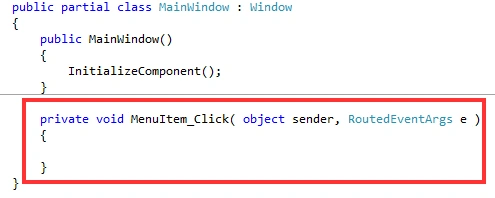
And, add the following code to code-behind (MainWindow.xaml.cs).
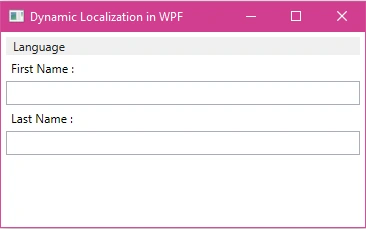
Now, you can test and run the project. You will see the result as follow. Until now, we have not implemented the dynamic localization.
- Next, create a class, name the file as “LocUtil.cs”, and add the following code to it.
- using Microsoft.Win32;
- using System;
- using System.Globalization;
- using System.IO;
- using System.Threading;
- using System.Windows;
- namespace DynamicLocalization {
- public static class LocUtil {
- /// <summary>
- /// Get application name from an element
- /// </summary>
- /// <param name="element"></param>
- /// <returns></returns>
- private static string getAppName(FrameworkElement element) {
- var elType = element.GetType().ToString();
- var elNames = elType.Split('.');
- return elNames[0];
- }
- /// <summary>
- /// Generate a name from an element base on its class name
- /// </summary>
- /// <param name="element"></param>
- /// <returns></returns>
- private static string getElementName(FrameworkElement element) {
- var elType = element.GetType().ToString();
- var elNames = elType.Split('.');
- var elName = "";
- if (elNames.Length >= 2) elName = elNames[elNames.Length - 1];
- return elName;
- }
- /// <summary>
- /// Get current culture info name base on previously saved setting if any,
- /// otherwise get from OS language
- /// </summary>
- /// <param name="element"></param>
- /// <returns></returns>
- public static string GetCurrentCultureName(FrameworkElement element) {
- RegistryKey curLocInfo = Registry.CurrentUser.OpenSubKey("GsmLib" + @ "\" + getAppName(element), false);
- var cultureName = CultureInfo.CurrentUICulture.Name;
- if (curLocInfo != null) {
- cultureName = curLocInfo.GetValue(getElementName(element) + ".localization", "en-US").ToString();
- }
- return cultureName;
- }
- /// <summary>
- /// Set language based on previously save language setting,
- /// otherwise set to OS lanaguage
- /// </summary>
- /// <param name="element"></param>
- public static void SetDefaultLanguage(FrameworkElement element) {
- SetLanguageResourceDictionary(element, GetLocXAMLFilePath(getElementName(element), GetCurrentCultureName(element)));
- }
- /// <summary>
- /// Dynamically load a Localization ResourceDictionary from a file
- /// </summary>
- public static void SwitchLanguage(FrameworkElement element, string inFiveCharLang) {
- Thread.CurrentThread.CurrentUICulture = new CultureInfo(inFiveCharLang);
- SetLanguageResourceDictionary(element, GetLocXAMLFilePath(getElementName(element), inFiveCharLang));
- // Save new culture info to registry
- RegistryKey UserPrefs = Registry.CurrentUser.OpenSubKey("GsmLib" + @ "\" + getAppName(element), true);
- if (UserPrefs == null) {
- // Value does not already exist so create it
- RegistryKey newKey = Registry.CurrentUser.CreateSubKey("GsmLib");
- UserPrefs = newKey.CreateSubKey(getAppName(element));
- }
- UserPrefs.SetValue(getElementName(element) + ".localization", inFiveCharLang);
- }
- /// <summary>
- /// Returns the path to the ResourceDictionary file based on the language character string.
- /// </summary>
- /// <param name="inFiveCharLang"></param>
- /// <returns></returns>
- public static string GetLocXAMLFilePath(string element, string inFiveCharLang) {
- string locXamlFile = element + "." + inFiveCharLang + ".xaml";
- string directory = System.IO.Path.GetDirectoryName(System.Reflection.Assembly.GetExecutingAssembly().Location);
- return Path.Combine(directory, "i18N", locXamlFile);
- }
- /// <summary>
- /// Sets or replaces the ResourceDictionary by dynamically loading
- /// a Localization ResourceDictionary from the file path passed in.
- /// </summary>
- /// <param name="inFile"></param>
- private static void SetLanguageResourceDictionary(FrameworkElement element, String inFile) {
- if (File.Exists(inFile)) {
- // Read in ResourceDictionary File
- var languageDictionary = new ResourceDictionary();
- languageDictionary.Source = new Uri(inFile);
- // Remove any previous Localization dictionaries loaded
- int langDictId = -1;
- for (int i = 0; i < element.Resources.MergedDictionaries.Count; i++) {
- var md = element.Resources.MergedDictionaries[i];
- // Make sure your Localization ResourceDictionarys have the ResourceDictionaryName
- // key and that it is set to a value starting with "Loc-".
- if (md.Contains("ResourceDictionaryName")) {
- if (md["ResourceDictionaryName"].ToString().StartsWith("Loc-")) {
- langDictId = i;
- break;
- }
- }
- }
- if (langDictId == -1) {
- // Add in newly loaded Resource Dictionary
- element.Resources.MergedDictionaries.Add(languageDictionary);
- } else {
- // Replace the current langage dictionary with the new one
- element.Resources.MergedDictionaries[langDictId] = languageDictionary;
- }
- } else {
- MessageBox.Show("'" + inFile + "' not found.");
- }
- }
- }
- }
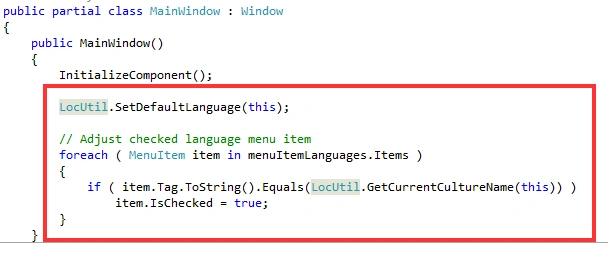
- Next, update the MainWindow constructor to set the language to previously saved setting (if any); otherwise. set it to OS language.
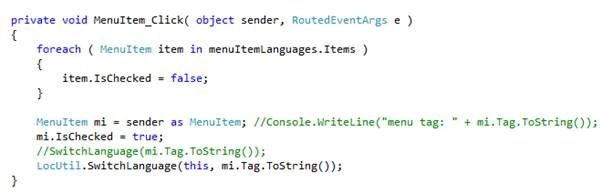
- And add the following code to the MenuItem_Click method.
Now, you can run the application and test dynamic localization using Resource Dictionary. I hope, this article will help someone who is looking for such a solution.
Rodrigo PegoraroPosted Jan 24, 2022, 12:51 PM
Good morning, the code helped me a lot, but I would like to know how to do it so that when I open a new information window it will also translate with the selected language.
Francisco GonçalvesPosted Apr 15, 2020, 11:18 AM
Hello, congratulation for the best tutorial, it work for me very good. But i am using MVVM and have some text in the viewModels, what the best way to have resources working with viewmodel?
aditya vermaPosted Jan 18, 2018, 6:38 AM
What should I do to resolve this issue????
aditya vermaPosted Jan 18, 2018, 6:37 AM
I am getting "System.Windows.Markup.XamlParseException" exception in MainWindow.xaml Line #12. "<ResourceDictionary Source="i18N/MainWindow.en-US.xaml"/>"