

SharePoint top navigation bar helps users to navigate to other sites. Top Navigation is also referred to as Global Navigation because it remains the same throughout site collection. However, subsites can be configured in a way so that the top navigation does not come up in the top bar. We must enable the publishing feature to work on the top navigation bar as it comes bundled with it.
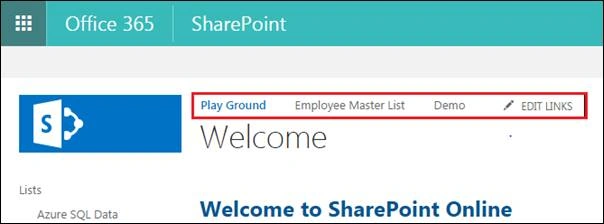
Top navigation can be of two types.
- Structural Navigation
- Metadata Navigation
Structural navigation is a navigation based on the site structure and the links will redirect to other sub sites, whereas, Metadata Navigation was introduced in SharePoint 2013 and is based on metadata terms defined in the taxonomy store. We can assign redirection URLs to the terms during their creation which can later be used in the top navigation.
Top Navigation can be configured by going to the Site Settings -> Navigation location.
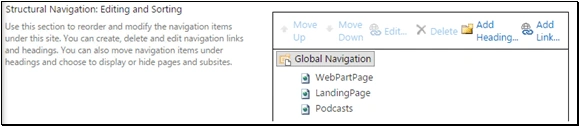
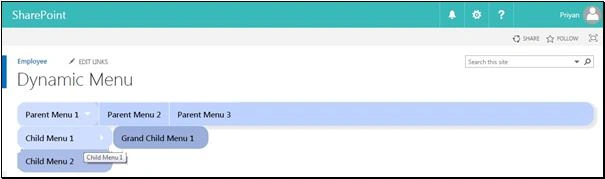
However, there can be times when we must dynamically create a custom navigation menu other than structural or metadata navigation. In this article, we will see how to create a custom navigation that dynamically picks up navigation nodes from a SharePoint List. This way we can avoid the static hard coding and make the navigation easily editable. The menu structure is created in a standard SharePoint list. The menu creation script reads the Menu items from this list and creates the menu on the fly. The list that holds the menu structure can be placed in the current site, or in the root site if you want to share it between multiple sites. This list is automatically created when you first run the script.
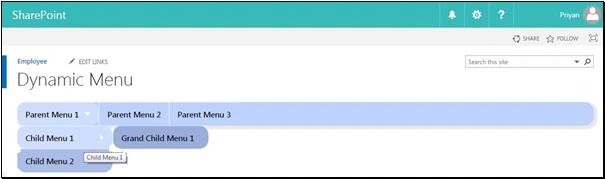
Final Output
Required Components
We will be making use of SuperFish.js which was developed by Joel Birch to implement the top navigation. We will also make use of SuperfishForSharePoint.js which was created by Alexander Bautz that makes Superfish menu compatible with SharePoint.
In addition to the above two main JS files, we will also make use SPjs-utility.js file to setup the navigation menu. Superfish.css is the css file that will add the custom styling to the navigation menu.The files used in the demo are zipped and uploaded along with this article. The contents of the file are,
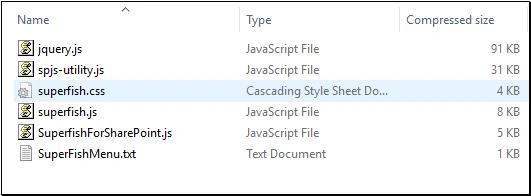
Implementation
Download the zip file named ‘SuperFish.zip’ from the top of this article. Upload each of these files to the SharePoint location say: Site Assets.
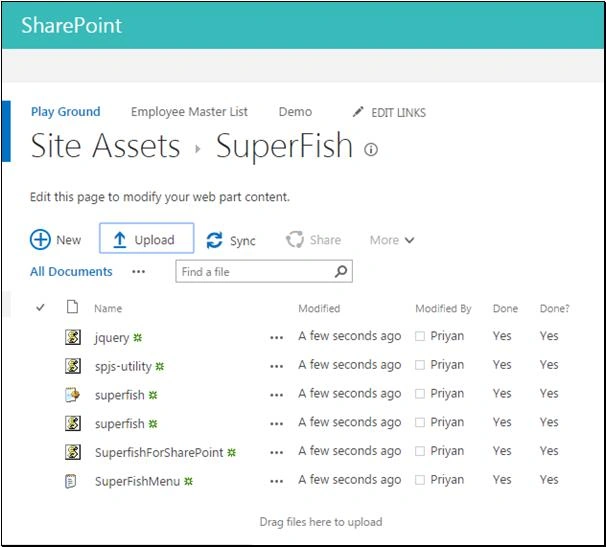
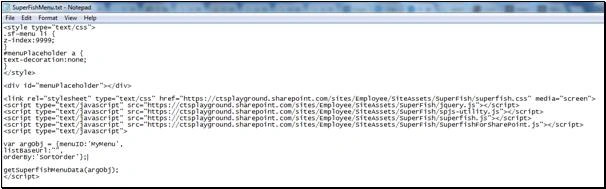
We will now create the text file say:’SuperFishMenu.txt’ which will be refered within the content editor web part. We will be referring the uploaded files within this text file. The code to be copied to the text file is given below. Ensure that you change the script and css files to your respective sharepoint location.The location where the menu will be created is decided by the div named ‘menuPlaceholder’ in the below code. Currently we are testing it out in a page in a CEWP . We can also use this in a master page so that the menu becomes available across all pages.
- <style type="text/css">
- .sf-menu li {
- z-index: 9999;
- }
- #menuPlaceholder a {
- text-decoration: none;
- }
- </style>
- <div id="menuPlaceholder"></div>
- <link rel="stylesheet" type="text/css" href="https://ctsplayground.sharepoint.com/sites/Employee/SiteAssets/SuperFish/superfish.css" media="screen">
- <script type="text/javascript" src="https://ctsplayground.sharepoint.com/sites/Employee/SiteAssets/SuperFish/jquery.js"></script>
- <script type="text/javascript" src="https://ctsplayground.sharepoint.com/sites/Employee/SiteAssets/SuperFish/spjs-utility.js"></script>
- <script type="text/javascript" src="https://ctsplayground.sharepoint.com/sites/Employee/SiteAssets/SuperFish/superfish.js"></script>
- <script type="text/javascript" src="https://ctsplayground.sharepoint.com/sites/Employee/SiteAssets/SuperFish/SuperfishForSharePoint.js"></script>
- <script type="text/javascript">
- var argObj = {
- menuID: 'MyMenu',
- listBaseUrl: "",
- orderBy: 'SortOrder'
- };
- getSuperfishMenuData(argObj);
- </script>
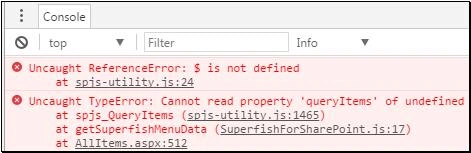
Ensure that the files are referred to in the same way as shown above otherwise we might get the below error in the browser console.
Retain menuId as ‘MyMenu’ itself. If you are changing this value, make sure to change it in the Configuration List(that holds the menu items) as well.
NOTE
- If you are on the root site, the property “listBaseUrl” should be “” ,
- If you are on this URL:http://Devtest/NavMenu/Deafult.aspx and would have the list in the current sub site “NavMenu”,the variable “listBaseUrl” should read “/NavMenu”.
- If the you are on site http://Devtest/Sites/NavMenu/Deafult.aspx , “listBaseUrl” should read “/sites/NavMenu”.
- If you are on a subsite, but want the list to be created on the root, leave “listBaseUrl” as an empty string “”.
Once we have saved the text file, upload it to site assets folder along with other scripts. Get the path of the script file as we will have to refer it within the CEWP.
Add the Script to CEWP
In order to add the content editor web part and add the script file, go to the edit mode of the page by appending ‘?toolpaneview=2’

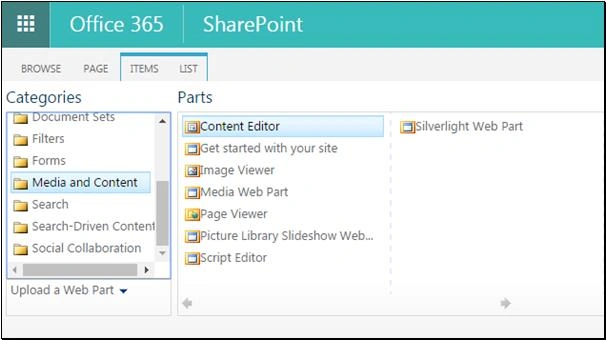
Add Content Editor Web part to the page.
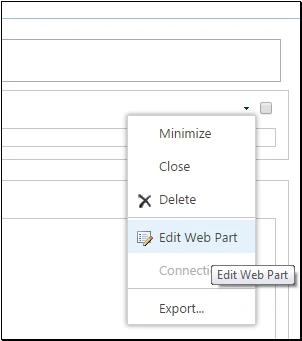
From CEWP,Click on edit web part .
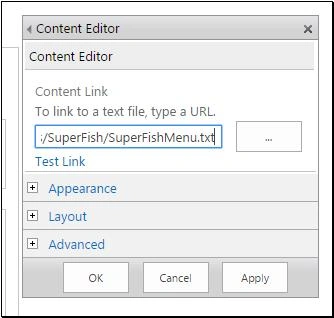
In the content link section add the location URL of the text file we uploaded recently.
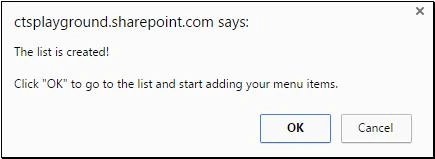
Upon clicking Apply, it will create a list named ‘SuperfishForSharePoint’ for the first time.
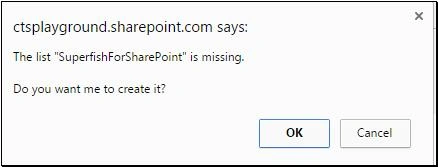
Once it is created we will get the below success message.
Configure the Navigation Menu
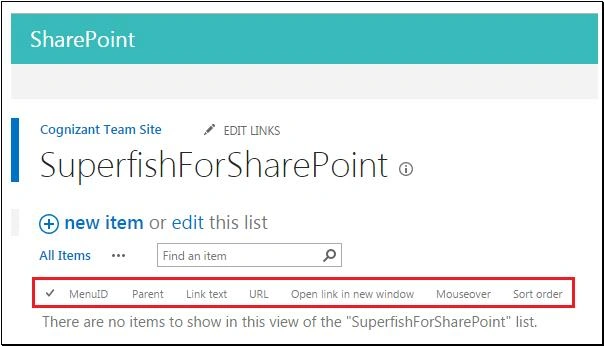
Going to the site contents we can see the list named ‘SuperfishForSharePoint’ which will be the list used for maintaining the Parent-Child relation between the menu items.
Add the menu items
Once the list is created, add the menu items to the list. The columns in the list are:
- ‘MenuID’ - used internally by the script to create navigation nodes. Retain its value as ‘MyMenu’. If you change this, you must change it in the ‘Superfishmenu.txt’ as well.
- Parent - is a look up column to the same list which is used to define parent-child relation between menu items.
- Link text – The text that should appear in the navigation node
- URL - URL to which the redirection/navigation should happen
- Open link in new window – Opens the link in either the same window or a new one
- Mouse Over – The text that should appear on mouse over of the navigation node
- Sort order – The order in which the menu items should be ordered in the navigation menu
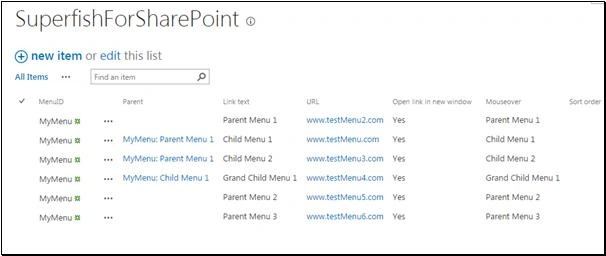
Once we have added the menu items in the configuration list, heading back to the page where we have added the CEWP, we can see the menu created based on the list items.
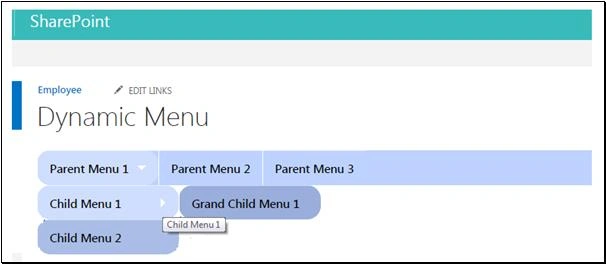
We can further customize the css in the ‘superfish.css’ file to make style changes to the menu.
Summary
Thus, we saw how to create a custom navigation menu that reads from SharePoint List using Superfish js. This can be extended and plugged into the master page as well.
Guest UserPosted Sep 12, 2019, 9:03 AM
Hi, very good article. At the 2nd level navigation, how do I expand it to full page width and display as columns when there are quite a few links there?
sreenuPosted Jul 25, 2017, 5:00 AM
Its is a good article. Its working fine. Thank You Priyaranjan.