

This chapter is taken from book "Programming Windows Phone 7" by Charles Petzold published by Microsoft press. http://www.charlespetzold.com/phone/index.html
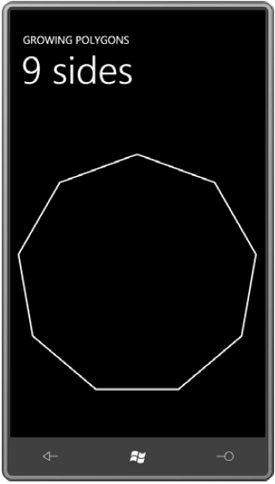
When a property backed by a dependency property is changed at runtime, the element with that property changes to reflect that change. This is a result of the support for a property-changed handler built into dependency properties. At runtime, you can dynamically add Point objects to the PointCollection, or remove them from the PointCollection, and a Polyline or Polygon will change. The GrowingPolygons project has a MainPage.xaml file that instantiates a Polygon element and gives it a couple properties:
<Grid
x:Name="ContentPanel"
Grid.Row="1"
Margin="12,0,12,0">
<Polygon
Name="polygon"
Stroke="{StaticResource
PhoneForegroundBrush}"
StrokeThickness="{StaticResource
PhoneStrokeThickness}" />
</Grid>
The code-behind file waits until the Loaded event is fired before determining
the size of the content panel (just as in the Spiral program) and it begins by
obtaining similar information. But the OnLoaded handler just adds two points to
the Points collection of the Polygon to define a vertical line; everything else
happens during Tick events of a DispatcherTimer (which of course requires a
using directive for System.Windows.Threading):
namespace GrowingPolygons
{
public partial
class MainPage
: PhoneApplicationPage
{
Point center;
double radius;
int numSides = 2;
public MainPage()
{
InitializeComponent();
Loaded += OnLoaded;
}
void OnLoaded(object
sender, RoutedEventArgs args)
{
center = new
Point(ContentPanel.ActualWidth / 2 - 1,
ContentPanel.ActualHeight / 2 - 1);
radius = Math.Min(center.X,
center.Y);
polygon.Points.Add(new
Point(center.X, center.Y - radius));
polygon.Points.Add(new
Point(center.X, center.Y + radius));
DispatcherTimer tmr =
new DispatcherTimer();
tmr.Interval = TimeSpan.FromSeconds(1);
tmr.Tick += OnTimerTick;
tmr.Start();
}
void OnTimerTick(object
sender, EventArgs args)
{
numSides += 1;
for (int
vertex = 1; vertex < numSides; vertex++)
{
double radians = vertex * 2 *
Math.PI / numSides;
double x = center.X + radius *
Math.Sin(radians);
double y = center.Y - radius *
Math.Cos(radians);
Point point =
new Point(x,
y);
if (vertex < numSides - 1)
polygon.Points[vertex] = point;
else
polygon.Points.Add(point);
}
PageTitle.Text = "" + numSides +
" sides";
}
}
}
Every second, the program replaces all but one of the Point objects in the Points collection of the Polygon. The first Point in the collection—which is the Point at the top center of the content area-is the only one that remains the same. In addition, the Tick handler adds a new Point object at the end of the collection. The result is a polygon that gains one new side every second:
The Path Element
The Path class defines just one property of its own named Data of type Geometry, but geometries are a very important concept in Silverlight vector graphics.
It's important to recognize that a Geometry object is nothing but naked coordinate points. There is no concept of brushes or line thickness or styles with a geometry. That's why you need to combine a Geometry with a Path element to actually render something on the screen. The Geometry defines the coordinate points; thePath defines the stroke brush and fill brush.
Geometry fits into the Silverlight class hierarchy like so:
Object
DependencyObject (abstract)
Geometry (abstract)
LineGeometry (sealed)
RectangleGeometry (sealed)
EllipseGeometry (sealed)
GeometryGroup (sealed)
PathGeometry (sealed)
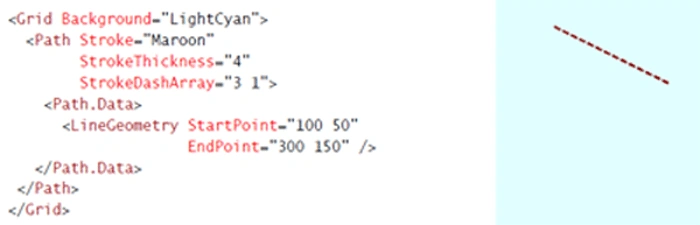
LineGeometry defines two properties of type Point named StartPoint and EndPoint:
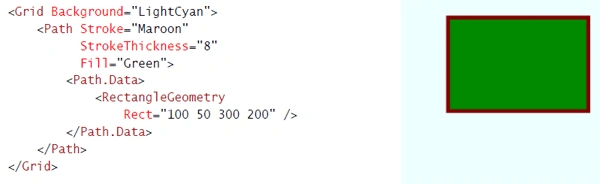
RectangleGeometry defines a property named Rect of type Rect, a structure that defines a rectangle with four numbers: two numbers indicate the coordinate point of the upper-left corner and two more numbers for the rectangle's size. In XAML you specify these four numbers sequentially: the x and y coordinates of the upper-left corner, followed by the width and then the height:
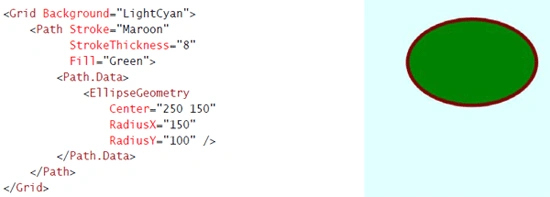
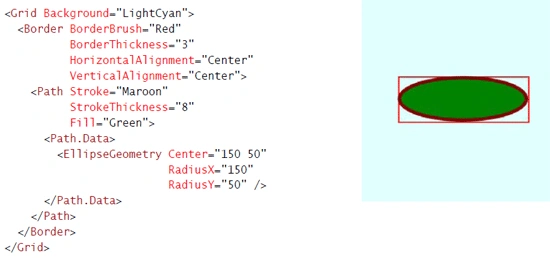
The EllipseGeometry also defines RadiusX and RadiusY properties, but these are for defining the lengths of the two axes. The center of the EllipseGeometry is provided by a property named Center of type Point:
Geometries and Transforms
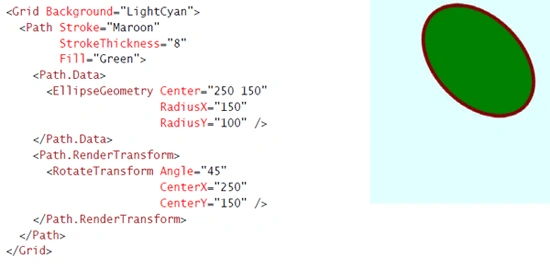
If you're using EllipseGeometry and you don't want the axes of the ellipse to be aligned on the horizontal and vertical, you can apply a RotateTransform to it. And you have a choice. Because Path derives from UIElement, you can set this RotateTransform to the RenderTransform property of the Path:

Join the conversation! Your thoughts help the community grow.