

Here we will see how to dynamically add controls in a LightSwitch Application (Visual C#) in Visual Studio 2012.
The following is the procedure for dynamically adding a control.
Step 1
Open the Solution Explorer.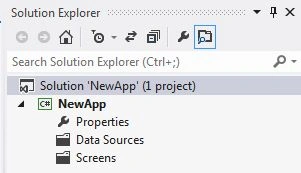
Step 2
In the Solution Explorer, right-click on the Screens and choose "Add Screen".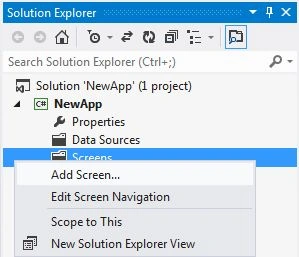
Step 3
The Add New Screen dialog box appears. Select the "New Data Screen" from the Screen Template, under screen information, choose "None" under screen data and provide a name to the screen and click the "OK" button.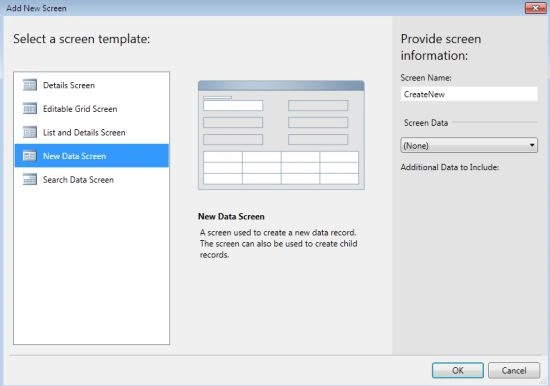
The Screen Designer appears.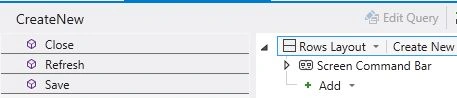
Step 4
Click on the "Add" button and choose "New Custom Control".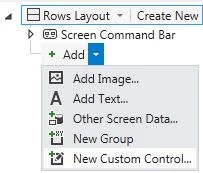
Step 5
The Add Custom Control dialog box will appear. From that dialog box select the StackPanel Control and click the "OK" button.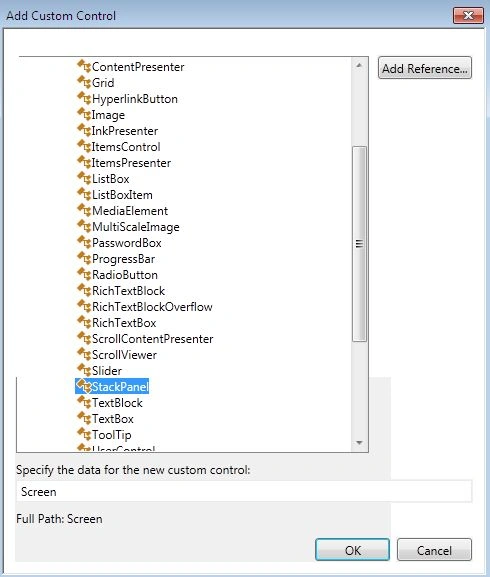
The custom control is added to the Screen Designer. 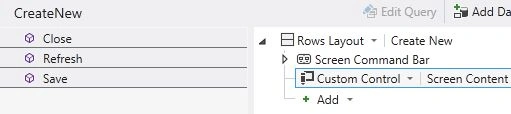
Step 6
Go to the Menu Bar, click on the Write Code option, a drop down list will appear, select the "the _created()" method from the list.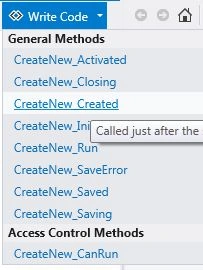
The code designer appears.
using System;
using System.Linq;
using System.IO;
using System.IO.IsolatedStorage;
using System.Collections.Generic;
using Microsoft.LightSwitch;
using Microsoft.LightSwitch.Framework.Client;
using Microsoft.LightSwitch.Presentation;
using Microsoft.LightSwitch.Presentation.Extensions;
using System.Windows.Controls;
namespace LightSwitchApplication
{
public partial class CreateNew
{

Join the conversation! Your thoughts help the community grow.