

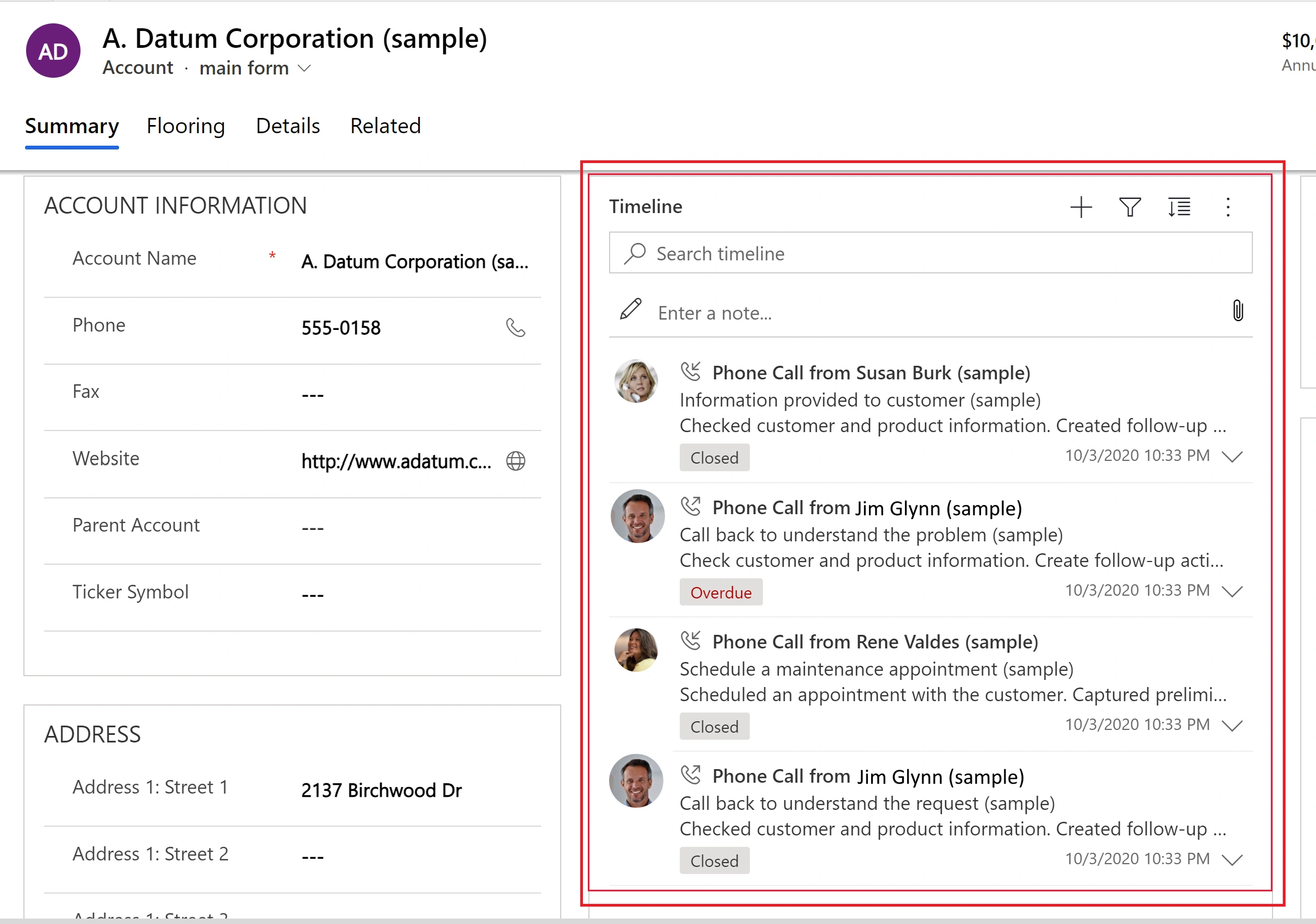
In Dynamic CRM we have multiple types of controls and one of the most important control is the timeline which gives the users of the application multiple advantages like tracking the activities which need to be performed. It assists in keeping a track of the activities which they have to close in upcoming, recent, future.
Along with it, it gives you capabilities like you can create multiple new activities based upon the configurations in the application.
Like, let's say you want to create a phone call activity and e-mail activity or inactivities like an appointment or some custom activities which have been configured by the business. As per the need and requirements, this timeline control can be embedded in any of the forms in Dynamics CRM which include your lead form, contact form, account form, or an opportunity form.
Activites created in Dynamics CRM are Roll-Up in nature that is an activity that has been associated with a lead would be populated even on the opportunity and will be visible to the business users on the opportunity record also.
For example. Let's say you have created an activity, let's say a phone call activity on a lead record and this lead will record in the future has been qualified to create an opportunity now once the business user.
Log sent into the application and if they scroll across the timeline control, they would be able to see all those actions which have been created over the associated lead in the past, including the phone call activity which has been undertaken by a sales user.
Admin Configuration
With the recent releases of Microsoft Dynamics CRM, including wave one and wave two, timeline control has become an imminent part of the application. Now Microsoft Dynamics CRM offers an admin switch to configure more than one timeline on the same form based upon different filter criteria.
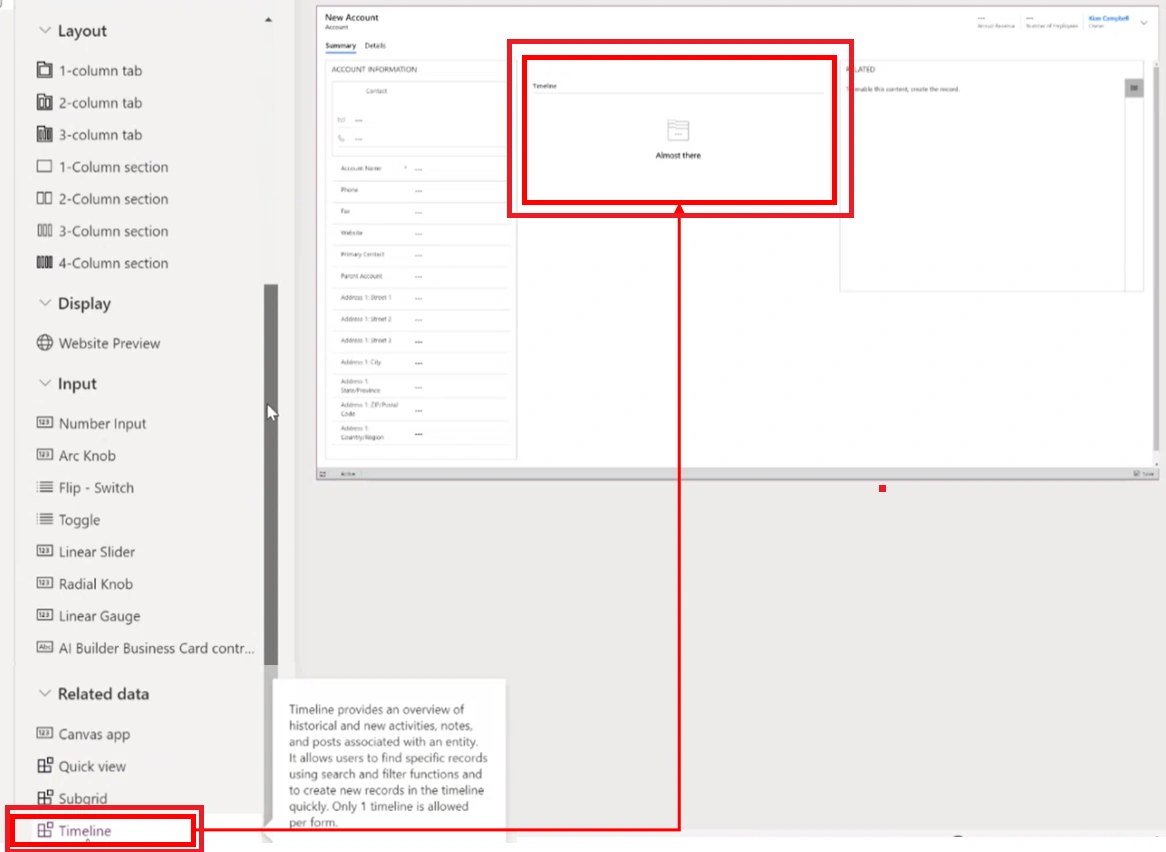
Based upon the business requirement, if the admin wants to configure a timeline control, then they need to first go on to the make.powerapps.com portal. They need to select a solution in which they must add a specific entity or form. Once the form has been selected, they need to open it in the edit form. On the left navigation, they would be able to see the record of the control information and they can simply drag and drop this control on the form.
Configurable features are available in the timeline.
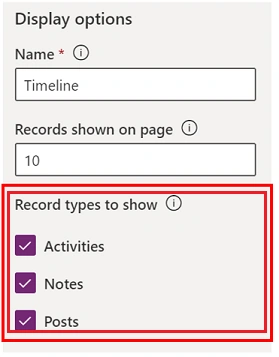
- Timeline control comes up with multiple functionalities and one of the most important is. The records need to be shown on the form that is. The admin can configure which type of records should be visible on the timeline control, like all the activities.
- Which needs to be shown on the timeline control?
- What type of options should be available on the notes?
- On timeline control, whether you want to have an added functionality out there or a button or a delete in there and what type of auto post should be posted on the timeline control whenever an action is taken up on the record in Dynamics CRM.
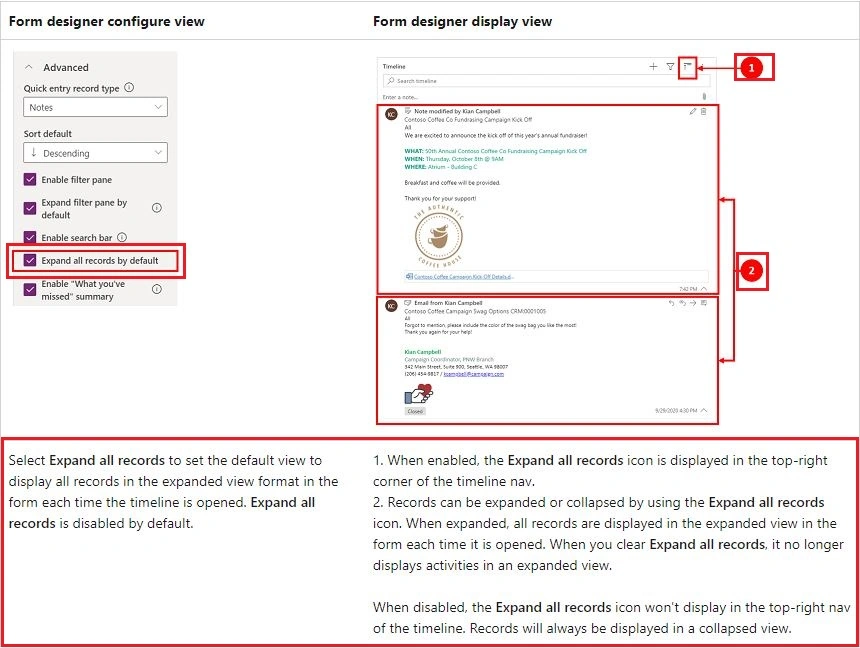
- The second most important thing is there are few advanced features out there. Like configuring the order in which the records should be posted on the timeline. Let's say you want it to be posted based upon the ascending order of created on or descending order of created on.
The admin can configure the filter criteria on the. On the timeline control. That is the filter should be visible to the users or not to perform or to Auto select a specific set of records on the timeline.
- The admin can configure whether the timeline control should be expanded by default or not.
- The admin can configure the type of image which should be visible on the timeline control.
- The admin can configure the activity with activities that are shown on the timeline control. Along with it, they can select which activity should be allowed to be created directly from the timeline control. Let's say an e-mail activity is not an activity or phone call activity or they want everything to be configured to be shown on the timeline control. As in quick create form.
There are multiple new features that are available in Microsoft Dynamics in Timeline control in wave two. Please feel free to explore the same and do feel free to get in touch with me if you are facing challenges in implementing any of the features out there.
Join the conversation! Your thoughts help the community grow.