


A UDID stands for a Unique Device ID (UDID). The Apple iPhone and their products have this feature (iPad, iPod Touch, etc.). Every Apple product has a unique UDID. You must give the development team your UDID each time you test a freshly created testing application on your iPhone or iPad.
Professional computer specialists or computer experts use UDID. For instance, the UDID must be added to the Apple Developer Certificate if someone wishes to test an unpublished application on an iPhone or any other Apple device. Apple offers security in this way, enabling us to test a new program exclusively on particular devices with added UDIDs.
We have multiple ways to obtain UDID of iPhone or iPad devices.
- Using the Macbook finder app
- Using the Xcode
- Obtain UDID without using Mac Book or iMac
Find UDID Using the Macbook finder app
To obtain the UDID using the MacBook Finder app, MacBook system, iPhone device, and iPhone cable, follow the list below to obtain the UDID.
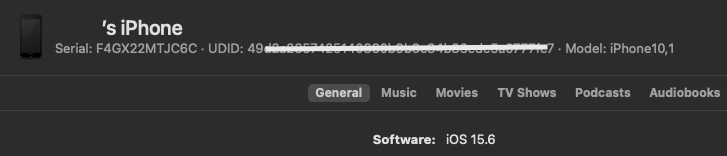
- Connect iPhone to a USB port in your Mac OS device.
- If the iPhone asks to be allowed to trust the Mac OS device, grant it (assuming it’s a device you trust). After that, launch the Finder app.
- If the iPhone asks to be authorized to trust the Mac OS device, grant it (assuming it’s a device you trust). This will open the device page.
- Click on the Info section below the iPhone name at the top of the page till it displays the UDID.
Find UDID Using the XCode
You can create iOS applications with XCode if you are a developer. XCode is typically preferred by developers to obtain UDID. Follow the instructions below to retrieve UDID from XCode, but you'll need a MacBook computer, an iPhone with a cable, and the XCode program.
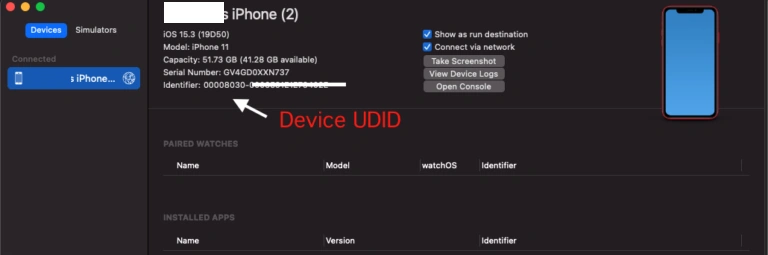
- Connect iPhone to a USB port in your Mac OS device.
- Open XCode and go to Menu > Window > Devices and Simulators or just press the shortcut Shift+CMD+2.
- You can get the information about your plugged-in device using the Identify field, as displayed below. The UDID of your device is located in this field.
Obtain UDID without using MacBook or iMac
If you don't have a MacBook or an iMac, there is a really innovative technique to get the necessary UDID without needing any other equipment.
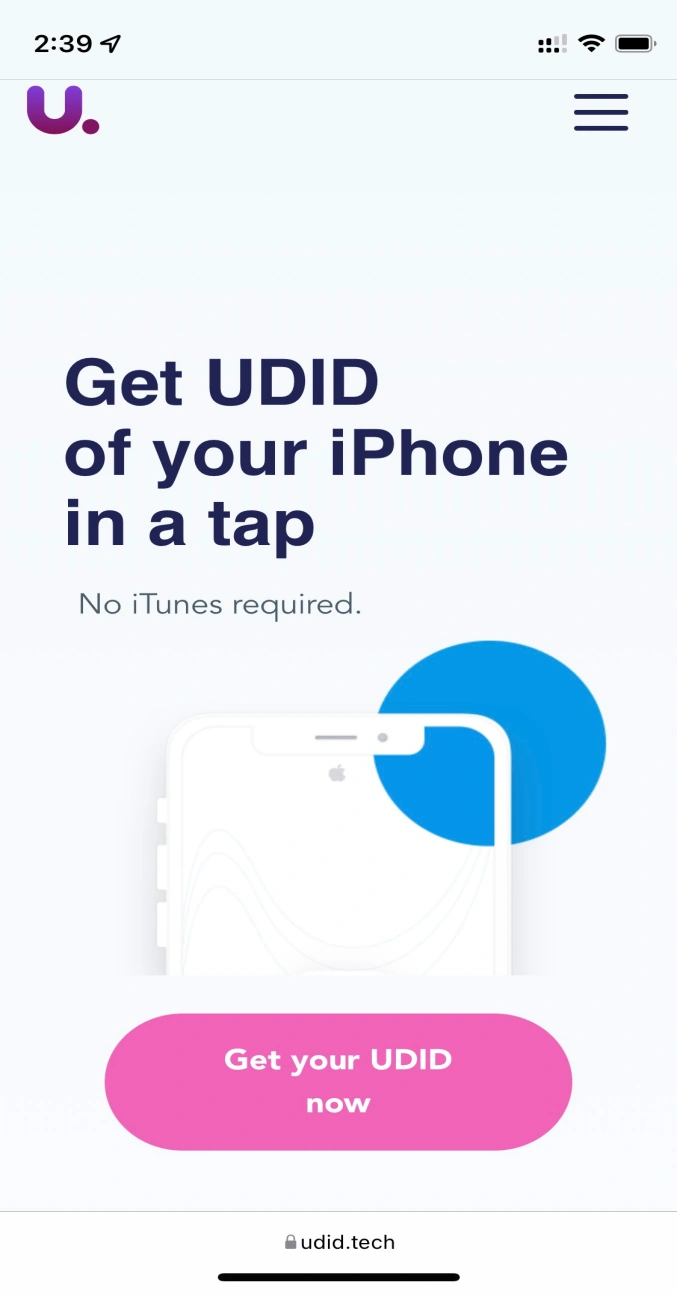
- Navigate to the link in your iPhone/iPad browser on your device whose UDID you want.
- After the site opens click on the “Get your UDID now” button. You’ll now get a pop-up window for downloading Profile.
- After this click on “Allow”.
- Once your profile is downloaded, automatically close each window in your system and go to the system settings.
- The profile which is downloaded automatically allows you to share device details mentioned on the official site of UDID.
- The System Setting contains the Profile Download tag. Click on the profile download to install the profile into your device.
- Now a screen opens for installing Profile, Here you need to click on ‘Install’ to install the Profile.
- Once you have successfully installed the profile you will be redirected to the official site of UDID where you’ll find your required UDID.
Join the conversation! Your thoughts help the community grow.