

Welcome to an article on how to Edit User profiles at the SharePoint Admin Center on Office 365. Here in this article we will see how we edit user details at the Admin Center on Office 365.
To configure you need to be a tenant admin. If you are, let’s see how we can do it.
- Click on the left corner of your SharePoint site to view the apps.
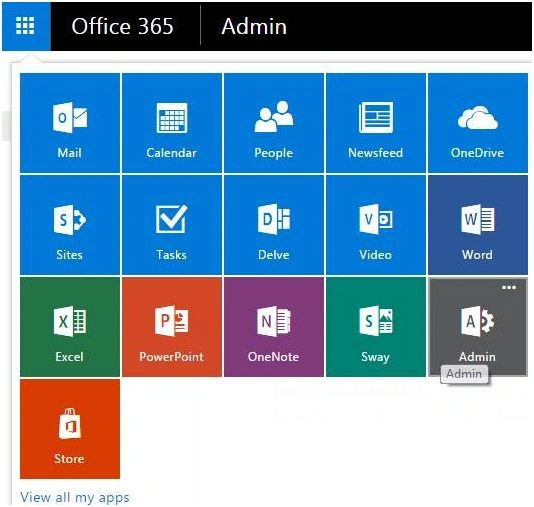
- Click on Admin.
- You will come to the “SharePoint admin center”.
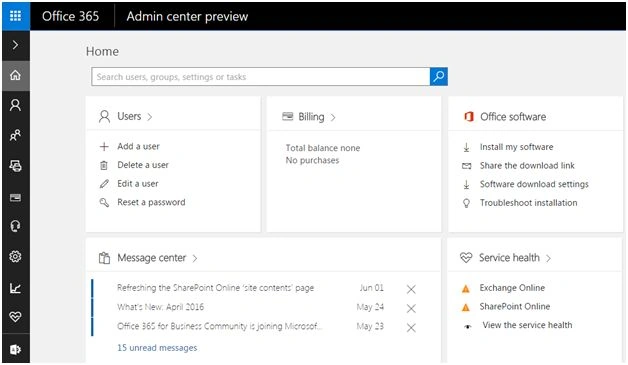
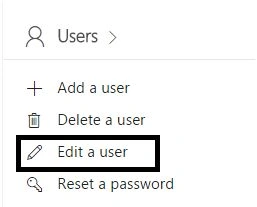
- Under Users section, click on ‘Edit a user’. As per the screen below.
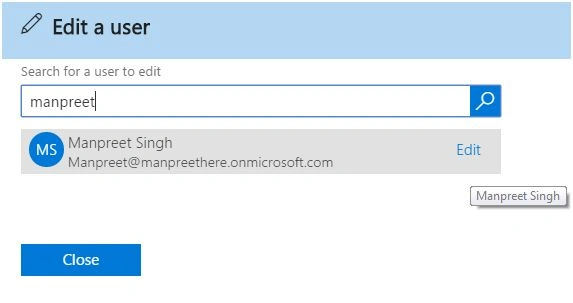
- It will ask you to search the user whom you want to edit..
*Search the user
- Search the name and click on the Edit.
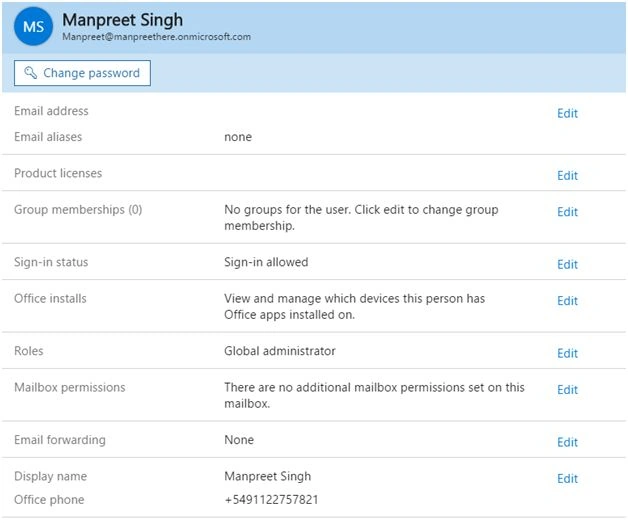
Configuration
- Change Password
Here the user or the admin can change the profile’s password.
- Email address
Here you can edit the email address of the profile.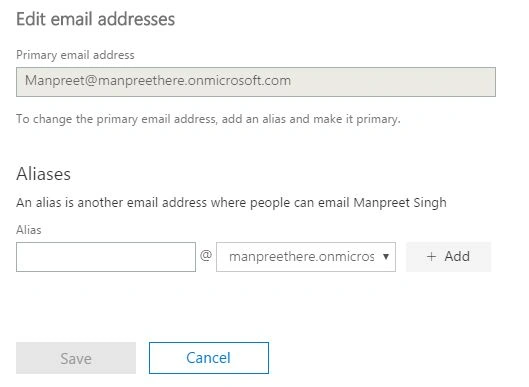
- Product licenses
This configuration depends on your organization or your policy.
- Group membership.
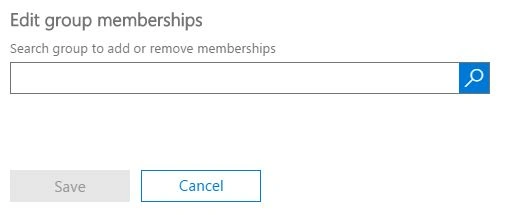
You can change the group membership of the profile by searching it here.
- Sign-in status.
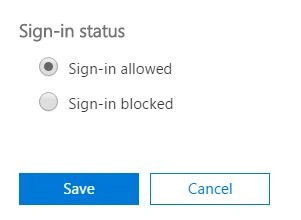
Here you can configure the sign in status for the profiles.
- Office installs
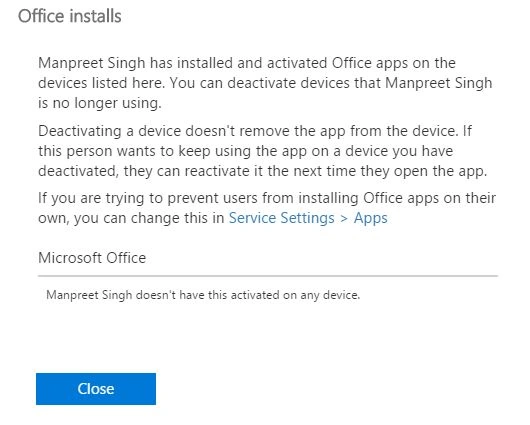
It allows you to control the installation of apps on the user’s profile.
- Roles
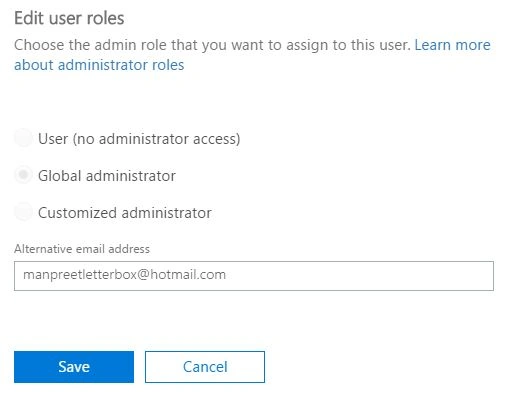
You can edit the user roles of the profile here to as a normal user or a administrator.
- Mailbox permissions
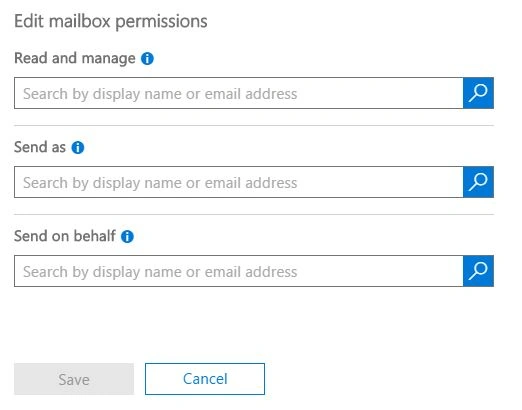
You can configure the mail box settings for the user profile here.
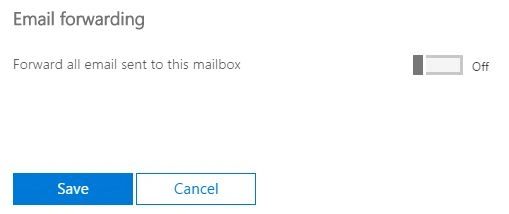
- Email Forwarding
You can configure email forwarding settings here.
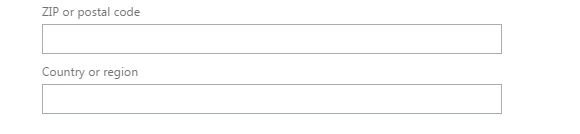
- Edit Display Name & Contact Information
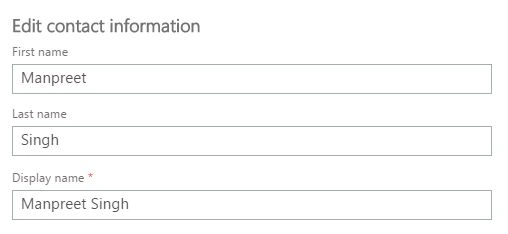
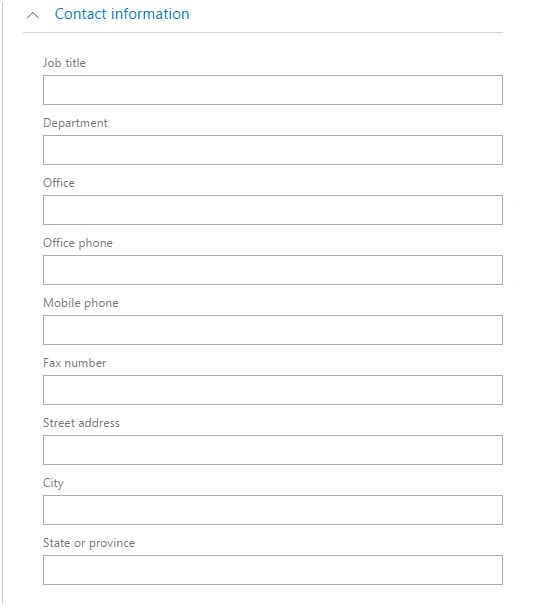
- Job Title
- Department
- Office
- Office Phone
- Mobile Phone
- Fax Number
- Street Address
- City
- State or Province
- Zip Code
- Country
- Change Password
Santhakumar MunuswamyPosted Jun 9, 2016, 12:41 AM
Thank you for nice share
Kuppurasu NagarajPosted Jun 6, 2016, 12:02 PM
Nice Sharing..
Sonu ChaudharyPosted Jun 6, 2016, 9:44 AM
good one...
Vignesh ManiPosted Jun 6, 2016, 5:30 AM
Good one
Sumit DeshmukhPosted Jun 6, 2016, 12:42 AM
Very Nice Sir...Thanks for Sharing :-)
RajaPosted Jun 6, 2016, 12:22 AM
Nice...
Debasis SahaPosted Jun 6, 2016, 12:19 AM
Good One..