

Step 1: Open Expression Blend-> Select Silverlight Application + Website-> Change the name and location accordingly -> hit OK.
Step 2: Pick any shape such as rectangle, ellipse or line from the left side of the workspace and draw any shape then using the Fill Color and Stroke Property give a nice look to the shape as shown below:
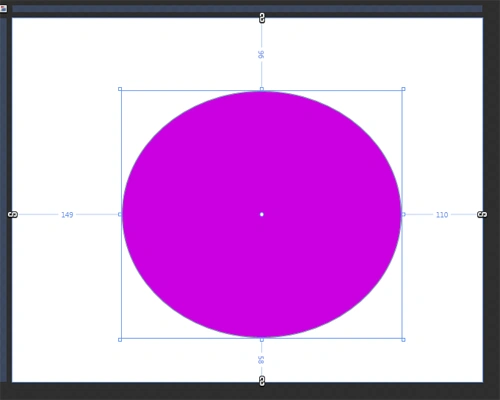
Note: Here, to draw any shape, we can use the Pen Tool; and to fill in a color we can use the Gradient Property as shown in my previous article.
Step 3: Select Effects from the Left Side of the Workspace. There are 15 types of effects in Expression Blend 4 shown as below:
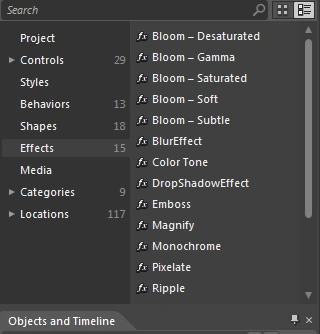
Step 4: Bloom Effect: This Effect is again categorized in 5 types; they are:
- Bloom Desaturated
- Bloom Gamma
- Bloom Saturated
- Bloom soft
- Bloom Subtle
Step 5:
- Select Ellipse -> Select Bloom Desaturated Effect and see the Effect over Ellipse, the Dark Pink Color changes to Light Pink Color as shown below:
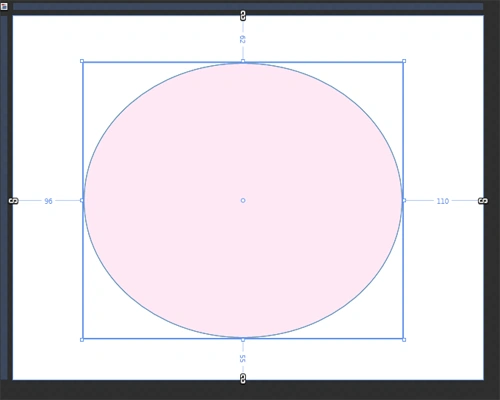
Here, if we Increase-Decrease the Bloom Intensity, the image looks as shown below:

Note: Before applying a new Effect you have to select an Ellipse again every time and deselect an Ellipse again or you have to create a new Ellipse again and again to see the exact effects of every new Effect type.
- Select Ellipse-> Select Gamma Effect and see the effect over Ellipse, the Pink Color changes to Gamma Color as shown below:
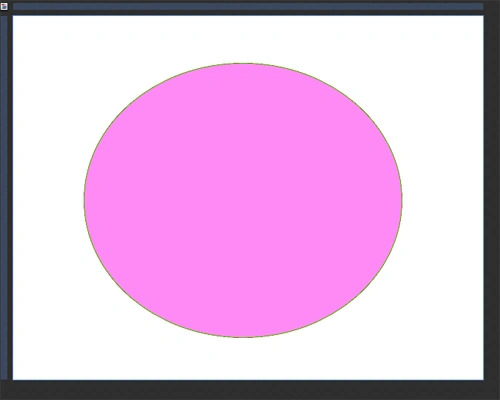
- Select Ellipse-> Select Bloom Saturated Effect and see the effect over the Ellipse; the Stroke Color is too strong of an effect using the Bloom saturated effect as shown below:
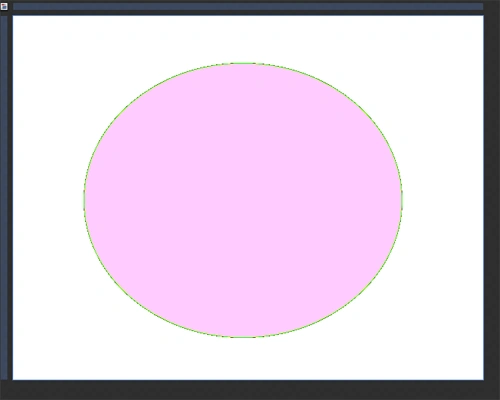
Here, we can manage the Bloom saturation property from the Property Panel.
- Select Ellipse-> Select Bloom Soft Effect and see the Effect over Ellipse, the Pink Color changes to Soft Light Pink Color as shown below:
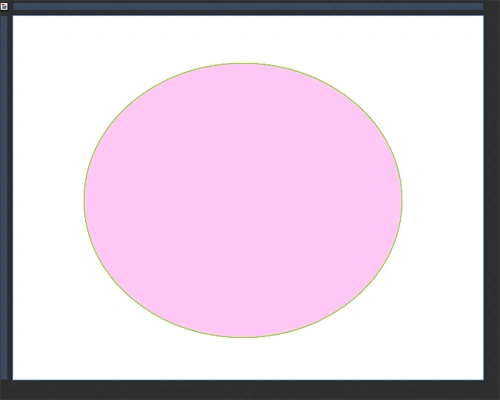
Here, we can manage the Bloom Intensity and Bloom Saturation Property from the Property Panel to create a New Shape as shown below:
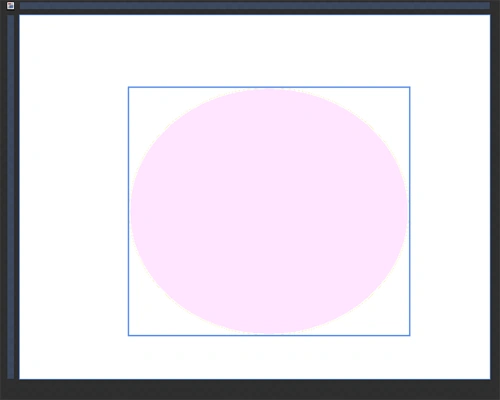
- Select Ellipse-> Select Bloom Subtle Effect and see the Effect over Ellipse, the Pink Color changes to little Light Pink as shown below:
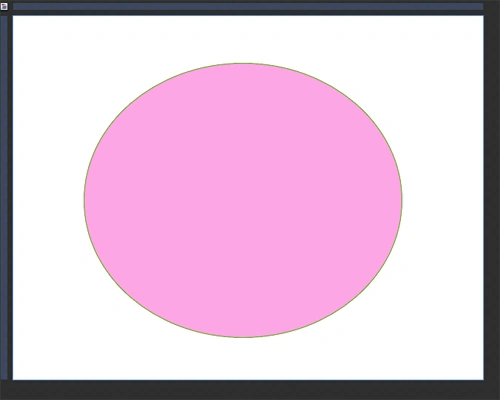
Note: Here, we can manage the property while using the Bloom Effect by using the Property Panel as shown below:

Step 6: Select Ellipse-> Select Blur Effect and see the Effect over Ellipse, here we can manage the Blur Radius by using the Blur Radius Property from the Property Panel as shown below:
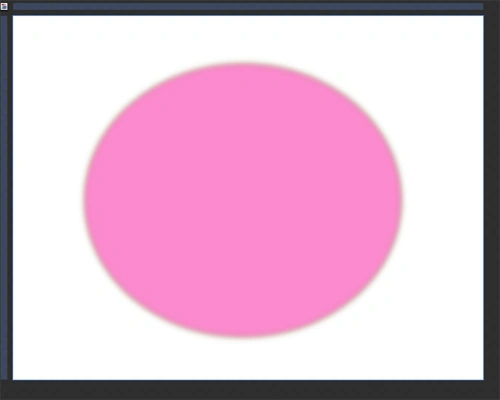

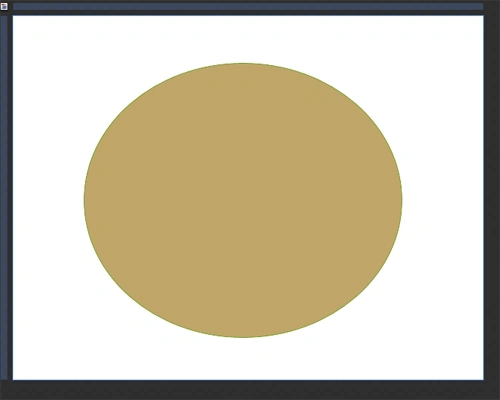
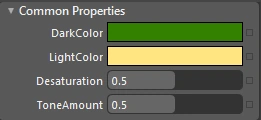
Step 7: Select Ellipse-> Select Color Tone and see the Effect over Ellipse, here we can manage the Dark Color, Light Color, Desaturation and Tone amount from Property Panel to give a nice look to the shape as shown below:
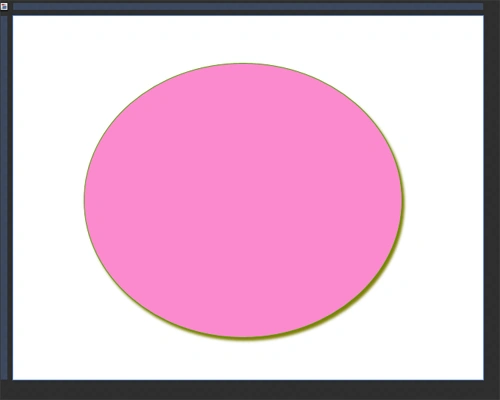
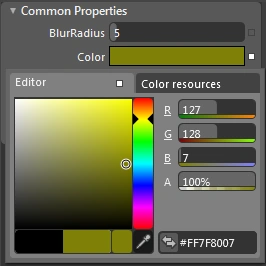
Step 8: Select Ellipse-> Select Drop Shadow Effect and see the Effect over Ellipse, here we can manage the Color, Blur-Radius, Direction, Opacity and Shadow Depth from Property Panel to give a nice look to the shape as shown below:
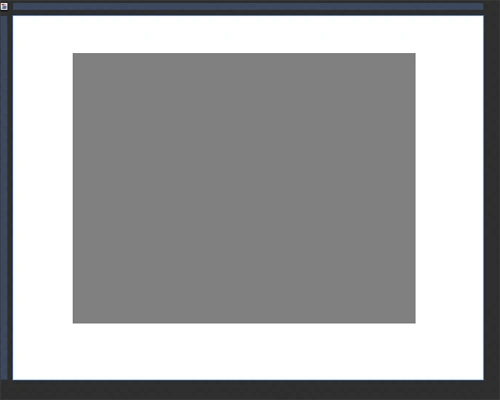
Step 9: Select Ellipse-> Select Emboss and see the Effect over Ellipse, a Rectangle Shape appears over Ellipse in Grey Color, here we can manage Amount, Color, Height from the Property Panel as shown below:
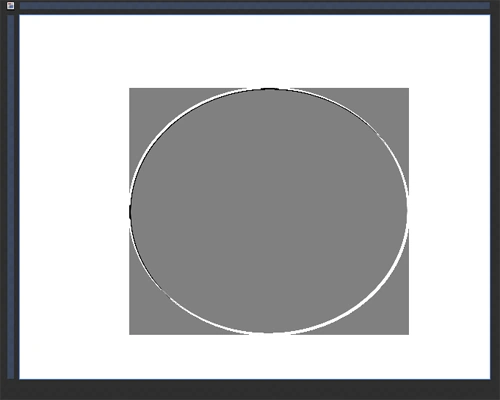
Here, we can change the Height and Amount and see the effect as shown below:
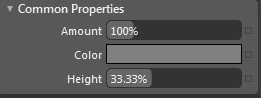
Step 10: Select Ellipse-> Select Magnify Effect and see the effect over Ellipse, here, to see the effect we have to manage the Amount, Inner Radius, Outer Radius and Center from the Property Panel since I changed the Amount to 8000% as shown below:


Here, we can manage the Amount, Inner Radius and Outer radius and see the effect as shown below.
Step 11: Select Ellipse-> Select Monochrome and see the Effect, here a Rectangle Shape appears over Ellipse as shown below:


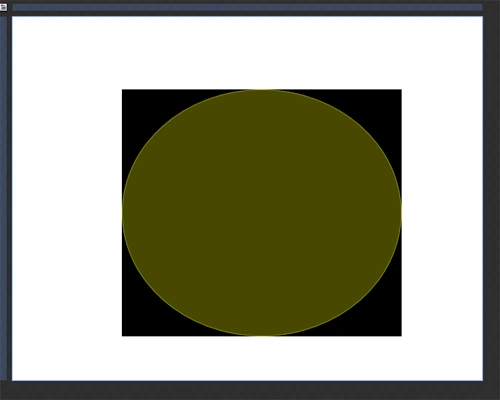
Step 12: Select Ellipse -> select Pixelate and see the effect over Ellipse, here we can manage the pixelation of the shape using the Pixelation Property from the Property Panel as shown below:
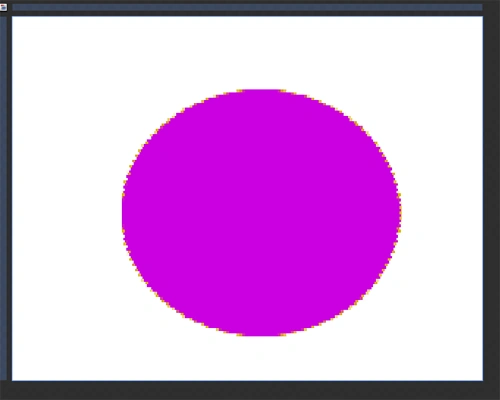

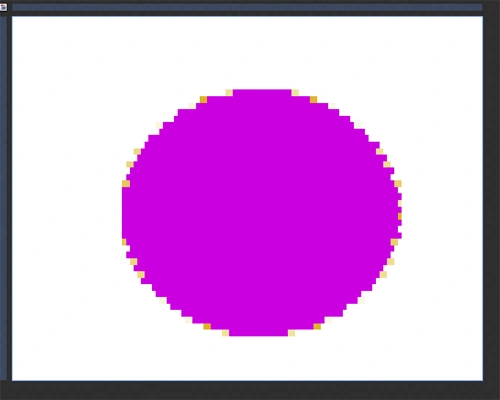
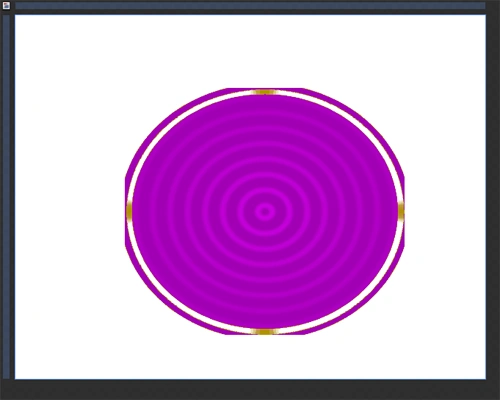
Step 13: Select Ellipse -> Select Ripple Effect and see the effect; here we can manage the Center, Frequency, Magnitude and Phase Property from the Property Panel as shown below:
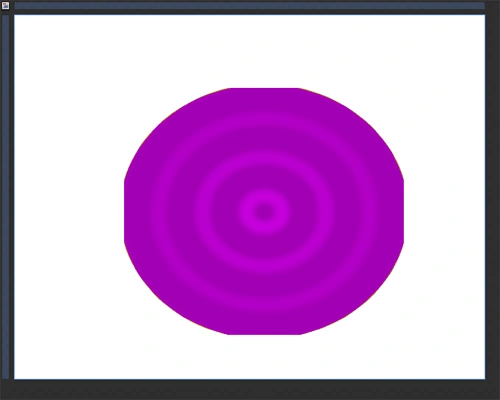

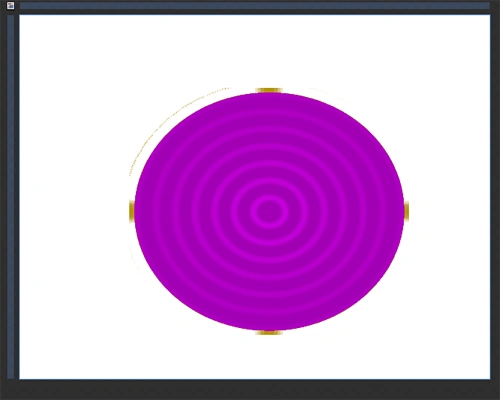
Step 14: Select Ellipse -> Select Sharpen Effect and see the effect as shown below:

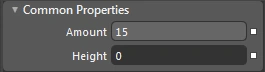
Note: Here, we can manage the shape using the Amount and Height Property from the Property Panel.
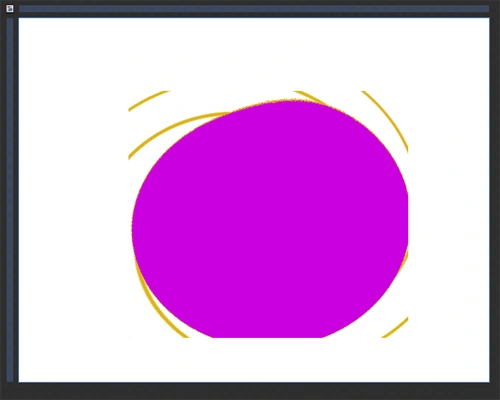
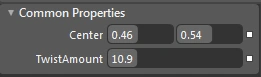
Step 15: Select Ellipse -> Select Swirl and see the effect as shown below:
Summary: The purpose of this article is to give knowledge about "Effects".
Arun ChoudharyeditedPosted Jul 17, 2012, 10:23 AMEdited Jul 17, 2012, 10:23 AM
Good article