
Overview
Learn how to monitor a directory in Windows 10 using C# and .NET. This article will walk you through the different approaches and techniques for monitoring directories and implementing a directory monitoring system that allows you to track file changes and take action programmatically.
Introduction
File system monitoring refers to the process of observing and tracking changes within a file system, such as creating, modifying, or deleting files or directories. It allows applications to stay informed about file system events and take appropriate actions based on those events.
Techniques
There are several ways to implement file system monitoring:
- File System Watcher: The FileSystemWatcher class is provided in the .NET framework for monitoring file system events. It enables applications to receive notifications about changes in a specified directory, including file creations, modifications, deletions, and renames.
- Polling: In this approach, the application periodically checks the file system to detect changes. It involves regularly scanning directories and comparing the current state with a previous snapshot to identify modifications. While simple to implement, it may not be as efficient as event-driven approaches.
- Database-based Tracking: This method involves storing Metadata about the files and directories in a database and periodically comparing the database entries with the current file system state to identify changes. It offers more flexibility in tracking and managing file system events.
The choice of method depends on factors like the platform, specific requirements, performance considerations, and available tools or libraries. The FileSystemWatcher class in .NET is a commonly used and efficient way to monitor file system events in Windows environments using C# and .NET.
Implementation
To monitor a folder periodically in C# and check for new files, you can use different approaches, but in this article, I will cover all the approaches. Here first 2 approaches FileSystemWatcher and Polling, are simple and easy to follow. Comparing both, polling provides a more customized way of monitoring files, but we need to write everything from scratch. Still, when coming to FileSystemWatcher, it has everything we need to do with a folder as an out-of-box. So all the methods help in some sort of scenario; check which suits your case and know the approaches and examples given below.
Approach 1 - FileSystemWatcher
The FileSystemWatcher class provided by .NET allows you to monitor changes in a specified directory. It raises events when files or directories are created, deleted, changed, or renamed within the monitored folder. This approach is event-driven and efficient as it doesn't require continuous polling.
Here's an example of how to use the FileSystemWatcher to monitor a folder every 5 seconds:
using System;
using System.IO;
using System.Threading;

class Program
{
    static void Main()
    {
        // Specify the folder path to monitor
        string folderPath = "C:\\MyFolder";

        // Create a new instance of FileSystemWatcher
        using (FileSystemWatcher watcher = new FileSystemWatcher(folderPath))
        {
            // Set the filter to monitor all files
            watcher.Filter = "*.*";

            // Subscribe to the Created event
            watcher.Created += Watcher_Created;

            // Enable the notifications
            watcher.EnableRaisingEvents = true;

            // Run indefinitely (you can modify this based on your requirement)
            while (true)
            {
                // Sleep for 5 seconds
                Thread.Sleep(5000);
            }
        }
    }

    // Event handler for the Created event
    private static void Watcher_Created(object sender, FileSystemEventArgs e)
    {
        Console.WriteLine("New file created: " + e.FullPath);
    }
}
In this example, the program creates a FileSystemWatcher object, sets the folder path to monitor, and subscribes to the Created event. Whenever a new file is created within the specified folder, the event handler (Watcher_Created) is executed.
Output

Approach 2 - Polling
Another approach is to periodically poll the folder at a specified interval to check for new files. This approach involves checking the contents of the folder at regular intervals using a timer or a loop. While it's less efficient than the FileSystemWatcher approach, it can be useful in scenarios where using FileSystemWatcher is unsuitable or allowed. Here's an example of how to use polling to monitor a folder every 5 seconds:
using System;
using System.IO;
using System.Threading;

class Program
{
    static void Main()
    {
        // Specify the folder path to monitor
        string folderPath = "C:\\MyFolder";

        // Run indefinitely (you can modify this based on your requirement)
        while (true)
        {
            // Get the list of files in the folder
            string[] files = Directory.GetFiles(folderPath);

            // Process the files as needed
            foreach (string file in files)
            {
                Console.WriteLine("File found: " + file);
            }

             Console.WriteLine("--------------------------------");

            // Sleep for 5 seconds
            Thread.Sleep(5000);
        }
    }
}
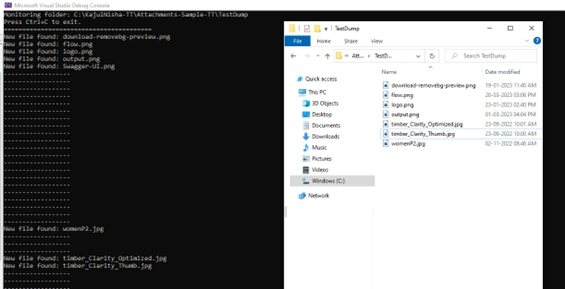
In this example, the program enters an infinite loop and periodically checks the contents of the specified folder using the Directory.GetFiles method. It then processes the files as needed.
Output
Approach 3 - Database-based Tracking:
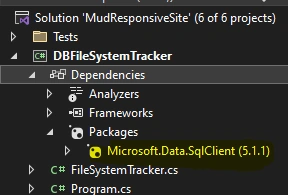
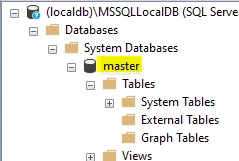
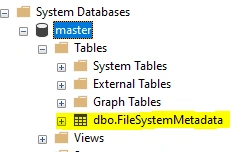
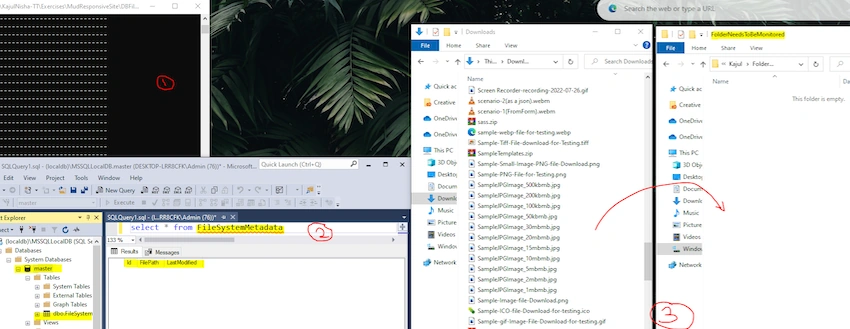
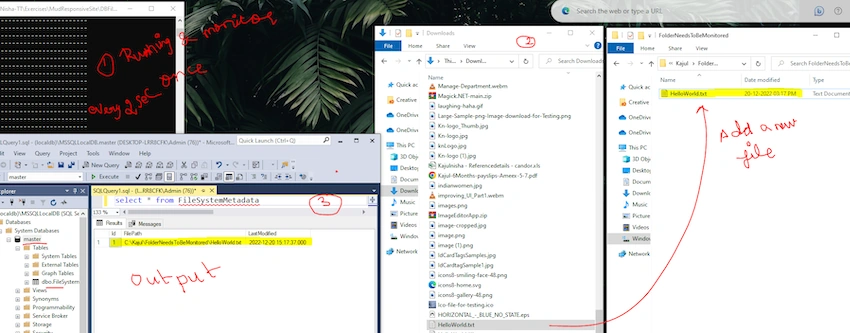
Database-based tracking method for monitoring file system changes involves storing Metadata about files and directories in a database and periodically comparing the database entries with the current file system state to identify changes. Instead of directly monitoring the file system events, this method relies on a database to track and manage file system changes.

Join the conversation! Your thoughts help the community grow.