
This article describes how to use the Email Address data type in LightSwitch Visual Studio 2012.
The following is the procedure for using Email Address Datatype.
Step 1
Open the LightSwitch Application in Visual Studio 2012 and go to the Solution Explorer.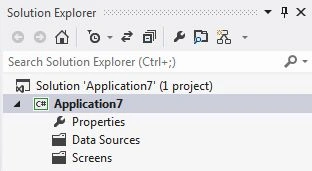
Right-click on the Data Source and choose "Add Table".
The table appears in the table designer window. Insert the records in the following table.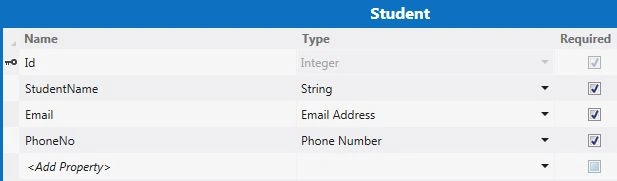
Here in the table I have added a record named "Email" and I have taken its datatype as "Email Address" as shown below.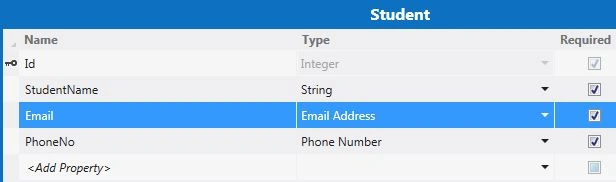
Step 2
Now once again go to the Solution Explorer, right-click on Screens and choose "Add Screen".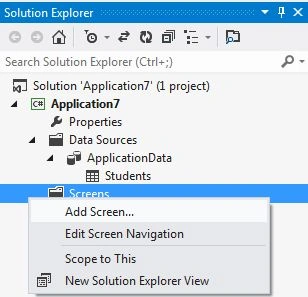
The Add New Screen dialog box appears. Select the "Editable Grid Screen" from the Screen Template, inside screen information, choose "Student" under screen data and provide some name to the Screen and click the "OK" button.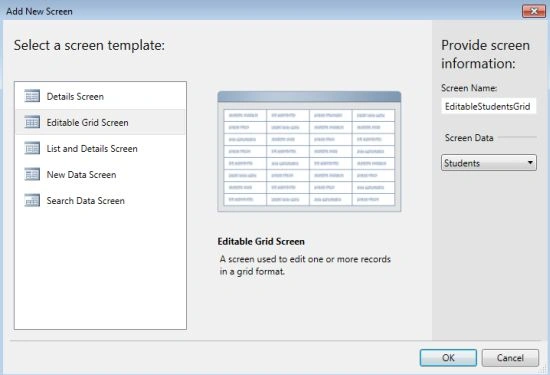
The Screen Designer appears as shown below.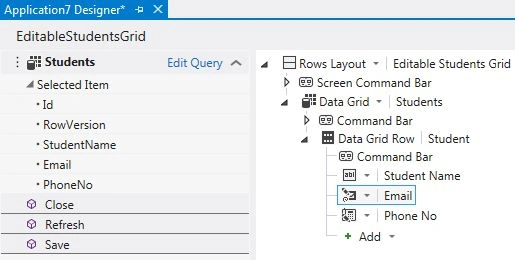
Press F5 to run the application. We get the following output screen.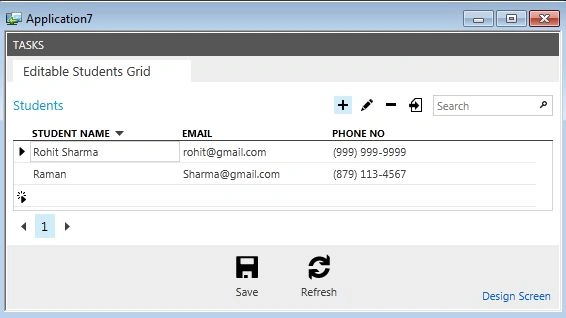
Now stop debugging the application. The application designer screen appears. Click on Email under the Data Grid Row, and go to the property window and select the Label Position as Left Aligned.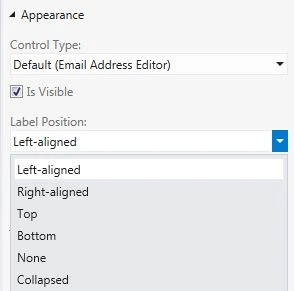
Step 3
Once again press F5 to run the application, we will get the following output screen.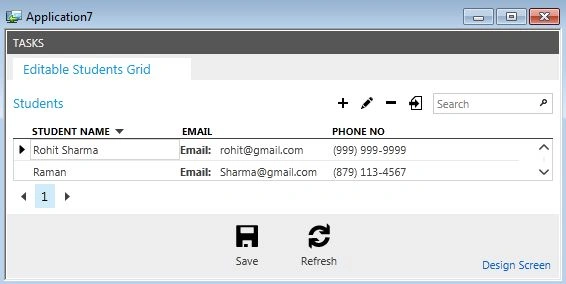
Stop debugging the application.
We can also set the text alignment from the property window.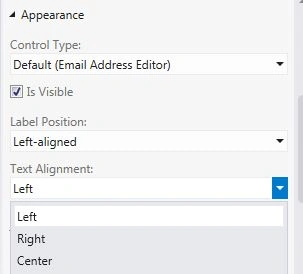
Step 4
Once again go to the Property window of Email in the screen designer and select Control Type. Here I have chosen "Email Address Viewer" from the Control Type drop down list.
As I select the "Email Address Viewer" from the control type, the "Show As Link" Checkbox appears in the property window just below the Control Type. Mark the checkbox as checked as shown below.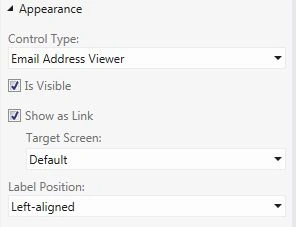
Step 5
Once again press F5 to run the application. We will get the following output where the Email appears in the form of a hyperlink.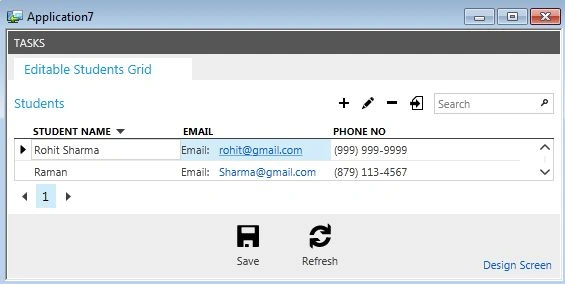
Click on the Email link. We will get the entire information of that specific person in another Screen as shown.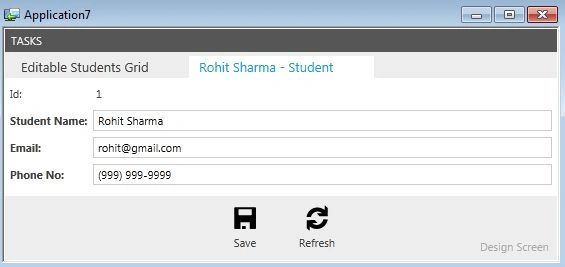

Join the conversation! Your thoughts help the community grow.