

Harness the power of data insights by embedding Power BI reports into SharePoint Online. This integration streamlines data visualization and access within your organization's collaborative environment, enhancing informed decision-making.
Prepare your Power BI report
- Publish your report to the Power BI service (https://learn.microsoft.com/en-us/power-bi/fundamentals/power-bi-service-overview).
- In Power BI Desktop, load your data, design the report, click “Publish,” and select the destination workspace in your Power BI account.
Enable Embedding
- Navigate to the Power BI service and open your report.
- Go to “File” > “Embed Report” and choose “SharePoint Online.” Copy the generated embed code.
Embed in SharePoint Online
- Go to your SharePoint site and the desired page. Click “Edit” and add a new web part by clicking the “+” icon.

- Search for and select the “Power BI” web part. Paste the copied embed code into the “Power BI report link” configuration.
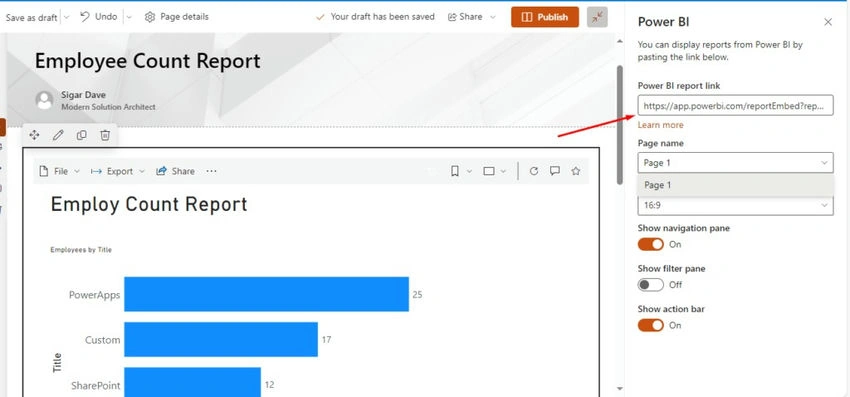
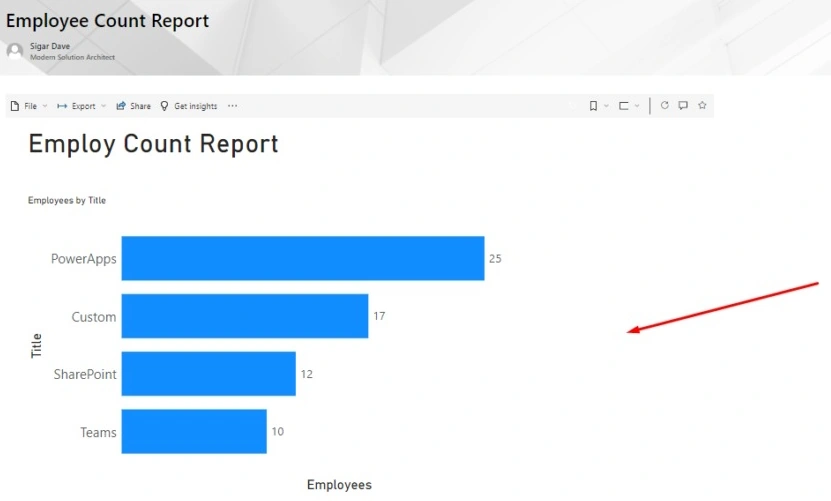
- Click “Publish” or “Save” to finalize the changes.
Customize the Appearance (Optional)
Adjust settings within the Power BI web part to tailor its appearance, such as dimensions, navigation options, and filter pane visibility.
Embedding Power BI reports in SharePoint enhances real-time data access for stakeholders directly within their familiar work environment. This integration fosters data-driven decision-making, maximizing the potential of your business intelligence tools.
For more details, visit SharePointGuy.
Join the conversation! Your thoughts help the community grow.