

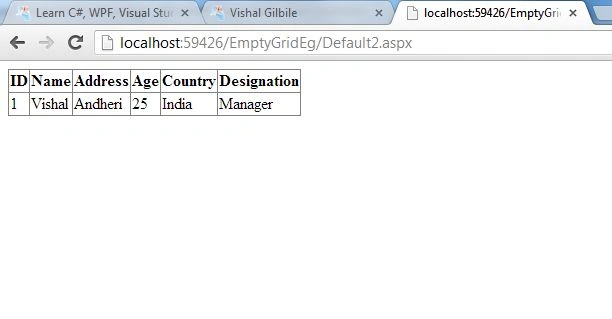
How to display a table when no records are present in the Database? This is the most frequently asked question for beginners, even for intermediate developers, while displaying data on the web forms when there are no records present in the Database. Most of us, to satisfy our requirements, switch the EmptyDataText property setting of the GridView control or any DataControl by specifying the value as "No Records Found". But there are sometimes a requirement to display a table on the web page if there is no records found in the database so that the user can add a new record by filling in the fields on the table and by clicking the button. In such cases we mostly make use of a table control along with the GridView control whereby setting its (the table's) visibility to true or false depending on whether there are records in the DB or not. The alternative is to use an EmptyDataTemplate of the GridView control or the data control, whichever you are using. Whereby the user must input the data in the respective fields and on the click of the button, all the data entered by the user is stored in the DB and finally the stored Data is displayed in the GridView control. Something about the EmptyDataTemplate is that it's a template that can display any piece of information in a specified format when no records are present in the Database. You need to explicitly define the EmptyDataTemplate for your Data Control. It's simple to define the only thing that you need to do, which is to create a class that will implement the ITemplate interface and define your layout of your EmptyDataTemplate. And then finally you need to set the GridView.EmptyDataTemplate to your Template (that you created).
Ok now let's move on towards our example, as you all know. Now let's try to implement our goal.
1. Starting with our That Queries. Over here we'll be making use of an Employees table stored in an Oracle Database. The following is the script for that:
- create table Employees
- (
- EId int not null,
- EName varchar(30),
- EAddress varchar(30),
- EAge Number,
- ECountry varchar(30),
- EDesignation varchar(30)
- )
- //For Accessing the Data stored in Employees Table
- create or replace procedure prcGetEmployees
- (
- temp_cursor out sys_refCursor
- )
- as
- begin
- open temp_cursor for
- select * from Employees;
- end;
- //For Inserting the Data in Employees Table
- create or replace procedure prcAddEmp
- (
- v_name varchar2,
- v_address varchar2,
- n_age number,
- v_country varchar2,
- v_designation varchar2
- )
- as
- v_id number:=0;
- begin
- select count(*) into v_id from Employees;
- v_id:=v_id+1;
- insert into Employees
- values (v_id,v_name,v_address,n_age,v_country,v_designation);
- end;
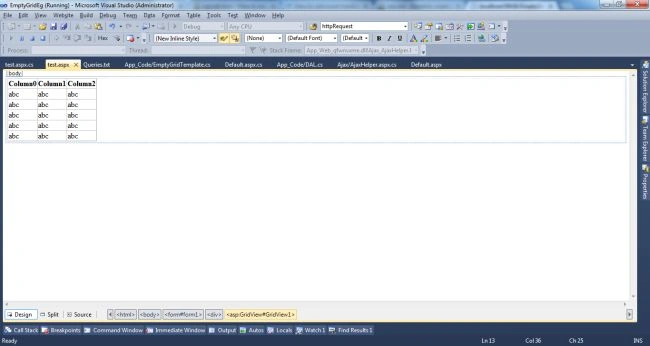
Until now we have created a table and a procedure that will allow us to read the Employees table information or insert data into the Employees table. Now let's use a webform in Visual Studio 2010 (named test.aspx in our project) and add a gridview to the test.aspx page and on the page load event call the procedure that provides us Employee data, in our case prcGetEmployees is the procedure that, when executed, will return the resultset of the Employees table.
Test.aspx
Test.aspx.cs Code Behind
- using System;
- using System.Collections.Generic;
- using System.Linq;
- using System.Web;
- using System.Web.UI;
- using System.Web.UI.WebControls;
- using System.Data;
- public partial class test : System.Web.UI.Page
- {
- protected void Page_Load(object sender, EventArgs e)
- {
- if (!IsPostBack)
- LoadData();
- }
- private void LoadData()
- {
- DAL objDal = new DAL();
- DataSet ds = objDal.GetRecords();
- if (ds != null)
- {
- GridView1.DataSource = ds.Tables[0].DefaultView;
- GridView1.DataBind();
- }
- }
- }
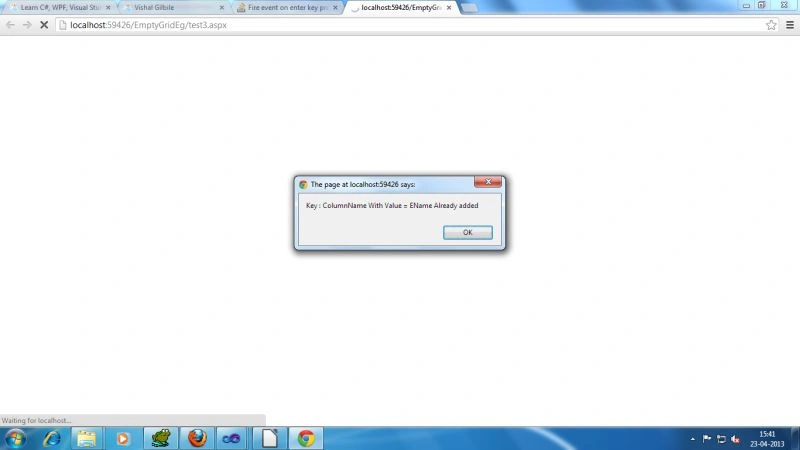
Now when I try to run the file all I get is a blank page like the following.

This is because I neither set the EmptyDataTextProperty to "No Records Found" nor did I use an EmptyDataTemplate.
Ok, now let's move toward creating an EmptyDataTemplate for our Employee Table. For creating a table we need the cell, in other words the Column and the Row. The following are the two classes that we can call; they have helper classes that will allow us to create a column and a row for our GridView's EmptyDataTemplate.
- using System;
- using System.Collections.Generic;
- using System.Linq;
- using System.Web;
- using System.Web.UI.WebControls;
- using System.ComponentModel;
- using System.Reflection;
- using System.Collections;
- using System.Web.UI;
- /// <summary>
- /// This class will act a as column of EmptyDataTemplate Table.
- ///This class is used by EmptyGridRow class
- /// </summary>
- public class EmptyColumn
- {
- //specifies the column text to be displayed
- public string ColumnName { get; set; }
- //specifies whether the column is ready only or not
- public bool IsReadOnly { get; set; }
- //the control to use for the column
- public WebControl ColumnControl { get; set; }
- //setting the default control as Label.
- public EmptyColumn()
- {
- ColumnControl = new Label();
- }
- }
- /// <summary>
- /// This class act as a row of EmptyDataTemplate Table.
- ///This class is used by EmptyGridTemplate.
- /// </summary>
- public class EmptyGridRow
- {
- //Specifies EmptyColumn Properties
- public EmptyColumn Columns { get; set; }
- //the default cell size within a row. i.e. Maximum 2 cells will be there inside a row
- public const int ColumnSize = 2;
- }
Now we are ready to create/define our EmptyDataTemplate Class. Since all the helper classes are done, the following is the source code for it.
- using System;
- using System.Collections.Generic;
- using System.Linq;
- using System.Web;
- using System.Web.UI;
- using System.Web.UI.WebControls;
- using System.Web.UI.HtmlControls;
- using System.Reflection;
- using System.Text;
- /// <summary>
- /// This is the EmptyDataTemplate Class which when executed will try to create a temporary table
- /// along with the fields specified by the user and the controls to be used defined in the EmptyGridRow class.
- /// </summary>
- public class EmptyGridTemplate : ITemplate
- {
- private ListItemType _itemType;
- private const string _openTable = "table";
- private const string _closeTable = "/table";
- private const string _openAngularBracket = "<";
- private const string _closeAngularBracket = ">";
- private const string _openCell = "td";
- private const string _closeCell = "/td";
- private const string _openRow = "tr";
- private const string _closeRow = "/tr";
- private const string _space = " ";
- private const string _doubleQuotes = "\"";
- private const string _idValueDelimeter = "=";
- private const string _rowName = "row";
- private const string _cellName = "cell";
- private const string _id = "id";
- private const string _tableID = "table1";
- private const string _tableStyle = "style=\"width:100%;border:1px solid silver;\"";
- private const string _colSpan = "colspan=\"2\"";
- private const string _alignRight = "align=\"right\"";
- private int _rowCounter = 0, _cellCounter = 0;
- private List<EmptyGridRow> _lstGridRows = null;
- private string _redirectPath = string.Empty;
- //Initialized the update panel at class level so that it can be used any where in the program.
- private UpdatePanel udpMain = new UpdatePanel()
- {
- ID = "udpMain",
- RenderMode = UpdatePanelRenderMode.Block,
- };
- public EmptyGridTemplate(ListItemType item, List<EmptyGridRow> lstRows, string rediredPath)
- {
- _lstGridRows = lstRows;
- _itemType = item;
- _redirectPath = rediredPath;
- }
- /// <summary>
- /// This function is used for creating rows in the Empty Template Table
- /// </summary>
- /// <param name="lstGridRows">List Of Row's Data</param>
- public void CreateRows(List<EmptyGridRow> lstGridRows)
- {
- foreach (EmptyGridRow row in lstGridRows)
- {
- Literal ltrlRows = new Literal()
- {
- Text = _openAngularBracket + _openRow + _space + _id +
- _idValueDelimeter + _doubleQuotes + _rowName + _rowCounter + _doubleQuotes + _closeAngularBracket
- };
- udpMain.ContentTemplateContainer.Controls.Add(ltrlRows);
- EmptyColumn col = row.Columns;
- //First Cell of the Table
- Literal ltrlCells = new Literal()
- {
- Text = _openAngularBracket + _openCell + _space + _id + _idValueDelimeter + _doubleQuotes +
- _rowName + _rowCounter + _cellName + _cellCounter + _doubleQuotes + _closeAngularBracket
- };
- udpMain.ContentTemplateContainer.Controls.Add(ltrlCells);
- //Specify the Column Name into the Literal by using col.ColumnName
- Literal ltrlCell0 = new Literal()
- {
- Text = col.ColumnName + _openAngularBracket + _closeCell + _closeAngularBracket
- };
- //Add the literal to container so that it can be displayed
- udpMain.ContentTemplateContainer.Controls.Add(ltrlCell0);
- //Second Cell of the Table
- _cellCounter++;
- Literal ltrlCell1 = new Literal()
- {
- Text = _openAngularBracket + _openCell + _space + _id + _idValueDelimeter + _doubleQuotes +
- _rowName + _rowCounter + _cellName + _cellCounter + _doubleQuotes + _closeAngularBracket
- };
- udpMain.ContentTemplateContainer.Controls.Add(ltrlCell1);
- //Add the Control of the Cell udpMain.ContentTemplateContainer.Controls.Add(col.ColumnControl);
- Literal ltrlCell1Close = new Literal()
- {
- Text = _openAngularBracket + _closeCell + _closeAngularBracket
- };
- _rowCounter++;
- _cellCounter = 0;
- }
- Literal ltrl = new Literal()
- {
- //creating new Row
- Text = _openAngularBracket + _openRow + _space + _id +
- _idValueDelimeter + _doubleQuotes + _rowName + _rowCounter + _doubleQuotes + _closeAngularBracket +
- //creating new Cell
- _openAngularBracket + _openCell + _space + _id + _idValueDelimeter + _doubleQuotes +
- _rowName + _rowCounter + _cellName + _cellCounter + _doubleQuotes + _colSpan + _alignRight + _closeAngularBracket
- };
- udpMain.ContentTemplateContainer.Controls.Add(ltrl);
- Button btnAdd = new Button()
- {
- ID = "btnAdd",
- Text = "Save",
- CommandName = "AddNew",
- CausesValidation = false,
- BackColor = System.Drawing.Color.White,
- ForeColor = System.Drawing.Color.Black,
- };
- if (_redirectPath.Equals("Default.aspx", StringComparison.InvariantCultureIgnoreCase))
- btnAdd.OnClientClick = "readEmptyGridData();";
- else
- btnAdd.Click += new EventHandler(btnAdd_Click);
- PostBackTrigger trgPostBack = new PostBackTrigger();
- trgPostBack.ControlID = btnAdd.ID;
- udpMain.Triggers.Add(trgPostBack);
- udpMain.ContentTemplateContainer.Controls.Add(btnAdd);
- }
- //Button Click Event
- private void btnAdd_Click(object sender, EventArgs e)
- {
- string Data = "";
- foreach (EmptyGridRow row in _lstGridRows)
- {
- if (!row.Columns.IsReadOnly)
- {
- WebControl webControl = (WebControl)row.Columns.ColumnControl;
- if (webControl.GetType().Equals(typeof(DropDownList)))
- {
- DropDownList ddl = (DropDownList)webControl;
- Data += ddl.SelectedItem.Text + "|";
- }
- else if (webControl.GetType().Equals(typeof(TextBox)))
- {
- TextBox txt = (TextBox)webControl;
- Data += txt.Text + "|";
- }
- }
- }
- string eName = string.Empty;
- string eAdd = string.Empty;
- int eAge = 0;
- string eCountry = string.Empty;
- string eDesignation = string.Empty;
- string[] eData = Data.Split(new char[] { '|' }, StringSplitOptions.RemoveEmptyEntries);
- eName = eData[0];
- eAdd = eData[1];
- eAge = Convert.ToInt32(eData[2]);
- eCountry = eData[3];
- eDesignation = eData[4];
- DAL objDal = new DAL();
- objDal.AddRecord(eName, eAdd, eAge, eCountry, eDesignation);
- HttpContext.Current.Response.Redirect(_redirectPath);
- }
- public void InstantiateIn(Control container)
- {
- switch (_itemType)
- {
- case ListItemType.Header:
- Literal ltrlTable = new Literal()
- {
- Text = _openAngularBracket + _openTable + _space + _id + _idValueDelimeter + _doubleQuotes + _tableID
- + _doubleQuotes + _space + _tableStyle + _closeAngularBracket
- };
- udpMain.ContentTemplateContainer.Controls.Add(ltrlTable);
- CreateRows(_lstGridRows);
- container.Controls.Add(udpMain);
- break;
- default:
- break;
- }
- }
- }
NOTE: if your observe the code above with in the lime shade, you will find that if the _redirectpage is default.aspx then we are setting the button onclientclick property to some JavaScript function or else we are setting the server side function. For now, just keep this in mind because it will be used at the end of the article where we will try to insert records into the Employee table using an xmlHttpRequest object.
If you observe the source code you will find the following things:-
-
Our EmptyGridTemplate inherits from the ITemplate class that has one function named InstantiateIn (Control container) that is called automatically when you bind this class to your data control; in our case the GridView control's EmptyDataTemplate.
-
There is a CreateRow function that accepts a List<EmptyGridRow> class, in other words this list will have all the columns along with the necessary information such as column name to be displayed, whether the column is read-only or not and the control for that column (that is to be used for accepting the input from the user for that column, for instance for accepting a name we will provide a TextBox control in front of the Name column).
-
In the InstantiateIn function we are using an UpdatePanel, in other words all of our table's data will be placed inside an updatepanel.
-
After adding all the table data to the updatePanel control, we are adding the update panel to the container control inside the InstantiateIn function.
-
Finally, on the Button click event we are calling the DAL function to add the record for the Employee.
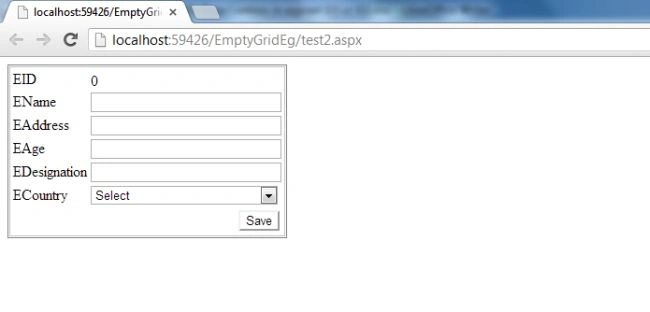
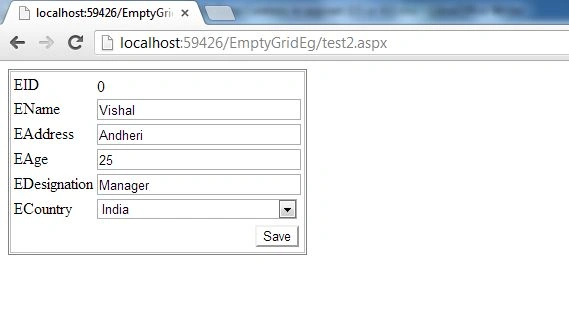
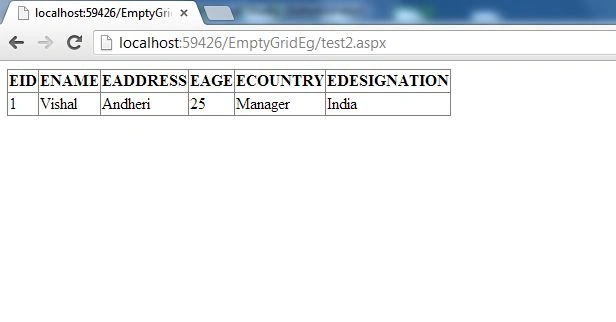
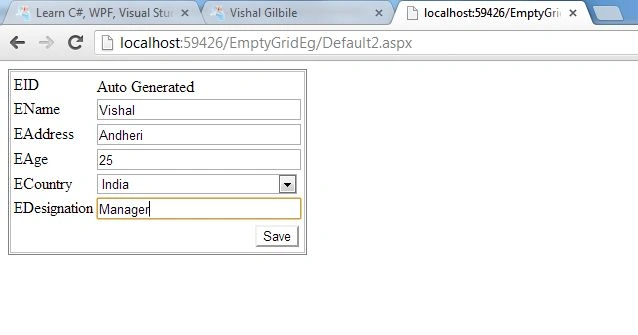
Now our EmptyGridTemplate is ready, we can make use of it. For testing it let's try to add a page with the name test2.aspx.
NOTE: Remember that our EmptyGridTemplate makes use of UpdatePanel for adding the control on the page. In other words, in our test2.aspx page we will need to add a ScriptManager class.
The following is the markup file of the test2.aspx page:
- <%@ Page Language="C#" AutoEventWireup="true" CodeFile="test2.aspx.cs" Inherits="test2" %>
- <!DOCTYPE html PUBLIC "-//W3C//DTD XHTML 1.0 Transitional//EN" "http://www.w3.org/TR/xhtml1/DTD/xhtml1-transitional.dtd">
- <html xmlns="http://www.w3.org/1999/xhtml">
- <head runat="server">
- <title></title>
- </head>
- <body>
- <form id="form1" runat="server">
- <div>
- <asp:ScriptManager ID="ScriptManager1" runat="server">
- </asp:ScriptManager>
- <asp:GridView ID="GridView1" runat="server">
- </asp:GridView>
- </div>
- </form>
- </body>
- </html>
Following is the Source Code of test2.aspx Page.
- using System;
- using System.Collections.Generic;
- using System.Linq;
- using System.Web;
- using System.Web.UI;
- using System.Web.UI.WebControls;
- using System.Data;
- public partial class test2 : System.Web.UI.Page
- {
- private string _pageName = string.Empty;
- protected void Page_Load(object sender, EventArgs e)
- {
- _pageName = System.Web.HttpContext.Current.Request.Url.AbsolutePath;
- System.IO.FileInfo oInfo = new System.IO.FileInfo(_pageName);
- _pageName = oInfo.Name;
- LoadData();
- }
- private void LoadData()
- {
- DAL objDal = new DAL();
- DataSet ds = objDal.GetRecords();
- if (ds != null)
- {
- GridView1.DataSource = ds.Tables[0].DefaultView;
- GridView1.DataBind();
- }
- else
- {
- //If there is no data present then define the Columns of our EmptyGridRow and add those rows to the EmptyGridTemplate
- //Define controls index position for eg at index 1,2,3,5 textbox will be there and at index 4 DropDownList
- int[] txtFieldsIndex = { 1, 2, 3, 4 };//here i want textbox to be displayed for column at index position 1,2,3 and 4
- int[] ddlFieldsIndex = { 5 };//dropdownlist to be displayed for column at index position 5
- //Define Column names to be displayed in our emptydatatemplate table
- string[] colNames = { "EID", "EName", "EAddress", "EAge", "EDesignation", "ECountry" };
- string errorMsg = "";
- //Creating array of EmptyColumn
- EmptyColumn[] cols = new EmptyColumn[colNames.Length];
- for (byte i = 0; i < cols.Length; i++)
- {
- cols[i] = new EmptyColumn()
- {
- ColumnName = colNames[i],
- IsReadOnly = txtFieldsIndex.Contains(i) == true ? false : ddlFieldsIndex.Contains(i) == true ? false : true;
- ColumnControl = txtFieldsIndex.Contains(i) == true ? new TextBox()
- {
- ID = string.Concat("txt", colNames[i]),
- ForeColor = System.Drawing.Color.Black,
- Width = new Unit(200),
- Height = 15,
- }
- :
- ddlFieldsIndex.Contains(i) == true ? (WebControl)new DropDownList()
- {
- ID = string.Concat("ddl", colNames[i]),
- ForeColor = System.Drawing.Color.Black,
- Width = new Unit(200),
- Height = 20,
- AutoPostBack = true,
- //defining static list to be displayed inside the dropdownlist
- DataSource = new ListItemCollection { new ListItem("Select"), new ListItem("India"), new ListItem("China") }
- }
- :
- (WebControl)new Label()
- {
- //this column is just for display purpose even if you dont show it there is no issue. I've shown it so that all of us can come to known
- // that we can display multiple controls inside the emptydatatemplate table at runtime.
- ID = string.Concat("lbl", colNames[i]),
- ForeColor = System.Drawing.Color.Black,
- Width = new Unit(200),
- Text = "0",//by default setting the EID value to zero because it will automatically be calculated inside the insert procedure
- Height = 15,
- }
- };
- }
- //Creating list of EmptyGridRows
- List<EmptyGridRow> lstRows = new List<EmptyGridRow>();
- foreach (EmptyColumn col in cols)
- {
- lstRows.Add(new EmptyGridRow() { Columns = col });
- }
- //ing the list of rows and the listitem type as header and page name to refresh the page to the constructor of our EmptyGridTemplate class
- EmptyGridTemplate objTemplate = new EmptyGridTemplate(ListItemType.Header, lstRows, _pageName);
- //Binding the EmptyGridTemplate to our GridView
- GridView1.EmptyDataTemplate = objTemplate;
- GridView1.DataBind();
- }
- }
- }
Vishal GilbilePosted Apr 24, 2013, 8:26 AM
Thanks Dinesh
Dinesh BeniwalPosted Apr 24, 2013, 8:09 AM
Good Work Vishal