

Introduction
In this article, I will show you how to enable and how to change the layout of the virtual On-Screen Keyboard (OSK) in Windows 8. On-Screen allows the users as an alternative virtual keyboard that can be used through the pointer device like the mouse. It is helpful when the actual physical keyboard doesn't work properly.
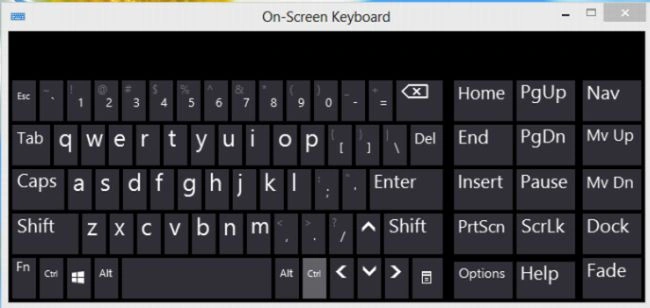
The On-Screen Keyboard displays a virtual keyboard on the computer screen that allows people to type data using a pointing device or joystick. We can also adjust or change the layout of the On-Screen Keyboard as suitable.
You can adjust the layout, alignment, or number of keys that appear in the On-Screen Keyboard. There are many ways to open the On-Screen Keyboard. In this article, I will use the faster and easiest way to open the OSK in Windows 8.
Here is the procedure to Enable/Open/Start the On-Screen Keyboard (OSK) and select/change its layout option.
Step 1
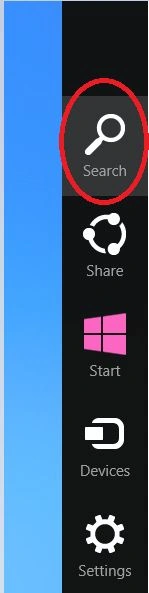
Move the pointer on the right-bottom of the screen and select the Search option.
 Step 2
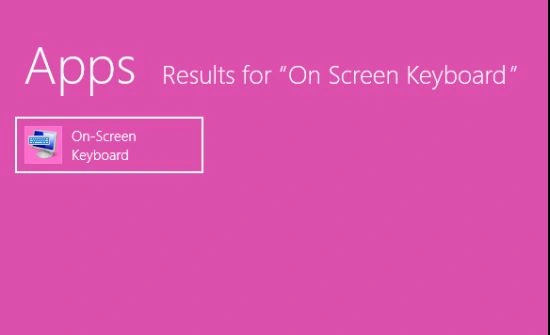
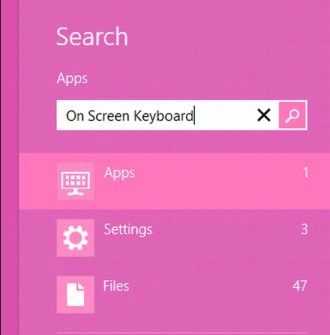
In the search box, you can type the name "On-Screen Keyboard" and search it. Select the On-Screen Keyboard from the left panel of the screen.
 Step 3
The On-Screen Keyboard appears on the screen.
Join the conversation! Your thoughts help the community grow.