

In this article we will be seeing how to enable item scheduling in SharePoint
2010.
I have created a document library "Doc Library".
Go to Document Library (Doc Library) => Library Settings => General Settings
=>Manage Item Scheduling => you will be getting the following error message.
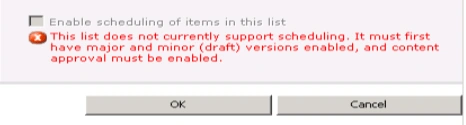
Go to Document Library (Doc Library) => Library Settings => General Settings
=>Versioning Settings =>Do the following
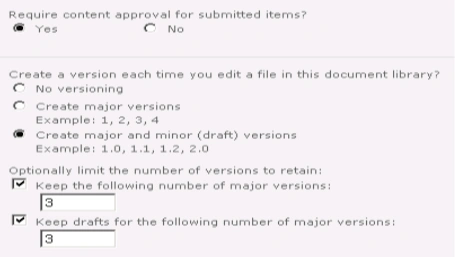
Go to Document Library (Doc Library) => Library Settings => General Settings
=>Manage Item Scheduling => now you will be able to enable item scheduling.
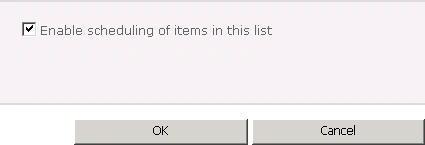
Programmatically enable or disable item scheduling:
- Open Visual Studio 2010.
- Create Console application.
- Replace the code with the following.
using System;
using System.Collections.Generic;
using System.Linq;
using System.Text;
using Microsoft.SharePoint;
using System.Reflection;namespace ItemScheduling
{
class Program
{
static void Main(string[] args)
{
using (SPSite site = new SPSite("http://serverName:1111/"))
{
using (SPWeb web = site.RootWeb)
{
SPList list=web.Lists["Shared Documents"];
list.EnableModeration = true;
list.EnableMinorVersions = true;
list.Update();//To enable Scheduling in the list
Microsoft.SharePoint.Publishing.PublishingWeb.EnableScheduling(list);//To disable Scheduling in the list
Microsoft.SharePoint.Publishing.PublishingWeb.DisableScheduling(list);
}
}
}
}
} - Hit F5.
Using PowerShell enable or disable item
scheduling:
$site=Get-SPSite "http://serverName:1111/"
$web=$site.RootWeb
$list=$web.Lists
$list.EnableModeration=$true
$list.EnableMinorVersions=$true
# To enable Scheduling in the list
[Microsoft.SharePoint.Publishing.PublishingWeb]::EnableScheduling($list)
# To disable Scheduling in the list
[Microsoft.SharePoint.Publishing.PublishingWeb]::DisableScheduling($list)
Kiran SeersathPosted Oct 9, 2013, 11:24 AM
How content approval will work after we enable it? What process user needs to follow when he creates new page?