

Introduction
In this article, we explain how to enable the Windows 8 Store on Windows To Go.
Procedure to enable the Windows 8 Store
Step 1
First, we open the Windows 8 Start Screen on our Windows 8 To Go workspace.
Step 2
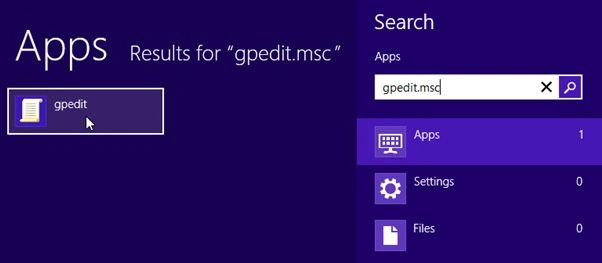
Then we search in our search box for "gpedit.msc". (To open All Apps, search from the Desktop by pressing the "Win + Q" shortcut key).
Step 3
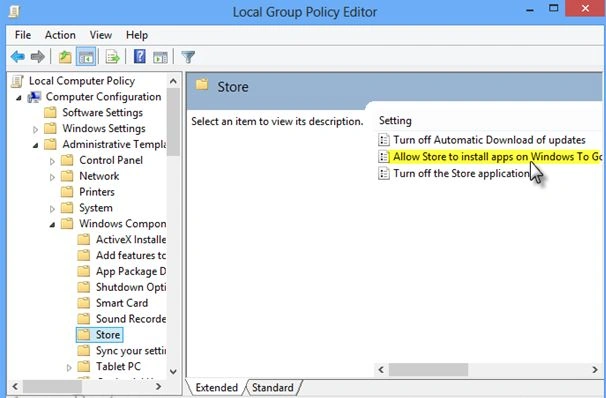
We will then see the "Local Group Policy Editor" window open in our Desktop. Then follow the links "Computer Configuration" > "Administrative Templates" > "Windows Components" > "Store" and open up the entry titled "Allow Store to install apps on the Windows To Go workspaces".
Step 4
Now just set this permission to "Enabled" and click "OK" to save the changes.
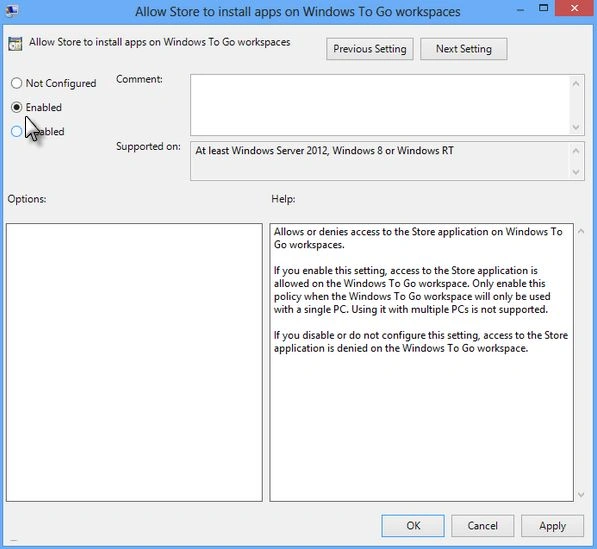
The Microsoft App Store will now be available from your Windows To Go workspace.
Summary
In this article, we learned about Enable the Windows 8 Store on Windows To Go.
Join the conversation! Your thoughts help the community grow.