

Introduction
In this article, we explain how to easily encrypt files and folders with EFS in Windows 8.
Procedure to Encrypt Files and Folders with EFS
Step 1
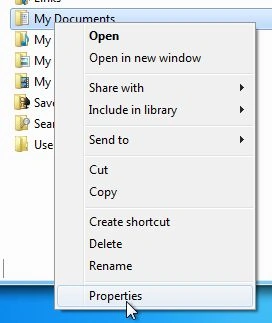
First, we select the Folder or File you wish to encrypt, then right-click and select "Properties".
Step 2
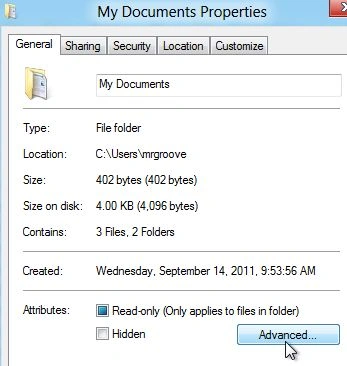
When the properties window opens, we go to the General Tab, then click "Advanced".
Step 3
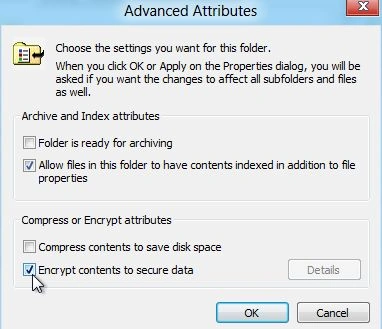
Check the box "Encrypt contents" to secure data and click "OK".
Step 4
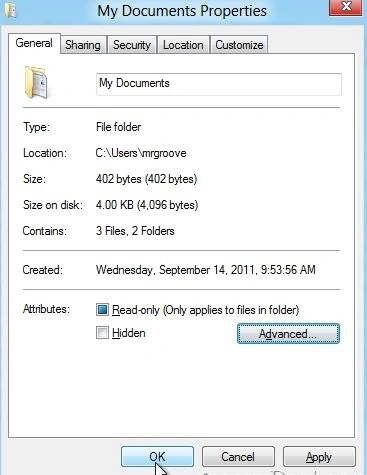
Then we click the "OK" tab.
Step 5
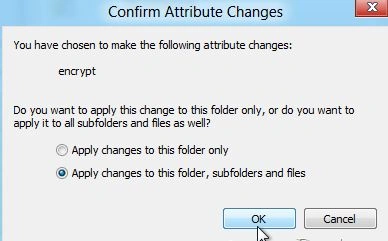
If we want to encrypt a folder, Windows will ask if you want to encrypt just the single folder or all subfolders and files in the folder. So click the radio button that works for you and click "OK".
Step 6
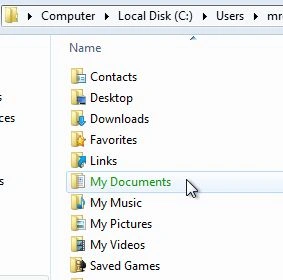
By default, after encrypting a file or folder with Windows EFS, it will turn green as shown below.
Step 7
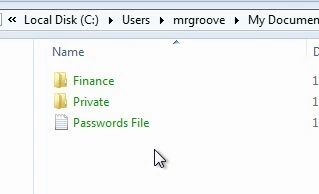
Because I chose to encrypt all sub-folders and files, notice how they are also encrypted (green) as well.
Summary
In this article, we learned about Encrypt Files and Folders With EFS in Windows 8.
Tee ThirteenPosted Mar 9, 2013, 7:06 PM
I'm not understanding how this works...I understand the 7 steps but I don't understand what changes it has made aside from changing the text to green. =) And why did it create a copy that takes me to the Import Wizard if I open it? Do I delete the original file that I encrypted and then go through the steps within the Import Wizard after opening the "locked" copy?