Introduction
For most of the Programmers, copy and paste is frequently doing task in their daily life. But, Windows's Clipboard will make our work of copying and pasting little bit hard. It won't support queuing, saving of clipboard data, showing time of copy occurred and application name from where you copied data etc. I think it's better to design an application that will make copying and pasting of data little bit easier. So, I design this application in VS.NET 2003 using C# and windows forms. I will explain features provided by this application followed by its design and coding.
Features present in this application
- It allows us to queue all clipboard data.
- It allows us to save entire clipboard data into permanent storage like file.
- Shows time at which you copied data into clipboard.
- Shows Icon of the application from where you copied data onto clipboard.
- Easy to use UI.
- Now, Clipboard data is just a click away from us.
Now, create a new Windows Application using C# in VS.NET 2003 and name it as ClipBoardWatcher. Add controls to Main Form (Form1) as shown below:
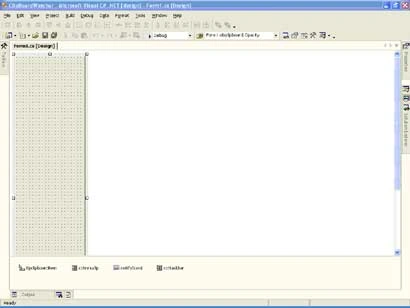
Figure 1.
Here, I set following properties of Form1:
Location -> 850, 0
Opacity -> 50%
Size -> 176, 738 and
KeyPreview -> True.
And I placed a Tooltip and NotifyIcon followed by two contextmenus. One contextmenu is assigned to Form1 (to button displayed on the form for each clipboard item) and another to NotifyIcon.
Following are the menuitems present in cxtmnuclip context menu (assigned to Form1's clipboard item):
- Copy To Clipboard (this is used to copy selected clipboard item from application onto Clipboard).
- Remove This Clipboard Data (Removes selected clipboard item from application).
- Remove All Clipboard items (Remove all clipboard items from application).
- Save Items to File (Saves contents of application (Clipboard items) onto a file for further reference).
Following are the menuitems present in cxttaskbar context menu (assigned to NotifyIcon):
All menuitems present in this context menu are related to UI settings of Application:
- Show/Hide to show or hide the application.
- Show In Taskbar allows us to set whether application should be shown in taskbar or not.
- Show on Top allows us to set whether application should be shown on top of all windows or not.
- Control Form Thickness allows us to increase or decrease thickness (Opacity) of main form.
- Show ControlBox allows us to set whether application should show controlbox or not.
- Exit is used to end execution of the application.
The main functionality of this application is it will create a button on main form whenever you copy new data onto clipboard along with that it will display icon of application from where you copied data onto clipboard and its time of copy by monitoring contents of System's Clipboard for every second by using System.Threading.Timer object.
Now, I will explain coding part of this application.
I added three class files to the application. I will outline functionality of each class file.
Functionality present in ClipBoardItems.cs:
In order to create buttons for each clipboard item, I implemented concept of control array of VB here. Here, I just created a class named Clipboard Items which inherits from System.Collections.CollectionBase and in constructor of this class, I am passing container (Form1) for this buttons. Than I added five methods to implement add new button (clipboard item), to remove selected clipboard item, to remove all clipboard items from application, to save all items into a file and to handle click of button.
In AddNewClipItem(), I created a new button and set its Text property to contents of clipboard data along with some other properties like width, height and Image to icon of application from where data is copied onto clipboard.
Functionality present in APIFuncs.cs:
In this class, I am using Windows API methods to get application's exe path from where you copied data onto clipboard. Actually, I am getting Handle of window from where you copied data by using GetForegroundWindow() and than that handle is passed to GetWindowProcessID() to get Process ID. After that, I have passed this process id to GetProcessById() for retrieving processes from where data is copied. Finally, I am getting physical path of the executing process (process which is created by calling GetProcessById()) by using the property MainModule of the process.
Functionality present in ActiveApplicationIcon.cs:
In this class, I am using GetApplnIcon() to get the icon of the process from where data is copied. The logic behind this is, for every one second System.Threading's timer object will check contents of the system clipboard and if its contents are changed than it will get the icon of the currently focused window (its means window from where data is copied) and it is set to a newly created button with text as clipboard contents and Image as icon of the application from where data is copied onto clipboard. We retrieve icon of the application by passing physical path of the process's MainModule to GetApplnIcon() of ActiveApplicationIcon class.
We can use Windows API methods to get data from clipboard whenever it is changed instead of using timer object. If I use this Windows API methods, than most of the code in this application will not be C# code (code will be having only API calls only) and that too will be hard to understand the application also. As per performance wise, there won't be much difference in using either timer object or Windows API. Since we are using System.Threading's timer it won't consume much resources. If you want, you can still go with Windows API also.
Finally, I added some code to enhance UI of the application. And, the final output will be like this:
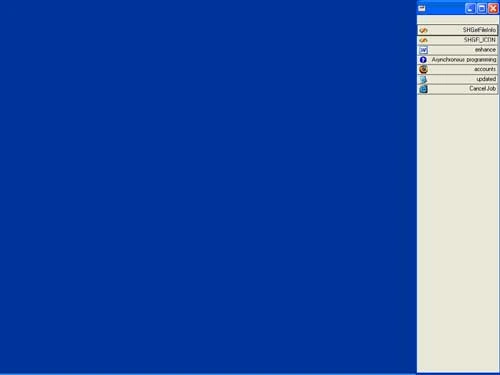
Figure 2.
We can still enhance this application by providing access to remote machine's clipboard and improving UI....
By using this application, we will never lose your clipboard data and that too it is just a click away from you. I am attaching the source code for further reference. I hope this code will be useful for all.


Join the conversation! Your thoughts help the community grow.