

In my example, I have two Microservices and Products WebAPI. It has one entity “Product”. This service uses SQL Server container as a backend to persist the products. The other service Orders WebAPI (Part II) also has one entity “Order” and it uses the SQLite to persist the orders. The main difference between Product service and the Order service is that the Order service contains an embedded database (in-process database) within the container itself.
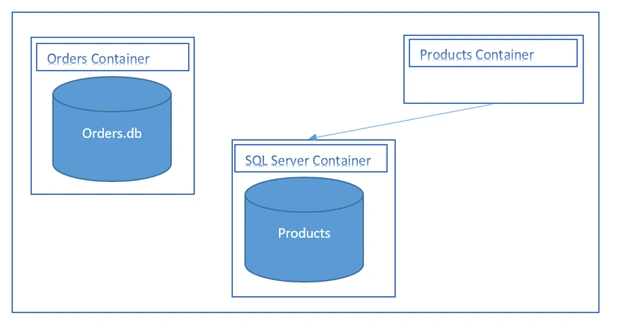
Image -1- Databases in the containers
If you have Docker in your system, then you can skip this section.
Docker Installation
https://www.docker.com/products/docker-desktop
I have downloaded Docker-Desktop application and installed everything as default. One thing I have changed after the installation is that I have selected the checkbox with drive ‘C’, as shown in the image below.
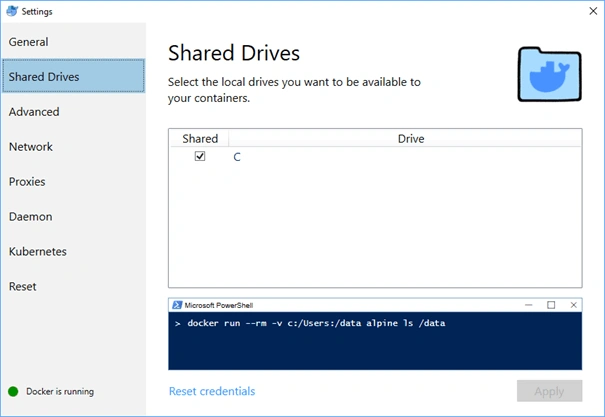
Image -2- Select C driver as Shared Drives
ProductsWebApi: Let us do it together (step by step)
I have started Visual Studio 2019 and selected "Create New Project", and then I have chosen ASP.NET Core Web Application, as you can see in the image.
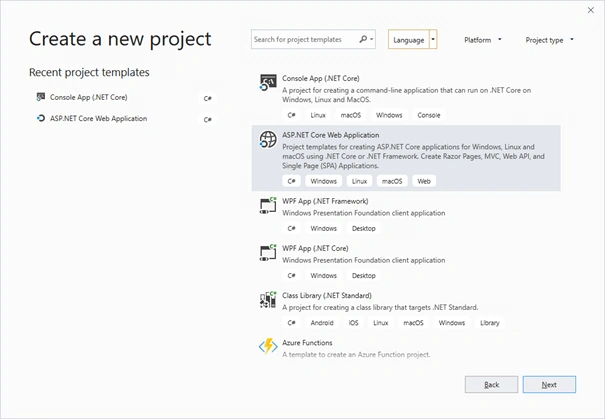
Image -4- Create a new project in Visual Studio 2019
I have set the project name to “ProductsSqlServer”.
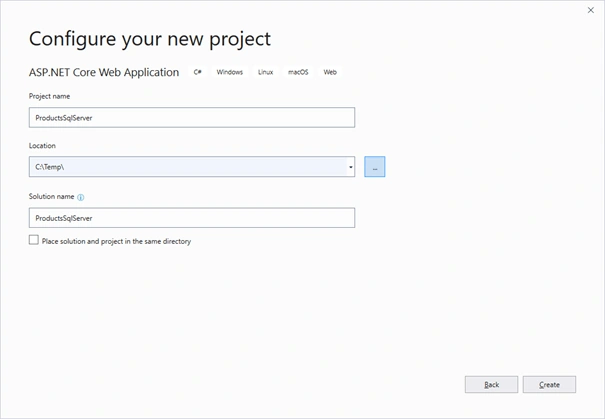
Image -5- Set project name in Visual Studio 2019
A dummy service is generated. Press “F5” to build and run the project.
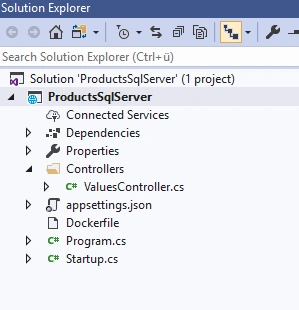
Image -6- The generated dummy project.
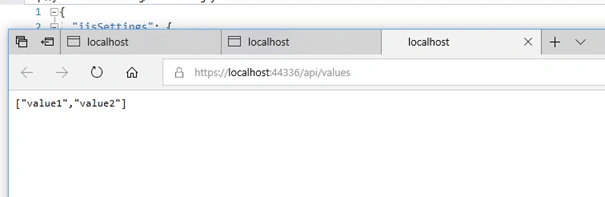
Image -7- execute a dummy service
[“value1”, “value2”] is hardcoded in the ValuesController.cs.
We can begin with the work. First, we need to build our domain model.
Database context
- Creating and adding the entity “Product” to the project.
- Creating and adding ProductsDBContext to the project and set up the connection string.
- Creating and adding ProductsController to the project with some logic to handle the requests.
Here is the Product entity,
- Public class Product {
- /// <summary>
- /// Gets or sets the identifier.
- /// </summary>
- /// <value>The identifier.</value>
- public int Id {
- get;
- set;
- }
- /// <summary>
- /// Gets or sets the name.
- /// </summary>
- /// <value>The name.</value>
- public string Name {
- get;
- set;
- }
- /// <summary>
- /// Gets or sets the price.
- /// </summary>
- /// <value>The price.</value>
- public decimal Price {
- get;
- set;
- }
- /// <summary>
- /// Gets or sets the description.
- /// </summary>
- /// <value>The description.</value>
- public int Description {
- get;
- set;
- }
- }
Here is the Products database context.
- public class EntityFrameworkSqlServerContext: DbContext {
- /// <summary>
- /// Initializes a new instance of the <see cref="EntityFrameworkSqlServerContext"/> class.
- /// </summary>
- /// <param name="options">The options.</param>
- public EntityFrameworkSqlServerContext(DbContextOptions < EntityFrameworkSqlServerContext > options): base(options) {
- // Creates the database !! Just for DEMO !! in production code you have to handle it differently!
- this.Database.EnsureCreated();
- }
- /// <summary>
- /// Gets or sets the products.
- /// </summary>
- /// <value>The products.</value>
- public DbSet < Product > Products {
- get;
- set;
- }
- }
Moreover, I have added the connection string to the appsettings.json.
- {
- "ConnectionStrings": {
- "SqlConnection": "Server=sqlserver;Database=ProductsDb;User Id=sa;Password=BigPassw0rd"
- },
- "Logging": {
- "LogLevel": {
- "Default": "Warning"
- }
- },
- "AllowedHosts": "*"
- }
The hostname “sqlserver” does not exist in my machine or network.
- [ApiController, Route("api/[controller]")]
- public class ProductsController: ControllerBase {
- /// <summary>The products database context</summary>
- private readonly EntityFrameworkSqlServerContext _productsDbContext;
- public ProductsController(EntityFrameworkSqlServerContext productsDbContext) {
- _productsDbContext = productsDbContext;
- }
- /// <summary>Gets the product.</summary>
- /// <returns>Task<ActionResult<IEnumerable<Product>>>.</returns>
- /// <remarks> GET api/values</remarks>
- [HttpGet]
- public async Task < ActionResult < IEnumerable < Product >>> GetProduct() {
- return Ok(await _productsDbContext.Products.ToListAsync());
- }
- /// <summary>Creates the specified product.</summary>
- /// <param name="product">The product.</param>
- /// <returns>Task<ActionResult<Product>>.</returns>
- [HttpPost]
- public async Task < ActionResult < Product >> Create([FromBody] Product product) {
- if (!ModelState.IsValid)
- return BadRequest(ModelState);
- await _productsDbContext.Products.AddAsync(product);
- await _productsDbContext.SaveChangesAsync();
- return Ok(product);
- }
- /// <summary>Updates the specified identifier.</summary>
- /// <param name="id">The identifier.</param>
- /// <param name="productFromJson">The product from json.</param>
- /// <returns>Task<ActionResult<Product>>.</returns>
- [HttpPut("{id}")]
- public async Task < ActionResult < Product >> Update(int id, [FromBody] Product productFromJson) {
- if (!ModelState.IsValid)
- return BadRequest(ModelState);
- var product = await _productsDbContext.Products.FindAsync(id);
- if (product == null) {
- return NotFound();
- }
- product.Name = productFromJson.Name;
- product.Price = productFromJson.Price;
- product.Description = productFromJson.Description;
- await _productsDbContext.SaveChangesAsync();
- return Ok(product);
- }
- /// <summary>Deletes the specified identifier.</summary>
- /// <param name="id">The identifier.</param>
- /// <returns>Task<ActionResult<Product>>.</returns>
- [HttpDelete("{id}")]
- public async Task < ActionResult < Product >> Delete(int id) {
- var product = await _productsDbContext.Products.FindAsync(id);
- if (product == null) {
- return NotFound();
- }
- _productsDbContext.Remove(product);
- await _productsDbContext.SaveChangesAsync();
- return Ok(product);
- }
- }
- public void ConfigureServices(IServiceCollection services) {
- services.AddMvc().SetCompatibilityVersion(CompatibilityVersion.Version_2_2);
- services.AddDbContext < EntityFrameworkSqlServerContext > (options => options.UseSqlServer(Configuration.GetConnectionString("SqlConnection")));
- }
- // This method gets called by the runtime. Use this method to configure the HTTP request pipeline.
- public void Configure(IApplicationBuilder app, IHostingEnvironment env) {
- if (env.IsDevelopment()) {
- app.UseDeveloperExceptionPage();
- }
- app.UseMvc();
- }
The product service is done, but you cannot use it or test it because of missing back-end. Thus, we need to create two containers in Docker: One for product service and the other container for SQL Server. To do that, you need to follow the below-described steps.
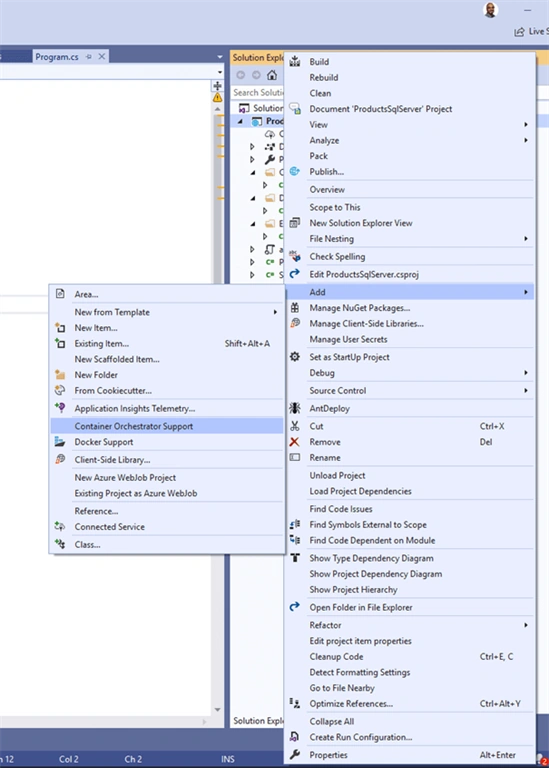
Image -8- Adding “Container Orchestration Support”
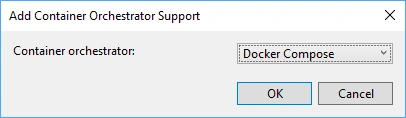
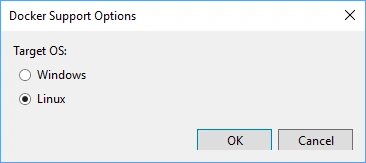
Below, you can see the generated/regenerated Dockerfile inside the project, which is related to the same service. Moreover, you can see docker-compose.yml, which is shared for multiple services.
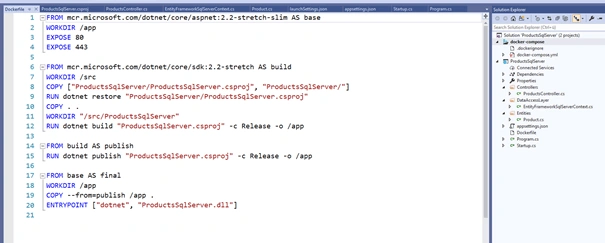
To avoid any certification problem, I will remove the SSL connection from everywhere and I have removed the 80, 443 from the Dockerfile so that my Dockerfile and docker- compose.yml files look like below.
Dockerfile
- FROM mcr.microsoft.com/dotnet/core/aspnet:2.2-stretch-slim AS base
- WORKDIR /app
- FROM mcr.microsoft.com/dotnet/core/sdk:2.2-stretch AS build
- WORKDIR /src
- COPY ["ProductsSqlServer/ProductsSqlServer.csproj", "ProductsSqlServer/"]
- RUN dotnet restore "ProductsSqlServer/ProductsSqlServer.csproj"
- COPY . .
- WORKDIR "/src/ProductsSqlServer"
- RUN dotnet build "ProductsSqlServer.csproj" -c Release -o /app
- FROM build AS publish
- RUN dotnet publish "ProductsSqlServer.csproj" -c Release -o /app
- FROM base AS final
- WORKDIR /app
- COPY --from=publish /app .
- ENTRYPOINT ["dotnet", "ProductsSqlServer.dll"]
- version: '3.4'
- services:
- productssqlserver:
- image: ${DOCKER_REGISTRY-}productssqlserver
- build:
- context: .
- dockerfile: ProductsSqlServer/Dockerfile
- docker-compose-override.yml
- version: '3.4'
- services:
- productssqlserver:
- environment:
- - ASPNETCORE_ENVIRONMENT=Development
- ports:
- - "49630:80"
- version: '3.4'
- services:
- productssqlserver:
- links:
- - sqlserverService
- image: ${DOCKER_REGISTRY-}productssqlserver
- build:
- context: .
- dockerfile: ProductsSqlServer/Dockerfile
- sqlserverService:
- image: microsoft/mssql-server-linux:2017-latest
- hostname: 'sqlserver'
- environment:
- ACCEPT_EULA: Y
- SA_PASSWORD: "BigPassw0rd"
- volumes:
- - ./data/mssql:/var/opt/mssql3
- ports:
- - '1433:1433'
- expose:
- - 1433
Press Alt+Enter on “docker-compose” project and set the Service URL as shown below.
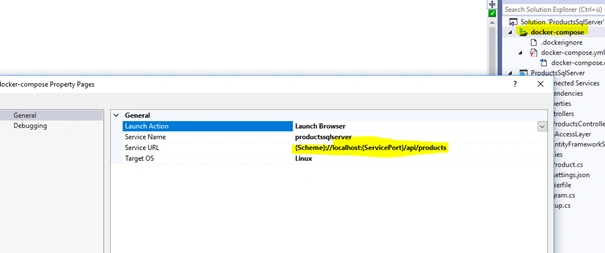
Image -9- browser start-up link
The project is now ready to run. So, I have pressed “F5” and finally, the browser starts with empty values.
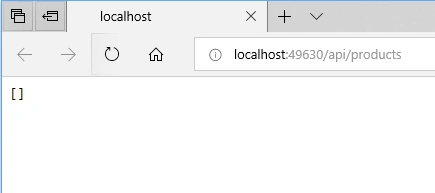
Image -10- start-up the browser with empty values
However, we do not have any data (I did not seed the database). Here, I will use the tool Postman (https://www.getpostman.com) to feed the database with some data.
I have started the Postman, and I have sent the following product as a JSON string.
!!Do it by yourself!!
- HTTP: http://localhost:49630/api/products
- JSON: {"name": "6-Pack Beer", "price": "400", "description": "Console Game"}
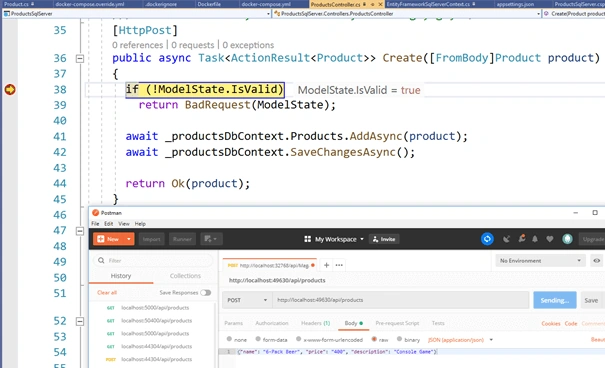
I am back to the browser, and I have refreshed it with “F5”.
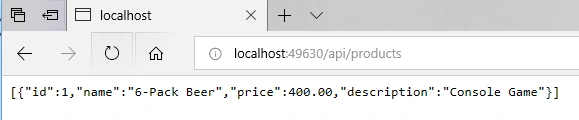
It works perfectly.
Let us take a look into the database within the container.
I have opened SQL Server Management Studio (SSMS), see an image -12-.
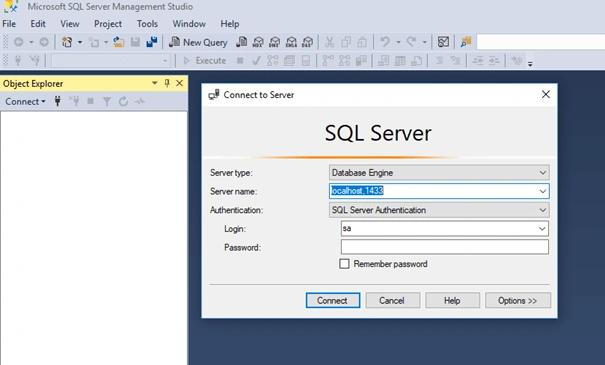
Image -12- starting SSMS
Server name: localhost, 1433
Login: sa
Password: BigPassw0rd
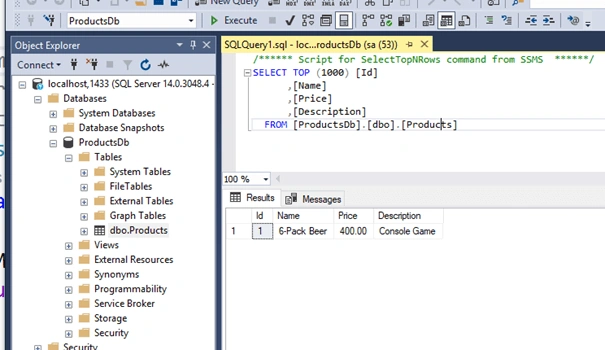
I have browsed the Products table. It is very impressive! I can see everything from my local machine, see image below.
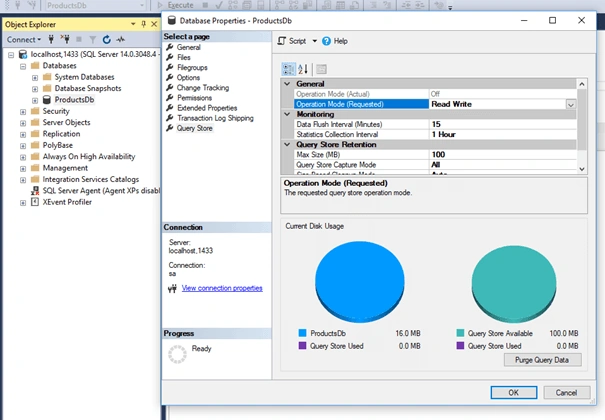
I can as well enable the Query Store inside the SQL Server container.
More information
https://learning.getpostman.com/docs/postman/collection_runs/intro_to_collection_runs/
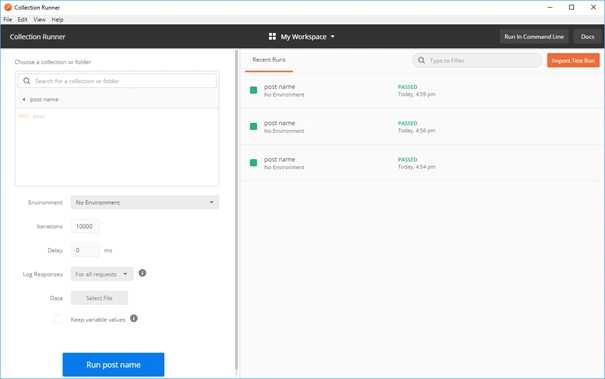
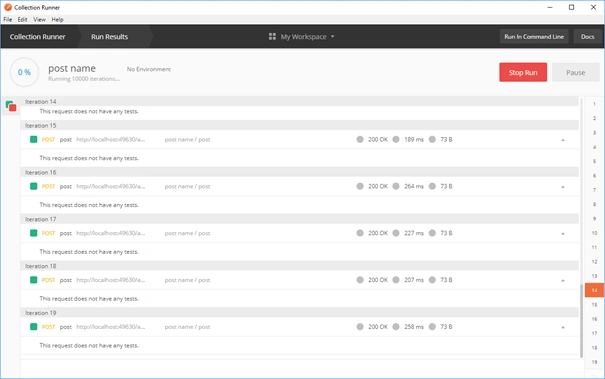
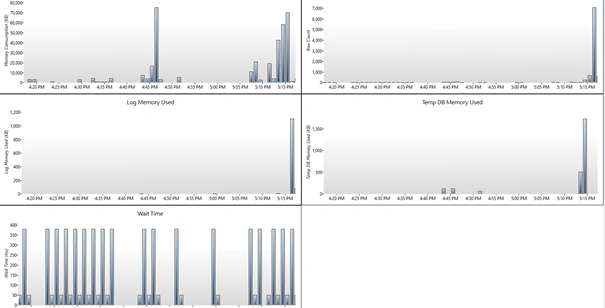
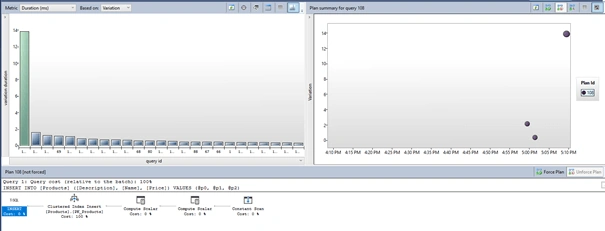
Image -13– Insert Product Query
Summary
Docker and SQL Server work very well together. You can easily connect to SQL Server, and it is easy to optimize the performance or to profile the database. During my tests, I have seen some problems, for example, sometimes I have to restart the Docker application, and sometimes I have to delete the vs. directory from the solution directory.
The real problem is that you need a lot of time to get the Containerized App working correctly. My golden tip from this article is: “This kind of services software architecture is really powerful, but it is also complicated for developers, and it needs a lot of time and knowledge. If you do not need the horizontal scalability, then you have to think before using Containerized App”. In the next article, I shall go further with the Docker and SQLite example, in this case, we shall see that the database is embedded within the service. I hope that you have got my message from this article. Finally, I would like to thank you for reading the article until the end, and you can find the source code on GitHub: Entity Framework Core Docker
f3ozgulPosted May 12, 2020, 1:21 AM
Hi, Is the db migrations done automatically?
Дмитрий ЭйдиновPosted Mar 27, 2020, 3:38 AM
What is happening with data on MS SQL database if you restart the docker? Docker revert image state to initial one where no data have been stored yet. Seems that store database on docker is not good idea and should be used for testing / playing stuffs only.
Bassam AlugiliPosted May 25, 2019, 7:51 AM
hi check your firewall and post plz the error message.
Mario BittencourtPosted May 22, 2019, 10:04 PM
Hi, congratulations on the article. One thing strange is that docker ps shows the sqlserver up, netstat shows the 0.0.0.0:1433 listening but I can't connect from the container or the SQL server management studio.