

Introduction
This article will explain Event Data Binding in Angular. I will discuss event binding with examples.
- Interpolation data binding in angular
- Property Data binding in angular
- Class data binding in angular
- Style data Binding in angular
- Attribute data Binding in Angular
How to handle events in Angular?
Any activity like button click, mouse click, mouse hover, mouse move, etc. of a user on the front-end or a web screen is termed as an event. Such events are passed from the View (.HTML) page to a TypeScript component (.ts).
List of the events in Angular applications:
- Click: The event occurs when the user clicks on an element
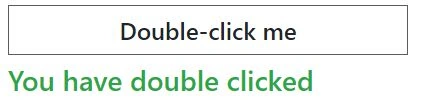
- Dbclick: The event occurs when the user double-clicks on an element
- Blur: The event occurs when an element loses focus
- Submit: The event occurs when a form is submitted
- Focus: The event occurs when an element gets focus
- Scroll: The event occurs when an element's scrollbar is being scrolled
- Cut: The event occurs when the user cuts the content of an element
- Copy: The event occurs when the user copies the content of an element
- Paste: The event occurs when the user pastes some content in an element
- Keyup: The event occurs when the user releases a key
- Keypress: The event occurs when the user presses a key
- Keydown: The event occurs when the user is pressing a key
- Mouseup: The event occurs when a user releases a mouse button over an element
- Mousedown: The event occurs when the user presses a mouse button over an element
- Mouseenter: The event occurs when the pointer is moved onto an element
- Drag: The event occurs when an element is being dragged
- Drop: The event occurs when the dragged element is dropped on the drop target
- Dragover: The event occurs when the dragged element is over the drop target
Let us see this with a demo.
Step 1
Open a command prompt from Windows Search.
Step 2
Create a new project in Angular.
ng new AngularDemo
Step 3
Open the project in Visual Studio Code and type the following command to open the project:
Code .
Step 4
Open terminal in Visual Studio Code and create a component "employee".
ng g c example
Step 5
Open the example component in your application.
- import { Component, OnInit } from '@angular/core';
- @Component({
- selector: 'app-example',
- templateUrl: './example.component.html',
- styleUrls: ['./example.component.css']
- })
- export class ExampleComponent {
- message='';
- onClickMe()
- {
- this.message="Welcome to angular programming..."
- }
- }
Step 6
Open example.component.html in your application.
- button class="btn btn-primary" (click)="onClickMe()">Click me!</button>
- <h2>{{message}}</h2>
Step 7

Join the conversation! Your thoughts help the community grow.