

Introduction
In Power Automate, as our flows grow bigger and more complex, it becomes difficult to manage everything inside a single flow. This is where Child Flows come into the picture. Child Flows help us split large logic into smaller reusable flows, making our automation easier to maintain, cleaner, and more scalable.
In this article, we will explain what Child Flows are, why we should use them, how to create them step by step, and real-world scenarios where they are particularly helpful.
What is a Child Flow?
A Child Flow is simply a flow that is called from another flow (Parent Flow). Instead of writing all logic in a single flow, we can move common logic into a Child Flow and reuse it across multiple Parent Flows.
You can think of Child Flow like a function or method in programming. The Parent Flow calls the Child Flow, passes input values, and receives output.
Why Do We Need Child Flows?
Here are some common reasons why Child Flows are useful:
To reuse common logic across multiple flows
To keep flows small and easy to manage
To improve readability and maintenance
To reduce duplication of actions
To make complex processes modular
Important Things to Know Before Using Child Flows
Before creating Child Flows, keep these points in mind:
Child Flows only work inside Solutions
Both Parent and Child flows must be in the same solution
Child Flows must use "Manually trigger a flow" as trigger
Prerequisites
Basic Knowledge of Power Automate
Basic Knowledge of Creating SharePoint list
Understanding of Solutions in Power Platform
Understanding of Environment variables in solution
How to Create a Flow Inside a Solution
Understanding of Triggers and Inputs
Use Case : Simple Invoice Approval in Child Flow
Suppose we have an Invoice Processing system where invoices are stored in Dataverse or SharePoint.
Scenario
In this use case, whenever a new invoice is created, the Parent Flow will automatically call a Child Flow. The Child Flow will then use the Start and wait for an approval action to send the approval request to the approver. Based on the approver's response, the invoice will be either approved or rejected.
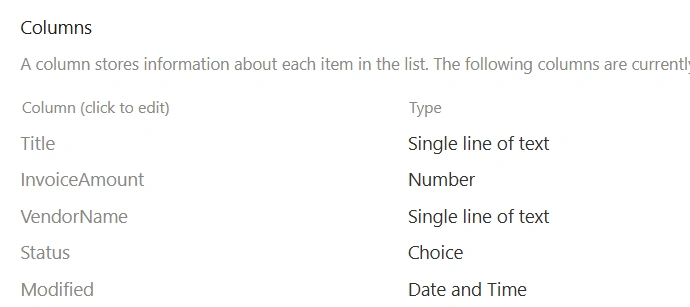
Before creating the Parent Flow, first we need a SharePoint list where all invoice records will be stored. This list will be used as the main data source for our automation. Whenever a new invoice is added to this list, it will trigger the flow.
You can add more columns based on your business requirements, but for this article, I will keep it simple and use only a few basic columns.
Invoice Amount – Number
Vendor Name – Single line of text
Status - Choice(Approve, Reject)
Parent Flow
Step 1: Create an Automated Cloud Flow
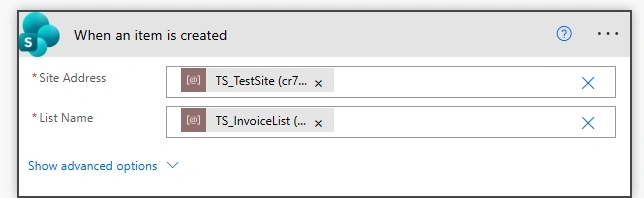
First, go to make.powerautomate.com and open your solution. Inside the solution, click on New, then select Cloud flow and choose Automated cloud flow. From the list of available triggers, search for SharePoint and select the When an item is created action. This trigger will be used to start the Parent Flow whenever a new invoice is added to the SharePoint list.
After adding the trigger, select your Site Address where the SharePoint list is located, and then select the List Name (InvoiceList or your list name).
Step 2: Add a Terminate Action (Temporary)
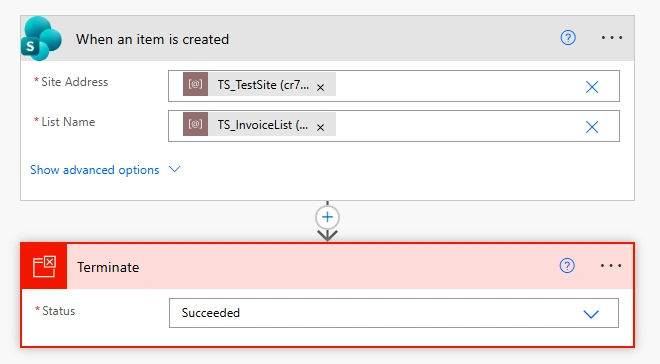
For now, add a Terminate action in the Parent Flow and set the Status as Succeeded. This step is only temporary and is just to make sure that the flow runs successfully while we are building it.
In the next steps, when we create the Child Flow, we will come back to this Parent Flow, add the Run a Child Flow action here, and then remove the Terminate action.
Child flow
Step 1: Create an Instant Flow
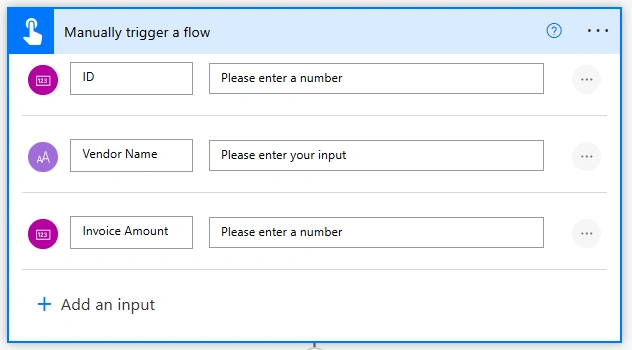
Go to your solution and click on New, then select Automation and choose Cloud flow. After that, select Instant cloud flow. Now give any name to the flow as per your choice; for example, you can name it Invoice Approval Child Flow. For the trigger, select Manually trigger a flow. In this trigger, add three input parameters that will be passed from the Parent Flow:
ID - Number
Invoice Amount - Number
Vendor Name - Text
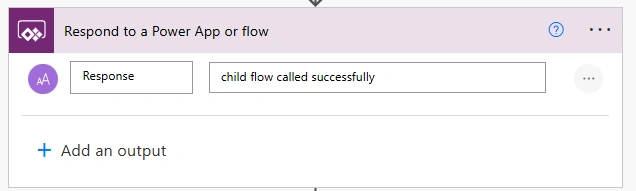
Step 2: Add Response back to a powerapp action
After adding the Manually trigger a flow action, add the Add a response to a PowerApp action. In this step, you can give any response value. By adding this action, when you use this flow as a child flow inside the parent flow, it will not show the error like “Run a child flow must end with a response”, and your parent flow will work without any issues.
Step 3: Add Approval Action
Now, add the Start and wait for an approval action in the Child Flow. For the Approval type, select Approve/Reject – First to respond.
In the Title field, you can give a meaningful title like Invoice Approval Request. In the Assigned to field, enter the email address of the approver.
In the Details section, pass the invoice information so the approver can clearly see what they are approving.
**Invoice Amount:**  triggerBody()['text']
**Vendor Name:** triggerBody()['text_1']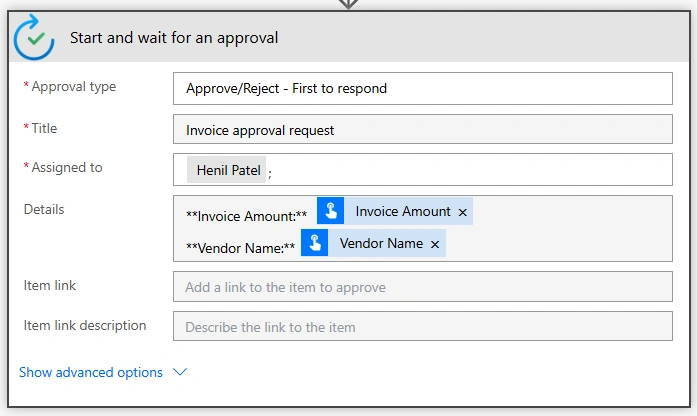
In the Details section, I am using Markdown language to format the content in a more readable way. If you are not familiar with Markdown in Power Automate, don’t worry - I have already written a detailed article on this topic where I explained everything step by step. You can refer to that article here: Markdown Language for Approval Emails in Power Automate
Step 4: Update Status Based on Approver Response
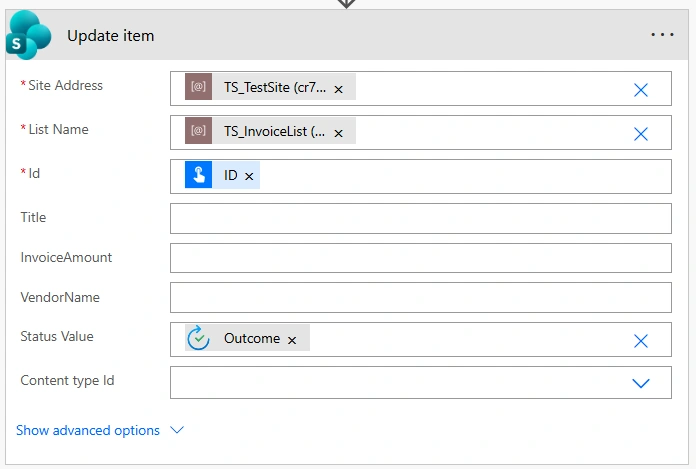
After the approval action, add an Update item action (for SharePoint) . In this step, we will update the Status field of the invoice based on the approver’s response.
Site Address: Select your SharePoint site where the invoice list is located.
List Name: Select your list.
Id: Pass the ID from the trigger (the item that was created in the Parent Flow).
Status Value: Map this from the approval outcome by selecting Outcome from the dynamic content.
Now, go back to your Parent Flow. Since we added a temporary Terminate action earlier, I will remove it.
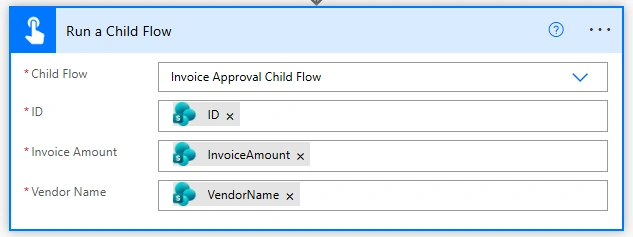
After removing the Terminate action, add the Run a Child Flow action. In this action:
Child Flow: Select the Child Flow you created earlier.
Map the input fields exactly as you defined in the Child Flow:
ID -> select ID from the trigger dynamic content
Invoice Amount -> select InvoiceAmount from the trigger
Vendor Name -> select VendorName from the trigger
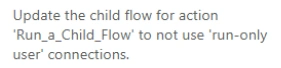
after you add the Run a Child Flow action in your parent flow, be aware that when you try to save the parent flow, it may not save and will throw an error like the one shown in the image.
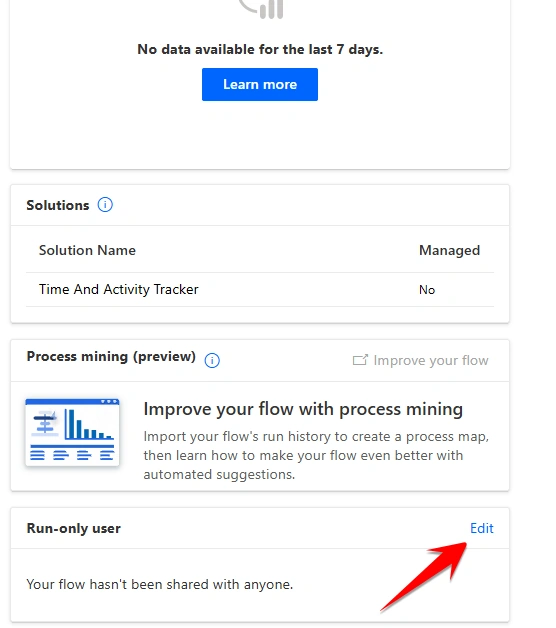
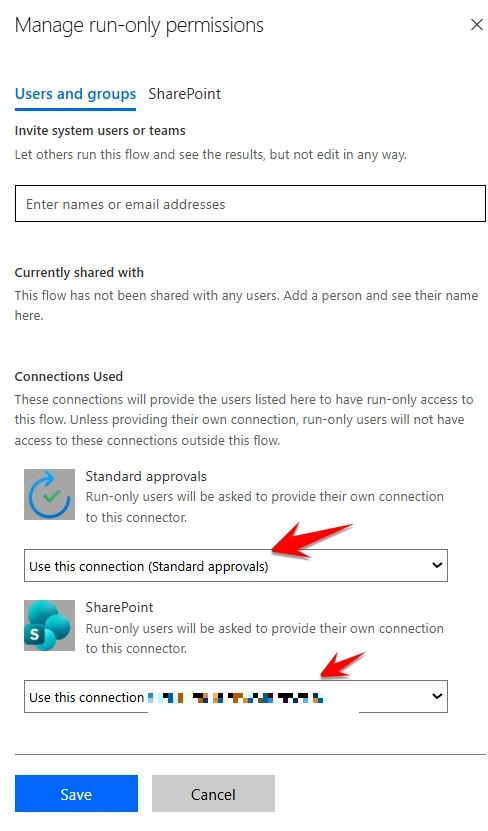
To remove the error, go to the child flow and open its Flow history. Then click on Run-only users and select Use this connection as shown in the image. After saving this setting, go back to the parent flow and try to save it again. This will remove the error and your parent flow will be saved successfully.
Now save the flow and test it to make sure everything is working correctly.
Advantages of Using Child Flows
Reusability
Cleaner design
Easy debugging
Better performance for large projects
Best Practices
Keep Child Flows small and focused
Use clear naming conventions
Always return status/output
Avoid too many nested Child Flows
Conclusion
Child Flows in Power Automate are a powerful way to design scalable and reusable automation. Instead of building one huge flow, you can break your logic into smaller Child Flows and call them whenever needed. This not only saves time but also makes your solutions more professional, clean, and easier to maintain in the long run.
If you are building enterprise-level flows, using Child Flows is not optional , it is a best practice.
Join the conversation! Your thoughts help the community grow.