

In this article, you are going to see in detail the working process of the Excel Exporter tool which is created in C#.
GitHub Source code: - https://github.com/saineshwar/ExcelExporter
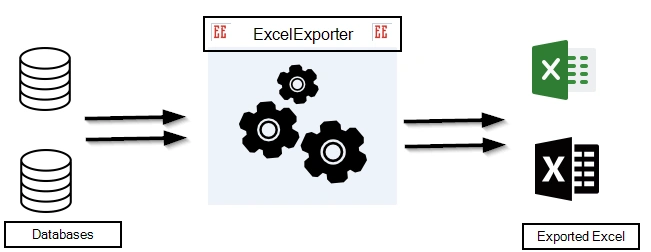
It is an Excel Exporter Tool which is developed in C# using EPPlus library.
This Tool connects to 2 databases.
- Microsoft SQL Database
- MySQL Database
You can export a Table, Stored Procedure or Query (must not be a dynamic query) directly to Excel.
About the Platform Used
I developed the entire application using Microsoft Visual Studio 2015.
External packages which are used in this Project
I have also added some packages from NuGet, here is the list:
- EPPlus (Create advanced Excel spreadsheets using .NET)
- Data (ADO.Net driver for MySQL)
Complete Project structure
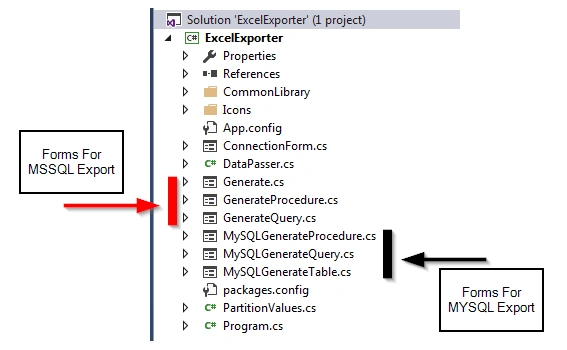
Connection Form
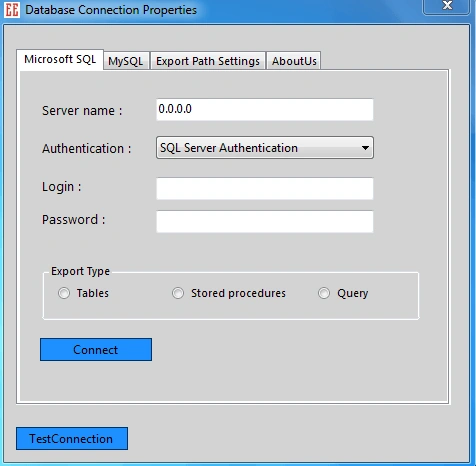
This is a connection form which contains various tabs on it. Each tab has a unique importance.
Let’s start with a first tab, it's Microsoft SQL.
Microsoft SQL
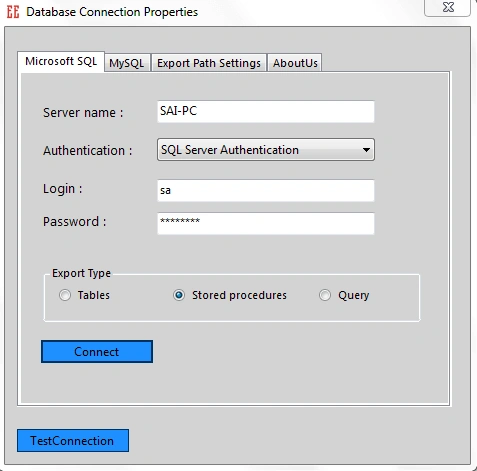
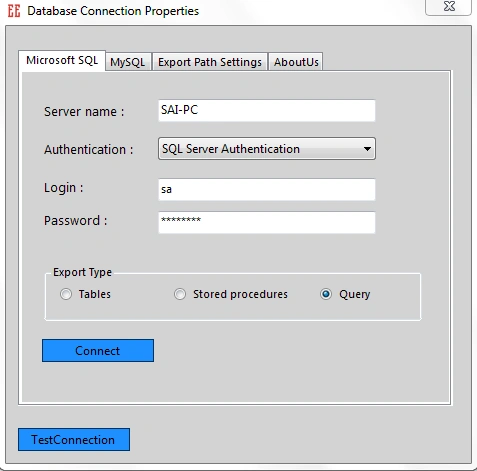
In this form, you can see various textboxes which are asking for settings to connect to the SQL Server.
In Microsoft SQL, we have 2 authentications.
- SQL Server Authentication
- Windows Authentication
We can use both options to connect to the database. If we move a bit below in the connection form you will Export. Type the panel in that and you will see various options such as Tables, Stored Procedures, Query.
You can choose any options to Export your data.
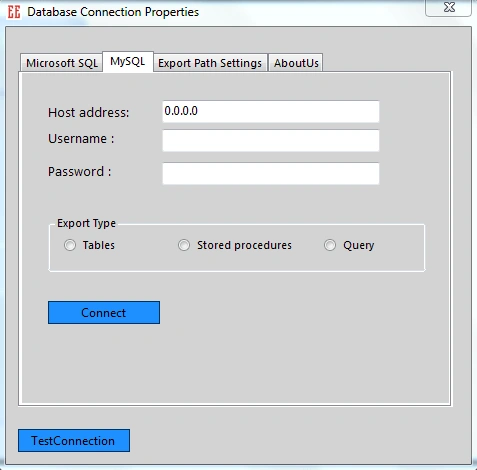
Next, we are going to choose MySQL tab to see what details are required to connect to MySQL database.
MYSQL
MySQL tab has some different settings as compared to MSSQL Tab, here it will ask Host address which is different.
The Export Type panel is similar in both tabs. In Export Type panel, you will see various options, such as Tables, Stored Procedures, Query.
You can choose any of the options to Export your data.
Next, we are going to choose Export Path Settings tab to see how to set a path where all files will be exported will be stored.
Export Path Settings
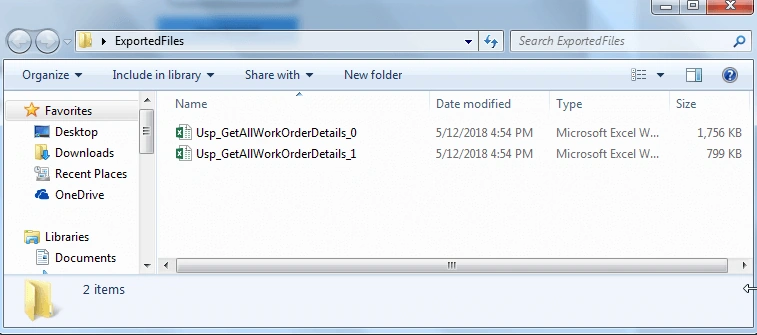
In this section, we are going to choose a folder where all the files to be exported will be stored.
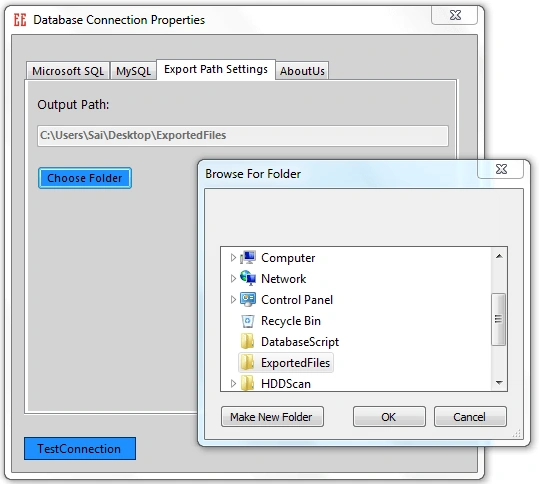
After getting an understanding of the Export Path Settings Tabs, next, we are going to see a demo of SQL Server Data on how to export the data.
Export Table (SQL SERVER)
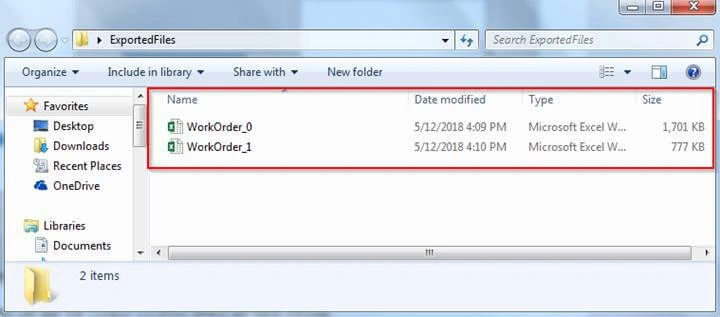
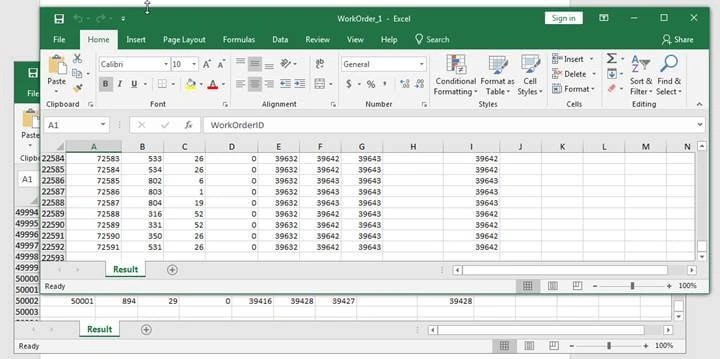
In this section, first, we are going to export the SQL table data to Excel.
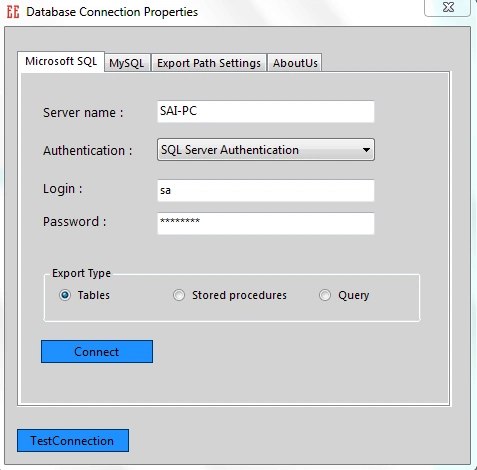
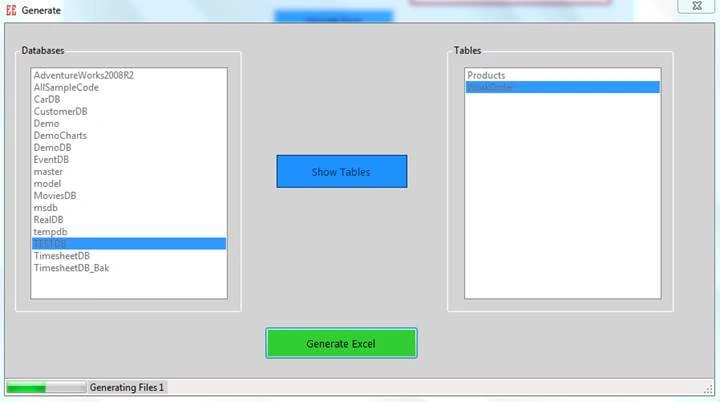
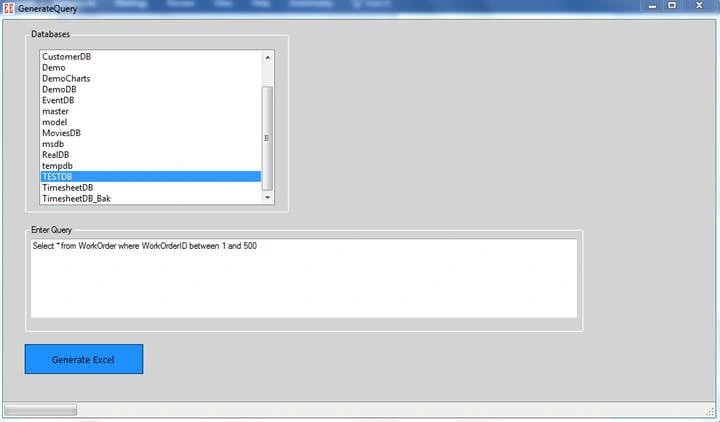
After entering valid credentials, it will display different screens. In that, you will see all the SQL Databases.
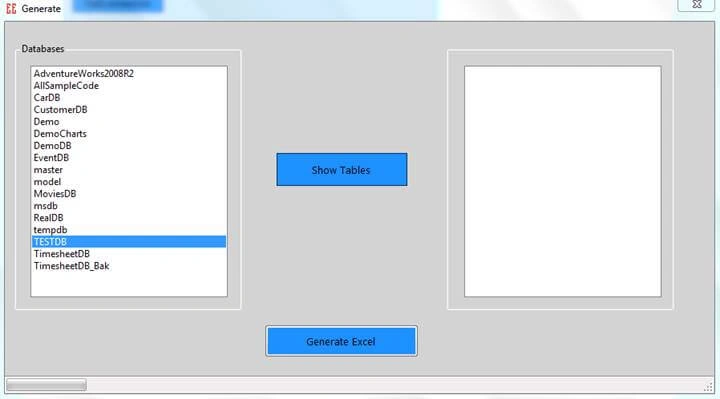
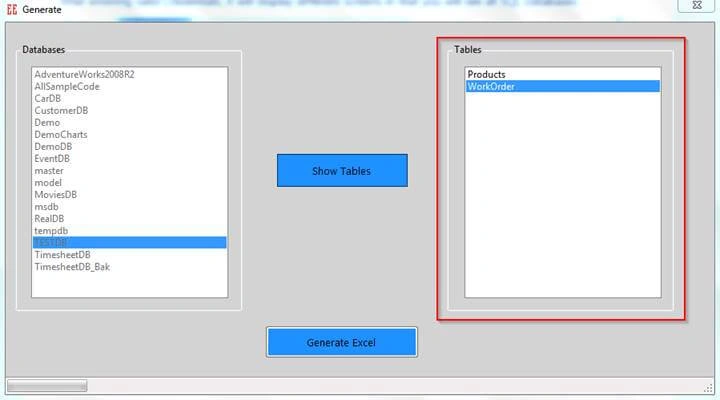
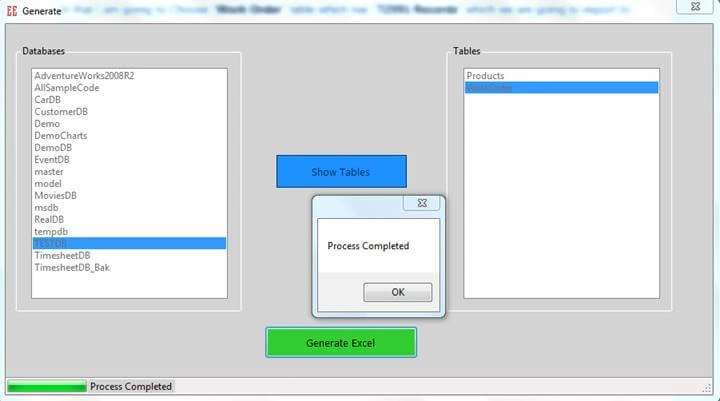
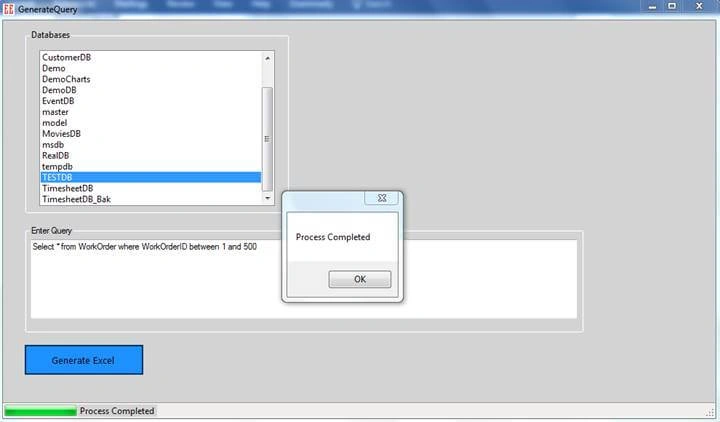
Next, after selecting “TestDB”, click on Show Tables. It will display all tables from TestDB database.
Viknaraj ManogararajahPosted Jul 21, 2018, 11:01 PM
Nice Article, Thank you for sharing
Adil MunsheePosted May 16, 2018, 4:28 AM
I can export data from ms SQL DATABASE to ms Excel and vice versa using VB instead of c#
Prasanth KumarPosted May 16, 2018, 12:56 AM
Data can be imported from Excel data tab right, what advantage does this tool give?
Mahesh ChandPosted May 15, 2018, 6:09 AM
Nicely done! Do you need the Excel or Office on the machine?