

In this article we will show you the easiest way to convert Excel data into Xml files. First getting Data from the Excel file and by using OLEDB in Data Table then Exporting this data table into XML, here you will learn the XML Conecepts like writing the xml document using XmlTextWriter.
People with basic knowledge of C#.
ExplanationThings to do,
- Make a C# WinForm application.
- Create Excel File / can use Exists file.
- Create UI
- Code
There is a certain way to convert Excel file to Xml... For example using Excel Library (Com Component)
- using Microsoft.Office.Interop.Excel
But in my opinion there might be some problem as it used the Excel application in a background process and it creates complications in coding.
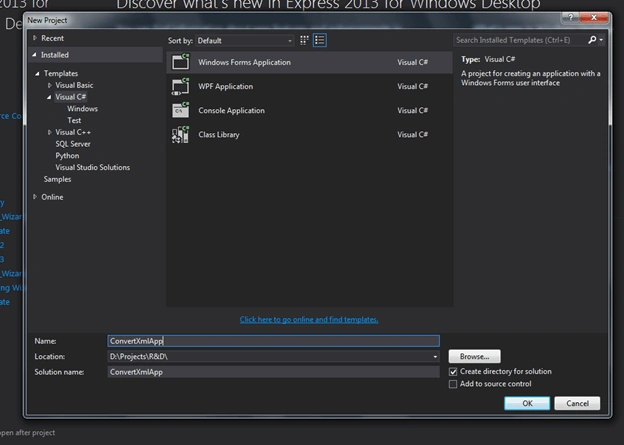
Step 1Open a new Project
Step 2
Rename the form Name ‘ConvertXmlFrom’
Step 3
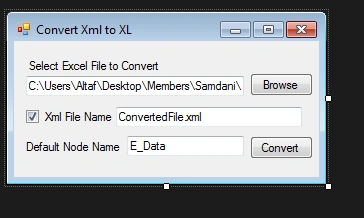
Add Controls as below,
Use Namespace on top
- using System.Windows.Forms;
- using System.IO;
On File Browse Click
- private void btnBrowseFolder_Click(object sender, EventArgs e)
- {
- DialogResult drResult = FBD.ShowDialog();
- if (drResult == System.Windows.Forms.DialogResult.OK)
- txtXlFilePath.Text = FBD.SelectedPath;
- }
On Convert Button Click
- private void btnConvert_Click(object sender, EventArgs e)
- {
- if (chkCustomeName.Checked && txtCustomeFileName.Text != "" && txtXlFilePath.Text!="" && txtNodeName.Text!="") // using Custome Xml File Name
- {
- if (File.Exists(txtXlFilePath.Text))
- {
- string CustXmlFilePath = Path.Combine(new FileInfo(txtXlFilePath.Text).DirectoryName, txtCustomeFileName.Text); // Ceating Path for Xml File
- ConvertXml _Convert = new ConvertXml();
- _Convert.CreateXltoXML(CustXmlFilePath, txtXlFilePath.Text, txtNodeName.Text); // Xml File, EXcel File, Row Name
- MessageBox.Show("Conversion Completed!!");
- }
- }
- else if (txtXlFilePath.Text != "" && txtNodeName.Text != "") // Using Default Xml File Name
- {
- if (File.Exists(txtXlFilePath.Text))
- {
- ConvertXml _Convert = new ConvertXml();
- _Convert.CreateXltoXML(txtXlFilePath.Text, txtNodeName.Text);
- MessageBox.Show("Conversion Completed!!");
- }
- }
- else
- {
- MessageBox.Show("Please Fill Required Feilds!!");
- }
- }
Step 4
Add New Class with Name ‘ConvertXml.cs’- Use Namespace on top :
- using System.Xml;
- using System.Xml.Linq;
- using System.IO;
- using System.Data;
- using System.Data.OleDb;
- using System.Linq;
- class ConvertXml
- {
Here is an example of method Overloading. In the first method we are passing custom Xml file Name.
In the other method it will use default file name which it is getting from the Excel file.
TJ RPosted Sep 8, 2021, 10:47 PM
For the most, it works beautifully. However, when the column has mixed data (sometimes int, sometimes very big int and other times varchar, it doesn't. It has the same problem that MS SQL Server has performing an excel import for that data. Most people would suggest putting the data in different columns, problem is this is the ID given to it.