

Introduction
Here I will describe how to show expandable/collapsible rows in a datagrid in C#.
This is applicable to those cases where we need to display master and child content/rows.
Example Student Table
In this example we have a list of students and inside we have details of student marks as in the following:
Details View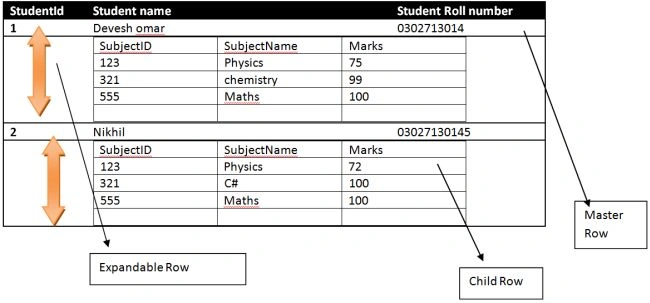
Our purpose is to display this type of data using C# Windows Forms.
The expected output in Windows Forms will be: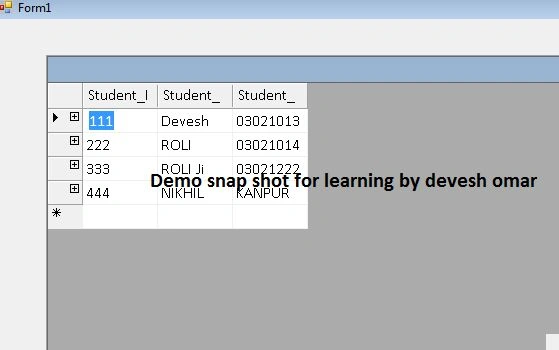
Procedure with code
- First we need to create a master and child tables.
- To identify the relationship between tables we should have primary and foreign keys in the tables.
- Here we are creating a datatable for the master and child tables.
- Master table (student).
- //Parent table
- DataTable dtstudent = new DataTable();
- dtstudent.Columns.Add("Student_ID", typeof(int));
- dtstudent.Columns.Add("Student_Name", typeof(string));
- dtstudent.Columns.Add("Student_RollNo", typeof(string));
- Child Table (Student Marks).
- //Child table
- DataTable dtstudentMarks = new DataTable();
- dtstudentMarks.Columns.Add("Student_ID", typeof(int));
- dtstudentMarks.Columns.Add("Subject_ID", typeof(int));
- dtstudentMarks.Columns.Add("Subject_Name", typeof(string));
- dtstudentMarks.Columns.Add("Marks", typeof(int));
- Understanding the relationship between master and child table.
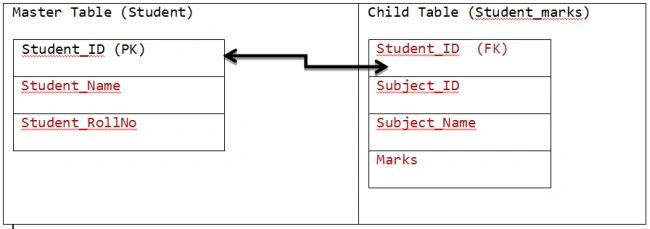
- In brief:
- dtstudent.StudentID = dtstudentMarks.StudentID
- Adding rows to the master table (Student Table):
- //Adding Rows
- dtstudent.Rows.Add(111, "Devesh", "03021013014");
- dtstudent.Rows.Add(222, "ROLI", "0302101444");
- dtstudent.Rows.Add(333, "ROLI Ji", "030212222");
- dtstudent.Rows.Add(444, "NIKHIL", "KANPUR");
- Adding rows to the child table (Student Marks table):
- // data for devesh ID=111
- dtstudentMarks.Rows.Add(111, "01","Physics", 99);
- dtstudentMarks.Rows.Add(111, "02","Maths", 77);
- dtstudentMarks.Rows.Add(111, "03","C#", 100);
- dtstudentMarks.Rows.Add(111, "01","Physics", 99);
- //data for ROLI ID=222
- dtstudentMarks.Rows.Add(222, "01", "Physics", 80);
- dtstudentMarks.Rows.Add(222, "02", "English", 95);
- dtstudentMarks.Rows.Add(222, "03", "Commerce", 95);
- dtstudentMarks.Rows.Add(222, "01", "BankPO", 99);
- Adding a master and child table to the dataset:
- DataSet dsDataset = new DataSet();
- dsDataset.Tables.Add(dtstudent);
- dsDataset.Tables.Add(dtstudentMarks);
- k. Defining relationship between Master and child table
- DataRelation Datatablerelation = new DataRelation("DetailsMarks", dsDataset.Tables[0].Columns[0], dsDataset.Tables[1].Columns[0], true);
- dsDataset.Relations.Add(Datatablerelation);
- Adding a Datagrid control in the Windows Forms form.
As per the following screen we can add a datagrid to a Windows Forms form by right-clicking the toolbar then choosing the item.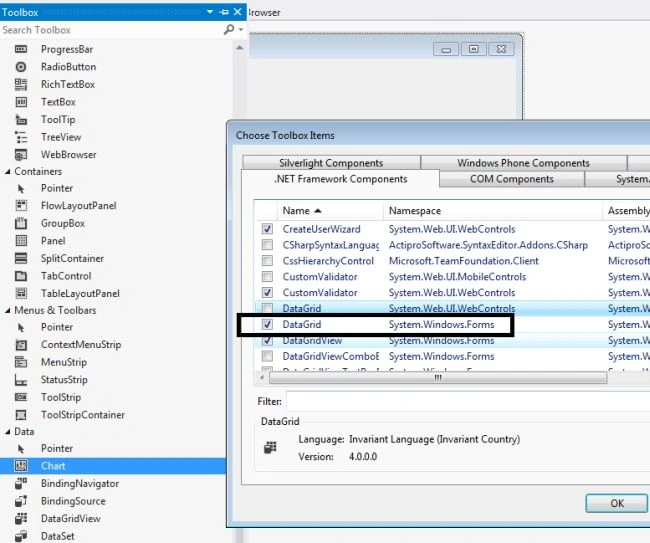
- Binding the data:
- dataGrid1.DataSource = dsDataset.Tables[0];
- All the code together:
- private void Form1_Load(object sender, EventArgs e)
- {
- //Parent table
- DataTable dtstudent = new DataTable();
- // add column to datatable
- dtstudent.Columns.Add("Student_ID", typeof(int));
- dtstudent.Columns.Add("Student_Name", typeof(string));
- dtstudent.Columns.Add("Student_RollNo", typeof(string));
- //Child table
- DataTable dtstudentMarks = new DataTable();
- dtstudentMarks.Columns.Add("Student_ID", typeof(int));
- dtstudentMarks.Columns.Add("Subject_ID", typeof(int));
- dtstudentMarks.Columns.Add("Subject_Name", typeof(string));
- dtstudentMarks.Columns.Add("Marks", typeof(int));
- //Adding Rows
- dtstudent.Rows.Add(111, "Devesh", "03021013014");
- dtstudent.Rows.Add(222, "ROLI", "0302101444");
- dtstudent.Rows.Add(333, "ROLI Ji", "030212222");
- dtstudent.Rows.Add(444, "NIKHIL", "KANPUR");
- // data for devesh ID=111
- dtstudentMarks.Rows.Add(111, "01","Physics", 99);
- dtstudentMarks.Rows.Add(111, "02","Maths", 77);
- dtstudentMarks.Rows.Add(111, "03","C#", 100);
- dtstudentMarks.Rows.Add(111, "01","Physics", 99);
- //data for ROLI ID=222
- dtstudentMarks.Rows.Add(222, "01", "Physics", 80);
- dtstudentMarks.Rows.Add(222, "02", "English", 95);
- dtstudentMarks.Rows.Add(222, "03", "Commerce", 95);
- dtstudentMarks.Rows.Add(222, "01", "BankPO", 99);
- DataSet dsDataset = new DataSet();
- //Add two DataTables in Dataset
- dsDataset.Tables.Add(dtstudent);
- dsDataset.Tables.Add(dtstudentMarks);
- DataRelation Datatablerelation = new DataRelation("DetailsMarks", dsDataset.Tables[0].Columns[0], dsDataset.Tables[1].Columns[0], true);
- dsDataset.Relations.Add(Datatablerelation);
- dataGrid1.DataSource = dsDataset.Tables[0];
- }
- Running the code:
We will get the following screen having expandable rows in the datagrid.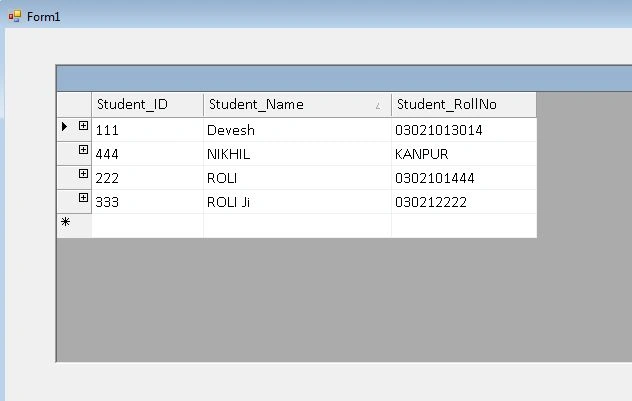
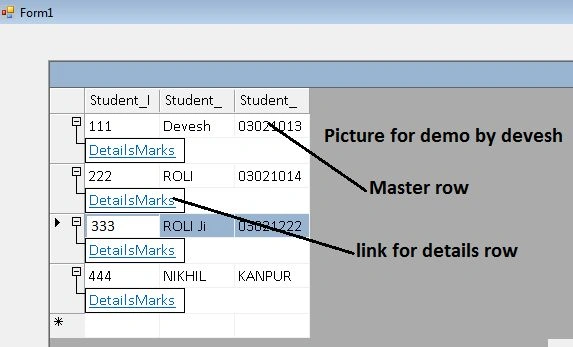
- Expanding a row to see the details.
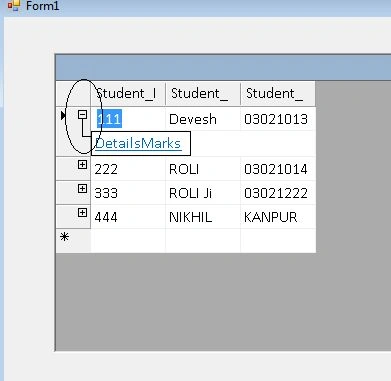
- Click on DetailsMarks to get the Marks details.
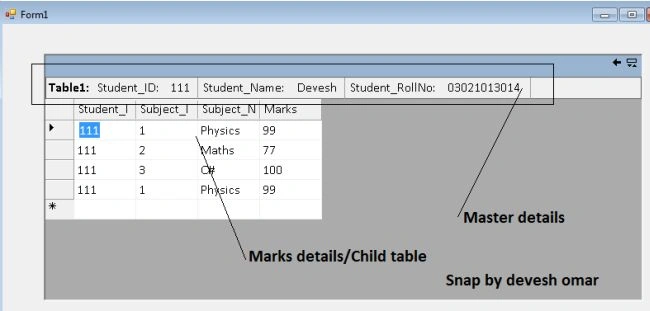
- Details screen for student_Id=222:
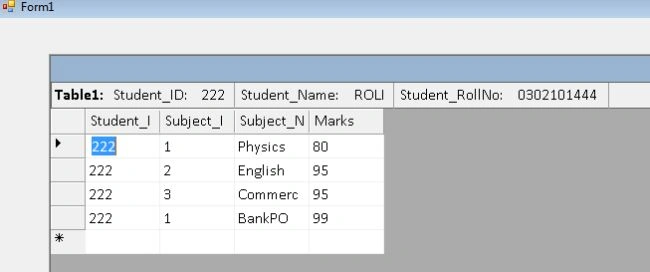
- Go to back for Master details.
Click on the highlighted back button to go to the master detail form.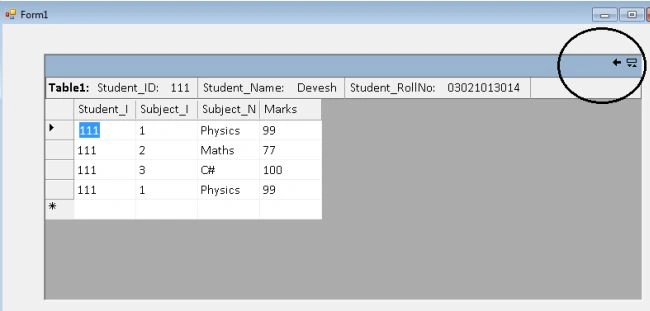
- Main form:
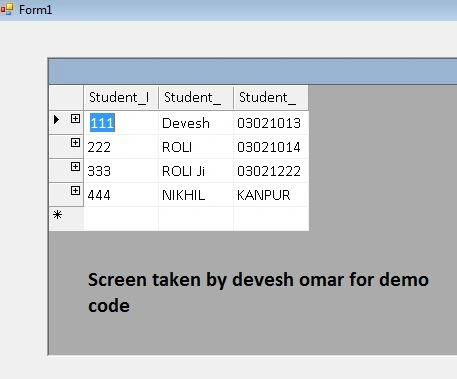
Conclusion
We have learned how to show data in a datagrid with a master and child relationship.
Also this code can be used directly in a project but you need to change this code depending on requirements.
Norbert RieserPosted Mar 31, 2020, 7:36 AM
Hi I was to fast - you have to use datagrid instead of datagridview as described above. Thank you Norbert
Norbert RieserPosted Mar 27, 2020, 3:44 PM
Hi I have implemented the source I am using DataGridView and I don't get the child table and the (+) sign. What could get wrong ? I am using VS2015, Norbert
gautam singlaPosted Jul 23, 2019, 4:52 AM
I don't want that link to be appeared, i want direct data of the child table after clicking on master id
Arch MisPosted Jul 19, 2017, 12:49 AM
I've implemented this and it is not working. I don't know what went wrong. I am not getting the child table and the sign(+).
Filip BouckaertPosted Jun 13, 2017, 10:07 AM
I've implemented this and it works fine. I want to autosize the columns, but that's not possible out of the box. I've implemented a routine I found on http://odetocode.com/Articles/59.aspx but it only sizes the columns for the master data, not for the Details data. Can I detect when the transition to the Details happens. perhaps I can then rerun the sizing routine? I'm not that experienced in c#
pawan kumarPosted Aug 24, 2016, 6:20 AM
Thanks devesh ,its very helpfull