

Hi guys. In this article I will show how to export a GridView table into a document using the Open XML.
Download the OPENXML using this location http://www.microsoft.com/en-in/download/details.aspx?id=30425.
After downloading the SDK install the .exe into your PC.
Now open a new project in your C# tool.
Add the OpenXML SDK reference to your project. Also include Windowsbase in the references.
Now use the following namespace in the code.
- using DocumentFormat.OpenXml.Wordprocessing;
- using DocumentFormat.OpenXml.Packaging;
- using DocumentFormat.OpenXml;
- using System.IO.Packaging;
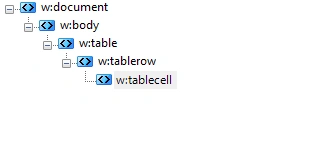
Figure 1: Design Table
Add the data to the DataGridView.
Now create the document template using the following code:
- //count number of column available in Gridview
- int columncount = dataGridView1.Columns.Count;
- using(WordprocessingDocument wpc = WordprocessingDocument.Create(filename, WordprocessingDocumentType.Document)) {
- // Add a new main document part.
- MainDocumentPart mainPart = wpc.AddMainDocumentPart();
- //Create DOM tree for simple document.
- mainPart.Document = new Document();
- // Save changes to the main document part.
- Body body = new Body();
- Table table = new Table();
- // Create a TableProperties object and specify its border information.
- TableProperties tblProp = new TableProperties(
- new TableBorders(
- new TopBorder() {
- Val = new EnumValue < BorderValues > (BorderValues.BasicBlackDots), Size = 20
- },
- new BottomBorder() {
- Val = new EnumValue < BorderValues > (BorderValues.BasicBlackDots), Size = 20
- },
- new LeftBorder() {
- Val = new EnumValue < BorderValues > (BorderValues.BasicBlackDots), Size = 20
- },
- new RightBorder() {
- Val = new EnumValue < BorderValues > (BorderValues.BasicBlackDots), Size = 20
- },
- new InsideHorizontalBorder() {
- Val = new EnumValue < BorderValues > (BorderValues.BasicBlackDots), Size = 20
- },
- new InsideVerticalBorder() {
- Val = new EnumValue < BorderValues > (BorderValues.BasicBlackDots), Size = 20
- }));
- // Append the TableProperties object to the empty table.
- table.AppendChild < TableProperties > (tblProp);
- // Create a row.
- TableRow tr = new TableRow();
- //create Dynamic object by using array.
- TableCell[] tc1 = new TableCell[5];
- // this loop allow us to create multiple column according to the Gridview
- for (int i = 0; i < columncount; i++) {
- string[] columnhead = new string[columncount];
- columnhead[i] = dataGridView1.Columns[i].HeaderText.ToString();
- // Create a cell.
- tc1[i] = new TableCell();
- // Specify the width property of the table cell.
- tc1[i].Append(new TableCellProperties(
- new TableCellWidth() {
- Type = TableWidthUnitValues.Dxa, Width = "2400"
- }));
- // Specify the table cell content.
- tc1[i].Append(new Paragraph(new Run(new Text(columnhead[i]))));
- // Append the table cell to the table row.
- tr.Append(tc1[i]);
- }
- // Append the table row to the table.
- table.Append(tr);
- body.Append(table);
- mainPart.Document.Append(body);
- mainPart.Document.Save();
SubashPosted Mar 7, 2017, 3:20 AM
Please share the output screenshot for understand fully thank you
Bhuvanesh MohankumarPosted May 4, 2016, 2:44 PM
Good one...
Bhuvanesh MohankumarPosted May 4, 2016, 2:43 PM
Nice
Arul RPosted Jan 11, 2016, 8:21 AM
Nice share
Mohammed IbrahimPosted Aug 22, 2015, 2:52 PM
Thank you all...
RakeshPosted Aug 22, 2015, 1:26 PM
Good work
Yashwanth MuthineniPosted Aug 22, 2015, 7:17 AM
Nice Share
Santhakumar MunuswamyPosted Aug 22, 2015, 6:13 AM
Nice Article. Thanks for sharing
Sumit JoshiPosted Aug 22, 2015, 3:26 AM
Nice share...thanks
Vaikesh K PPosted Aug 22, 2015, 2:48 AM
Good Share
Chervine BhiwooPosted Aug 22, 2015, 1:53 AM
Good one
Rajeesh MenothPosted Aug 22, 2015, 1:48 AM
Good One
Nilesh JadavPosted Aug 22, 2015, 12:03 AM
Nice one sir
Gopi ChandPosted Aug 21, 2015, 11:39 PM
Well done
Karthikeyan KPosted Aug 21, 2015, 9:22 PM
Good one
Pankaj Kumar ChoudharyPosted Aug 21, 2015, 8:54 PM
Nice Explain Sir..........