

Hi, guys in my previous I have shown how to export the Gridview into Document using OPENXML.
Now in this article I am gone to show how to export the grid view into Excel using OPENXML.
Open a new solution in your IDE.
Create XML file which help you to know the Structure of the excel document. like below:
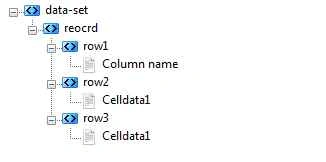
Now import the Following the Namespace:
- using DocumentFormat.OpenXml.Spreadsheet;
- using DocumentFormat.OpenXml.Packaging;
- using DocumentFormat.OpenXml;
- using System.IO.Packaging;
- saveFileDialog1.ShowDialog();
- if (saveFileDialog1.FileName != "")
- {
- int columncount = dataGridView1.Columns.Count;
- string filepath = saveFileDialog1.FileName.ToString();
- SpreadsheetDocument ssd = SpreadsheetDocument.Create(filepath + ".xlsx", SpreadsheetDocumentType.Workbook);
- //Add work part to the Document
- WorkbookPart wbp = ssd.AddWorkbookPart();
- wbp.Workbook = new Workbook();
- //add work sheet to the work part
- WorksheetPart wsp = wbp.AddNewPart < WorksheetPart > ();
- wsp.Worksheet = new Worksheet(new SheetData());
- // add sheets
- Sheets sht = ssd.WorkbookPart.Workbook.AppendChild < Sheets > (new Sheets());
- // Append a new worksheet and associate it with the workbook.
- Sheet sheet = new Sheet()
- {
- Id = ssd.WorkbookPart.
- // create an new sheet
- GetIdOfPart(wsp), SheetId = 1, Name = "mySheet"
- };
- sht.Append(sheet);
- Worksheet worksheet = new Worksheet();
- SheetData sheetData = new SheetData();
- //create a new row, cell
- Row row = new Row();
- Cell[] cell = new Cell[columncount];
- // the below used to create temple of the existing gridview
- for (int i = 0; i < columncount; i++)
- {
- string[] columnhead = new string[columncount];
- string[] columnheadname = new string[]
- {
- "A", "B", "C", "D", "E", "F", "G", "H", "I", "J"
- };
- columnhead[i] = dataGridView1.Columns[i].HeaderText.ToString();
- cell[i] = new Cell();
- //passing the cell value
- {
- CellReference = columnheadname[0].ToString(), DataType = CellValues.String,
- CellValue = new CellValue(columnhead[i])
- };
- row.Append(cell[i]);
- }
- }
- sheetData.Append(row);
- worksheet.Append(sheetData);
- wsp.Worksheet = worksheet;
- wbp.Workbook.Save();
- ssd.Close();
- exceldata(filepath);
- public void exceldata(String docName)
- {
- int rowcount = dataGridView1.Rows.Count;
- int columncount = dataGridView1.Columns.Count;
- using(SpreadsheetDocument document = SpreadsheetDocument.Open(docName + ".xlsx", true))
- {
- WorkbookPart wbPart = document.WorkbookPart;
- // check whether the sheet is exist or not
- IEnumerable < Sheet > sheets = document.WorkbookPart.Workbook.GetFirstChild < Sheets > ().Elements < Sheet > ().Where(s = > s.Name == "mySheet");
- if (sheets == null)
- {
- throw new ArgumentException("sheetName");
- }
- else
- {
- //get the ID of the sheet
- string sheetss = sheets.First().Id.Value;
- // get the workpartsheet of the exesting data
- WorksheetPart worksheetPart = (WorksheetPart) document.WorkbookPart.GetPartById(sheetss);
- //get the sheet data of the exsting data
- SheetData sheetData = worksheetPart.Worksheet.GetFirstChild < SheetData > ();
- for (int i = 0; i < rowcount; i++)
- {
- //Assign the column name dynamically using array
- string[] columnheadname = new string[]
- {
- "A", "B", "C", "D", "E", "F", "G", "H", "I", "J"
- };
- //create a row
- Row row = new Row();
- //create the cell dynamically using array
- Cell[] cell = new Cell[columncount];
- for (int j = 0; j < columncount; j++)
- {
- // get the value in the grid view
- string data1 = dataGridView1.Rows[i].Cells[j].Value.ToString();
- cell[j] = new Cell()
- {
- CellReference = columnheadname[0].ToString(), DataType = CellValues.String,
- CellValue = new CellValue(data1)
- };
- row.Append(cell[j]);
- }
- sheetData.Append(row);
- }
- worksheetPart.Worksheet.Save();
- }
Have fun!!!
Happy coding
Bhuvanesh MohankumarPosted May 4, 2016, 2:43 PM
Good one...
Arul RPosted Jan 11, 2016, 8:21 AM
Nice share
Santhakumar MunuswamyPosted Aug 29, 2015, 4:39 AM
Nice article. Thanks for sharing
Pankaj Kumar ChoudharyPosted Aug 28, 2015, 12:55 PM
Nice Explain Sir.....
RakeshPosted Aug 28, 2015, 4:36 AM
Nice one
Gowtham KPosted Aug 28, 2015, 3:46 AM
Good one
Rajeesh MenothPosted Aug 28, 2015, 12:54 AM
Good One
Karthikeyan KPosted Aug 28, 2015, 12:06 AM
Good one sir...Thanks for share