Introduction
Exporting data to Excel is a basic need for nearly every enterprise web application. Being a web developer, I too was strongly required to do that in various projects I had in my career. Every time, I saw a server-side solution, like export data using some custom Export to Excel server-side method to generate and dump an Excel file at some temporary location on the server and then download it. The entire process runs every time a user exports some data. This raises the following major concerns:
- Unwanted consumption of disk space on the server by creating these temporary files.
- Unwanted Postback to generate the Excel files.
To avoid these concerns, I decided to implement some client-side functionality to export data in my current project. And so as a genuine developer, I read many articles, blogs, and posts to find the best way to implement it. I got some JavaScript libraries that work fine in Chrome and Firefox but does not work in IE since the latter doesn't support data URIs. You can find more info about IE Data URI here. I really tried many solutions but didn't find a satisfactory one.
After a completely failed operation, I still had one thing, that was how can this work? As per my understanding:
- Load data on the screen using the lightest control, in other words an HTML Table.
- Export this loaded data to an Excel file by transforming this HTML table using some data URI supported elements like an IFrame.
So, I began writing some code and came up with this solution. So far in this article, we have seen many theoretical aspects. Now it's code time.
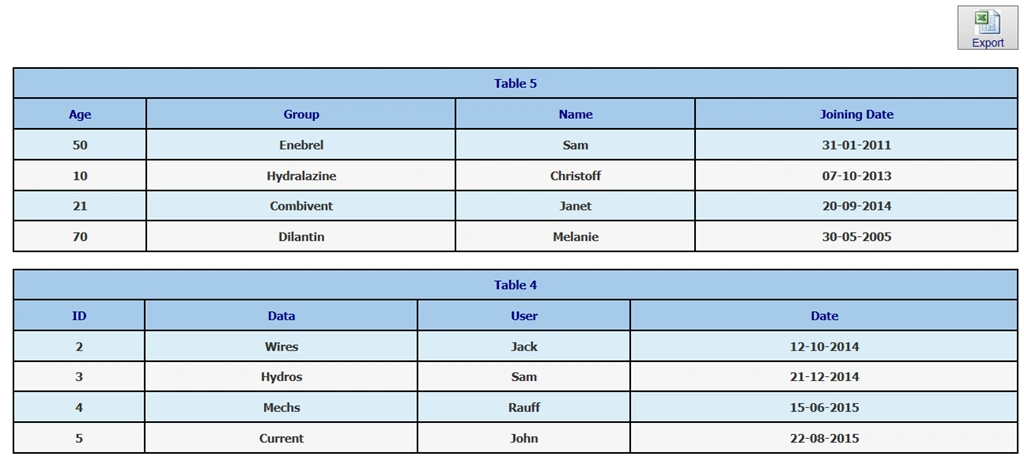
First of all, let's load some data on your Web page like this one:
The screen above shows two HTML tables (ids datatable and dataTable1) loaded with some sample data. Above that, there is an Export to Excel button that, when clicked, exports these two table's data into an Excel file.
Let's see what is written in the click event of this button:
The click event of the Export button is written in jQuery syntax to call the method name fnExportHTML with the following three parameters:
- Pipe separated table name including exported data. One table or multiple tables data can be exported in this way.
- Background color of the header row of each table data.
- Filename of the Excel file.
The source of this function is discussed later in this article.
So, after reviewing the ingredients, let's taste the Curry:
The preceding image shows the data that is being exported into an Excel file from HTML tables without any Postback and this file will be downloaded or saved directly to the client machine. Hence, addressing the two major issues discussed above.
Let's dig into the details of how all this stuff works.
ExportHTML.aspx
Include the ExportHTML.js file in you web page that contains the fnExportHTML method as in the following:
Since this plugin is written in core JavaScript no other JavaScript library or CSS file is required to implement it.
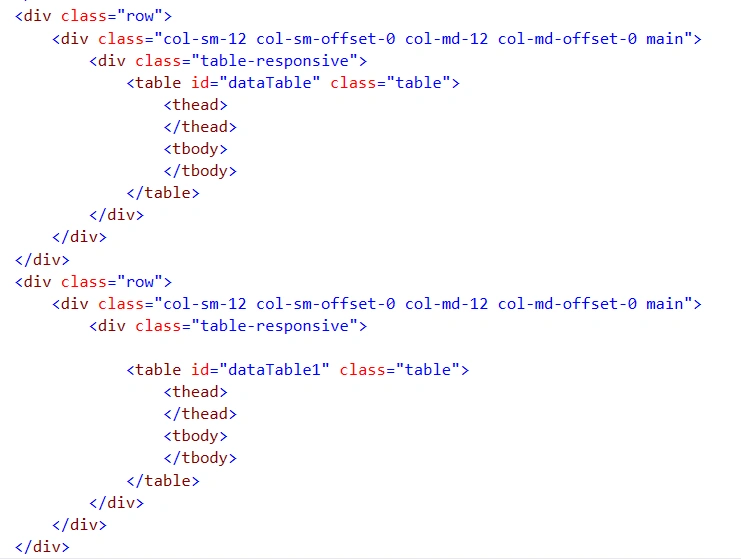
The HTML for the two tables is as in the following:
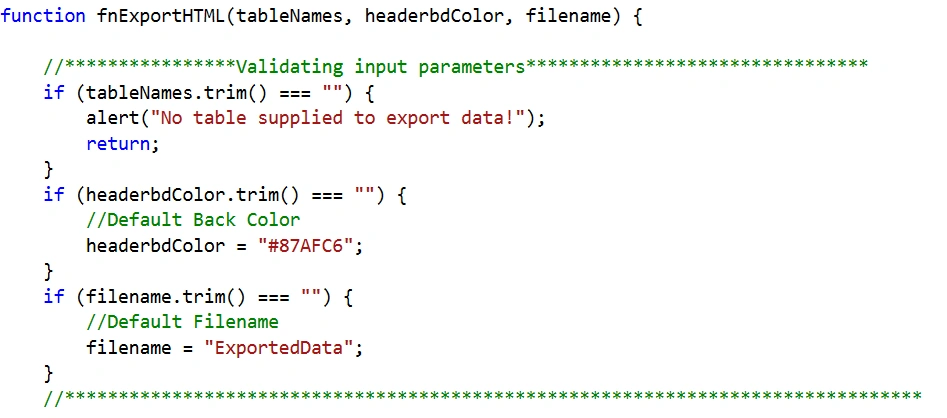
Now let's investigate the fnExportHTML written in the ExportHTML.js file.
ExportHTML.js
Here in the preceding, we can see some validations for default values have been applied to input parameters. These are simple validations and there can be more complex scenarios that can be covered by extending this function depending on your requirements.
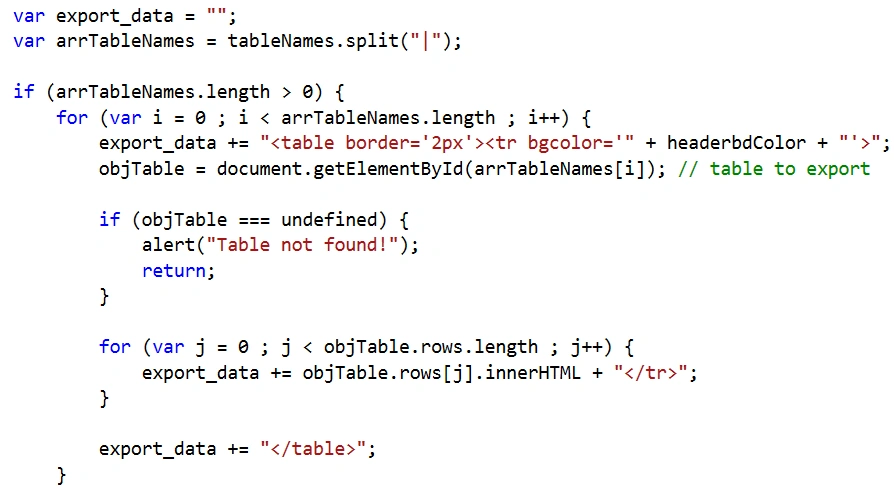
The next step is to collect data from all the supplied tables that look like:
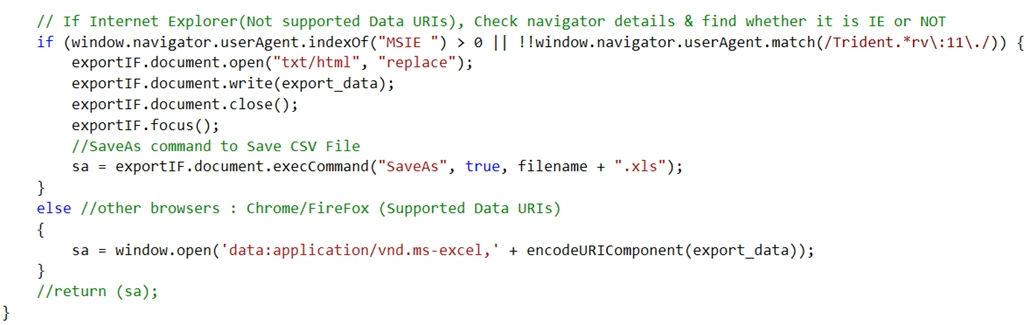
Now the final step is to export this collected data into an Excel file and that is to be handled differently in the case of the client (browser) being IE.
Since IE doesn't support data URIs directly, to implement export to Excel functionality, I have used another element like iframe as a way around. For this we add an iframe element to our page depending on the following screenshot:
The same iframe ID, exportIF, is referred to in the ExportHTML.js file inside the fnExportHTML function where we will export the collected data from HTML tables as in the following:
The following things need to be noticed.
window.navigator.userAgent- This property provides the value of the user-agent header sent by your browser. For example:
Mozilla/5.0 (compatible; MSIE 10.0; Windows NT 6.1; WOW64; Trident/6.0; SLCC2; .NET CLR 2.0.50727; .NET CLR 3.5.30729; .NET CLR 3.0.30729; Media Center PC 6.0; .NET4.0C; .NET4.0E; InfoPath.3)
The values verify whether or not the browser is IE (contains MSIE). For Chrome, this header value looks like:
Mozilla/5.0 (Windows NT 6.1; WOW64) AppleWebKit/537.36 (KHTML, like Gecko) Chrome/41.0.2272.118 Safari/537.36
document.execCommand: This method execCommand is a wrapper function for the Exec method to enable scriptable execution of some command constants like SaveAs constant. This method executes a command on the current document.
Other Browsers- In the case of browsers, in other words, Chrome or Firefox other than IE, the else part executes that says that:
Here the encodeURIComponent() function encodes the data as a URI. And application/vnd.ms-excel is an HTTP MIME type for Microsoft Office Excel document. To learn more about Microsoft-Office MIME types, click here.
Conclusion
The main benefit of this approach is that it saves the Excel file on the client machine directly without any post-back. However, it is limited to the fact that it can export only that data available in an HTML table on a webpage. So, in the case of a paginated table or a grid (that renders as an HTML table), this approach cannot work.
But for a lightweight HTML page, this approach is best to use. I hope this article is useful to you and helps you in handling a scenario like this. This is my very first article published on the web. So, whether you like it or not, let me know your valuable comments. If you dislike it, I will learn something new that is still unknown to me else it will act as a morale booster.
“I don't fear being wrong as I always ready to learn new facts around.”







jahangir badarPosted Feb 26, 2021, 7:11 AM
Great effort. Nice work.
Hoangkien ViboyPosted Aug 14, 2020, 2:20 AM
How do I assign a name to a folder or sheet by Chrome?
vaishali bhartiPosted Jan 22, 2020, 11:37 AM
Nice article works perfect in IE as well as Chrome, but it will not fetching data from input tags like textbox. Any one have idea?
Shira PovichPosted Jan 17, 2019, 12:07 AM
What about multiple sheets for each table? is there any solution?
Ankit RaghuvanshiPosted Jun 28, 2017, 8:08 AM
It will not work properly in Excel 2016 also if we give any style in html table then it will not reflect.
vinoth kumarPosted May 10, 2017, 9:38 AM
Hi anyone answer this question:http://stackoverflow.com/questions/43893776/export-selected-column-and-without-data-to-excel-using-angularjs
Vikas ChauhanPosted Mar 9, 2017, 2:41 AM
Hi, Does this method suppress the warning for format?
Rathrola Prem KumarPosted Nov 15, 2016, 3:20 AM
Nice, but want to know whether will it work in IE?
Abi NeshPosted Apr 25, 2016, 12:48 PM
Hey Gaurav ... firstly i appreciate your solution.... But do u think this will work if i have a heavy webpage with loads of plugins and css styles... eg. Merge cells and frozen columns that i've applied on the web using some Jquery plugins ... will ur thing work on excel with these cases?? Awaiting ur response.
Teju DesaiPosted Dec 16, 2015, 5:14 AM
Thanks for the lovely code. Is it possible to modify the name of the when downloaded in Chrome or mozilla. at the moment its really long (export_data)
deepika tyagiPosted Jun 18, 2015, 11:59 AM
how to export the grid with pagination=true. I used this script for export to excel. It works fine but when pagination=true then the data is saved only for the present page
Gaurav Mohan BansalPosted Apr 19, 2015, 2:47 PM
https://gauravmohanbansal.wordpress.com/2015/04/19/auto-paginated-dashboards/
Gaurav Mohan BansalPosted Apr 19, 2015, 2:46 PM
Thanks Karthik
Karthik Muthu KaruppanPosted Apr 10, 2015, 2:09 PM
Good start
Sibeesh VenuPosted Apr 10, 2015, 1:34 AM
Good one.