

My previous article explained how to convert a video file format into another video Format. This article explains how to extract thumbnails from a video. This is the article I want to explain and share with all of you with a snippet of code lines.
The Scenario is to extract a thumbnail from a video.
Before playing a video you must understand a little bit about the video that you are playing. For that you will place a thumbnail on top of the video. In some scenarios you want to extract thumbnails to show to the end user.
If you want to capture a specific frame of the video, a video is nothing but frames of images. So with ffmpeg we can capture multiple images from the video.
Note: The extension of the file name can be any type (avi, mpeg, swf or others) and the extension of the image file maybe any type (.png, .Jpeg or ohers). You just specify the exact extension of the video file.
ffmpeg -i foo.avi -r 1 -s WxH -f image2 foo-%03d.jpeg (or) ffmpeg -i yourfile.avi -an -ss 00:00:01 -t 00:01:31 -r 10 -s 550x450 -aspect 5:3 foo%3d.png
Similar to the preceding description (in other words converting video format files) but some discrepancy is to specify the frame rate you want to capture an image from the video that we need to specify here in this command argument. Here in this preceding example 10 as the frame rate with 1 second duration and a width and height of the image is (550*450).
- proc = new Process()
- proc.StartInfo.FileName = "ffmpeg -i yourfile.avi -an -ss 00:00:01 -t 00:01:31 -r 10 -s 550x450 -aspect 5:3 foo%3d.png "
- proc.StartInfo.Arguments = ""
- proc.StartInfo.UseShellExecute = false
- proc.StartInfo.RedirectStandardInput = true
- proc.StartInfo.RedirectStandardOutput = true
- proc.Start()
- proc.WaitForExit()
The ffmpeg executable file will be like this. In your .Net project place this executable file in a specific folder, for example a Utility Folder.

Now let us watch how in the Command Prompt the command line argument works. The frame rate of each frame will be Increased.
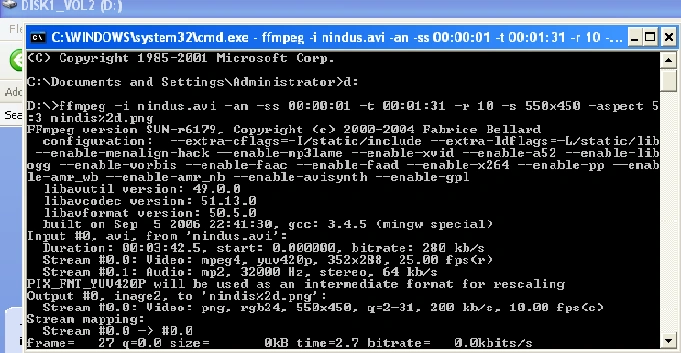
Completion of extracting the thumbnails from the video command prompt looks as in this number of frames. Each frame is captured with an image is 910.
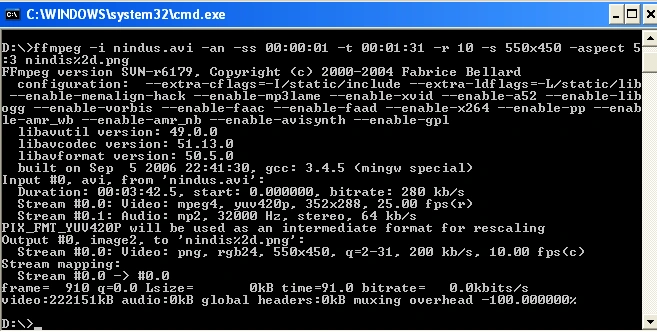
Now you are eager to see the thumbnails. So we will take a quick glance at that. Go to the D Drive where all the 910 thumbnails were placed in your drive.


Prakash ShrivastavPosted Oct 31, 2019, 4:54 AM
Thankx a lot, it works
Prakash ShrivastavPosted Aug 24, 2018, 4:52 AM
How to take image if video file having space in their name, i am unable to convert can you mail me or explain it
GtdevPosted May 23, 2016, 6:33 AM
> Full disclosure: I work for GleamTech Using **ffmpeg.exe** via **Process** class is cumbersome and error prone. It's also not flexible, for example if you have a video stream and not a file on disk, it will be very hard to pass that stream to **ffmpeg.exe**. What if you could do it as easy as follows: <!-- language: c# --> using (var videoThumbnailer = new VideoThumbnailer(@"C:\Video.mp4")) using (var thumbnail = videoThumbnailer.GenerateThumbnail(500)) thumbnail.Save(@"C:\Thumbnail1.jpg", ImageFormat.Jpeg); Yes, this is possible with [VideoUltimate][1] library from GleamTech. You can generate thumbnails for any video file format on the planet and it's fully ASP.NET compatible. **GenerateThumbnail** method smartly generates a meaningful thumbnail for the video by seeking to a sensible time position and avoiding blank frames. So it's fully automatic and provides you good thumbnails out of the box. First parameter (**500 pixels** in above sample) is the maximum width or height of the thumbnail, aspect ratio is preserved. It's also possible to overlay the duration of the video on the bottom-right corner by passing **true** to the second parameter, similar to how YouTube does. [1]: http://www.gleamtech.com/videoultimate