
This was pretty easy to set up and possible to integrate social networks into SharePoint.
Steps Involved
Step 1: Go to the following link.
Step 2: Enter the required facebook URL in the following column.
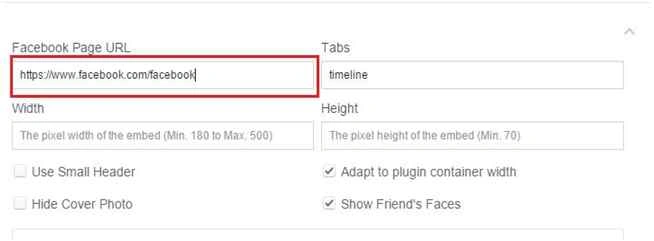
Step 3: Similarly enter Width, Height and the following checkbox: Use Small Header, Hide Cover Photo, Adapt to plugin container width, and Show Friend's faces (optional).
Step 4: Click on Get Code.
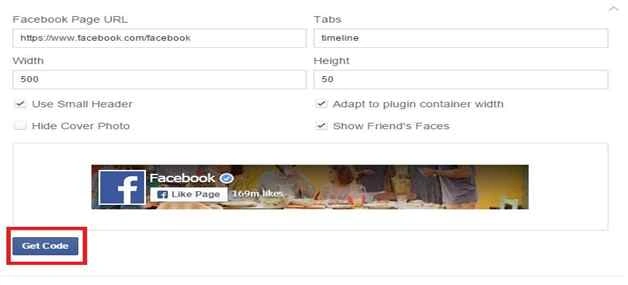
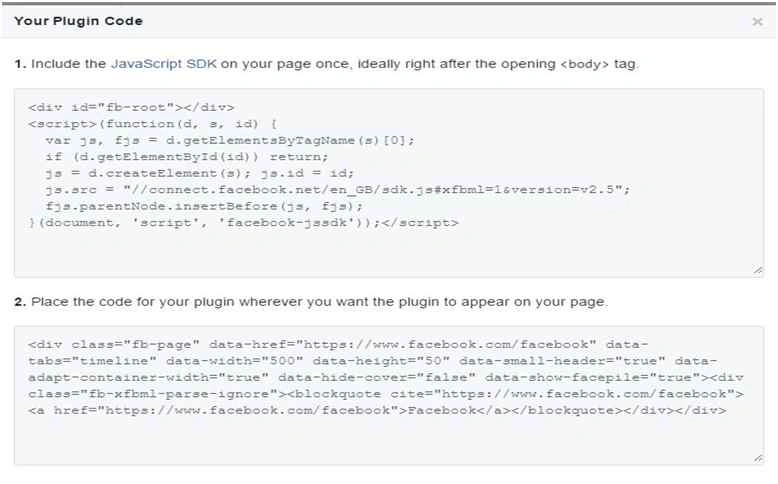
Step 5: Copy both code snippet,
Step 6: Open Notepad and paste both the codes one below other.
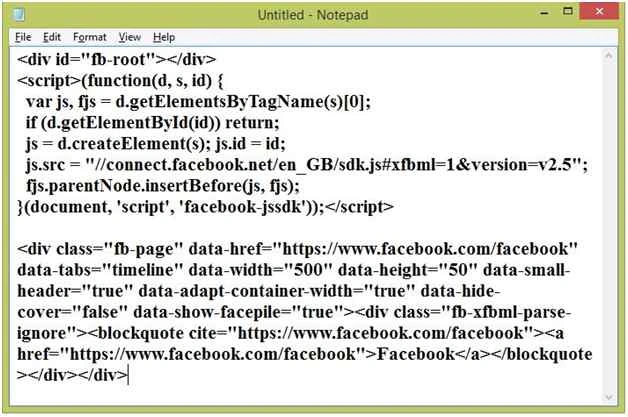
Step 7: Save File with some name (.txt) extension (Eg:FBfeeds.txt).
Step 8: Go to Site Collection where you want facebook feeds.
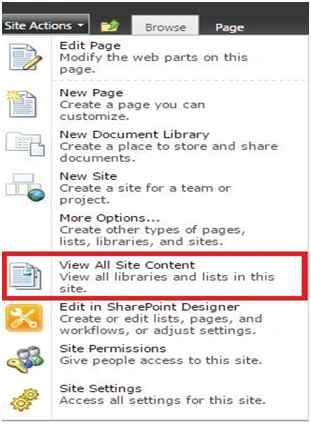
Step 9: Go to Site Actions, then View All Site Content.
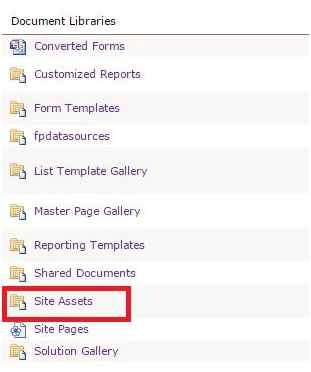
Step 10: Click on Site Assets.
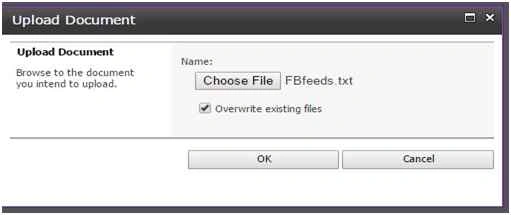
Step 11: Click on Add Document & attach a saved document
Step 12: Copy the URL for the file (right click, Copy Shortcut/Copy link address).
Step 13: Go to Page, where you want show the Facebook feeds.
Site Actions, then Edit Page.
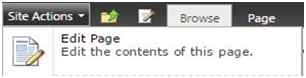
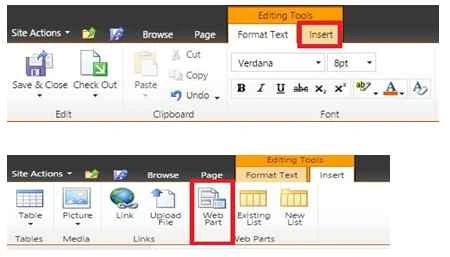
Step 14: Click on Insert & then click on Web Part.
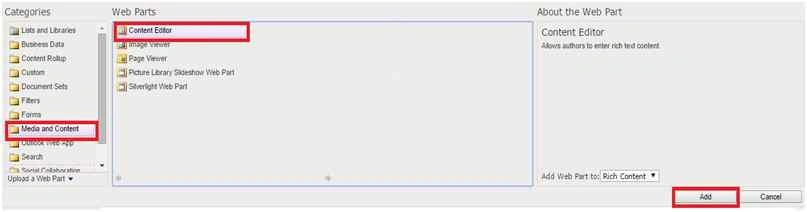
Step 15: Select Media and Content category & select Content Editor, click Add.
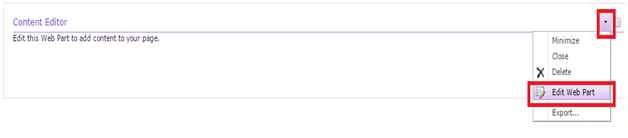
Step 16: Select the Content Editor web part menu , click on Edit Web Part.
Step 17: Paste the URL Content Link to link to a text file, type a URL (Step 12).
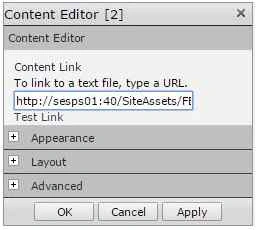
Step 18: Appearance, Layout, Advanced option (optional), click on Apply and click OK.
Step 19: Click Save Page.
Step 20: Facebook feeds visible on SharePoint.
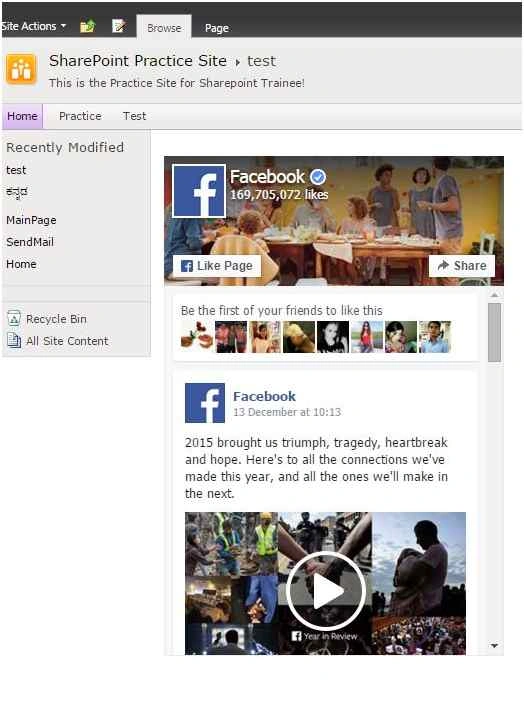
Note: Once the Status updated on Facebook, it will auto update here also. No need to update again.

Join the conversation! Your thoughts help the community grow.