

Introduction
This article describes fade animation for Windows Presentation Foundation (WPF) Controls using XAML. We use a control called a canvas and define its id, height, width and other attributes. When the user puts his cursor over the canvas containing an image, the image fades.
Here we will also use XAML and some C# code.
Windows Presentation Foundation
WPF is the next generation of composable presentation system for buliding Windows applications. It is mainly a subset of the .NET Framework 3.5 and most of it is located in the System.Windows namespace. The main purpose of WPF is to merge the unrelated APIs into a unified object model.
Step 1
First we create a WPF application using the following procedure:
- Open Visual Studio.

- Select "New Project".
- Select the C# language and "WPF Application".
- Name the project "wpfApplication3".
- Click on the "OK" button.

Step 2
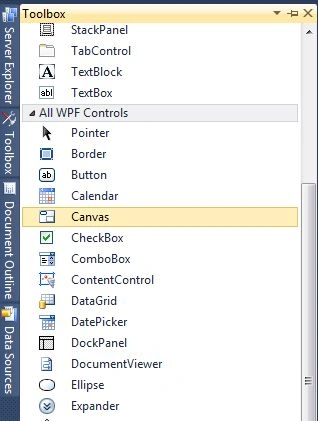
Now we use a canvas tool from the toolbox as in the following:
-
Go to "View" -> "Toolbox".
-
The Toolbox opens in the left corner of the window.
-
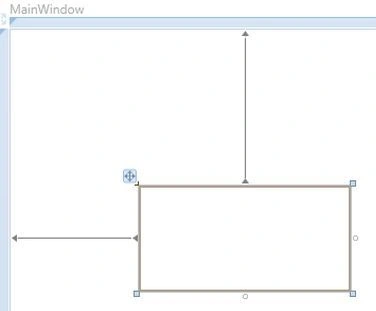
Then Drag and Drop a Canvas onto the design view.
-
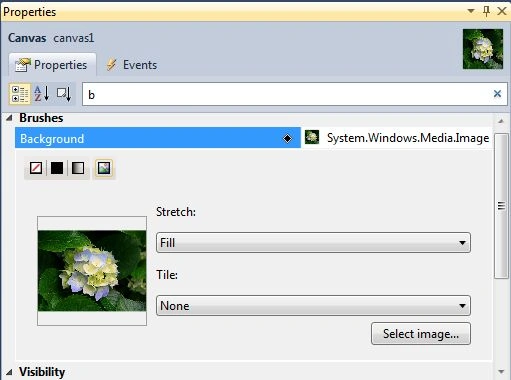
Go to the Background Property of the Canvas.
-
When we select the background property open a dialog box.
-
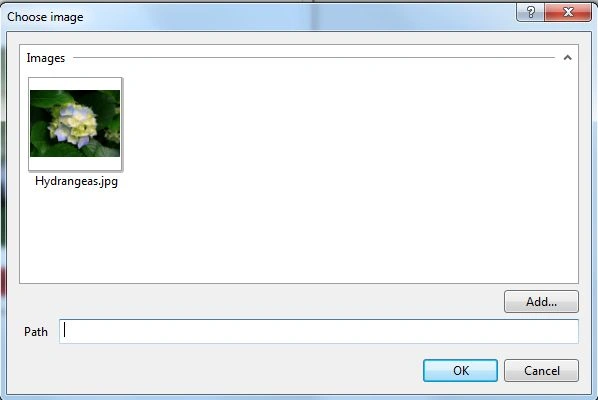
Click on the Select image button, open a new dialog box for selecting the image.
-
Click on the "Add" button.
-
Select the image path.
-
Set the image.
Step 3
- After selecting the background image of the canvas, the final source code of the the MainWindow.XAML coding is given below.
<Window x:Class="WpfApplication3.MainWindow"
xmlns="http://schemas.microsoft.com/winfx/2006/xaml/presentation"
xmlns:x="http://schemas.microsoft.com/winfx/2006/xaml"
Title="MainWindow" Height="350" Width="525">
<Window.Background>
<ImageBrush />
</Window.Background>
<Grid>
<Canvas Height="200" HorizontalAlignment="Left" Margin="142,57,0,0" Name="canvas1" VerticalAlignment="Top" Width="200" MouseLeave="canvas1_MouseLeave" MouseEnter="canvas1_MouseEnter">
<Canvas.Background>
<ImageBrush ImageSource="/WpfApplication3;component/Images/Hydrangeas.jpg" />
</Canvas.Background>
</Canvas>
<Label Content="FADE ANIMATION IN WPF" Height="28" HorizontalAlignment="Left" Margin="162,278,0,0" Name="label1" VerticalAlignment="Top" Width="155" Background="#FFC71414" />
</Grid>
</Window>
Step 4
-
Now go to the MainWindow.xaml.cs.
-
Add "using System.Windows.Media.Animation" to the namespaces.
-
Here is the final MainWindows .xaml.cs code:
using System;
using System.Collections.Generic;
using System.Linq;
using System.Text;
using System.Windows;
using System.Windows.Controls;
using System.Windows.Data;
using System.Windows.Documents;
using System.Windows.Input;
using System.Windows.Media;
using System.Windows.Media.Imaging;
using System.Windows.Navigation;
using System.Windows.Shapes;
using System.Windows.Media.Animation;
namespace WpfApplication3
{
/// <summary>
/// Interaction logic for MainWindow.xaml
/// </summary>
public partial class MainWindow : Window
{
public MainWindow()
{
InitializeComponent();
}
private void canvas1_MouseLeave(object sender, MouseEventArgs e)
{
Canvas can = (Canvas)sender;
DoubleAnimation ani = new DoubleAnimation(0, TimeSpan.FromSeconds(2));
can.BeginAnimation(Canvas.OpacityProperty, ani);
}
private void canvas1_MouseEnter(object sender, MouseEventArgs e)
{
Canvas can = (Canvas)sender;
DoubleAnimation ani = new DoubleAnimation(1, TimeSpan.FromSeconds(2));
can.BeginAnimation(Canvas.OpacityProperty, ani);
}
}
}
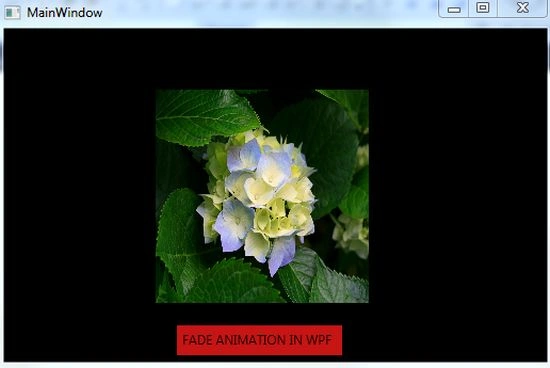
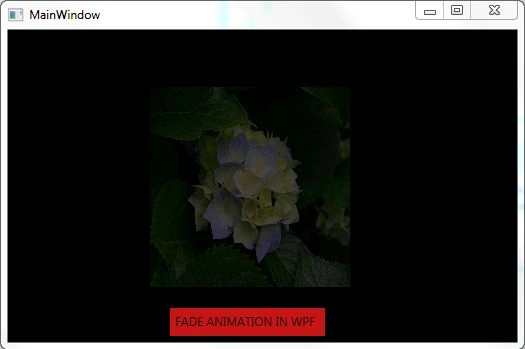
OUTPUT
Rohit MauryaPosted Sep 13, 2013, 2:01 AM
nice one