

Introduction
I started to write a large program that will contain some good functions to be able to code fields for documents and retrieve them easily by searching fields and/or OCRed body of the documents. My first two steps of the application about done. I would like to share one of the components that I wrote called "Field List" control
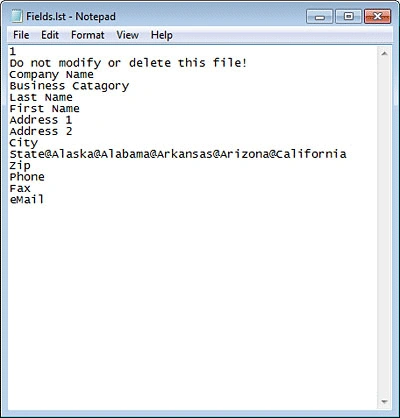
This control runs of a file with "lst" extension which carries a very simple structure in text format.
Please check out the Video Clip of this code here,
Points of Interest
This article targets beginners to learn about "creating controls during runtime" which also includes List<string> array, splitting string and other simple samples of C# programming. If enhanced, this also could be used for any programs that needs unlimited field entry.
Components
I will include one component in this article. Please download the code to see the working sample.
- FieldList control
"FieldList" control has a Vertical Scroll bar and a container that labels, textboxes and/or drop-down boxes created during runtime. So, this is one of the useful things people might learn. How to create controls in runtime and get information from them. Following image shows the text file this control uses. Creating the text file is up to you. I am using another form that I created. First line of the code has a number that tells the control how many other lines of texts are being used for header purposes. Headers are not used by the control, they are ignored. Also, if you have a drop down menu, you have to use "@" sign to split them. You still identify the field name with the first item of the line. Example,"States@Alaska@Arizona@Alabama" your field name is "States" and drop down items are Alaska, Arizona and Alabama.
The Code
using System;
using System.Collections.Generic;
using System.ComponentModel;
using System.Drawing;
using System.Data;
using System.Linq;
using System.Text;
using System.Windows.Forms;
using System.IO;
namespace FieldList
{
public partial class FieldList : UserControl
{
// Fields
// private int intFieldCount; // Number of fields will be
set
private
const int
BoxHeight = 20; // Height of the Textbox
public
FieldList()
{
InitializeComponent();
}
// We get the
path of the 'lst' file and the lines will be skipped at the top of that file
// There
might be some user notes on the top that program should skip at streamread
public void LoadFields(string
FieldFilePath)
{
// Check
the path
if
(File.Exists(FieldFilePath) != true)
{
throw
new Exception("'Field List' File Can not be found!");
}
string
LineData; // Line datab from 'lst' file
string
LabelText; // Field label text
string
ControlBoxName; // Combobox and textbox names created
with this
string[]
SplitText; // Splitter
int
ControlCount = 0; // This calculates the 'top' for
the controls
int
ii = 0; // Loop to bypass top lines of the 'lst' file
int
SkipFirstLines;
//
panel1.Top = 0; // Set container's 'top' value
panel1.Width = (this.Width - 10) - SCRBar.Width; // Set container's 'width' value
// Open
Stream to tread
StreamReader
CurrentFields = new StreamReader(FieldFilePath);
// Find
out how many lines wil be skipped
SkipFirstLines = Convert.ToInt32(CurrentFields.ReadLine());
// Set
fields
for
(ii = 0; ii < SkipFirstLines; ii++) // First two
lines are not fields
{
LineData =
CurrentFields.ReadLine();
}
while
(CurrentFields.EndOfStream != true)
{
LineData = CurrentFields.ReadLine();
SplitText = LineData.Split('@');
LabelText =
SplitText.GetValue(0).ToString();
ControlBoxName =
LabelText.Replace(' ', '_'); // Replace spaces
with
//
underscores for text and combo box names
if
(ControlCount > 0)
{
ControlCount = ControlCount
+ (BoxHeight + 2); // Encrement 'top' value
}
else
{
ControlCount = 1; // This is set to one only once.
//
Code will not come here the second time
}
if
(SplitText.Count() > 1)
{
//
Drop Down Control
ComboBox NewComboBox = new ComboBox();
NewComboBox.Width =
((panel1.Width / 3) * 2) - 5;
NewComboBox.Height =
BoxHeight;
NewComboBox.Left =
(panel1.Width / 3) + 5;
NewComboBox.Top =
ControlCount;
for
(ii = 0; ii < (SplitText.GetUpperBound(0)); ii++)
{
NewComboBox.Items.Add(SplitText.GetValue(ii + 1));
}
NewComboBox.Name = "cmb" + ControlBoxName;
panel1.Controls.Add(NewComboBox);
NewComboBox.SelectedIndex =
0;
}
else
{
//
Text Control
TextBox NewTextBox = new TextBox();
NewTextBox.Width =
((panel1.Width / 3) * 2) - 5; // Space little less
than 2/3
NewTextBox.Height =
BoxHeight;
NewTextBox.Left =
(panel1.Width / 3) + 5; // Start next to label
NewTextBox.Top =
ControlCount;
NewTextBox.Name = "txt" + ControlBoxName;
Join the conversation! Your thoughts help the community grow.