

Introduction
In this article I describe how to create a Windows Store App for storing data in a file in roaming folder using JavaScript. User data in an app can be stored as files. There are three locations available for storing files; they are:
- Windows.Storage.ApplicationData.current.localFolder
- Windows.Storage.ApplicationData.current.roamingFolder
- Windows.Storage.ApplicationData.current.temporaryFolder.
To start the creation of the app, add one JavaScript page by right-clicking on the js folder in the Solution Explorer and select Add > new item > JavaScript Page and then give an appropriate name. In the same way, add one HTML page to your project.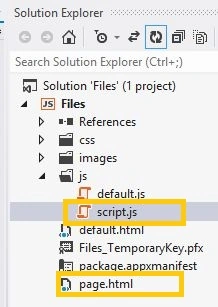
Write the following code in default.html:
<!DOCTYPE html>
<html>
<head>
<meta charset="utf-8" />
<title>App</title>
<link rel="stylesheet" href="//Microsoft.WinJS.1.0/css/ui-light.css" />
<script src="//Microsoft.WinJS.1.0/js/base.js"></script>
<script src="//Microsoft.WinJS.1.0/js/ui.js"></script>
<link rel="stylesheet" href="/css/default.css" />
<script src="/js/default.js"></script>
</head>
<body role="application" style="background-color: lightyellow">
<center><div id="rootGrid">
<div id="content">
<h1 id="featureLabel"></h1>
<div id="contentHost"></div>
</div>
</div></center>
</body>
</html>
Write the following code in default.js:
(function () {
"use strict";
var appTitle = "";
var pages = [
{ url: "page.html", title: "SetVersion" }
];
function activated(eventObject) {
if (eventObject.detail.kind === Windows.ApplicationModel.Activation.ActivationKind.launch) {
eventObject.setPromise(WinJS.UI.processAll().then(function () {
var url = WinJS.Application.sessionState.lastUrl || pages[0].url;
return WinJS.Navigation.navigate(url);
}));
}
}
WinJS.Navigation.addEventListener("navigated", function (eventObject) {
var url = eventObject.detail.location;
var host = document.getElementById("contentHost");
host.winControl && host.winControl.unload && host.winControl.unload();
WinJS.Utilities.empty(host);
eventObject.detail.setPromise(WinJS.UI.Pages.render(url, host, eventObject.detail.state).then(function () {
WinJS.Application.sessionState.lastUrl = url;
}));
});
WinJS.Namespace.define("App", {
appTitle: appTitle,
pages: pages
});
WinJS.Application.addEventListener("activated", activated, false);
WinJS.Application.start();
})();
Write the following code in page.html:
<!DOCTYPE html>
<html>
<head>
<title></title>
<link rel="stylesheet" href="/css/default.css" />
<script src="/js/script.js"></script>
</head>
<body>
<div data-win-control="App.pageInput">
<button class="action" id="filesIncrement">Create File</button>
</div>
<div data-win-control="App.pageOutput">
<div class="item" id="filesOutput"></div>
</div>
</body>
</html>
Write the following code in script.html:
(function () {
"use strict";
var page = WinJS.UI.Pages.define("page.html", {
ready: function (element, options) {
document.getElementById("filesIncrement").addEventListener("click", filesIncrement, false);
filesDisplayOutput();
}
});
var roamingFolder = Windows.Storage.ApplicationData.current.roamingFolder;
var filename = "appFile.txt";
var counter = 0;
function filesIncrement() {
counter = counter + 1;
roamingFolder.createFileAsync(filename, Windows.Storage.CreationCollisionOption.replaceExisting)
.then(function (file) {
return Windows.Storage.FileIO.writeTextAsync(file, counter);
}).done(function () {
filesDisplayOutput();
});
}
function filesReadCounter() {
roamingFolder.getFileAsync(filename)
.then(function (file) {
return Windows.Storage.FileIO.readTextAsync(file);
}).done(function (text) {
counter = parseInt(text);
document.getElementById("filesOutput").innerText = "file: " + counter;
}, function () {
document.getElementById("filesOutput").innerText = "file: <not found>";
});
}
function filesDisplayOutput() {
filesReadCounter();
}
})();
Output:
Summary
In this app I described how to store data in a file in a roaming folder in a Windows Store App using JavaScript. I hope this article has helped you to understand this topic. Please share if you know more about this. Your feedback and constructive contributions are welcome.
Deepak MiddhaPosted Nov 5, 2012, 5:30 AM
Thanks gaurav..
Gaurav GuptaPosted Nov 5, 2012, 5:14 AM
Great article Deepak....Thanks for posting..