In Windows 10 we have OpenFileDialog which opens a dialog to pick the files. Here we are going to pick the image file in Windows 10.
Create new Windows 10 project and create a button and image control to perform File Picker operation.
Firstly, create a new instance for FileOpenPicker as in the following snippet:
- FileOpenPicker openPicker = new FileOpenPicker();
Next, we have to set file picker ViewMode, you could ignore this, but if you would like to add, there are two options, such as List and Thumbnail. Here I will set thumbnail.
- openPicker.ViewMode = PickerViewMode.Thumbnail;
Then set the suggested location as you wish. I am going to set default location as picture library.
- openPicker.SuggestedStartLocation = PickerLocationId.PicturesLibrary;
We need to add FileTypeFilter; it is a mandatory fields that you should add. It requires at least one type.
The FileTypeFilter is a readonly collection. We would be able to add values.
Here I am setting filter type for png and jpg images.
- openPicker.FileTypeFilter.Add(".jpg");
- openPicker.FileTypeFilter.Add(".png");
Finally, we are going to show the file picker dialog as in the following code snippet and we have the option to select single or multiple file selection
For single file selection,
- StorageFile file = await openPicker.PickSingleFileAsync();
For multiple file selection,
- StorageFile file = await openPicker.PickMultipleFilesAsync();
Finally, we are going to set the selected image stream to empty image control.
- if (file != null)
- {
- var stream = await file.OpenAsync(Windows.Storage.FileAccessMode.Read);
- var image = new BitmapImage();
- image.SetSource(stream);
- imageView.Source = image;
- }
- else
- {
-
- }
The whole code looks like the following:
- private async void openBtn_Click(object sender, RoutedEventArgs e)
- {
- FileOpenPicker openPicker = new FileOpenPicker();
- openPicker.ViewMode = PickerViewMode.Thumbnail;
- openPicker.SuggestedStartLocation = PickerLocationId.PicturesLibrary;
- openPicker.FileTypeFilter.Add(".jpg");
- openPicker.FileTypeFilter.Add(".png");
- StorageFile file = await openPicker.PickSingleFileAsync();
- if (file != null)
- {
- var stream = await file.OpenAsync(Windows.Storage.FileAccessMode.Read);
- var image = new BitmapImage();
- image.SetSource(stream);
- imageView.Source = image;
- }
- else
- {
-
- }
- }
- foreach(var files in filelist)
- {
- var stream = await file.OpenAsync(Windows.Storage.FileAccessMode.Read);
- var image = new BitmapImage();
- image.SetSource(stream);
- yourimagelist.Add(image);
- }
Finally, run your app and you can see the following output:
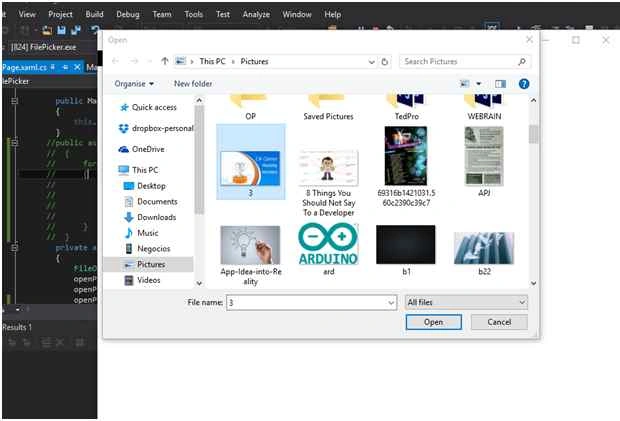
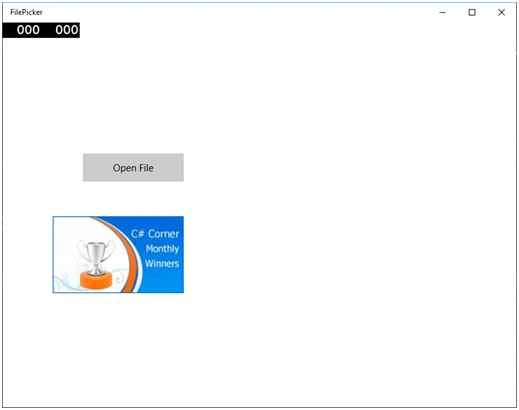
Source
Code.


Ilker MersinliogluPosted Mar 9, 2017, 9:37 AM
Correction: var stream = await file.OpenAsync(Windows.Storage.FileAccessMode.Read); var image2 = new BitmapImage(); image2.SetSource(stream); image.Source = image2;
Ilker MersinliogluPosted Mar 9, 2017, 9:30 AM
Var stream = await file.OpenAsync(Windows.Storage.FileAccessMode.Read); var image2 = new BitmapImage(); image2.SetSource(stream); image.Source = image2;
Kumaresh RajalingamPosted Feb 19, 2016, 7:57 PM
good one
Kumaresh RajalingamPosted Feb 19, 2016, 7:57 PM
Nice explanation
Sr KarthigaPosted Feb 16, 2016, 10:11 PM
good one
Sr KarthigaPosted Feb 16, 2016, 10:11 PM
Nice explanation
Santhakumar MunuswamyPosted Nov 11, 2015, 8:51 AM
Good one
Vinodh NarayananPosted Nov 8, 2015, 8:04 AM
good one
Gowtham KPosted Nov 7, 2015, 10:15 AM
Good share
Sibeesh VenuPosted Nov 7, 2015, 3:33 AM
Nice Share
Harshad PansuriyaPosted Nov 6, 2015, 11:27 PM
Nice one
Mukesh KumarPosted Nov 6, 2015, 9:12 AM
Good One !