

Before reading this article, I would recommend reading the following previous part.
Welcome to an article on how to fill in PDF forms directly on SharePoint 2013 and Office 365. In the first part we saw how we can edit the PDF file on the SharePoint Library directly and save it rather than downloading and uploading it.
You don’t trust me, it has that trick.
Let’s see how we can do it.
- Click on the Settings Gear on the right corner of your site.
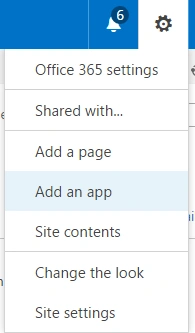
- Click on ‘Add an app’.
- You will be directed to apps page. Click on SharePoint Store which you will find on left side of your site.
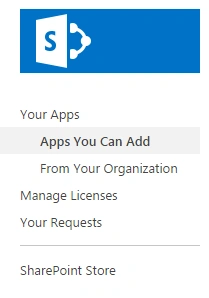
- Welcome to the SharePoint Store.
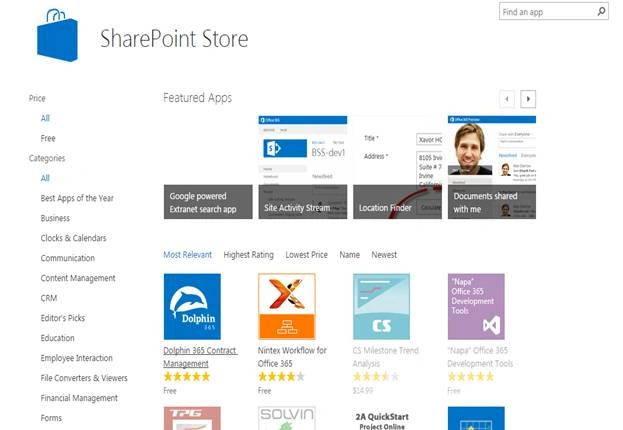
- Choose the app “PDF Forms for Office 365” and click on it.
- It’s a free app, click on ADD IT.
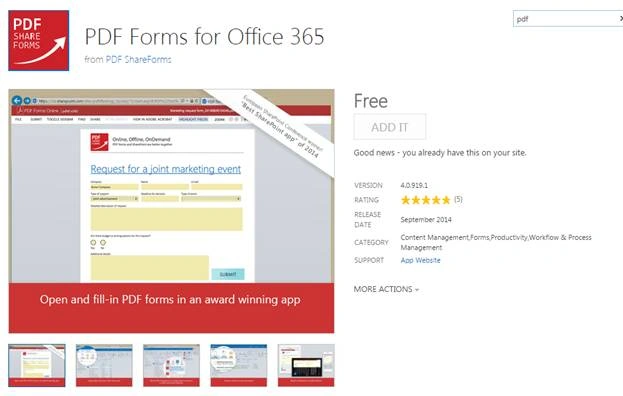
- Click ‘ADD IT’.
- You will come to the trust page, click on Trust It.
- Once you add, It will show up on your Site Contents.
- Go to your respective document library and find it on the ribbon as per the screen below.
- Click “Publish to a Content Type”.

How will this option work
- So, here I have a dummy form which is a PDF form.
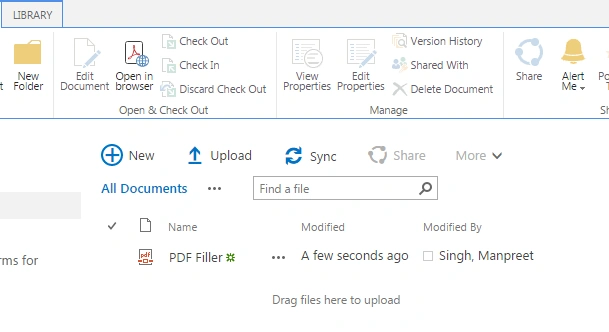
- Select the PDF File and click on the option here.

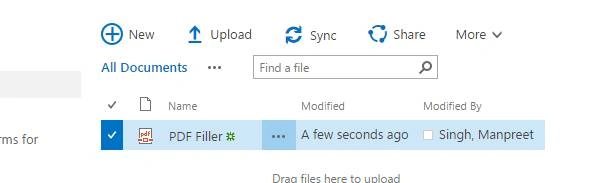
- The app will open.
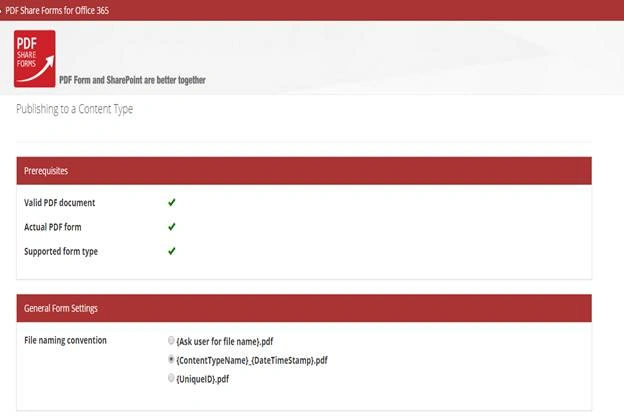
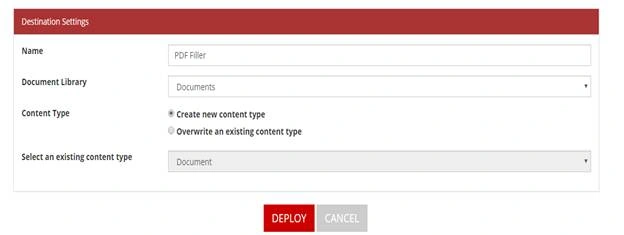
Configuration:
You have to configure the app to create a content type.
File Naming convention: How do you want to save the name of the PDF files.
a. You can ask the user
b. Or you can have it as Content type Name and Today’s Date and time
c. Or a unique Id.
I selected the second option, let’s go for the next.
Content Type:
Do you want to use a new content type or overwrite the existing one.
I have selected to use a new one.
All other options will be populated automatically.
Once done Click on ‘Deploy’. - You will see that it has successfully updated the new content type, click on ‘Back to SharePoint’.
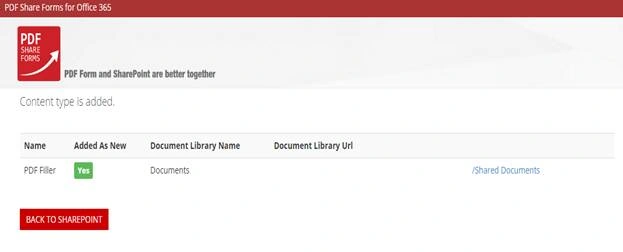
- You will be directed to the library. Click on New item drop down and you will see the content type available there.
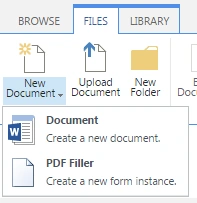
- The content type has been created with the pdf form provided by you, click on it.
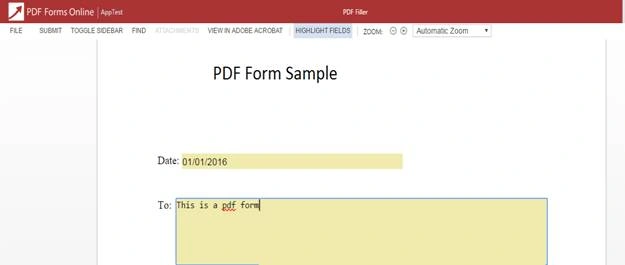
- The form will load. Fill in the details and click in Submit.
- It will get saved on your library as a new item.
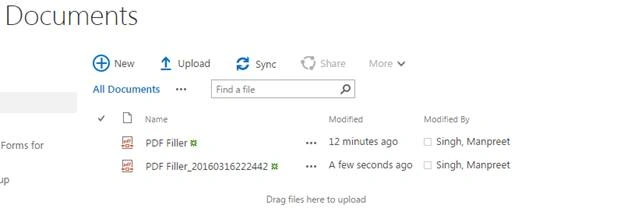
- Open it to view the edit you made.

Here you have a PDF filled directly on the SharePoint library without downloading and uploading the file. Isn’t it great?
Hence we saw today, how to fill in PDF forms directly on SharePoint 2013 and Office 365. We will see other functionalities of this app in my other article. Until then keep reading and keep learning.
Read more articles on SharePoint:
PDF WizardPosted Jan 25, 2018, 8:06 AM
There is a new SharePoint product "PDF Wizard" that handles:- Conversion of files from one format into others.- Add Security features to PDF files like encrypt,decrypt,Add watermarks etc.- Merges multiple files of different format as one PDF file.And many more features.Very easy to install.Very easy to use, no training required. Please checkout the link for more information: https://sharepointpdfwizard.com
Humayun Kabir MamunPosted Mar 19, 2016, 11:58 PM
Nice...
Abhay ShankerPosted Mar 18, 2016, 10:31 PM
Nice...
Vignesh ManiPosted Mar 18, 2016, 4:51 PM
nice
Mohammed IbrahimPosted Mar 18, 2016, 6:10 AM
nice