

Introduction
While finding windows related help from the
internet, you can also search for information using Windows Help and Support.
Windows Help and Support is not only helpful for finding the right answer but
also can launch applications or commands directly from within search results. To use Windows Help and Support, you have to follow some steps. These are as
follows.
Step 1
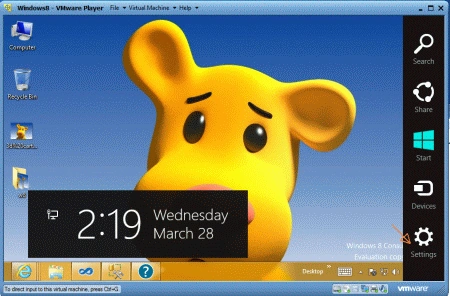
Move the mouse cursor to the right side until the search and settings
menu bar (called Charms Bar)
appears of the desktop mode then click on the Setting icon.
Step 2
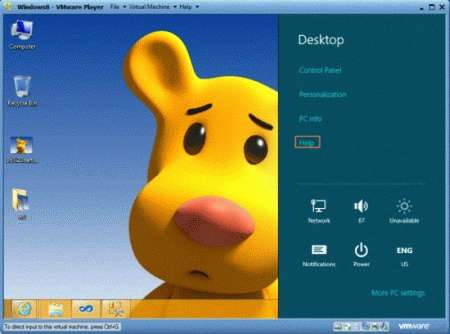
From there select Help
option and
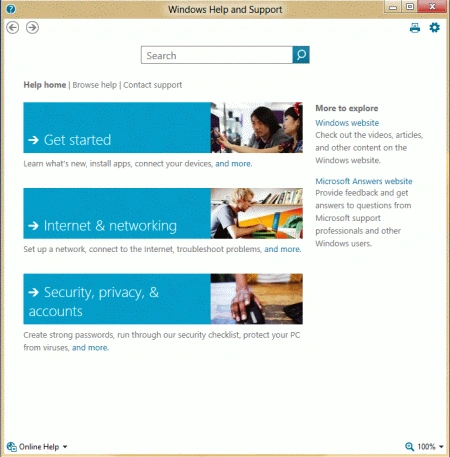
then it will show you the window.
Step 3
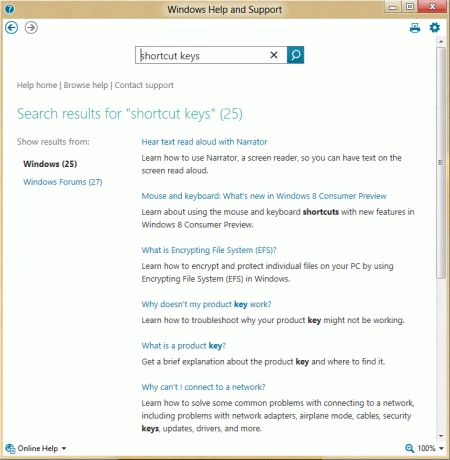
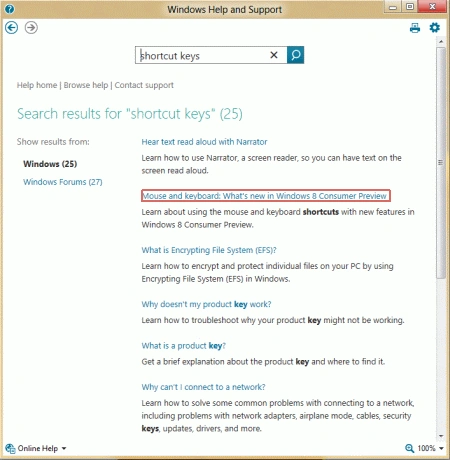
Type in the search box what you are looking for,
e.g. "shortcut keys".
Step 4
Click on the item from the search results, e.g. "Mouse
and keyboard: What's new in Windows 8 Consumer Preview".
Step 5
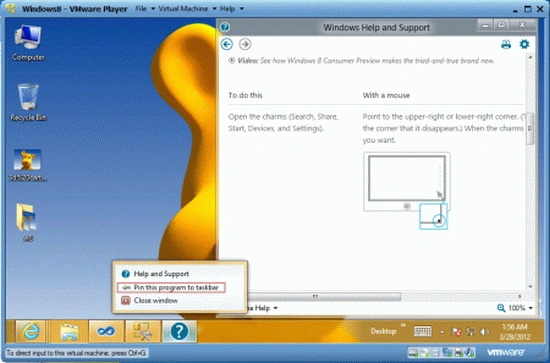
If you often use Windows Help, you can pin the app
to the Taskbar.
Note
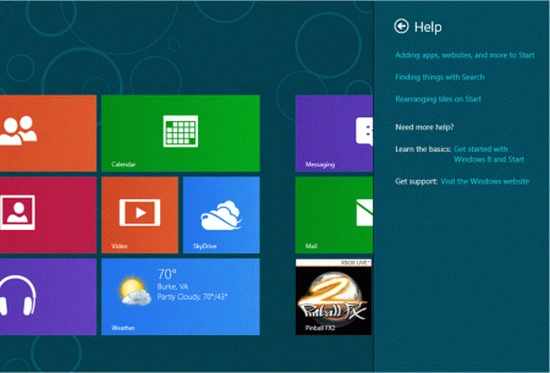
Windows Help from the Charms Bar in Metro UI mode
provides various options to you. For each option you select, you will be
re-directed to a Microsoft website in the Metro IE.
Summary
In this article, we learned about Find and Use Windows Help and Support in Windows 8.
Join the conversation! Your thoughts help the community grow.