

The FlowLayoutPanel control is a container control that provides dynamic layout for the child controls that can be arranged horizontally or vertically. The flow direction of the control sets the direction of arrangements of controls.
Creating a FlowLayoutPanel
We can create a FlowLayoutPanel control using the Forms designer at design-time or using the FlowLayoutPanel class in code at run-time (also known as dynamically).
Design-time
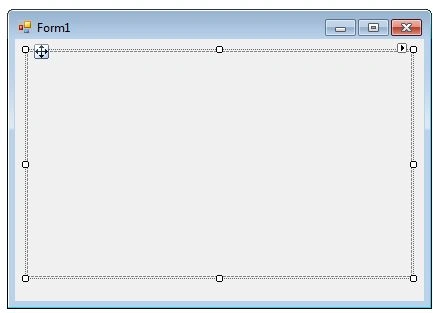
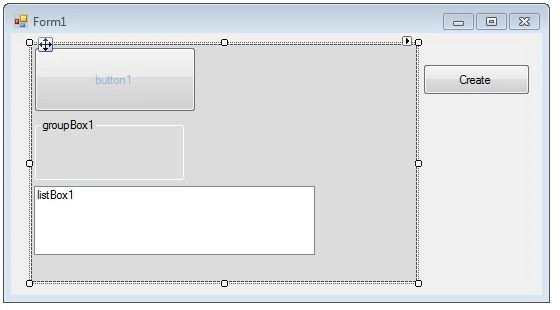
To create a FlowLayoutPanel control at design-time, you simply drag and drop a FlowLayoutPanel control from Toolbox to a Form in Visual Studio. After you drag and drop a FlowLayoutPanel on a Form, the FlowLayoutPanel looks like Figure 1. Once a FlowLayoutPanel is on the Form, you can move it around and resize it using the mouse and set its properties and events.
Run-time
Creating a FlowLayoutPanel control at run-time is merely a work of creating an instance of FlowLayoutPanel class, setting its properties and adding FlowLayoutPanel class to the Form controls.
The first step to create a dynamic FlowLayoutPanel is to create an instance of FlowLayoutPanel class. The following code snippet creates a FlowLayoutPanel control object.
- FlowLayoutPanel dynamicFlowLayoutPanel = newFlowLayoutPanel();
In the next step, you may set properties of a FlowLayoutPanel control. The following code snippet sets location, size and Name properties of a FlowLayoutPanel.
- dynamicFlowLayoutPanel.Location = new System.Drawing.Point(26, 12);
- dynamicFlowLayoutPanel.Name = "FlowLayoutPanel1";
- dynamicFlowLayoutPanel.Size = new System.Drawing.Size(228, 20);
- dynamicFlowLayoutPanel.TabIndex = 0;
Once the FlowLayoutPanel control is ready with its properties, the next step is to add the FlowLayoutPanel to a Form. To do so, we use Form.Controls.Add method that adds FlowLayoutPanel control to the Form controls and displays on the Form based on the location and size of the control. The following code snippet adds a FlowLayoutPanel control to the current Form.
- this.Controls.Add(dynamicFlowLayoutPanel);
Setting FlowLayoutPanel Properties
After you place a FlowLayoutPanel control on a Form, the next step is to set its properties.
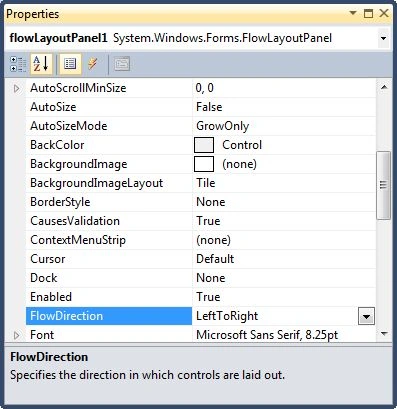
The easiest way to set properties is from the Properties Window. You can open Properties window by pressing F4 or right clicking on a control and selecting Properties menu item. The Properties window looks like Figure 2.
Name
Name property represents a unique name of a FlowLayoutPanel control. It is used to access the control in the code. The following code snippet sets and gets the name and text of a FlowLayoutPanel control.
raghava svPosted Jul 26, 2014, 11:17 PM
when click on create button flowlayout panel is not adding