

Create the SharePoint Groups
Here we are trying to create three SharePoint groups and a user for each group.
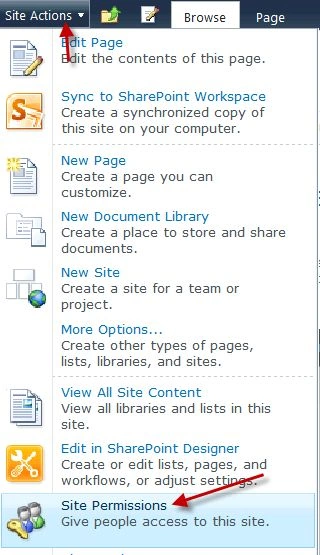
- Open your SharePoint 2010 site (if the site isn't open in your browser), click Site Actions | Site Permissions.
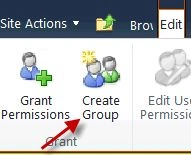
- When the Permission page opens, click the Create Group Ribbon button.
- Enter the name Apollo Marketing Team. Do not change any other property.
- Click OK to create the group.
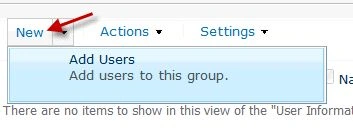
- When the Apollo Marketing Group page opens, click New | Add Users from the menu.
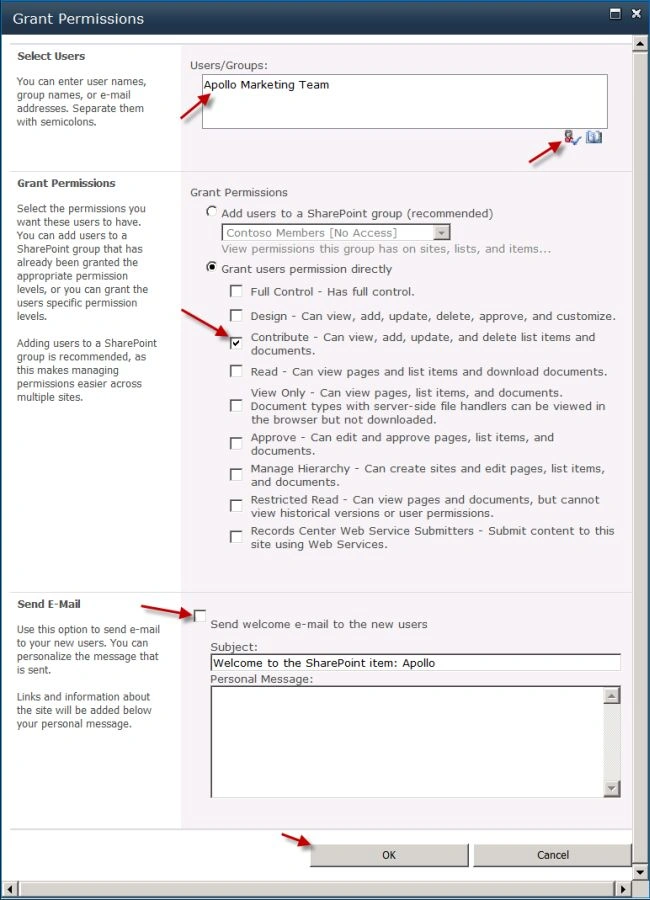
- Enter Domain Name\User Name in the User/Groups text box and click the Check Names icon to verify the account.
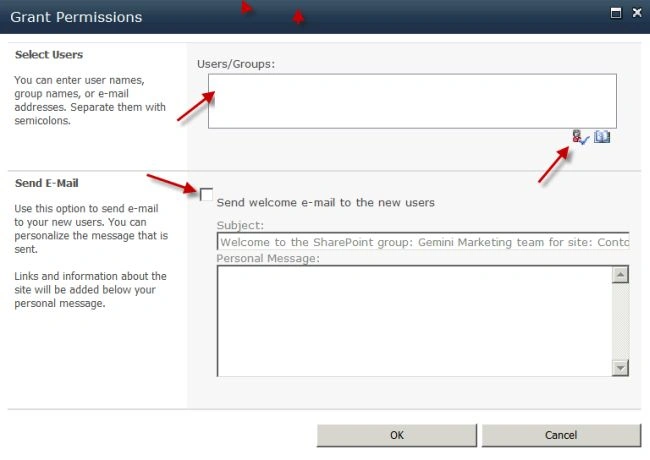
- Uncheck the Send welcome e-mail to the new users checkbox.
- Select OK to add Mark Hanson to the group.
- Repeat steps 1-6 for the Gemini Marketing Team and the Orion Marketing Team using the following users:
Gemini Marketing Team - Renee Lo: User ID Domain Name\User1
Orion Marketing team - Spencer Low: User ID Domain Name\User2
Create the Project Documents Library
- Open your site then click Site Actions | Site Settings.
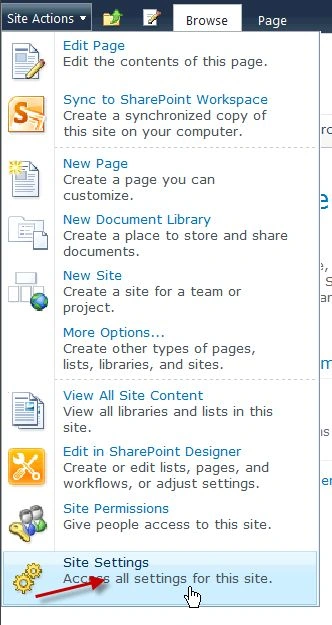
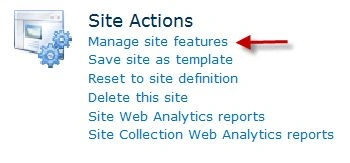
- When the Site Settings page is open, click the Manage site features link.
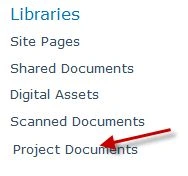
- Verify the Project Documents library link displays in the Quick Launch control located in the left column.
Enable Developer Dashboard and Review the Execution Time
- Click Project Documents located in the Quick Launch control.
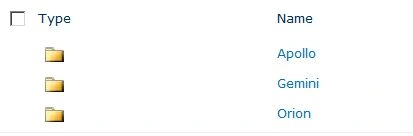
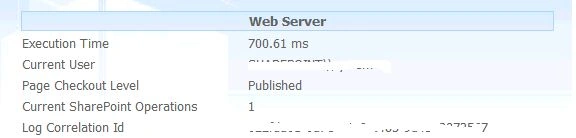
- Scroll to the bottom of the page to review the Developer Dashboard details. Review the Execution Time located in the top, right column.
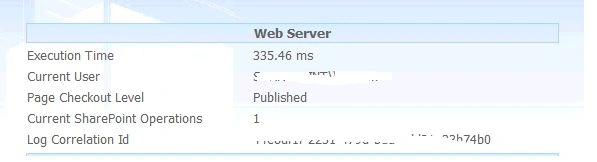
- Press F5 to refresh the page and continue to review the Execution Time value to determine a basic range of times.
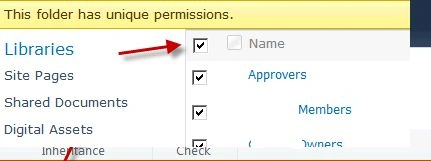
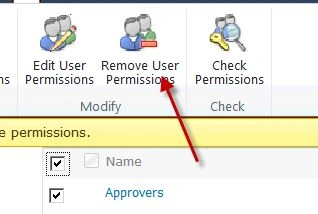
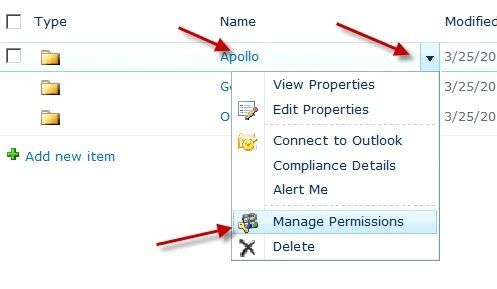
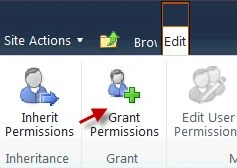
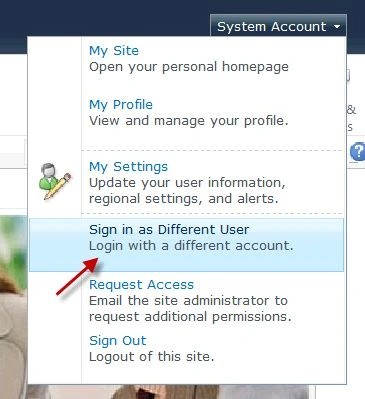
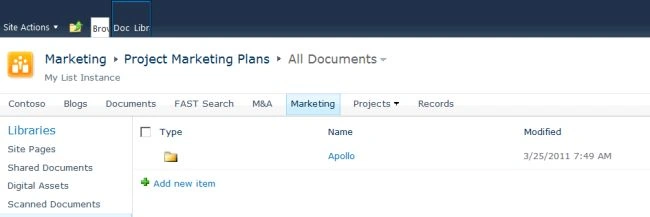
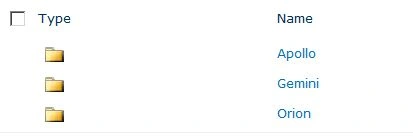
Break Inheritance on the Project Folders
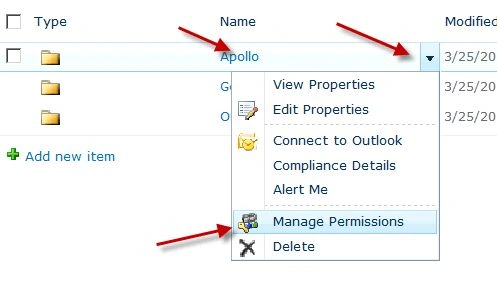
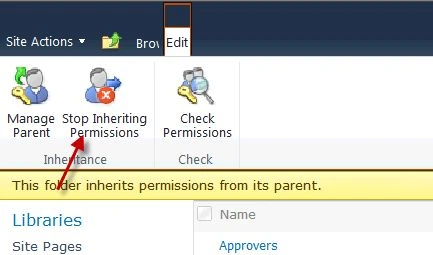
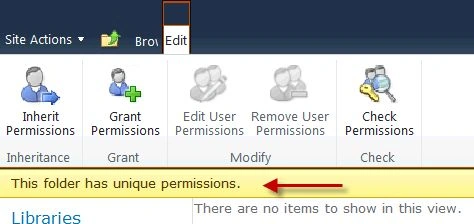
Join the conversation! Your thoughts help the community grow.