

How to Format Number in LightSwitch Visual Studio 2012
In my previous article (http://www.c-sharpcorner.com/UploadFile/18ddf7/formatting-date-in-lightswitch-visual-studio-2012/) I explained how to format a date using LightSwitch in Visual Studio 2012.
By using the Format Pattern property, we specify how numeric types appear that can be easily created in Visual Studio LightSwitch. For example, we want to display a Decimal value as a percentage (0.30 as 30%).
Procedure for showing how to format a number using LightSwitch Visual Studio 2012
Step 1
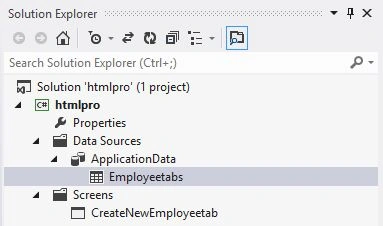
Open the Solution Explorer.
Image 1
Step 2
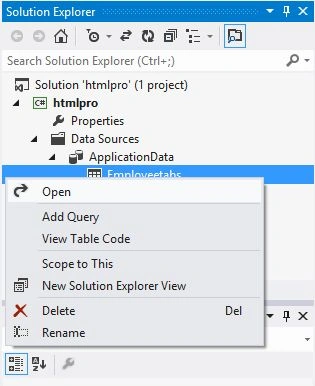
In the Solution Explorer, double-click or right-click on the table to open it.
Image 2
Step 3
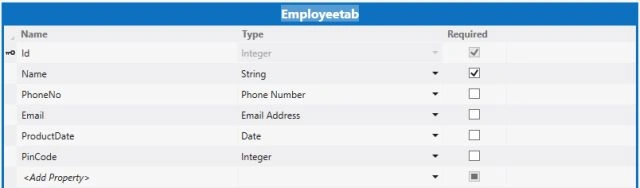
The table opens in Data Designer.
Image 3
Step 4
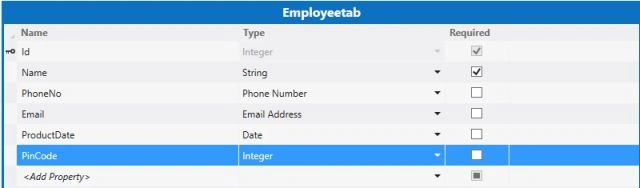
In the Data Designer choose the field that you want to format.
Image 4
Step 5
Go to the menu bar, choose View then the Properties Window.
Image 5
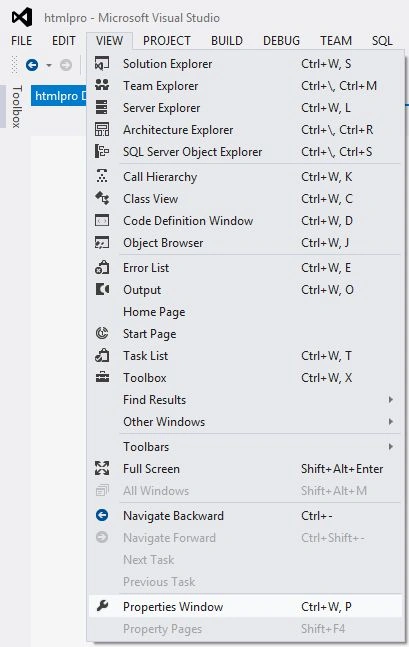
Step 6
The Property Window appears.
Image 6
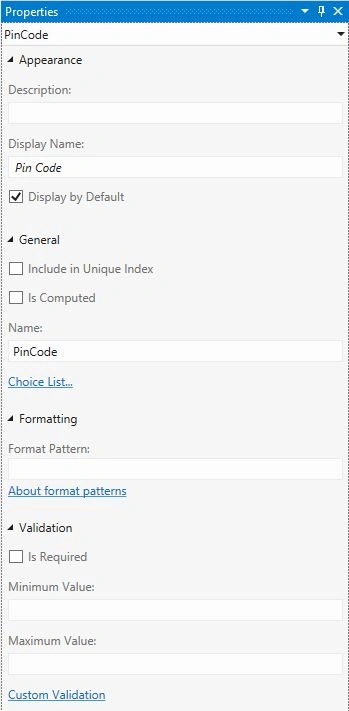
Step 7
The Properties window consists of a Formatting section; choose the Format Pattern property, and then specify a format string. For more information about format strings, see: http://tempuri.org/tempuri.html.
Image 7
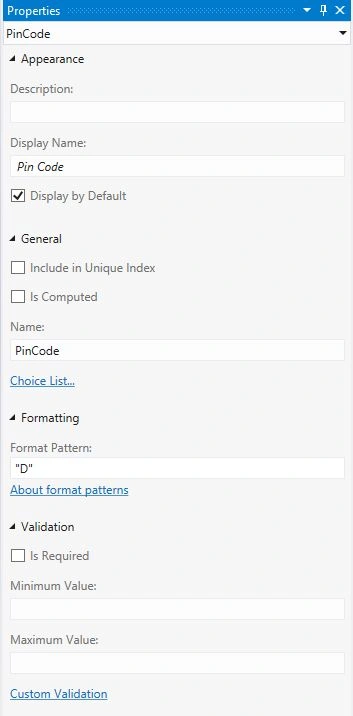
Step 8
When we start debugging we see an empty table with no data or information.
Image 8
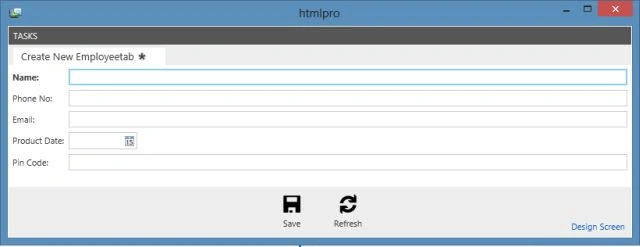
Step 9
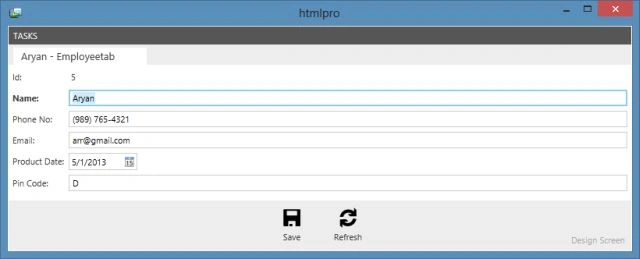
We enter the information or data in the following table.
Image 9

Step 10
After we click on the save button our data is inserted successfully, we will have the data in the following format.
Image 10
Join the conversation! Your thoughts help the community grow.