

Introduction
I remember when I was a child, we have made drawings on papers that acted as animation. We draw
numerous slides one by one and arrange them and flip them speedily. So that we
realize that is going smoothly like animation. In cartoons also, this technique
is used. We can see this in a flipbook.
In this concept, we will make some slides called frames and give them
individually duration for how long it will appear on the screen and that's it.
So, this tutorial will help you to learn how frame by frame animation works.
It's very easy.
Step 1
Find out images that you want for animation. They should be in sequence so that
we can realize it as flipping continuously. The file type of images like GIF, PNG
, etc. After finding, copy them and place them by copy and paste in
"Your project" -> res -> drawable-mdpi -> paste images
Drawable has three categories
- hdpi-> high dots per inch
- ldpi->large dots per inch
- mdpi->medium dots per inch
Step 2
There are two methods to perform this animation. 1) By creating "BitmapDrawable"
objects, 2) By creating "animation" XML file. We will see both methods one by
one.
- Do with "BitmapDrawable"
Syntax:Example
- BitmapDrawable object=(BitmapDrawable) getResources().getDrawable(R.drawable.<image_name>);
Suppose I have an image named "sample.png" in "res.drawable" directory, then- BitmapDrawable frame1=(BitmapDrawable)getResources().getDrawable(R.drawable.sample);
- AnimationDrawable animation = new AnimationDrawable();
Now, we can add frames that we have created above as you want.Syntax:Example- AnimationDrawable.addFrame(BitmapDrawable,duration);
In this animation, while you start this animation, it will stop after the last added frame. If you like to continue this animation, the following method must be implemented.- animation.addFrame(frame1,1000);
- animation.setOneShot(false);
- Now, bind "ImageView" object of the layout
- ImageView img=(ImageView)findViewById(R.id.imageView1);
- img.setBackgroundDrawable(animation);
- animation.start();
- animation.stop();
Description:- Duration is in milliseconds.
- setBackgroundDrawable(animation) method will set background with animation and give control over animation.
-
start() method will start your animation and stop() will stop this
animation.
- BitmapDrawable object=(BitmapDrawable) getResources().getDrawable(R.drawable.<image_name>);
- Do with "animatin.xml" file in
animation directoryFirst, right click "Your Project" -> new -> Android Xml File ->
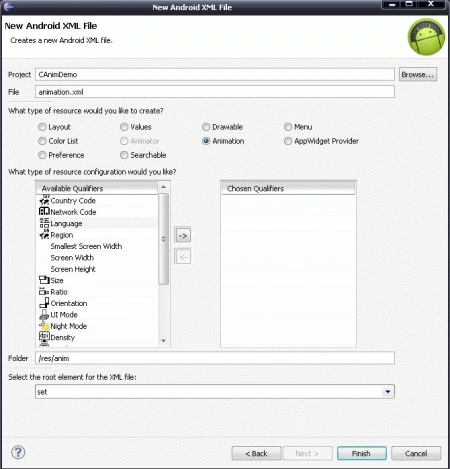 Now, write down the following code in that file by removing existing codes.
- <?xml version="1.0" encoding="utf-8"?>
- <animation-list
- xmlns:android=http://schemas.android.com/apk/res/android
- android:oneshot="false">
- <item android:drawable="@drawable/sample1" android:duration="50"/>
- <item android:drawable="@drawable/sample2" android:duration="50"/>
- <item android:drawable="@drawable/sample3" android:duration="50"/>
- </animation-list>
In the above code, I have added 3 frames with "android:drawable" attribute and duration in milliseconds.Now, bind "ImageView" object with the layout and implement the following methods.- ImageView img=(ImageView)findViewById(R.id.imageView1);
- img.setImageBitmap(null);
- img.setBackgroundResource(R.anim.animation);
- Next, create object of "AnimatinDrawable" and give background to "AnimationDrawable" so that it can handle it.
- AnimationDrawable animation = (AnimationDrawable) img.getBackground();
- animation.start();
- animation.stop();
Using "BitmapDrawable"
Main.java
- package com.animationapp;
- import android.app.Activity;
- import android.graphics.drawable.AnimationDrawable;
- import android.graphics.drawable.BitmapDrawable;
- import android.os.Bundle;
- import android.view.View;
- import android.widget.Button;
- import android.widget.ImageView;
- public class AnimationAppActvity extends Activity {
- /** Called when the activity is first created. */
- ImageView img;
- Button btnStart,btnStop;
- AnimationDrawable animation;
- @Override
- public void onCreate(Bundle savedInstanceState) {
- super.onCreate(savedInstanceState);
- setContentView(R.layout.main);
- int duration = 150;
- img = (ImageView)findViewById(R.id.imageView1);
- BitmapDrawable frame1 =
- (BitmapDrawable)getResources().getDrawable(R.drawable.d1);
- BitmapDrawable frame2 =
- (BitmapDrawable)getResources().getDrawable(R.drawable.d2);
- BitmapDrawable frame3 =
- (BitmapDrawable)getResources().getDrawable(R.drawable.d3);
- animation = new AnimationDrawable();
- animation.addFrame(frame1, duration);
- animation.addFrame(frame2, duration);
- animation.addFrame(frame3, duration);
- animation.setOneShot(false);
- img.setBackgroundDrawable(animation);
- btnStart = (Button)findViewById(R.id.btnStart);
- btnStop = (Button)findViewById(R.id.btnStop);
- btnStart.setOnClickListener(new View.OnClickListener() {
- @Override
- public void onClick(View v) {
- // TODO Auto-generated method stub
- animation.start();
- }
- });
- btnStop.setOnClickListener(new View.OnClickListener() {
- @Override
- public void onClick(View v) {
- // TODO Auto-generated method stub
- animation.stop();
- }
- });
- }
- }
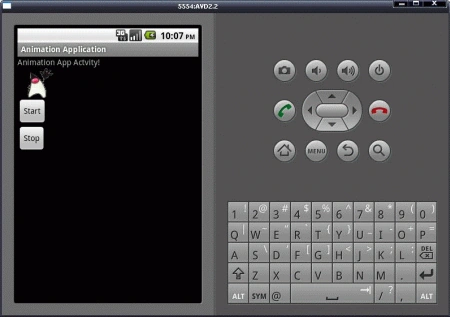
Sumita DasPosted Sep 3, 2017, 8:19 AM
Android frame by frame animation technique - https://www.youtube.com/watch?v=Ak25Wi72o3M&list=PLGY_UftsHsIYEOkGyDiB4Fv9nvT31QFLj
Ketan SarvakarPosted Aug 10, 2015, 12:06 PM
nice work chintan
Chintan RathodPosted Mar 4, 2013, 8:44 AM
place your "animation.start();" at the end of "onCreate()" method. And done...!!!
taha tahaPosted Feb 12, 2013, 7:17 AM
Firstly,i want to thank for this helpful post. I have one question. How do start animation when activity start?
Chintan RathodPosted Jun 4, 2012, 6:23 AM
Its my pleasure to help you. Thanks for your reply.
Hemant Mendi RattaPosted Jun 4, 2012, 4:59 AM
This gr8 article allowed me to add animated image to android app and served as an alternative to a gif image really nice post written with extreme simlicity.My blog also shares android related info -www.jannatyahan.com
Alok PandeyPosted Dec 27, 2011, 11:46 PM
Good Explanation. Thanks for sharing.
Sonakshi SinghPosted Dec 27, 2011, 11:41 PM
Its really feel good to learn something new about it..
Monika AroraPosted Dec 27, 2011, 11:40 PM
Great what an article. I will surely implement this
Manoj Singh PanwareditedPosted Dec 27, 2011, 11:21 PMEdited Dec 27, 2011, 11:28 PM
Its nice to know working with android, thankx for sharing Mr. Chintan
Michell JohnsonPosted Dec 27, 2011, 11:01 PM
Dear Chintan it's great effort to do such type of task, it's really very helpful to us. Thanks.
Vineet Kumar SainiPosted Dec 27, 2011, 12:02 PM
Nice work....
Akash AhlawatPosted Dec 27, 2011, 11:59 AM
Great Work Mr. Rathod
Arjun PanwarPosted Dec 27, 2011, 11:59 AM
Thanks Mr. Chintan
Manish SinghPosted Dec 27, 2011, 11:42 AM
It is really helpful