
How I Turned a Messy GitHub Repo into a Readable Onboarding Handbook
On my first week at a new job, I got what every developer gets:
On my first week at a new job, I got what every developer gets:
A GitHub repo link
A “docs” folder
And a vague “everything you need is in there”
If you’ve ever clicked into one of those repos, you already know what happens next. There isn’t one document—there are dozens of Markdown files. Half of them are named something like final-architecture-v3-new.md, and there’s no obvious starting point.
Do I open README.md?
Do I start with architecture.md?
Why is there a docs-old folder? Who hurt you?
Meanwhile, every non-engineering team seems to have beautifully packaged PDFs:
HR has a polished onboarding booklet.
Sales has slick pitch decks.
Leadership has glossy strategy documents.
And developers? We’re stuck spelunking through Markdown files and doc trees like it’s a text-based adventure game.
At some point I realized:
The problem isn’t the content—it’s the packaging.
All the right information exists, but it’s not presented in a way that someone can just sit down and read like a handbook.
So I decided to fix that for my team.
From Chaos to “Starter Handbook”
What I really wanted for new developers was simple:
One document they could read from start to finish and feel:
“Okay, I get what this system is, why it exists, and where to go next.”
Not a maze of links. Not 25 tabs open.
Just a starter handbook.
So I pitched an idea to my manager:
“Let’s automatically turn our scattered GitHub docs into a single, clean PDF—something that feels like an internal mini-book.”
We ended up building a small system that glues together:
Python for orchestration and data fetching
OpenAI for summarization
IronPDF running inside a .NET 8 Web API for high-quality PDF generation
And what it does is surprisingly straightforward:
Uses AI to turn dense docs into readable summaries
Wraps everything in a professional layout (cover, TOC, sections)
Outputs a polished PDF without anyone copy-pasting into Word or fighting with a PDF editor at 11 p.m.
Now when someone joins, instead of saying:
“Here’s the repo… good luck.”
We can share:
“Here’s your starter handbook. If you want more depth, follow the links inside.”
The Pipeline: How the System Actually Works
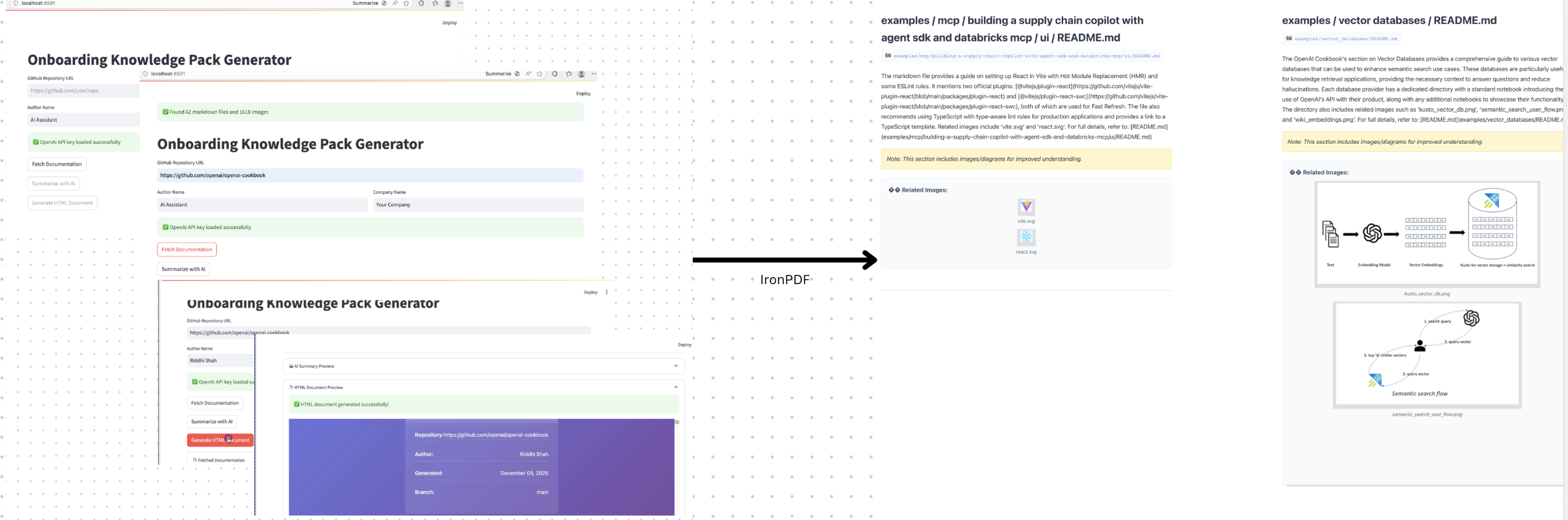
The UI is intentionally simple. We built it with Streamlit so that anyone on the team can use it without knowing Python internals.
Step zero is:
You paste a GitHub URL.
The system does the rest.
Under the hood, there are four main stages.
1. Gathering the Files (Python + GitHub API)
First, Python plays librarian.
Once the user pastes in a repository URL, the backend:
Parses the URL and identifies the repo
Uses the GitHub API to fetch all relevant Markdown files (and images where needed)
Walks the directory structure to build a simple in-memory file tree
At this point, we basically have a snapshot of the documentation layer of the repo: every .md file that might matter for onboarding.
No one has to manually upload files, hunt through folders, or remember which document “explains the architecture but in more detail.”
2. Turning Dense Docs into Onboarding Summaries (OpenAI)
Raw Markdown docs are usually written for future-you, not brand-new-you.
They’re accurate. They’re detailed.
They’re also exhausting when you’re trying to build a mental model quickly.
So the next step is where OpenAI (gpt-4o-mini) comes in.
For each Markdown file, we:
Send the content to the OpenAI API
Ask it to produce a short, readable summary that explains what this file is about and when someone should care about it
But there’s an important guardrail:
We don’t want the AI to become the only source of truth.
So every summary ends with a pointer like:
“For full details, see:
/docs/architecture.md”
That way:
The AI summary is a guide, not a replacement.
The original documentation is still the source of truth.
New developers can skim the handbook, then dive deeper into the repo when they’re ready.
3. Assembling the Handbook Layout (HTML + CSS)
Once we have:
The original Markdown
The AI-generated summaries
The file tree
…it’s time to turn everything into something that looks like a real handbook.
We generate HTML with a few key elements:
A cover page (title, project name, maybe a short blurb)
An automatic table of contents
For each section:
A highlighted AI summary at the top (“Here’s why this matters”)
The full Markdown content rendered underneath
Some carefully tuned CSS for:
Margins and spacing
Code blocks and headings
Page breaks so sections don’t start in awkward places
This layer is all about reading experience.
We’re not just dumping docs into a PDF—we’re shaping them into something you could actually hand to a new hire and say:
“Read this over the next day or two. It’ll give you the big picture.”
4. Converting HTML to PDF (IronPDF + .NET 8)
Now for the fun part: turning that HTML into a crisp, reliable PDF.
I tried going “all-in Python” at first. There are libraries that can generate PDFs from HTML, but in practice I ran into:
Rendering quirks
Inconsistent fonts and layouts
Annoyances around CSS support
So we leaned on something battle-tested: IronPDF, running inside a tiny .NET 8 Web API.
The API is deliberately simple. It exposes a single endpoint:
POST /api/pdf/generate
The process looks like this:
Python sends the complete HTML document to the
.NETAPI.The Web API passes it to IronPDF.
IronPDF renders the HTML into a PDF (with full support for CSS, images, and complex layouts).
The API returns the PDF bytes back to the Python side.
Streamlit presents a “Download PDF” button to the user.
From the user’s perspective, the flow is:
Paste GitHub URL
Wait a few seconds
Click “Download”
And out comes a professional-looking PDF you could send in a welcome email, attach to onboarding tasks, or store in your internal portal.
After testing several Python-based PDF approaches, IronPDF stood out as the most consistent, high-quality, and low-drama option. It just worked—and kept working—without us constantly chasing rendering bugs.
Join the conversation! Your thoughts help the community grow.