
Introduction
A practical guide to connecting PostgreSQL with Power BI, building a reliable data model, and preparing SQL queries that make reporting easier to manage.
PostgreSQL and Power BI solve different parts of the analytics problem.
PostgreSQL is designed to store and manage structured data reliably. Power BI takes that data and turns it into interactive reports that people can use to understand performance, identify trends, and make decisions.
Putting the two together gives analysts a practical way to work directly with operational data instead of constantly moving information between databases, spreadsheets, and reporting files.
This guide covers the connection process using a local PostgreSQL installation and Azure Database for PostgreSQL. It also looks at Import and DirectQuery, common connection problems, data modelling, and several SQL practices that can improve the reporting workflow.
Why use PostgreSQL with Power BI?
PostgreSQL is widely used for applications that need a reliable relational database. It supports structured data, relationships, constraints, transactions, and SQL-based analysis.
Power BI, on the other hand, is built for analysis and reporting.
The combination is useful because each platform can focus on what it does well. PostgreSQL remains the source for operational data, while Power BI provides the reporting and visualisation layer.
This also reduces unnecessary data duplication. Instead of exporting data to Excel every time a report needs to be updated, Power BI can connect directly to the database and retrieve the information required for the report.
The result is a reporting process that is easier to maintain and gives different users access to a more consistent version of the underlying data.
What you need before starting
Before creating the connection, make sure you have:
Power BI Desktop installed.
A PostgreSQL database that is accessible from your computer.
The database name and server address.
A PostgreSQL account with permission to read the required tables or views.
The PostgreSQL connector available in your Power BI installation.
For production reporting, it is better to create a dedicated account with only the permissions required by the report rather than using a PostgreSQL administrator account.
Connecting Power BI to a local PostgreSQL database
The local connection is a good place to start because it lets you understand the workflow before introducing cloud networking and firewall configuration.
Open Power BI Desktop
Start Power BI Desktop and create a new report.
From the Home tab, select Get data.
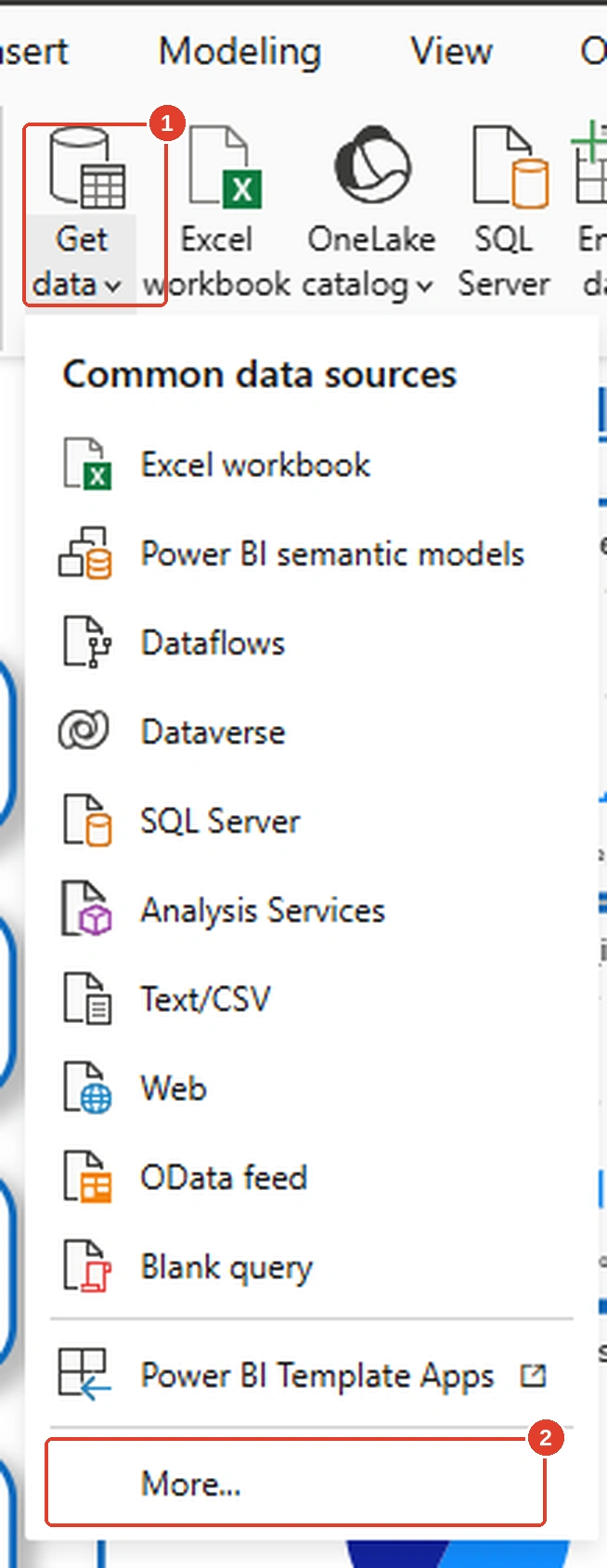
Select the PostgreSQL connector
PostgreSQL may not appear in the initial list of commonly used connectors.
Select More to open the complete list of available data sources.
Search for PostgreSQL and select PostgreSQL database.
Select Connect.
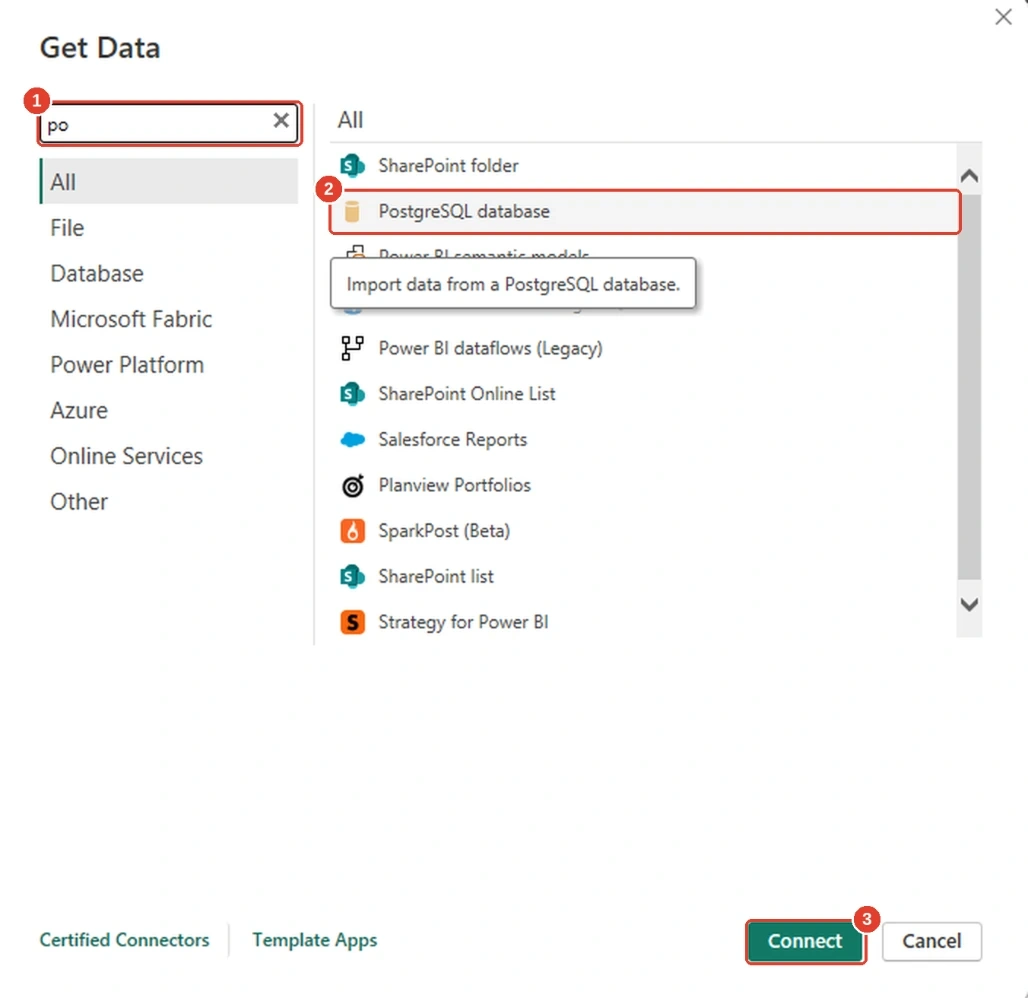
Enter the PostgreSQL connection details
Power BI will ask for the PostgreSQL server and database.
For a PostgreSQL installation running on the same computer, the server will commonly be:
localhostIf PostgreSQL is running on another port, include the port number:
localhost:5433The default PostgreSQL port is usually 5432.
Enter the name of the database you want to connect to.
Power BI also provides a choice between Import and DirectQuery. If you are not sure which option to use, Import is generally a sensible starting point for a typical reporting project.
The Advanced options section can also be used to provide a SQL statement, command timeout, and other connection settings.
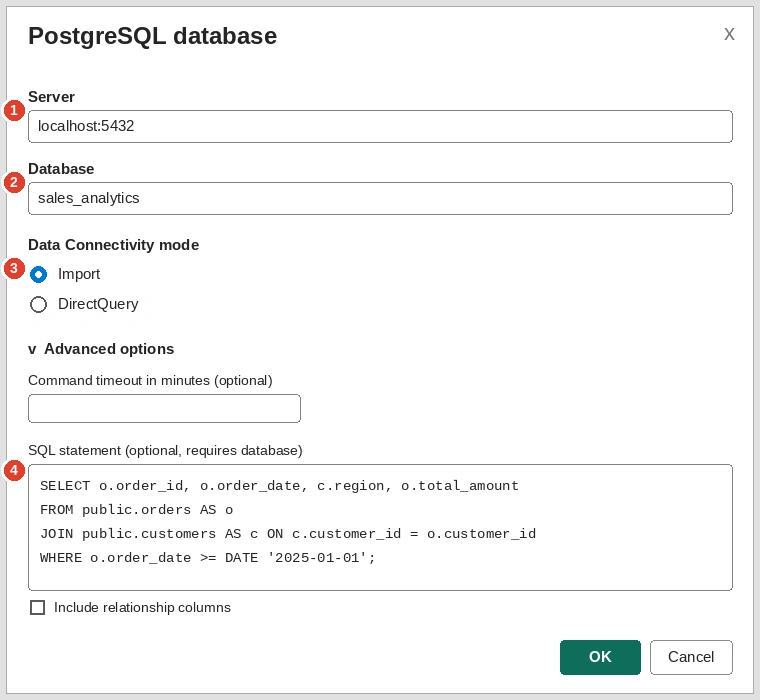
Authenticate with PostgreSQL
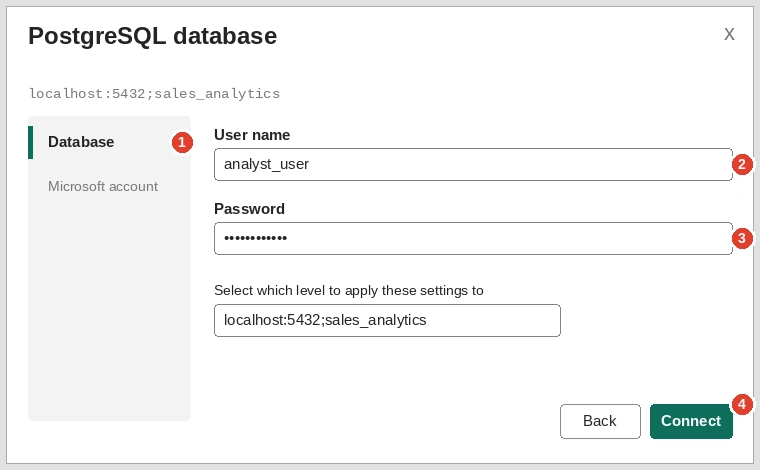
After entering the connection details, Power BI will ask for authentication.
Select the Database authentication option and provide the PostgreSQL username and password.
Use an account that has access to the required database objects.
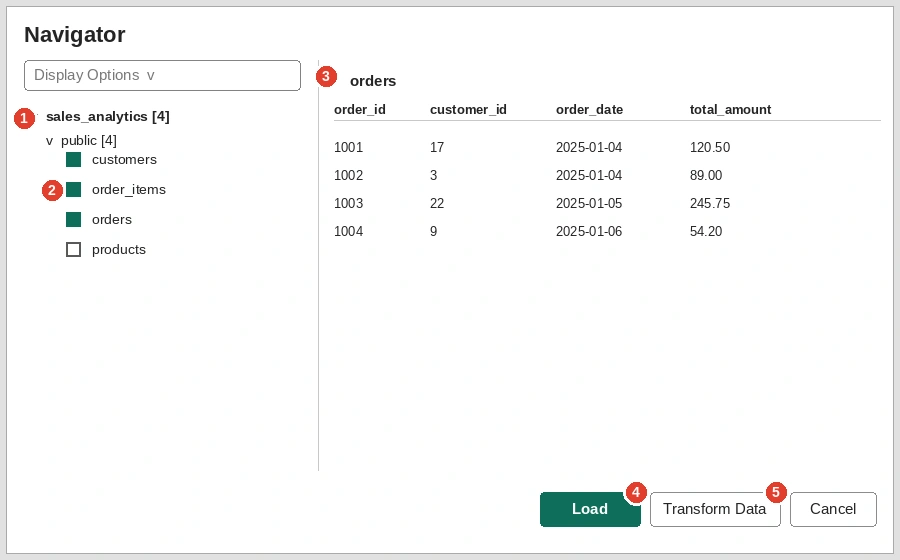
Once authentication succeeds, Power BI opens the Navigator.
Select the tables or views
The Navigator displays the schemas, tables, and views that your PostgreSQL account can access.
Select the objects required for the report.
You can preview the data before loading it. This is useful for checking that you have selected the correct schema and table.
At this point you have two main options:
Load the data directly into Power BI.
Or select Transform Data if you want to clean or reshape the data using Power Query before loading it into the model.
For example, Power Query can be used to rename columns, change data types, remove unnecessary records, and prepare the data for modelling.
Import or DirectQuery?
The choice between Import and DirectQuery affects how Power BI interacts with PostgreSQL.
Import
With Import mode, Power BI copies the selected data into its own in-memory model.
This generally provides fast report interactions because visuals can query the local Power BI model instead of repeatedly requesting data from PostgreSQL.
The main consideration is freshness. The data in the report represents the most recent successful refresh.
Import is often suitable when:
The dataset can comfortably fit within the Power BI model.
Report performance is important.
The data does not need to be updated every few seconds.
You want greater flexibility for modelling and DAX calculations.
DirectQuery
DirectQuery keeps the data in PostgreSQL.
When a user interacts with a visual, Power BI sends queries to the database to retrieve the required results.
This can be useful when the underlying dataset is large or when reports need access to relatively current data without importing the entire dataset.
However, report performance now depends more heavily on the database, network connection, query design, and workload.
DirectQuery can also introduce limitations compared with Import mode.
There is therefore no universal choice between the two.
For many reporting projects, Import is a practical starting point. DirectQuery becomes more relevant when data volume, freshness, or architectural requirements justify it.
Connecting Power BI to Azure Database for PostgreSQL
The process is similar when PostgreSQL is hosted in Azure, but the network configuration becomes an important part of the setup.
Azure Database for PostgreSQL is a managed PostgreSQL service, so you do not manage the underlying database server in the same way as a local installation.
Before Power BI can connect successfully, check the server details, network access, authentication, and encryption settings.
Find the Azure PostgreSQL server details
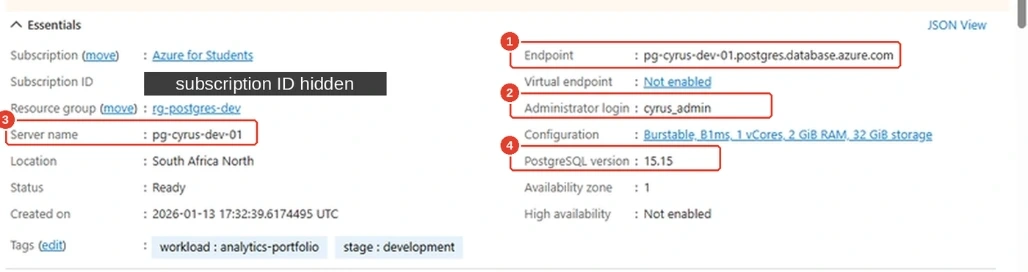
Sign in to the Azure portal and open the PostgreSQL resource.
From the server overview, identify the server endpoint and database information you need for the connection.
The endpoint will look similar to:
your-server-name.postgres.database.azure.comYou will also need the appropriate PostgreSQL username and the database you want to access.
Configure network access
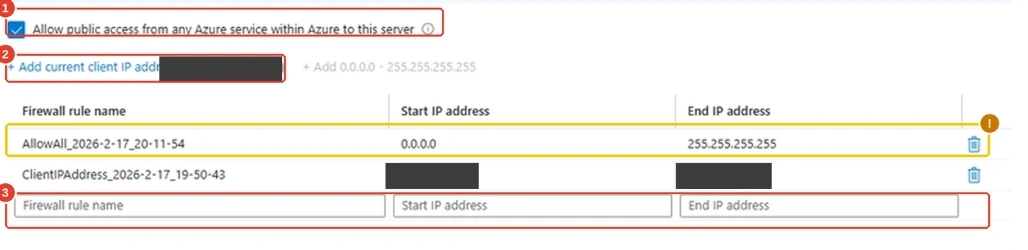
Azure Database for PostgreSQL uses network rules to control which clients can connect to the server.
Open the Networking section of the PostgreSQL resource.
If you are connecting from your own computer, you may need to add your current public IP address to the firewall rules.
This is particularly important for local testing because residential and mobile internet connections can sometimes use changing public IP addresses.
If the IP address changes, a connection that worked previously may suddenly start timing out.
For production environments, avoid using broad firewall rules simply because they make testing easier.
A rule that effectively allows connections from every public IP address increases exposure and should not be treated as a production security solution.
Depending on the architecture, a more controlled network configuration, private connectivity, or an appropriate gateway arrangement may be preferable.
Use encrypted connections
Database traffic should be protected in transit.
Azure Database for PostgreSQL supports encrypted connections, and Power BI should use encryption when connecting to the service.
If Power BI presents an option to encrypt the connection, keep it enabled.
This protects credentials and database traffic while they move between the client and the database.
Connect from Power BI
Once the Azure server is accessible, return to Power BI Desktop.
Select:
Get data → More → PostgreSQL database
Enter the Azure PostgreSQL server endpoint and database name.
For example:
your-server-name.postgres.database.azure.comYou can explicitly specify the PostgreSQL port when required:
your-server-name.postgres.database.azure.com:5432Enter the database credentials and establish the connection.
The Navigator will then display the database objects available to your account.
From this point, the process is essentially the same as the local PostgreSQL workflow.
Common PostgreSQL connection problems
Connection problems usually come down to one of a few areas: networking, authentication, encryption, drivers, or database permissions.
Connection timeout
A timeout often indicates that the PostgreSQL server cannot be reached.
For Azure-hosted databases, check whether your current public IP address is included in the firewall rules.
Also verify that the server endpoint and port are correct.
Password authentication failed
Check the username, password, database, and authentication method.
It can also help to test the same credentials with a PostgreSQL client such as psql or pgAdmin.
If the credentials fail there as well, the problem is probably not Power BI.
SSL or certificate errors
If the server requires encrypted connections and Power BI cannot establish or validate the connection, update Power BI Desktop and review the encryption settings.
Certificate problems can also occur when an older client or driver does not properly support the server configuration.
PostgreSQL provider or driver problems
Older Power BI installations may require additional PostgreSQL components.
If Power BI reports that the PostgreSQL provider or driver is missing, check the Power BI and PostgreSQL connector requirements for the version you are using.
After installing a required component, restart Power BI Desktop and try the connection again.
Schema or table not found
A successful database login does not necessarily mean that the account can access every object in the database.
Check that:
The database name is correct.
The schema name is correct.
The account has permission to use the schema.
The account has SELECT permission on the required tables or views.
For example, PostgreSQL permissions may need to include:
GRANT USAGE ON SCHEMA public TO reporting_user;
GRANT SELECT ON ALL TABLES IN SCHEMA public TO reporting_user;
Permissions should be adjusted to match your actual database structure and security requirements.
Building a reliable Power BI data model
Loading the tables is only the beginning.
The structure of the Power BI model has a direct effect on how filters, calculations, and visuals behave.
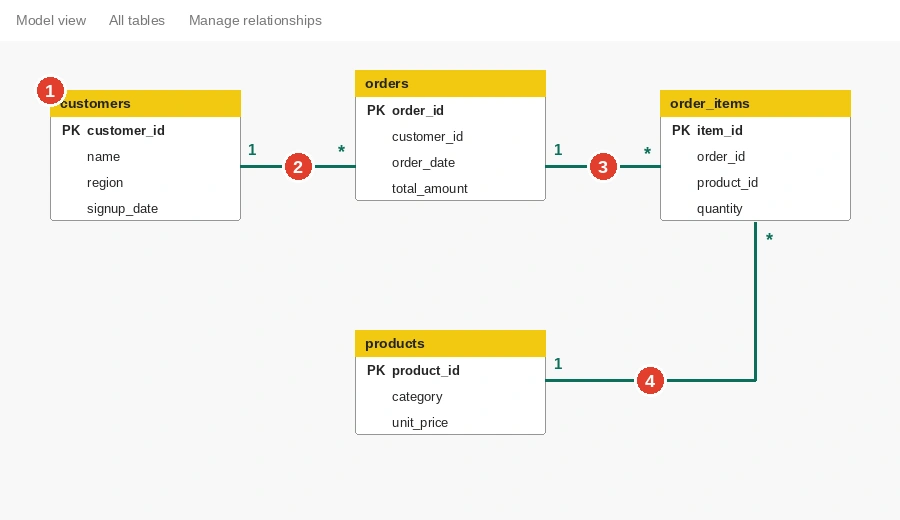
Open Model view in Power BI Desktop to inspect the tables and their relationships.
Suppose a sales database contains:
Customers
Orders
Order Items
Products
Dates
A typical model could use Orders and Order Items as fact tables, while Customers, Products, and Dates act as dimensions.
Use relationships carefully
Relationships tell Power BI how tables should interact.
For example:
Customers → Orders → Order Items → Products
A filter applied to the Customers table can then affect the related orders and order items.
Incorrect relationships can produce duplicate results, unexpected totals, or filters that do not behave as expected.
Do not rely entirely on Power BI's automatic relationship detection. Review the relationships manually before building important reports.
Prefer a star schema
A star schema is often easier to understand and maintain.
Fact tables contain measurable business events such as sales or transactions.
Dimension tables contain descriptive information such as customers, products, locations, and dates.
The exact structure will depend on the application and reporting requirements, but keeping the model organised makes DAX calculations and filtering easier to manage.
Use a proper date table
If the report requires calculations such as year-to-date revenue, monthly comparisons, or previous-year performance, create and use a dedicated date table.
This provides a consistent calendar structure for time-based analysis.
SQL still matters in Power BI
Power BI provides a visual interface for analysing data, but SQL remains extremely useful when PostgreSQL is the source.
Good SQL can reduce the amount of data Power BI has to process and make the overall reporting workflow more efficient.
For example, instead of loading millions of rows when the report only needs monthly revenue by region, PostgreSQL can perform the aggregation first.
Consider the following query:
SELECT
    DATE_TRUNC('month', o.order_date)::date AS order_month,
    COALESCE(c.region, 'Unknown') AS region,
    COUNT(*) AS order_count,
    SUM(o.total_amount) AS revenue
FROM public.orders AS o
JOIN public.customers AS c
    ON c.customer_id = o.customer_id
WHERE o.order_date >= CURRENT_DATE - INTERVAL '2 years'
GROUP BY 1, 2
ORDER BY 1, 2;
The query returns monthly revenue and order counts by region for the previous two years.
Instead of sending every individual transaction to Power BI, PostgreSQL performs the filtering and aggregation first.
This can be particularly useful when the underlying transaction table is large.
Filter data before it reaches Power BI
A simple WHERE clause can significantly reduce the amount of data transferred.
For example:
WHERE order_date >= CURRENT_DATE - INTERVAL '12 months'This tells PostgreSQL to return only the most recent year of data.
Select only the columns you need
Avoid using:
SELECT *when a report only requires a handful of fields.
Instead, explicitly select the columns needed by the report.
This makes the query easier to understand and reduces unnecessary data transfer.
Aggregate where appropriate
PostgreSQL can perform aggregations efficiently.
Functions such as:
SUM()
COUNT()
MIN()
MAX()
AVG()
can be combined with GROUP BY to create summary datasets before they reach Power BI.
This approach can be particularly useful for large operational tables.
Consider using database views
If the same SQL transformation is required by several reports, consider creating a PostgreSQL view.
For example:
CREATE VIEW monthly_regional_sales AS
SELECT
    DATE_TRUNC('month', o.order_date)::date AS order_month,
    COALESCE(c.region, 'Unknown') AS region,
    COUNT(*) AS order_count,
    SUM(o.total_amount) AS revenue
FROM public.orders AS o
JOIN public.customers AS c
    ON c.customer_id = o.customer_id
GROUP BY 1, 2;
Power BI can then connect to the view like other database objects.
This can keep commonly used SQL logic in one place rather than duplicating the same transformation across multiple Power BI files.
However, database views should still be designed carefully. Complex views can become expensive if they perform large joins or calculations on every query.
Practical recommendations
A few habits can make PostgreSQL-to-Power BI projects easier to manage.
Use a dedicated read-only database account for reporting.
Avoid giving Power BI unnecessary administrative permissions.
Select only the columns required by the report.
Filter large datasets before transferring them to Power BI where practical.
Review automatically created relationships instead of accepting them without checking.
Use a clear model structure, preferably with well-defined fact and dimension tables.
Choose Import or DirectQuery based on the actual reporting requirements rather than treating one mode as universally better.
Keep database firewall rules restrictive.
Do not leave temporary "allow all" network rules in place after testing.
Keep Power BI Desktop and relevant PostgreSQL components up to date.
Avoid including passwords, connection strings, subscription identifiers, public IP addresses, or other sensitive information in screenshots or published documentation.
Final thoughts
Connecting PostgreSQL to Power BI is relatively straightforward. The more important work happens after the connection is established.
A reliable reporting solution needs more than a successful database connection. The database permissions, network configuration, connectivity mode, SQL queries, relationships, and Power BI model all contribute to the quality of the final report.
For local development, PostgreSQL and Power BI provide a useful environment for learning the complete workflow. When the same architecture moves to Azure, networking, security, and operational considerations become more important.
Once those fundamentals are in place, PostgreSQL can remain the system that manages the data while Power BI provides the reporting layer that turns that data into something people can explore and use.
Join the conversation! Your thoughts help the community grow.