

Introduction
In my previous article I explained how to design and develop the Simple media player using Windows Store apps, and also how to put sound effects in it. The links are given below.
Simple Media Player
Sound Effect In Media Player
In this article I will explain how to apply full-screen mode in this media player using Windows Store apps. For this use the following steps.
Step 1
Open the BlankPage in Visual Studio 2012.
Step 2
Open the MainPage.xaml file and use the following code in it to do the design:
<Page
x:Class="App1.MainPage"
xmlns="http://schemas.microsoft.com/winfx/2006/xaml/presentation"
xmlns:x="http://schemas.microsoft.com/winfx/2006/xaml"
xmlns:local="using:App1"
xmlns:d="http://schemas.microsoft.com/expression/blend/2008"
xmlns:mc="http://schemas.openxmlformats.org/markup-compatibility/2006"
mc:Ignorable="d">
<Grid Background="{StaticResource ApplicationPageBackgroundThemeBrush}">
<Grid Background="#FF3C7176">
<Grid.RowDefinitions>
<RowDefinition Height="100"/>
<RowDefinition Height="650"/>
<RowDefinition Height="auto"/>
</Grid.RowDefinitions>
<Grid.ColumnDefinitions>
<ColumnDefinition Width="350"/>
<ColumnDefinition Width="550"/>
<ColumnDefinition Width="*"/>
</Grid.ColumnDefinitions>
<TextBlock Text="Media Player Application" FontSize="25" Grid.Row="0" Grid.Column="1" HorizontalAlignment="Center" Margin="50,50,0,0" Width="350"/>
<Button Content="Pick Vedio" Width="250" FontSize="25" Margin="29,0,0,598" Click="Pick_Click" Grid.Row="1" Grid.Column="0"/>
<Button Content="Play" FontSize="20" Width="150" Margin="71,74,0,531" Click="Play_click" Grid.Row="1" Grid.Column="0"/>
<Button Content="Pause" FontSize="20" Height="50" Width="150" Margin="71,124,0,476" Click="Pause_click" Grid.Row="1" Grid.Column="0"/>
<Button Content="Stop" FontSize="20" Height="50" Width="150" Margin="71,174,0,426" Click="Stop_Click" Grid.Row="1" Grid.Column="0"/>
<Button Content="Fast Forword" FontSize="20" Height="50" Width="150" Margin="71,224,0,376" Click="Forword_Click" Grid.Row="1" Grid.Column="0"/>
<Button Content="Rewind" FontSize="20" Height="50" Width="150" Margin="71,279,0,321" Click="Rewind_Click" Grid.Row="1" Grid.Column="0"/>
<MediaElement x:Name="Media" Width="462" Margin="51,51,37,276" AutoPlay="True" Grid.Row="1" Grid.Column="1" />
<Button Content="VolumnUp" FontSize="20" Height="50" Width="200" Margin="69,74,0,526" Click="btnVolumeUp_Click" Grid.Row="1" Grid.Column="2"/>
<Button Content="VolumeDown" FontSize="20" Height="50" Width="200" Margin="69,129,0,471" Click="btnVolumeDown_Click" Grid.Row="1" Grid.Column="2"/>
<Button Content="Mute" FontSize="20" Height="50" Width="200" Margin="69,184,0,416" Click="btnMute_Click" Grid.Row="1" Grid.Column="2"/>
<Button Name="btnFullScreenToggle" Click="btnFullScreenToggle_Click" Grid.Row="1" Grid.Column="2" Content="FullScreen" Margin="69,252,0,348" Height="50" Width="200" />
</Grid>
</Grid>
</Page>
Step 3
To apply the full-screen use this code in the MainPage.xaml.cs file:
private bool _isFullscreenToggle = false;
public bool IsFullscreen
{
get { return _isFullscreenToggle; }
set { _isFullscreenToggle = value; }
}
private Size _previousVideoContainerSize = new Size();
private void FullscreenToggle()
{
this.IsFullscreen = !this.IsFullscreen;
if (this.IsFullscreen)
{
Media.Width = Window.Current.Bounds.Width;
Media.Height = Window.Current.Bounds.Height;
}
else
{
Media.Width = _previousVideoContainerSize.Width;
Media.Height = _previousVideoContainerSize.Height;
}
}
private void btnFullScreenToggle_Click(object sender, RoutedEventArgs e)
{
FullscreenToggle();
}
private void VideoContainer_KeyUp(object sender, KeyRoutedEventArgs e)
{
if (IsFullscreen && e.Key == Windows.System.VirtualKey.Escape)
{
FullscreenToggle();
}
e.Handled = true;
}
Step 4
The full code for MainPage.xaml.cs file is:
namespace App1
{
public sealed partial class MainPage : Page
{
public MainPage()
{
this.InitializeComponent();
}
private void Play_click(object sender, RoutedEventArgs e)
{
if (Media.DefaultPlaybackRate != 1)
{
Media.DefaultPlaybackRate = 1.0;
}
Media.Play();
}
private void Pause_click(object sender, RoutedEventArgs e)
{
Media.Pause();
}
private async void Pick_Click(object sender, RoutedEventArgs e)
{
var openPicker = new FileOpenPicker();
openPicker.SuggestedStartLocation = PickerLocationId.VideosLibrary;
openPicker.FileTypeFilter.Add(".wmv");
openPicker.FileTypeFilter.Add(".mp4");
var file = await openPicker.PickSingleFileAsync();
var stream = await file.OpenAsync(FileAccessMode.Read);
Media.SetSource(stream, file.ContentType);
Media.Play();
}
private void Stop_Click(object sender, RoutedEventArgs e)
{
Media.Stop();
}
private void Forword_Click(object sender, RoutedEventArgs e)
{
Media.DefaultPlaybackRate = 2.0;
Media.Play();
}
private void Rewind_Click(object sender, RoutedEventArgs e)
{
Media.DefaultPlaybackRate = -2.0;
Media.Play();
}
private void btnVolumeDown_Click(object sender, RoutedEventArgs e)
{
if (Media.IsMuted)
{
Media.IsMuted = false;
}
if (Media.Volume < 1)
{
Media.Volume += .1;
}
}
private void btnMute_Click(object sender, RoutedEventArgs e)
{
Media.IsMuted = !Media.IsMuted;
}
private void btnVolumeUp_Click(object sender, RoutedEventArgs e)
{
if (Media.IsMuted)
{
Media.IsMuted = false;
}
if (Media.Volume > 0)
{
Media.Volume -= .1;
}
}
private bool _isFullscreenToggle = false;
public bool IsFullscreen
{
get { return _isFullscreenToggle; }
set { _isFullscreenToggle = value; }
}
private Size _previousVideoContainerSize = new Size();
private void FullscreenToggle()
{
this.IsFullscreen = !this.IsFullscreen;
if (this.IsFullscreen)
{
Media.Width = Window.Current.Bounds.Width;
Media.Height = Window.Current.Bounds.Height;
}
else
{
Media.Width = _previousVideoContainerSize.Width;
Media.Height = _previousVideoContainerSize.Height;
}
}
private void btnFullScreenToggle_Click(object sender, RoutedEventArgs e)
{
FullscreenToggle();
}
private void VideoContainer_KeyUp(object sender, KeyRoutedEventArgs e)
{
if (IsFullscreen && e.Key == Windows.System.VirtualKey.Escape)
{
FullscreenToggle();
}
e.Handled = true;
}
}
}
Step 5
Now run the application. The output will look like: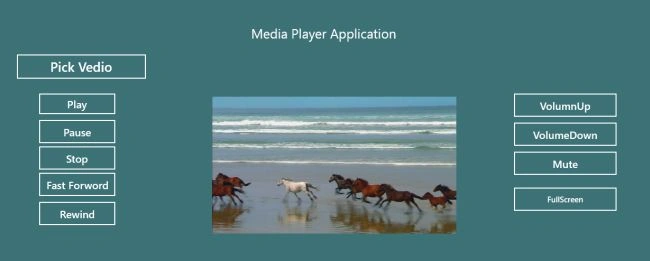
When I click on the Full Screen Button the result looks like:
Summary
In this article I explained how to apply the full screen function in a media element control using Windows Store apps.
Join the conversation! Your thoughts help the community grow.