

Introduction
Generalization process of creating Image on Virtual Machine in Azure portal. The Image would have all the software configurations including of virtual machine which is used to create image.
I will provide step by step with screenshots below.
Go to Azure portal. Click search Bar

Search the Virtual Machines in the Search Bar
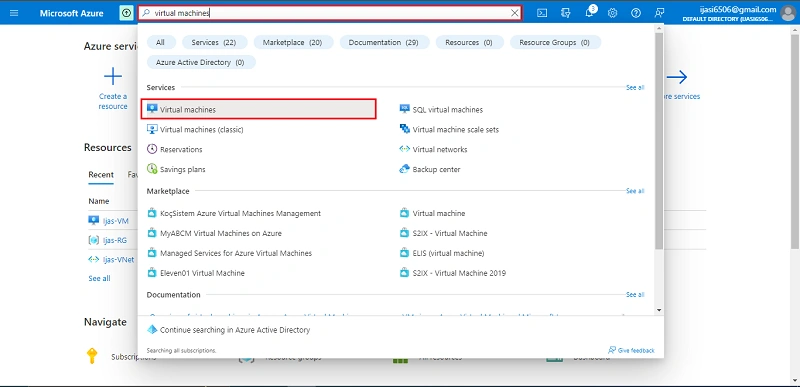
Select the Generalize virtual machines VM
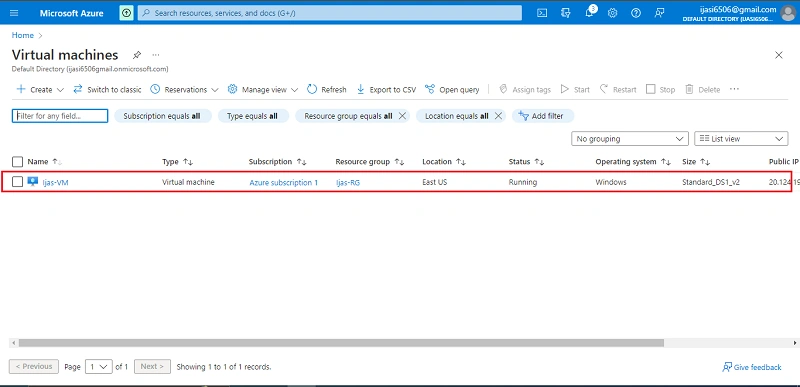
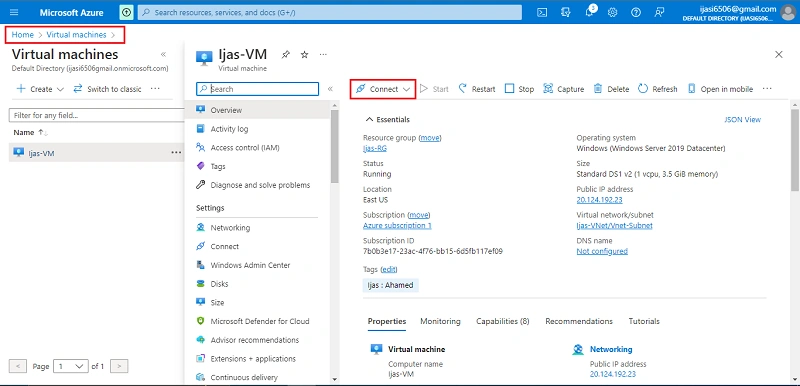
Next Connect the virtual machines
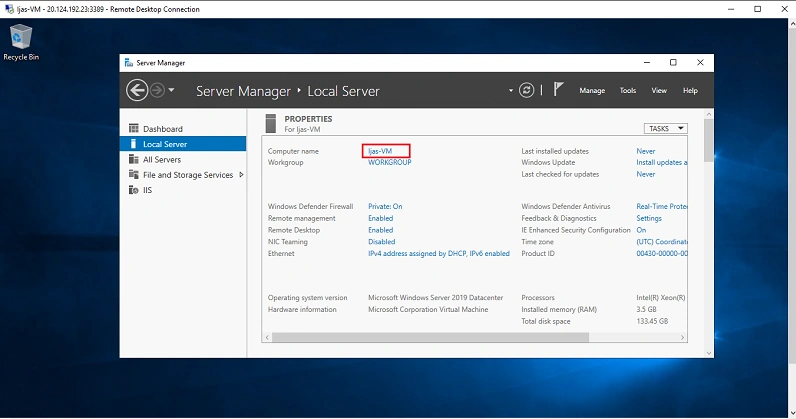
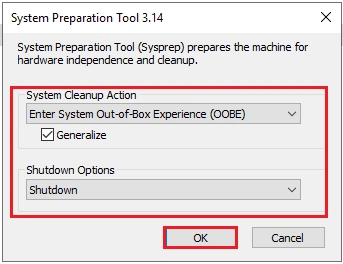
Open file explorer and browse this path from your virtual machines, click to open the Sysprep Application
C:\Windows\System32\Sysprep

Select the Generalize checkbox and shutdown options
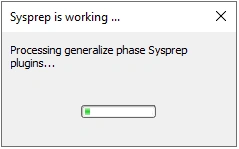
Sysprep is working for few minutes
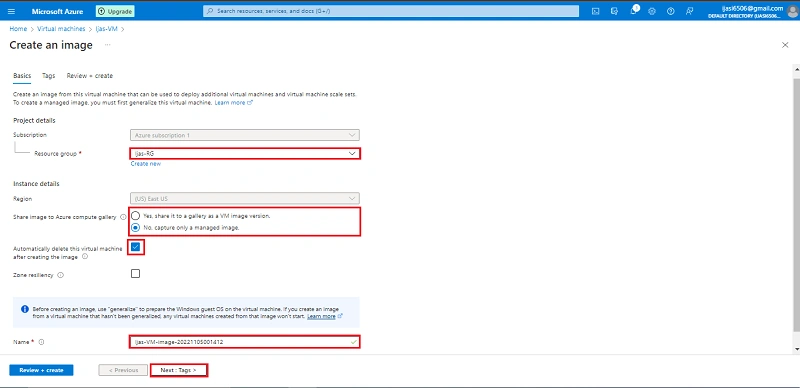
Next step is to go to Virtual Machines, select the Capture button

In the following step, Click the Next + Tag Button
Enter the tag name
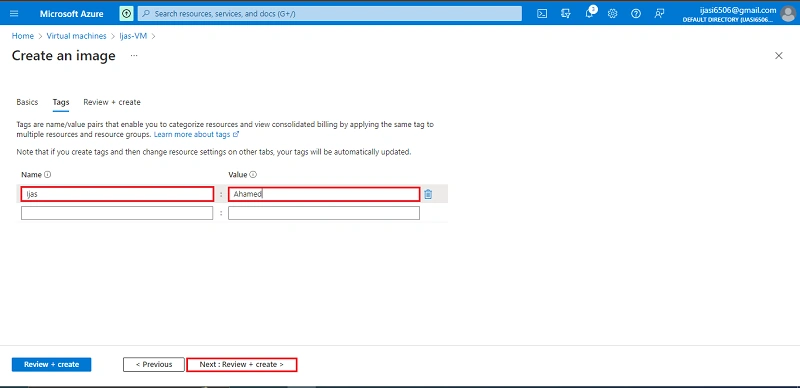
Click Create button
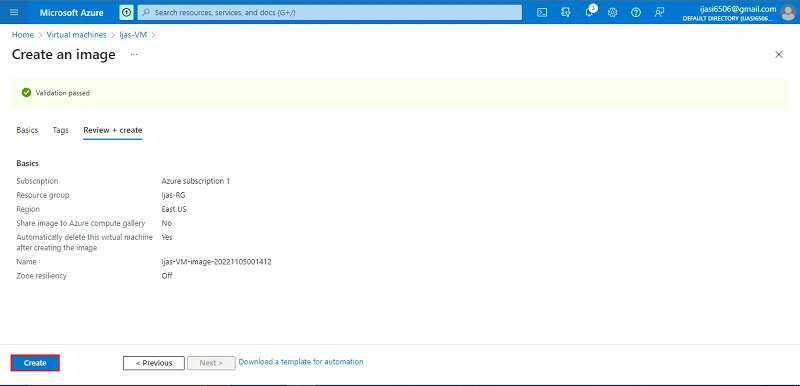
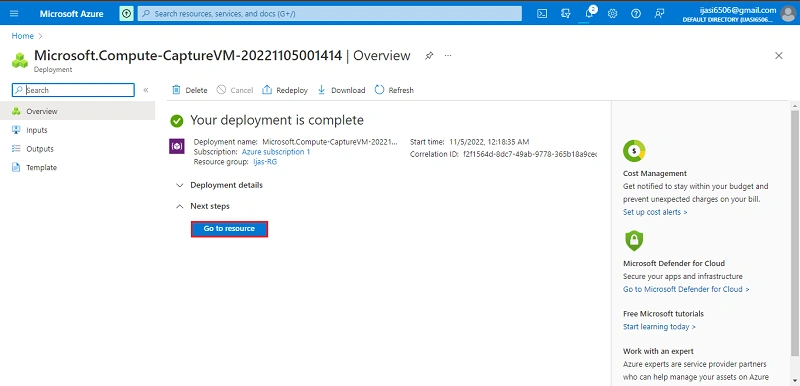
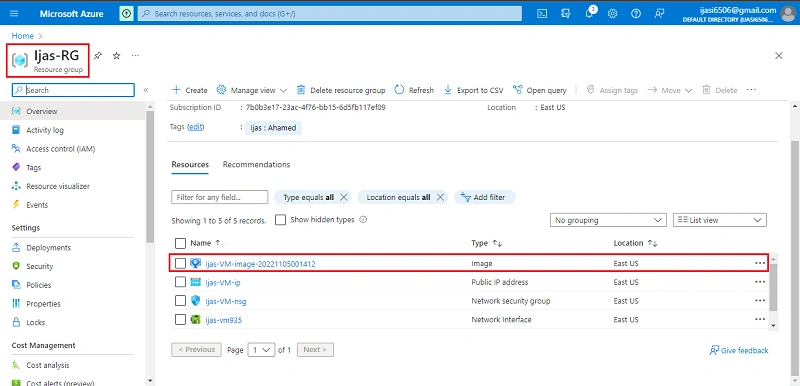
Successfully created my image template
Conclusion
This article taught us how to create Generalize virtual machines and create an image in our azure portal. And if you have any questions please contact me.
Join the conversation! Your thoughts help the community grow.