
Here are the 8 steps to generate barcode for SharePoint document library in OOB features. You don't need to code for generating bar code. Let's start with the steps.
Steps to generate the bar code
The following are the steps for generating bar code.
Step 1: Go to SharePoint site and open the document library as in the following screenshot:
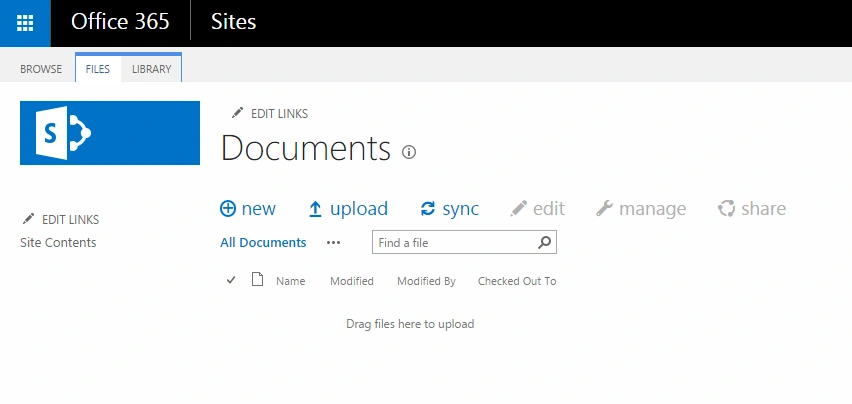
Figure 1: Sharepoint site
Step 2: Then click on the LIBRARY from ribbon bar and select the Library Settings, you will be navigated to library settings page.
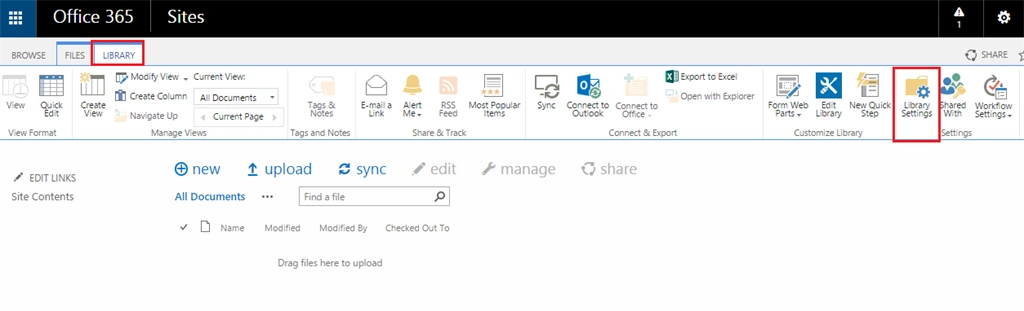
Figure 2: Select LibrAry
Step 3: Under library settings, select “Information Management Policy Settings” to enable the bar code.

Figure 3: Library setting
Step 4: Click on the Document from “Information Management Policy settings Page” as in the following screenshot and you will be navigated to Edit policy page.
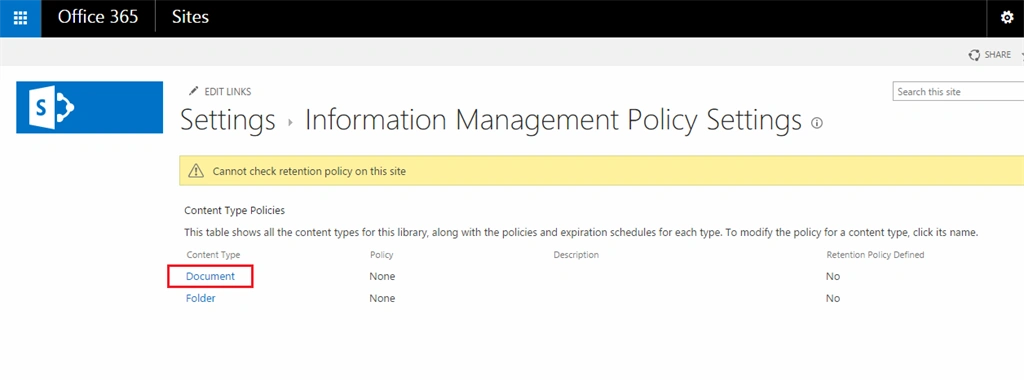
Figure 4: Document Form
Step 5: On the Edit policy settings page, you have multiple options for the document library. Check the Enable Barcodes checkbox and click OK to save the changes.
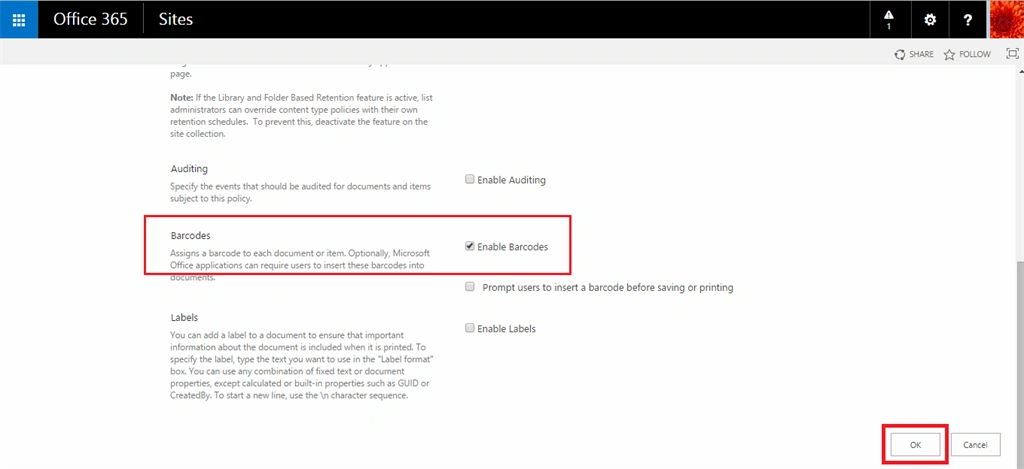
Figure 5: Edit Policy
Step 6: Go to the document library and upload the document, since you can’t find the bar code for that you need to change the view to show the bar code.
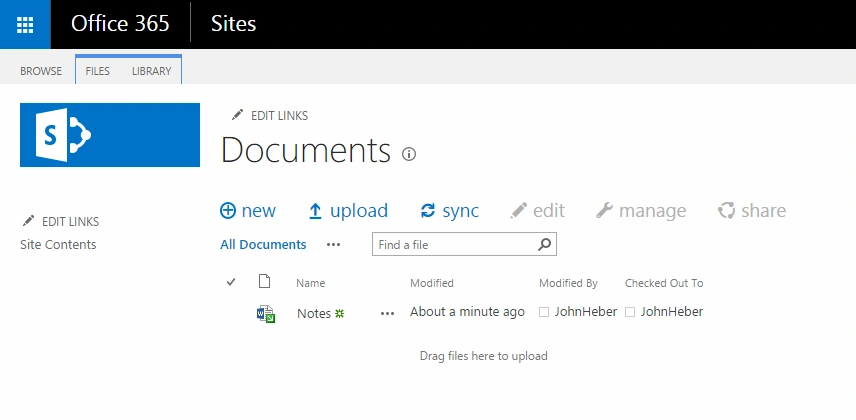
Figure 6: Document Librery
Step 7: go the list view and check the Barcode and Barcode Value in view and click save.
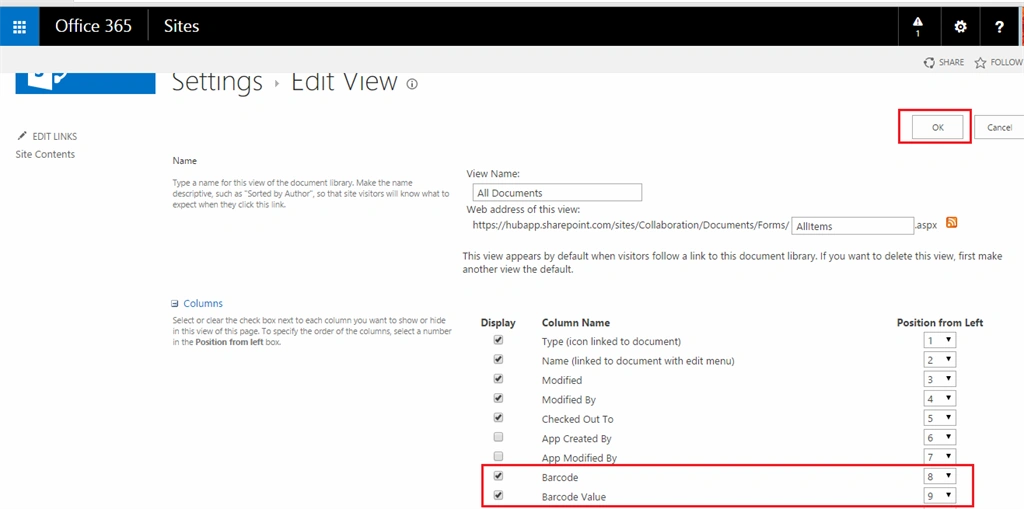
Figure 7: Barcode
Step 8: Finally you will be get the bar code for your document.
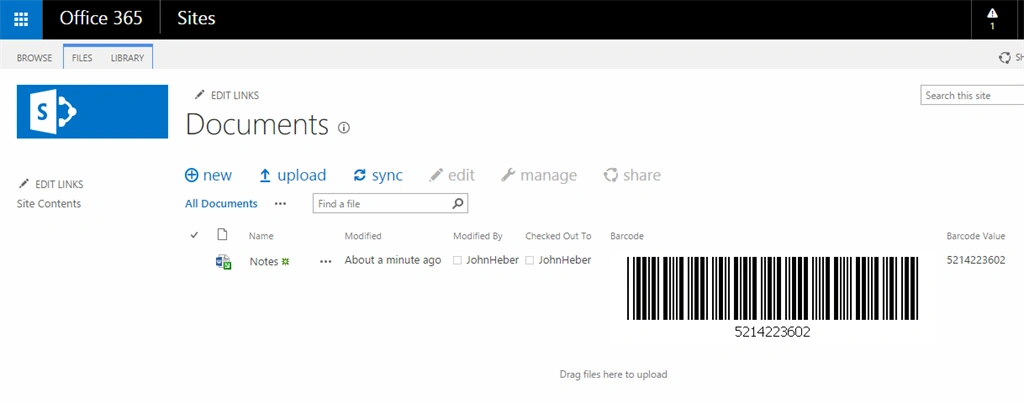
Figure 8: Bar code
Summary
In this article we explored how to generate the bar code for the documents in SharePoint document library.

Generate Bar Code For Document in SharePoint Document Library
12 Comments
Join the conversation! Your thoughts help the community grow.
Sign in to leave a comment
It is the same account you read, post and publish with — and you will come straight back to this page.
Rajkiran SwainPosted Jul 28, 2016, 2:31 AM
Nice
Kanji AnilkumarPosted Jul 18, 2016, 8:28 AM
Helped me a lot. Thanks for sharing.
Supreeth JPosted Feb 4, 2016, 2:05 AM
if i scan this bar code, we will get only Bar code value, but how to set other information like Doc name, Created by..
Santhakumar MunuswamyPosted Sep 12, 2015, 3:12 AM
Thanks for nice article:)
Kaviya BalasubramanianPosted Sep 11, 2015, 6:27 AM
Thank you :)
Vinodh NarayananPosted Sep 11, 2015, 2:13 AM
good one
Sumit DeshmukhPosted Sep 11, 2015, 2:10 AM
Thanks for sharing, good one :-)
Kaviya BalasubramanianPosted Sep 10, 2015, 10:40 AM
Thank you all :)
RakeshPosted Sep 10, 2015, 9:47 AM
Good Sharing
Sibeesh VenuPosted Sep 10, 2015, 8:09 AM
Nice Share
Karthikeyan KPosted Sep 10, 2015, 3:36 AM
Good one...Thanks for sharing
Rajeesh MenothPosted Sep 10, 2015, 3:34 AM
Nice Share