

“A person who never made a mistake never tried anything new.” - Albert Einstein
Overview
This article is a step-by-step guide to generate dynamic PDF. Also, view and download it in ReactJs using React-pdf library. We will also understand the basic components of the React-pdf library with real life examples.
What is React-pdf?
It is a popular and widely used library for creating PDF files on the browser and server.
This library offers some basic components and you can customize them to come up with amazing designs. Let’s see some components which we will use later.
- <Document> : This component represents the PDF document itself. And this is the root of a PDF file.
- <Page> : This tag represents a single page inside the PDF documents.
- <View> : This is a general purpose container used to build a UI for PDFs.
- <Image> : Used to display network or local(Node only) JPG or PNG images into a PDF.
- <Text> : Used to display text.
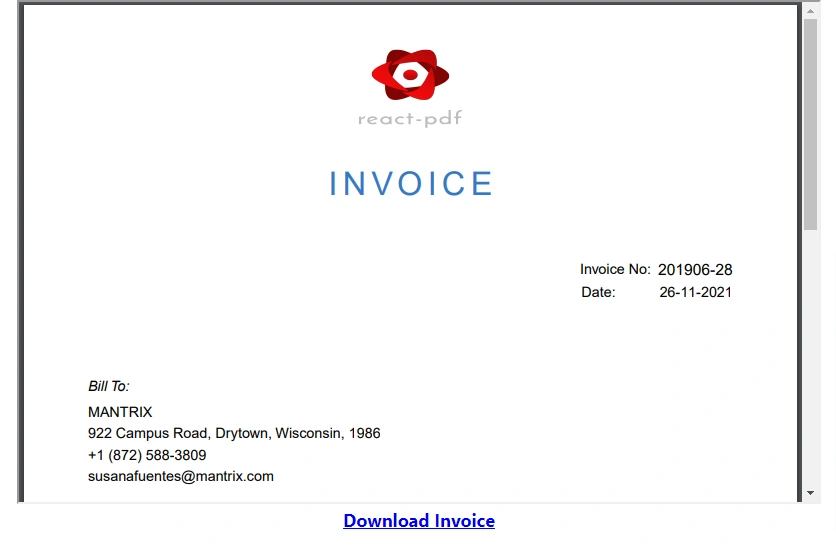
- <PDFDownloadLink> : This is an anchor tag to enable generating and downloading PDF documents.
- <PDFViewer>: This tag is used to render client-side generated documents.
Step 1 - Creating Project
Open the terminal window, run below command to create the project. It will take some time to create the initial project structure and install default packages.
npx create-react-app projectName
Then change directory to the project folder by running the below command.
cd projectName
Step 2 - Installing NPM Package
After the project has been created, install @react-pdf/renderer package
Using npm,
npm install @react-pdf/renderer –save
Or
Using Yarn,
yarn add @react-pdf/renderer
Now, start the application by running npm start command.
Step 3 - Generating Dummy Invoice Data
Generating test JSON data manually is always a challenge. For creating dummy invoice data, we will be using JSON Generator.
Using browser, Navigate to https://www.json-generator.com and replace the contents on the left side panel with the following template to generate the invoice data:
{
    id: '{{objectId()}}',
    invoice_no: '{{date(new Date(2019, 0, 1), new Date(), "YYYYMM")}}-{{integer(100)}}',
    balance: '{{floating(1000, 4000, 2, "$0,0.00")}}',
    company: '{{company().toUpperCase()}}',
    email: '{{email()}}',
    phone: '+1 {{phone()}}',
    address: '{{integer(100, 999)}} {{street()}}, {{city()}}, {{state()}}, {{integer(100, 10000)}}',
    trans_date: '{{date(new Date(2021, 11, 1), new Date(2021,11,31), "dd-MM-YYYY")}}',
    due_date: '{{date(new Date(2021, 11, 4), new Date(2021,12,31), "dd-MM-YYYY")}}',
    items: [
      '{{repeat(3)}}',
      {
        sno: '{{index(1)}}',
        desc: '{{lorem(5, "words")}}',
        qty: '{{integer(2, 10)}}',
        rate: '{{floating(8.75, 1150.5, 2)}}'
      }
    ]
}
Click on the Generate button to generate the data.
Step 4 - Creating Invoice Data File
In the project, create a folder within the src folder and name it jsonData.
Within the jsonData folder, create a new file and name it InvoiceData.js.
Add the contents of the invoice data we generated in this file.
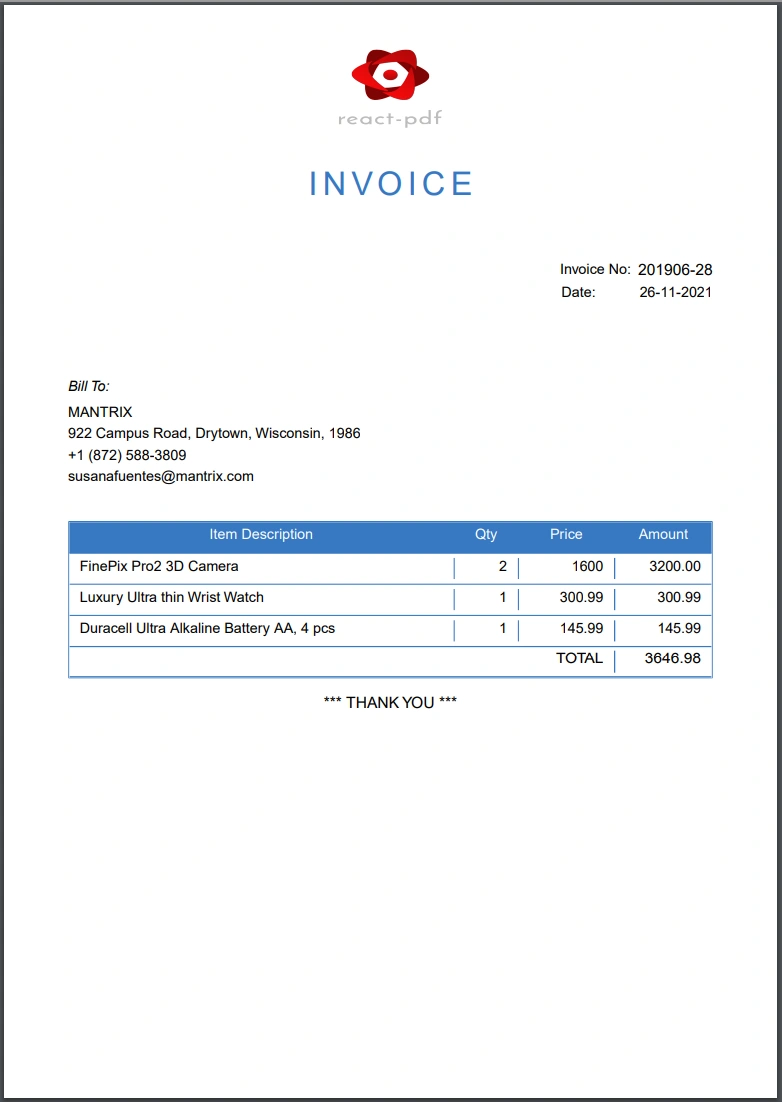
const InvoiceData = {
    id: "5df3180a09ea16dc4b95f910",
    invoice_no: "201906-28",
    balance: "$2,283.74",
    fullname: "MANTRIX",
    email: "[email protected]",
    phone: "+1 (872) 588-3809",
    address: "922 Campus Road, Drytown, Wisconsin, 1986",
    trans_date: "26-11-2021",
    due_date: "26-11-2021",
    companyID: "10001",
    companyName: "xyz company",
    items: [
        {
            sno: 1,
            desc: "FinePix Pro2 3D Camera",
            qty: 2,
            rate: 1600.00,
        },
        {
            sno: 2,
            desc: "Luxury Ultra thin Wrist Watch",
            qty: 1,
            rate: 300.99,
        },
        {
            sno: 3,
            desc: "Duracell Ultra Alkaline Battery AA, 4 pcs",
            qty: 1,
            rate: 145.99,
        }
    ]
}

export default InvoiceData;
Step 5 - Create Invoice Main Component
Create a folder within the src folder and name its components. Within the components folder, create a generateInvoice folder.
Create a new file within the generateInvoice folder and name it Invoice.js and add the following contents in the new file.
import React from "react";
import { Page, Document, StyleSheet, Image } from "@react-pdf/renderer";
import logo from "../../assets/react-pdf-icon.png";
import InvoiceTitle from "./InvoiceTitle";
import InvoiceNo from "./InvoiceNo";
import BillTo from "./BillTo";
import InvoiceThankYouMsg from "./InvoiceThankYouMsg";
import InvoiceItemsTable from "./InvoiceItemsTable";

const styles = StyleSheet.create({
    page: {
        backgroundColor: '#fff',
        fontFamily: 'Helvetica',
        fontSize: 11,
        paddingTop: 30,
        paddingLeft: 50,
        paddingRight: 50,
        lineHeight: 1.5,
        flexDirection: 'column',
    },
    logo: {
        width: 84,
        height: 70,
        marginLeft: 'auto',
        marginRight: 'auto'
    }
});

const PdfDocument = ({ invoicedata }) => {
    return (
        <Document>
            <Page size="A4" style={styles.page} >
                <Image style={styles.logo} src={logo} />
                <InvoiceTitle title={'Invoice'} />
                <InvoiceNo invoice={invoicedata} />
                <BillTo invoice={invoicedata} />
                <InvoiceItemsTable invoice={invoicedata} />
                <InvoiceThankYouMsg />
            </Page>
        </Document>
    );
}

export default PdfDocument;
Step 6 - Invoice Heading Component
Create InvoiceTitle.js within the generateInvoice folder and add the following code in it:
import React from 'react';
import { Text, View, StyleSheet } from '@react-pdf/renderer';

const styles = StyleSheet.create({
    titleContainer: {
        marginTop: 24,
    },
    reportTitle: {
        color: '#3778C2',
        letterSpacing: 4,
        fontSize: 25,
        textAlign: 'center',
        textTransform: 'uppercase',
    }
});

const InvoiceTitle = ({ title }) => (
    <View style={styles.titleContainer}>
        <Text style={styles.reportTitle}>{title}</Text>
    </View>
);

export default InvoiceTitle;
Step 7 - Invoice Number Component
Create InvoiceNo.js within the generateInvoice folder and add the following code:
import React, { Fragment } from 'react';
import { Text, View, StyleSheet } from '@react-pdf/renderer';

const styles = StyleSheet.create({
    invoiceNoContainer: {
        flexDirection: 'row',
        marginTop: 36,
        justifyContent: 'flex-end'
    },
    invoiceDateContainer: {
        flexDirection: 'row',
        justifyContent: 'flex-end'
    },
    invoiceDate: {
        fontSize: 12,
        fontStyle: 'bold',
    },
    label: {
        width: 60
    }
});

const InvoiceNo = ({ invoice }) => (
    <Fragment>
        <View style={styles.invoiceNoContainer}>
            <Text style={styles.label}>Invoice No:</Text>
            <Text style={styles.invoiceDate}>{invoice.invoice_no}</Text>
        </View >
        <View style={styles.invoiceDateContainer}>
            <Text style={styles.label}>Date: </Text>
            <Text >{invoice.trans_date}</Text>
        </View >
    </Fragment>
);

export default InvoiceNo;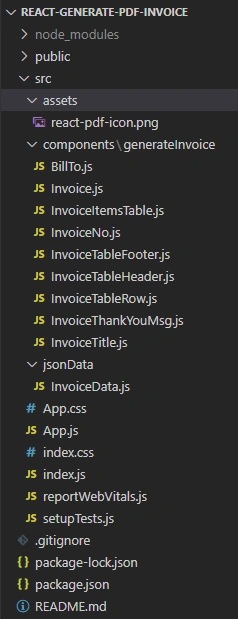
Navneet BhalodiyaPosted Apr 13, 2024, 6:00 AM
Please visit here for react component printing. https://codesanitize.com/react-printing-made-easy-a-powerful-method/