

Database structure
Create a table in a database for an Empoye table to store Employe information.
Let us see the create table code.
- CREATE TABLE [dbo].[Employe]
- (
- [employeid] [int] IDENTITY(1,1) NOT NULL,
- [Name] [varchar](50) NOT NULL,
- [Gender] [varchar](50) NOT NULL,
- [City] [varchar](50) NOT NULL,
- )
Create MVC Application
Step 1
Go to File => New => Project.
Step 2
Choose "ASP.NET MVC 4 Web Application" from the list, then provide the application the name "MVCtestlinq" and set the path in the location input where you want to create the application.
Step 3
Now choose the Project Template "Empty".
Adding a LINQ to SQL Class
Step 1
Right-click on the project then seelct Add new item then select Data from the templates.
Step 2
Choose "LINQ to SQL classes" from the list and provide the name. Then click on Add. After clicking Add we can see the .dbml file in our project.
Step 3
Drag the Employe table from the database in the Server Explorer.
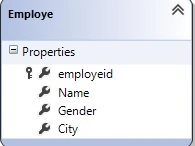
Create Model Class
The MVC model contains all the application logic validation, Logic Business Logic and data access logic. We can create an employecontext class under the Model Folder.
- namespace Mvctestlinq.Models
- {
- class empcontext
- {
- DataClasses1DataContext db = new DataClasses1DataContext();
- public empcontext()
- {
- this.employess = new List<Employe>();
- }
- public List<Employe> employess { set; get; }
- }
- }
Create controller class for Employe
- using System;
- using System.Collections.Generic;
- using System.Linq;
- using System.Web;
- using System.Web.Mvc;
- using Mvctestlinq.Models;
- namespace Mvctestlinq.Controllers
- {
- public class employeeeController : Controller
- {
- DataClasses1DataContext db = new DataClasses1DataContext();
- //
- // GET: /employeee/
- public ActionResult Index()
- {
- DataClasses1DataContext db = new DataClasses1DataContext();
- List<Employe> emps = db.Employes.ToList();
- return View(emps);
- }
- public ActionResult details(int id)
- {
- DataClasses1DataContext db = new DataClasses1DataContext();
- empcontext empss = new empcontext();
- empss.employess = db.Employes.ToList();
- var value = empss.employess.Single(d =>d.employeid == id);
- return View(value);
- }
- }
- }
Create a view to show the Employe Name
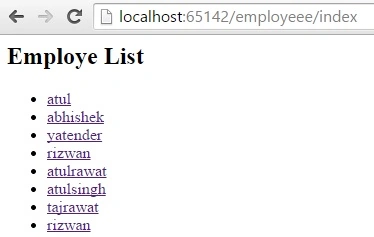
Right-click on Index Actionresult method and select Add view. After selecting add view, a dialog box will open. The view name is index by default and select your model class and click on the OK button.
Let's see each view with code.
- @model IEnumerable< Mvctestlinq.Employe>
- @{
- ViewBag.Title = "Employe List";
- }
- <h2>Employe List</h2>
- <div>
- <ul>
- @foreach (var employe in @Model)
- {
- <li> @Html.ActionLink(employe.Name, "details", new { id = employe.employeid })</li>
- }
- </ul>
- </div>
- <
Create a view for show details of Employe
- @model Mvctestlinq.Employe
- @{
- ViewBag.Title = "Details";
- }
- <h2>details</h2>
- <table>
- <tr>
- <td>
- <b>Employe Id</b>
- </td>
- <td>
- @Model.employeid
- </td>
- </tr>
- <tr>
- <td>
- <b>Name</b>
- </td>
- <td>
- @Model.Name
- </td>
- </tr>
- <tr>
- <td>
- <b>City</b>
- </td>
- <td>
- @Model.City
- </td>
- </tr>
- <tr>
- <td>
- <b>Gender</b>
- </td>
- <td>
- @Model.Gender
- </td>
- </tr>
- </tr>
- </table>
If we will click on any name of the Employe then the page will redirect to the detail page due to Hyperlinks using an Actionlink html helper.

Summary
In this article we learned about Hyperlinks using Actionlink html helper using LINQ to SQL.
Santhakumar MunuswamyPosted May 13, 2015, 4:19 PM
good
Sibeesh VenuPosted May 13, 2015, 8:25 AM
Good one
Gowtham RajamanickamPosted May 13, 2015, 2:04 AM
good...