

Introduction
In this article, we are going to explain how to quickly generate large test files in Windows 8. Never download another 100mb test file or waste time searching for a large file.
Sometimes we need a large file fast to test data transfers or disk performance. Windows 8 includes a utility that allows you to quickly generate a file of any size instantly.
Some steps to create a test file for the Windows 8 Desktop.
Step 1
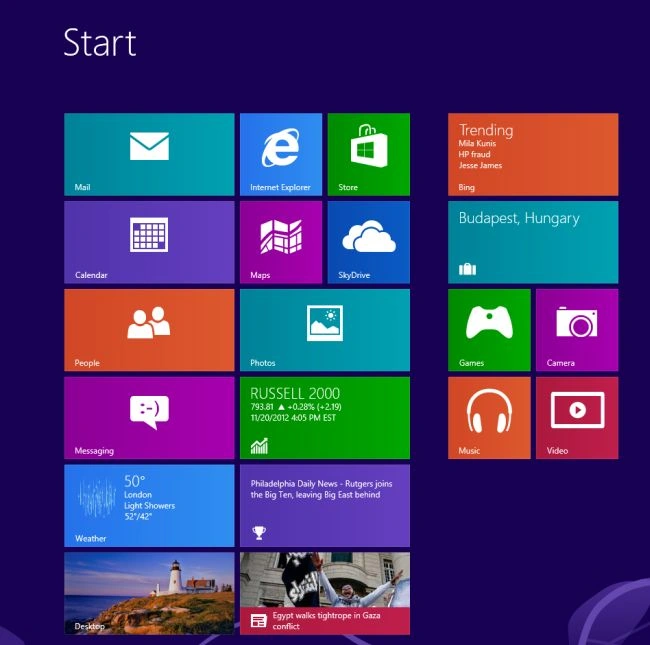
First of all, we have to move to the Start screen window of Windows 8.
Step 2
Then move the cursor on the bottom-right of the window screen and click the search box which is helpful to search in Windows 8.

Step 3
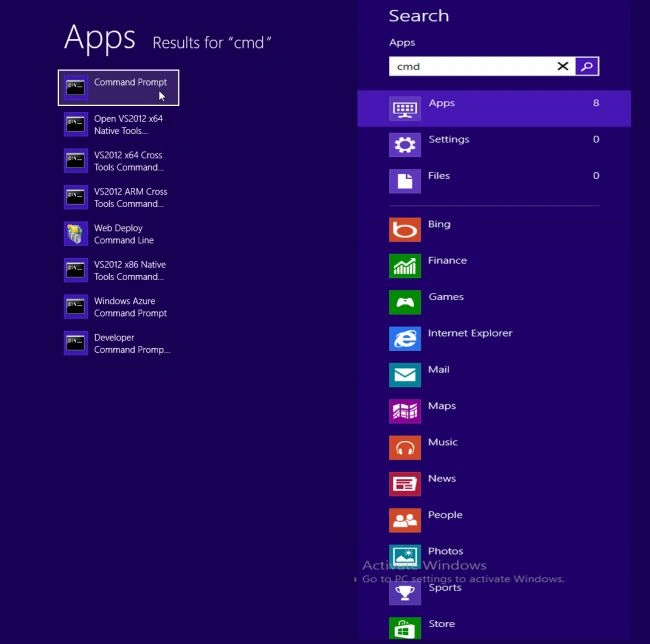
Then in the search box type "command prompt" and right-click on the command prompt from the right sidebar.
Step 4
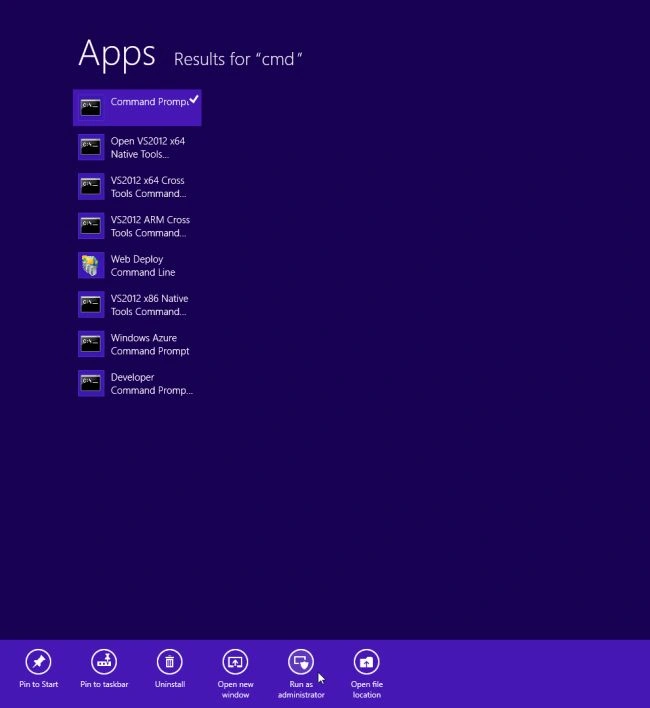
Then click "Run as administrator" from the down sidebar.
Step 5
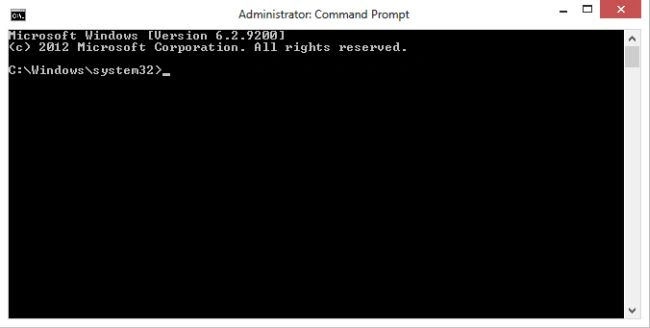
Then we see an administrator command prompt on the Windows 8 Desktop.
Step 6
Run the following command: fsutil file createnew <file> <size in bytes>
This command will create a 1GB file on the Windows 8 Desktop.
fsutil file create new c:\users\temp\desktop\1gb.test 1073741824
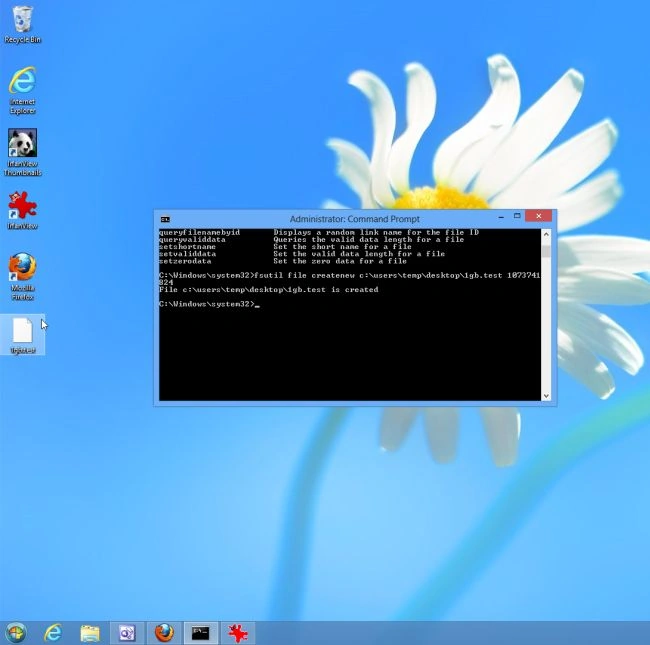
Step 7
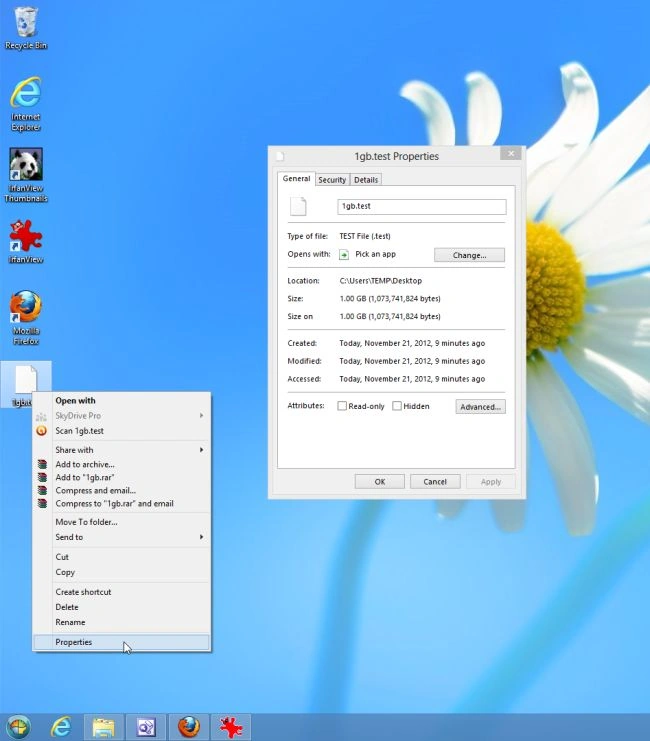
Then right-click on the text file and select properties and then check the size of the text file.
Some reference data to help input the size of the file in bytes:
- 1 MB = 1048576 bytes.
- 100 MB = 104857600 bytes.
- 1 GB = 1073741824 bytes.
- 10 GB = 10737418240 bytes.
- 100 GB = 107374182400 bytes.
- 1 TB = 1099511627776 bytes.
- 10 TB = 10995116277760 bytes.
Summary
In this article, we learned about Generate Large Test Files in Windows 8.
Join the conversation! Your thoughts help the community grow.