
- JavaScript
- XML
- Asynchronous Call to the server
Array : The ArrayList object is a collection of items containing a single data value. Items are added to the ArrayList with the Add() method. The capacity of an ArrayList is the number of elements the list can hold. As elements are added to an ArrayList, the capacity is automatically increased as required through reallocation. The capacity can be decreased by calling Trim to Size or by setting the Capacity property explicitly. Array are using for store similar data type grouping as a single unit. We can access Array element by its numeric index. The array index start at zero(0). The default value of numeric Array element are set to zero(0), and reference element are set to null.
Syntax :
string[] NAMES = new string[];
Step 1 : Open Visual Studio 2010.
- Go to File->New->WebSite.
- Select ASP.NET WebSite.

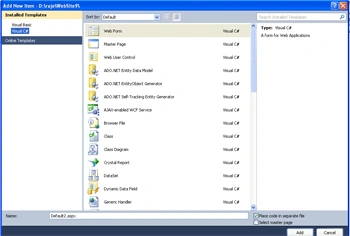
Step 2 : Go to Solution Explorer and right-click.
- Select Add->New Item.
- Select WebForm.
- Default.aspx page open.
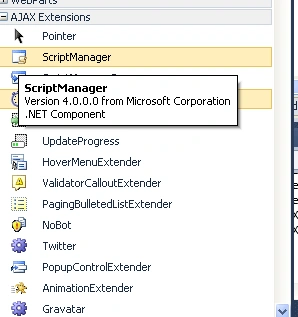
Step 3 : Now go to the Default.aspx page and drag a control from Toolbox.
- Drag ScriptManger, UpdatePanel, UpdateProgress,Button,Label
Step 4 : Now go to Default.aspx page and write the below code.
Code :
<title>
My ajax application </title>
</head>
<body
bgcolor="#ffcccc">
<form
id="form1"
runat="server">
<asp:ScriptManager
ID="ScriptManager1"
runat="server"
/>
<div
style="background-color:
#CCFFCC">
<br
/>
<br
/>
<br
/>
<asp:UpdatePanel
ID="UpdatePanel1"
runat="server">
<ContentTemplate><fieldset><legend
style="background-color:
#00FFFF">Panel with Random Names</legend><br
/>
<asp:Button
ID="Button1" runat="server"
Text="Generate Random
Names"
OnClick="Button1_Click"
BorderColor="#660066"
/>
<br
/>
<asp:UpdateProgress
ID="UpdateProgress1"
runat="server"
DisplayAfter="100"
DynamicLayout="true">
<ProgressTemplate><img
border="1"
src=
"media.gif" src
= "Water lilies.jpg"/></ProgressTemplate>
</asp:UpdateProgress>
<asp:Label
ID="lblNames" runat="server"
ForeColor="#FF0066"></asp:Label>
</fieldset></ContentTemplate>
</asp:UpdatePanel>
</fieldset></ContentTemplate>
</asp:UpdatePanel>
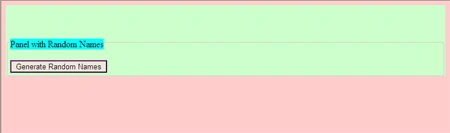
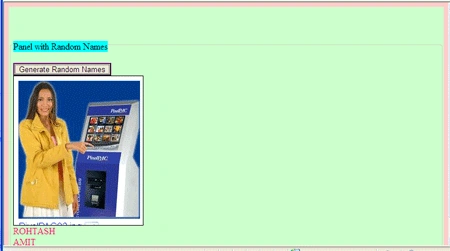
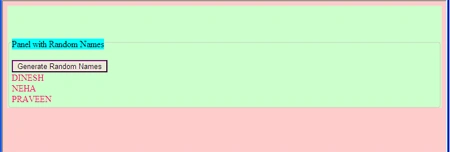
Step 5 : Go to Default.aspx page and click in
Design option.
Join the conversation! Your thoughts help the community grow.