

Background
Sometimes there is a need to get all the major cities of each country so most of the time its very difficult to manage such a type of huge database. To avoid this problem there is a free web service we can use to do it.
Let us see step-by-step how to do this.
Step 1: Locate Web Service
The following is the web service URL from which you can get the major cities by country name:
http://www.webservicex.net/globalweather.asmx?WSDL
Step 2: Create the web application
To use a Web Service at the client side we need to create a web application or another type of application such as Windows, console and so on but in this example we will create the web application.
Let us create the web application as:
- "Start" - "All Programs" - "Microsoft Visual Studio 2010".
- "File" - "New Web" - "C#" - "Empty Web Site " (to avoid adding a master page).
- Provide the Web Site name such as "GetcitiesByCountryUsingWebService" or another as you wish and specify the location.
- Then right-click on the Solution Explorer and select "Add New Item" - "Default.aspx" page.
- Then add one button, one label and a GridView to the page
The source of the preceding web site will look like as:
- <%@ Page Language="C#" AutoEventWireup="true" CodeFile="Default.aspx.cs" Inherits="_Default" %>
- <!DOCTYPE html PUBLIC "-//W3C//DTD XHTML 1.0 Transitional//EN" "http://www.w3.org/TR/xhtml1/DTD/xhtml1-transitional.dtd">
- <html xmlns="http://www.w3.org/1999/xhtml">
- <head runat="server">
- <title>article By vithal wadje</title>
- </head>
- <body style="background-color: #C0C0C0">
- <form id="form1" runat="server">
- <h2 style="color: #808000; font-size: x-large; font-weight: bolder;">
- Article by vithal wadje</h2>
- <br />
- <table style="margin-left: 30Px">
- <tr>
- <th>
- Enter Country
- </th>
- <td>
- <asp:TextBox ID="TextBox1" AutoPostBack="true" runat="server" OnTextChanged="TextBox1_TextChanged"></asp:TextBox>
- </td>
- </tr>
- <tr>
- <td>
- </td>
- <td>
- </td>
- </tr>
- <tr>
- <td>
- </td>
- <td>
- <asp:GridView ID="GridView1" runat="server" AllowPaging="True" OnPageIndexChanging="PageIndexChanging"
- CellPadding="3" GridLines="Vertical" BackColor="White" BorderColor="#999999"
- BorderStyle="None" BorderWidth="1px">
- <AlternatingRowStyle BackColor="#DCDCDC" />
- <FooterStyle BackColor="#CCCCCC" ForeColor="Black" />
- <HeaderStyle BackColor="#000084" Font-Bold="True" ForeColor="White" />
- <PagerStyle BackColor="#999999" ForeColor="Black" HorizontalAlign="Center" />
- <RowStyle BackColor="#EEEEEE" ForeColor="Black" />
- <SelectedRowStyle BackColor="#008A8C" Font-Bold="True" ForeColor="White" />
- <SortedAscendingCellStyle BackColor="#F1F1F1" />
- <SortedAscendingHeaderStyle BackColor="#0000A9" />
- <SortedDescendingCellStyle BackColor="#CAC9C9" />
- <SortedDescendingHeaderStyle BackColor="#000065" />
- </asp:GridView>
- </td>
- </tr>
- <tfoot>
- <tr>
- <td>
- </td>
- <td>
- <asp:Label ID="Label1" runat="server" Text="Label"></asp:Label>
- </td>
- </tr>
- </tfoot>
- </table>
- </form>
- </body>
- </html>

In the preceding screen if a valid country is entered then on the change event of the TextBox it will display all the major cities of the given country.
Step 3: Consume Web Service in the web application
Now the next step is to consume the GetCitiesByCountry web service in our web application. The following is the URL of the GetCitiesByCountry Web services.
http://www.webservicex.net/globalweather.asmx?WSDL
Adding a Web Service Reference to the ASP.NET Web Application
The most important task when consuming a Web Service in any application is to add the Web Service reference into the application. So how to add it? Let us see the procedure.
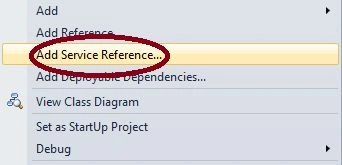
- Right-click on the ASP.NET Web Application and click on "Add Service Reference" as in the following:
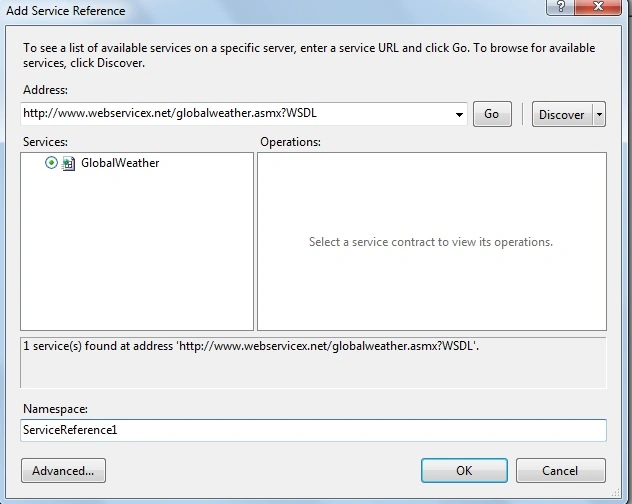
- After clicking on the Add Web Reference tab, it will show the following window. Now this is a very important step, when adding the web reference to the ASP.NET Web Application. Since you see the "URL" option in the following window, on that window we need to paste in or type the Web Service URL address.
Our GetCitiesByCountry Web service URL is http://www.webservicex.net/globalweather.asmx?WSDL now we will paste it into the following window and after pasting it click on the forward arrow that will discover the web service class that is in our Web Service.

Now open the Default.aspx Page code behind of our web application and create the object of the web service class as:
- using System;
- using System.Collections.Generic;
- using System.Linq;
- using System.Web;
- using System.Web.UI;
- using System.Web.UI.WebControls;
- using System.Data;
- using System.Xml;
- using System.Xml.Serialization;
- using System.Text;
- using System.Drawing;
- public partial class _Default : System.Web.UI.Page
- {
- DataSet ds;
- protected void Page_Load(object sender, EventArgs e)
- {
- }
- private string GetCitiesByCountry(string CountryName) //taking the input from User
- {
- //Creating the object of web service GlobalWeather class with the help of service Reference
- GetCitiesByCountryServiceRef.GlobalWeather obj = new GetCitiesByCountryServiceRef.GlobalWeather();
- return obj.GetCitiesByCountry(CountryName); //ing country name input to Service
- }
- protected void TextBox1_TextChanged(object sender, EventArgs e)
- {
- // calling GetCities() method on the change event of textbox
- GetCities();
- }
- private void GetCities()
- {
- //ensuring whether the country Name is not empty
- if (TextBox1.Text == "")
- {
- Label1.Text = "Please Enter Country Name";
- }
- else
- {
- //getting the service Response to string
- string Data = GetCitiesByCountry(TextBox1.Text);
- //converting the string Respsonse to XML
- XmlTextReader xtr = new XmlTextReader(new System.IO.StringReader(Data));
- ds = new DataSet();
- ds.ReadXml(xtr);
- if (ds.Tables.Count >=1 && ds.Tables[0].Rows.Count >= 1)
- {
- //Binding Gridview
- GridView1.DataSource = ds.Tables[0];
- GridView1.DataBind();
- Label1.Text = ds.Tables[0].Rows.Count.ToString() + " Records Found";
- }
- else
- {
- Label1.ForeColor = Color.Red;
- Label1.Text = "Please Check the Spell of Entered Country Name "+TextBox1.Text;
- }
- }
- }
- protected void PageIndexChanging(object sender, GridViewPageEventArgs e)
- {
- GridView1.PageIndex = e.NewPageIndex;
- GetCities();
- }
- }

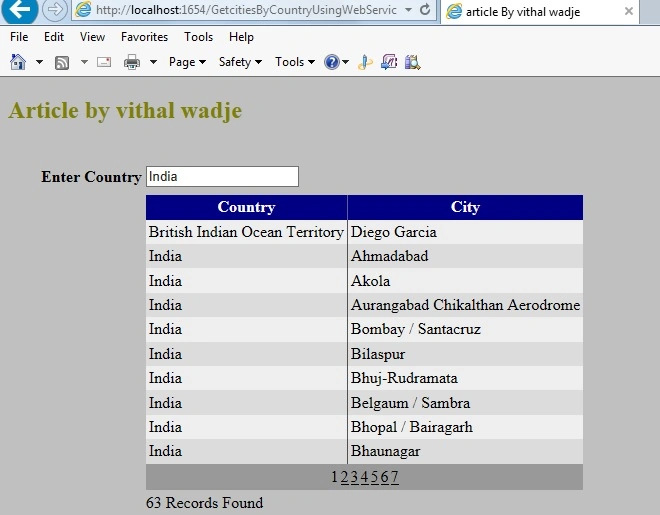
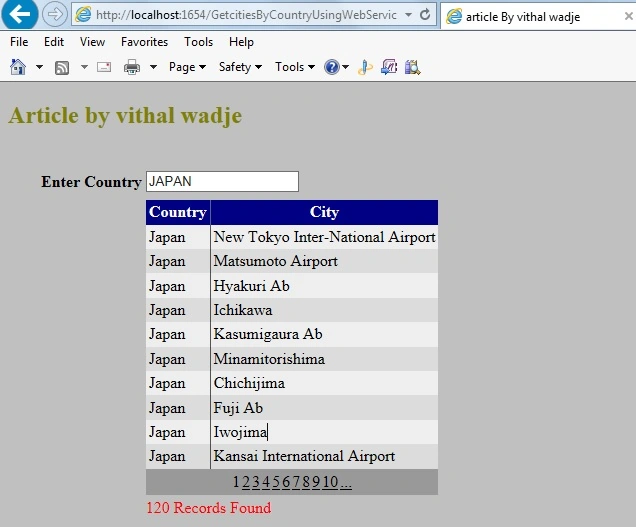
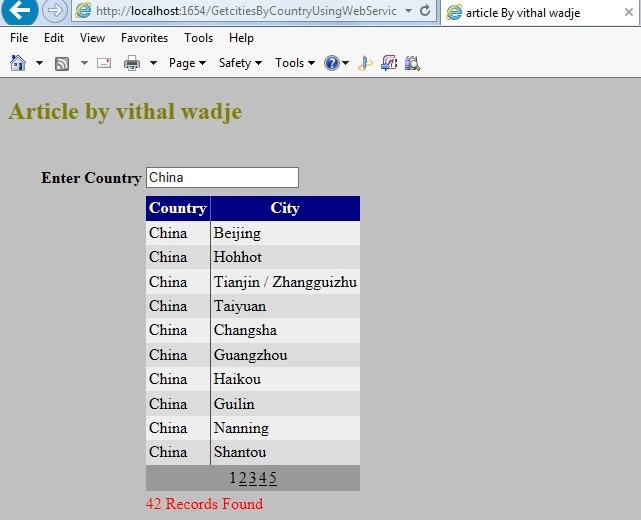
Similarly you can see the cities of any valid country name.
In the preceding examples, you saw how to get the major city names of any country without a database using a free web service.
Notes:
- For detailed code please download the Zip file attached above.
- Also refer to my previous article about creating a Web Service.
Summary
I hope that beginners as well as students understand how to get the major cities of any country using a free web service without any database. I hope its useful for all of you, if you have any suggestion regarding this article then please contact me. Student suggestions are also welcomed.
varsha desaiPosted Dec 26, 2019, 11:09 AM
Error while adding web service reference
Sagar Pandurang KapPosted Mar 5, 2019, 6:31 AM
Very helpful.Thanks
Vithal WadjePosted Dec 19, 2015, 8:52 AM
Thanks
Ham BagPosted Dec 19, 2015, 8:04 AM
Thank you
Vithal WadjePosted Apr 25, 2015, 9:50 PM
thanks
Gowtham RajamanickamPosted Apr 25, 2015, 6:30 AM
this is great
Gowtham RajamanickamPosted Apr 25, 2015, 6:30 AM
good
Vithal WadjePosted Apr 7, 2015, 1:04 PM
yes Sridhar A sir,you can use web service in any language
Vithal WadjePosted Apr 7, 2015, 1:03 PM
yes shaima shma
Sridhar APosted Apr 7, 2015, 9:10 AM
Can i use this service for java ?
shaima shmaPosted Jan 25, 2015, 2:53 PM
can i convert the data set in this code to json?
Vithal WadjePosted Sep 26, 2014, 1:58 PM
thanks
Vivek wadhwaPosted Sep 26, 2014, 1:22 PM
thanks for sharing
Vithal WadjePosted Sep 22, 2014, 12:52 PM
thanks
M SKPosted Sep 21, 2014, 10:47 AM
Nice article...
Vithal WadjePosted Sep 21, 2014, 1:18 AM
thanks
Saineshwar BageriPosted Sep 20, 2014, 11:57 PM
Nice article sir